> ## Documentation Index
> Fetch the complete documentation index at: https://docs.textql.com/llms.txt
> Use this file to discover all available pages before exploring further.
# Embedding TextQL
> Embed Ana into your application using API Keys
## Overview
TextQL can be embedded directly into your own applications, allowing your users to interact with Ana without leaving your platform. This is done using API Keys for authentication.
## Creating an API Key
### Step 1: Navigate to API Keys
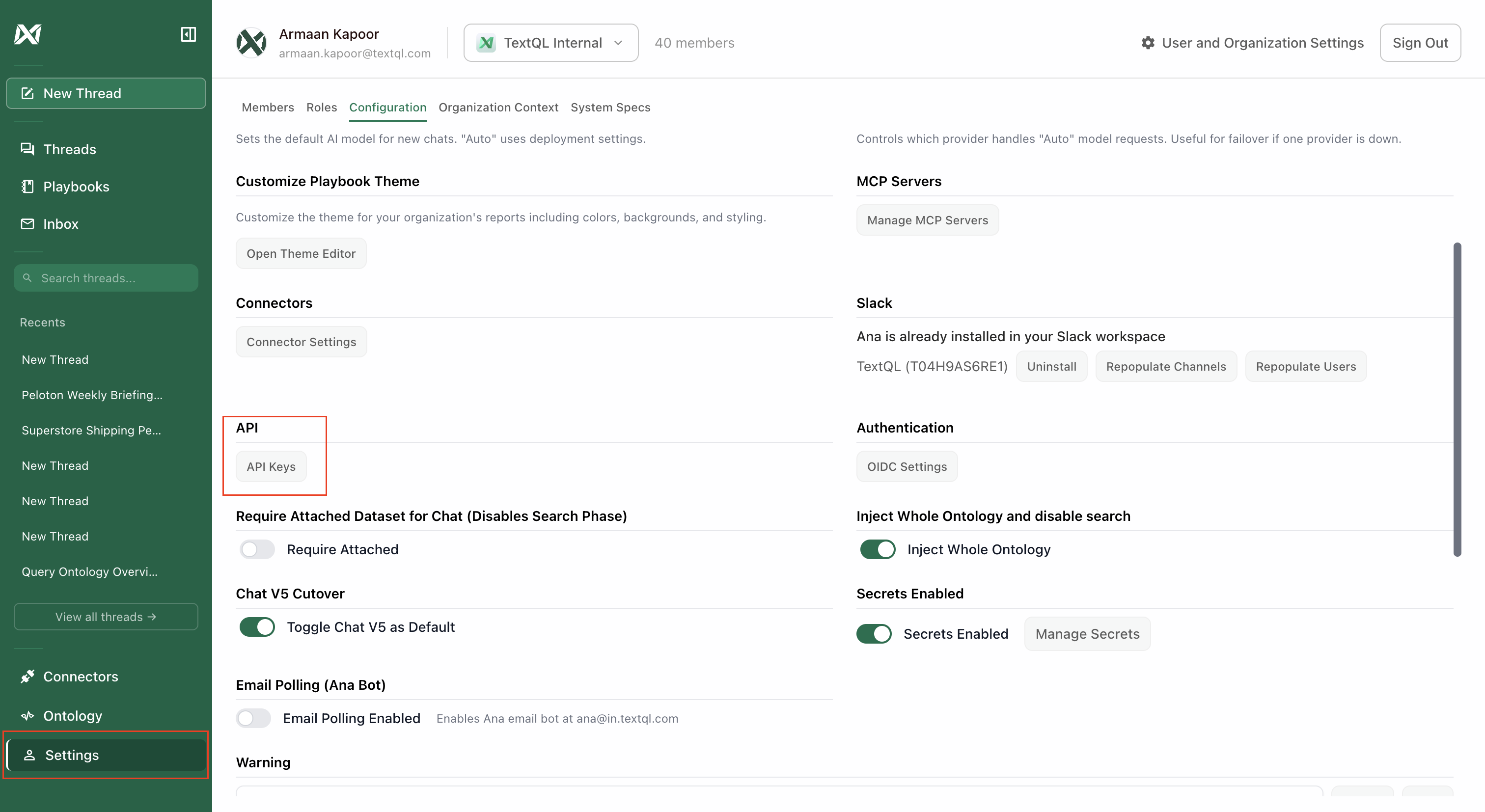
From the left sidebar, click on **Settings**. In the Configuration tab, locate the **API** section and click **API Keys**.
 ### Step 2: Create a New API Key
Click **Create New API Key** and give your API key a name. This API key will have the same permissions as the user creating it.
### Step 2: Create a New API Key
Click **Create New API Key** and give your API key a name. This API key will have the same permissions as the user creating it.
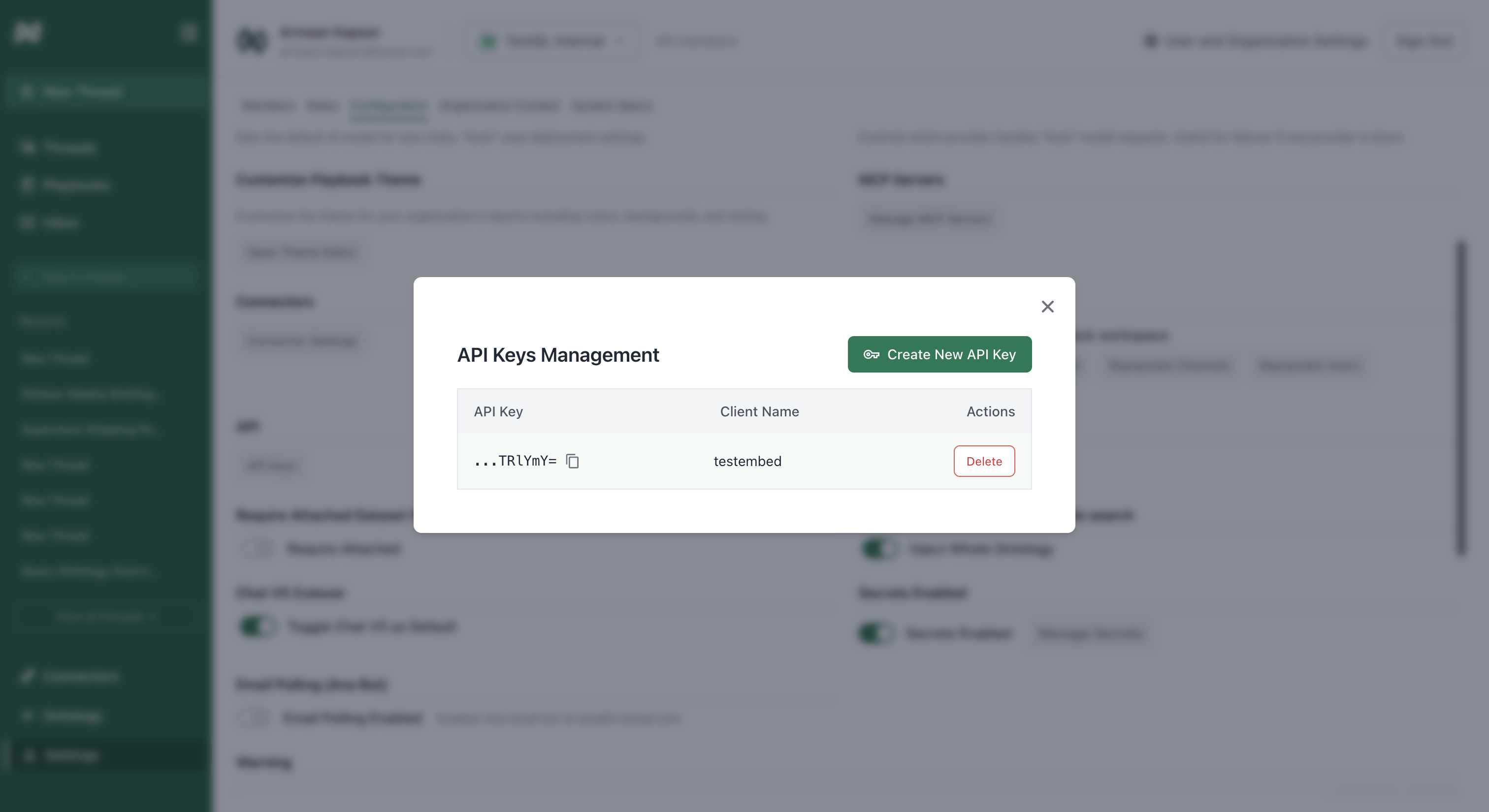 Copy your API key immediately after creation. For security reasons, you won't be able to see the full key again.
## Testing Your Embed
Once you have your API key, you can test the embed functionality:
1. Construct the embed URL by appending your API key to the base URL:
```
https://app.textql.com/embed?authKey=YOUR_API_KEY
```
2. Replace `YOUR_API_KEY` with the API key you just created.
3. Open this URL in a new browser tab or incognito window.
4. If successful, you should see a new chat with Ana. This confirms your API key is working correctly.
## Embedding in Your Application
After testing, you can embed TextQL in your application using an iframe:
```html theme={null}
```
The authenticated user will have the same data access and permissions as the user who created the API key.
## Embedding in Tableau
You can embed TextQL directly into Tableau dashboards using the Web Page object.
### Step 1: Create a New Workbook
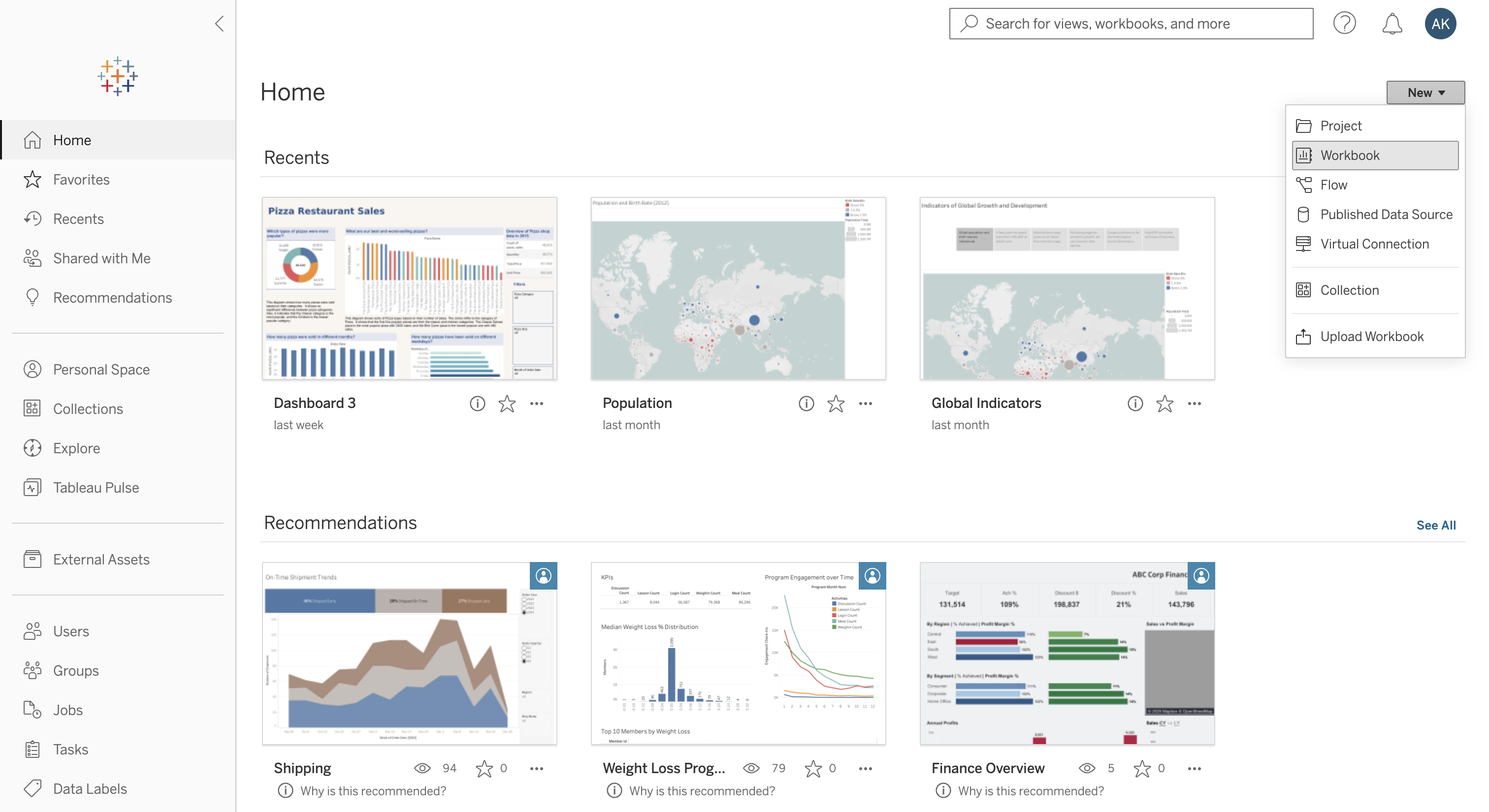
In Tableau, click **New** and select **Workbook** to create a new workbook.
Copy your API key immediately after creation. For security reasons, you won't be able to see the full key again.
## Testing Your Embed
Once you have your API key, you can test the embed functionality:
1. Construct the embed URL by appending your API key to the base URL:
```
https://app.textql.com/embed?authKey=YOUR_API_KEY
```
2. Replace `YOUR_API_KEY` with the API key you just created.
3. Open this URL in a new browser tab or incognito window.
4. If successful, you should see a new chat with Ana. This confirms your API key is working correctly.
## Embedding in Your Application
After testing, you can embed TextQL in your application using an iframe:
```html theme={null}
```
The authenticated user will have the same data access and permissions as the user who created the API key.
## Embedding in Tableau
You can embed TextQL directly into Tableau dashboards using the Web Page object.
### Step 1: Create a New Workbook
In Tableau, click **New** and select **Workbook** to create a new workbook.
 ### Step 2: Create a Dashboard
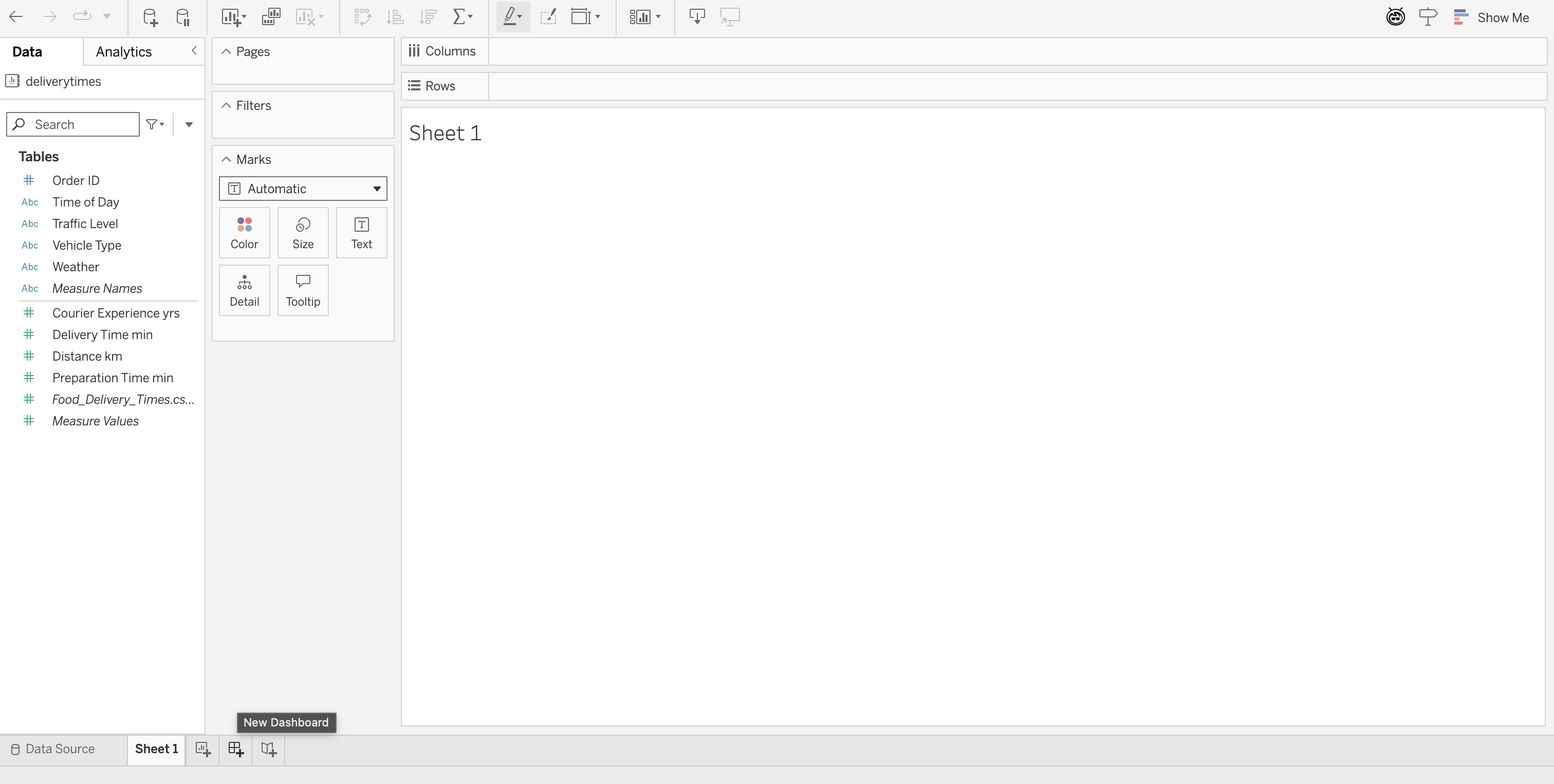
Click **New Dashboard** at the bottom of the screen to add a dashboard to your workbook.
### Step 2: Create a Dashboard
Click **New Dashboard** at the bottom of the screen to add a dashboard to your workbook.
 ### Step 3: Add a Web Page Object
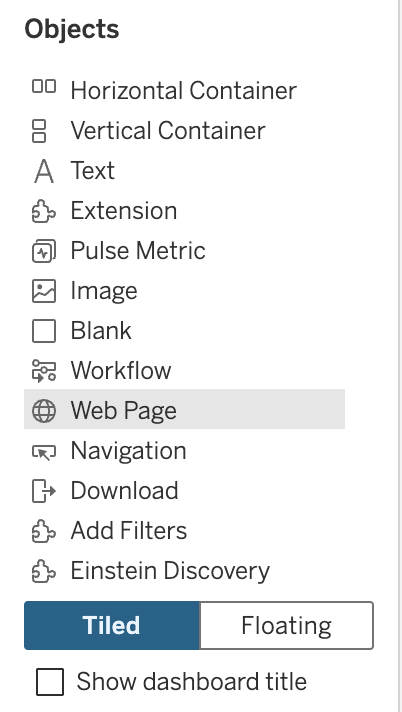
From the **Objects** panel on the left, drag the **Web Page** object onto your dashboard.
### Step 3: Add a Web Page Object
From the **Objects** panel on the left, drag the **Web Page** object onto your dashboard.
 ### Step 4: Enter the Embed URL
In the **Edit URL** dialog, paste your embed URL with your API key:
```
https://app.textql.com/embed?authKey=YOUR_API_KEY
```
### Step 4: Enter the Embed URL
In the **Edit URL** dialog, paste your embed URL with your API key:
```
https://app.textql.com/embed?authKey=YOUR_API_KEY
```
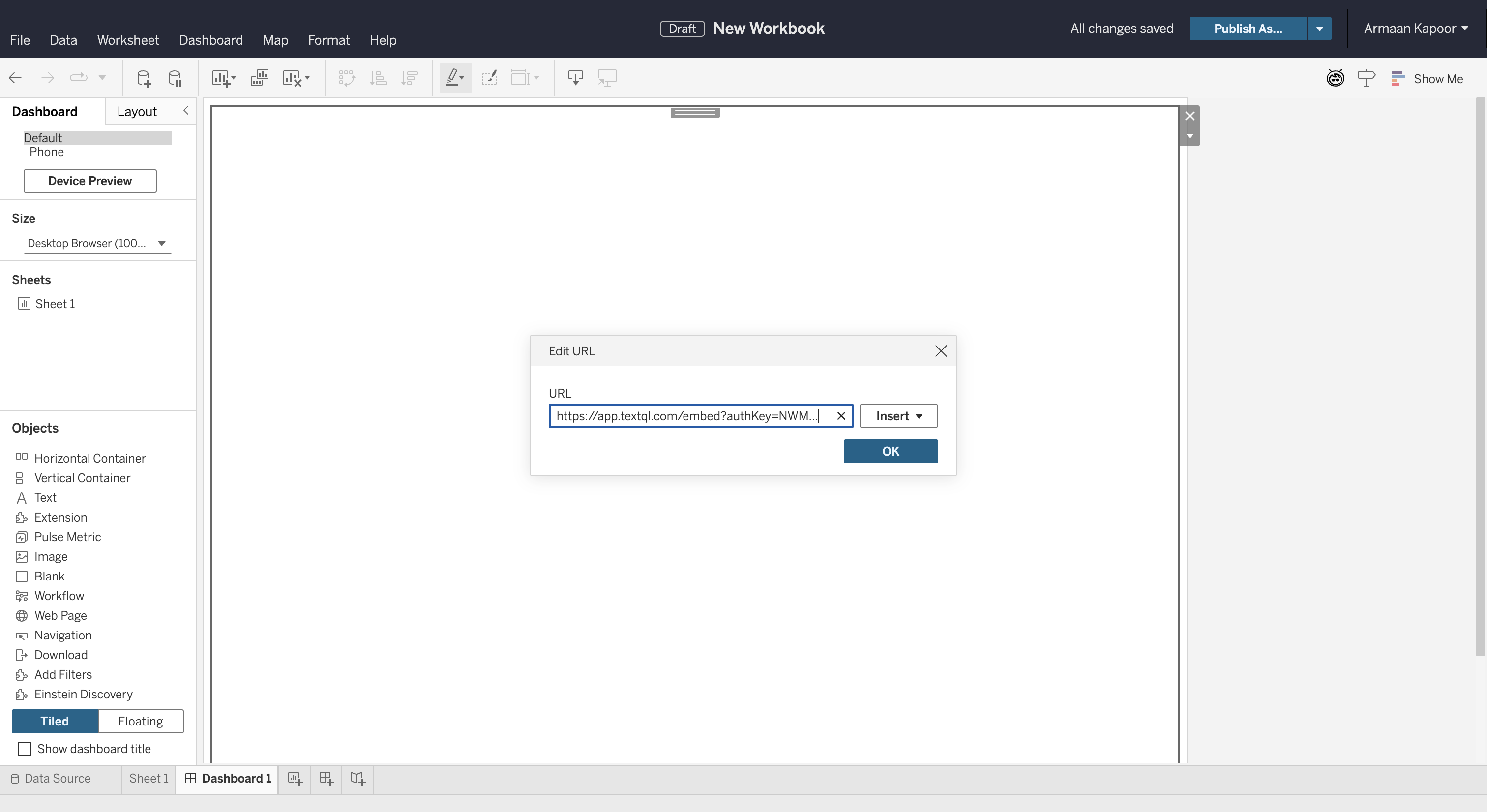 Click **OK** to embed TextQL into your dashboard.
### Step 5: Chat with Ana in Tableau
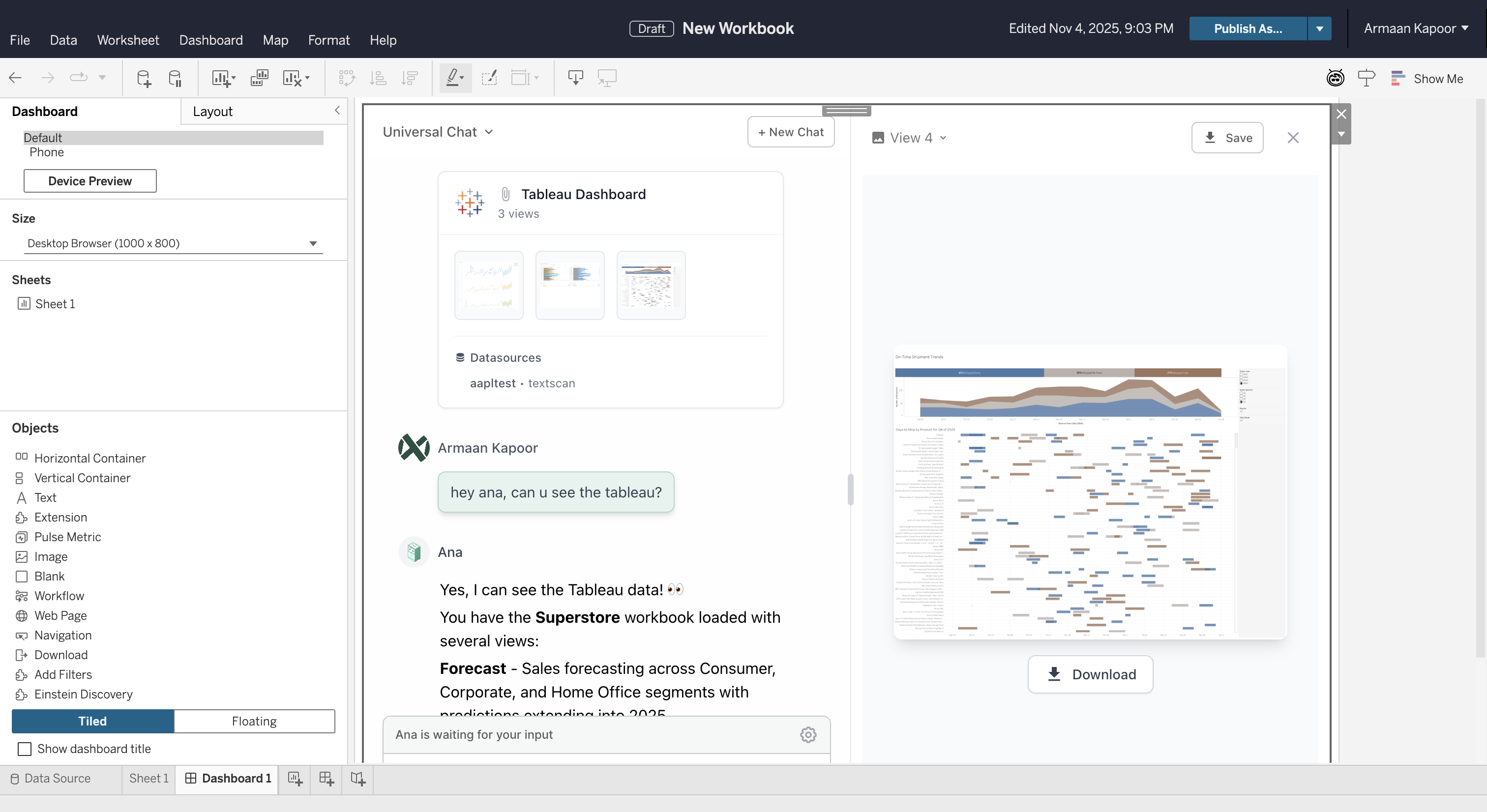
Once embedded, you can interact with Ana directly within your Tableau dashboard. Ask questions, analyze data, and get insights without leaving Tableau.
Click **OK** to embed TextQL into your dashboard.
### Step 5: Chat with Ana in Tableau
Once embedded, you can interact with Ana directly within your Tableau dashboard. Ask questions, analyze data, and get insights without leaving Tableau.
 ## One-Click Tableau Collection Chats
TextQL supports direct links to start chats with specific Tableau collections already attached. This is perfect for embedding in Tableau dashboards or sharing with team members.
### Generating Embed Links (Admin Only)
Admins can generate secure embed links directly from the Tableau Collections modal:
1. Open any chat and click **Attach Tableau**
2. Hover over a collection card
3. Click the **link icon** in the top-left corner
4. The embed URL is automatically copied to your clipboard
The generated link uses your organization's dedicated **Embed User** credentials, which have minimal permissions (read-only access to Tableau collections). This keeps your personal API keys secure.
### URL Format
```
https://app.textql.com/tableau?authKey=EMBED_USER_KEY&tableauDatasetId=COLLECTION_ID&message=OPTIONAL_MESSAGE
```
### Parameters
* `authKey` (required): Your organization's Embed User API key (auto-generated)
* `tableauDatasetId` (required): The ID of the Tableau collection to attach
* `message` (optional): An initial message to auto-send when the chat opens
### Example
```
https://app.textql.com/tableau?authKey=NWM3Mjc2ZDU...&tableauDatasetId=019a7096-5059-7768-81a8-36a12e7640d5&message=Summarize%20key%20insights
```
This will:
1. Authenticate using the Embed User key
2. Open a new chat
3. Automatically attach the specified Tableau collection
4. Optionally send an initial message
### Embedding in Tableau Dashboards
You can embed these direct links in Tableau using the Web Page object:
```html theme={null}
```
### Security Notes
* Embed links use a dedicated service account (Embed User) with restricted permissions
* The Embed User only has read access to Tableau collections
* Links do not expose personal admin credentials
* Rotate the Embed User's API key from Settings → API Keys if compromised
## One-Click Tableau Collection Chats
TextQL supports direct links to start chats with specific Tableau collections already attached. This is perfect for embedding in Tableau dashboards or sharing with team members.
### Generating Embed Links (Admin Only)
Admins can generate secure embed links directly from the Tableau Collections modal:
1. Open any chat and click **Attach Tableau**
2. Hover over a collection card
3. Click the **link icon** in the top-left corner
4. The embed URL is automatically copied to your clipboard
The generated link uses your organization's dedicated **Embed User** credentials, which have minimal permissions (read-only access to Tableau collections). This keeps your personal API keys secure.
### URL Format
```
https://app.textql.com/tableau?authKey=EMBED_USER_KEY&tableauDatasetId=COLLECTION_ID&message=OPTIONAL_MESSAGE
```
### Parameters
* `authKey` (required): Your organization's Embed User API key (auto-generated)
* `tableauDatasetId` (required): The ID of the Tableau collection to attach
* `message` (optional): An initial message to auto-send when the chat opens
### Example
```
https://app.textql.com/tableau?authKey=NWM3Mjc2ZDU...&tableauDatasetId=019a7096-5059-7768-81a8-36a12e7640d5&message=Summarize%20key%20insights
```
This will:
1. Authenticate using the Embed User key
2. Open a new chat
3. Automatically attach the specified Tableau collection
4. Optionally send an initial message
### Embedding in Tableau Dashboards
You can embed these direct links in Tableau using the Web Page object:
```html theme={null}
```
### Security Notes
* Embed links use a dedicated service account (Embed User) with restricted permissions
* The Embed User only has read access to Tableau collections
* Links do not expose personal admin credentials
* Rotate the Embed User's API key from Settings → API Keys if compromised