> ## Documentation Index
> Fetch the complete documentation index at: https://docs.textql.com/llms.txt
> Use this file to discover all available pages before exploring further.
# Using the Context Editor
> Learn how to create, edit, and manage context documents using TextQL's product-native context editor
## Overview
TextQL's context editor is your central hub for creating and managing all context documents. It provides a user-friendly interface for writing context, uploading files, and organizing your organization's knowledge base.
**Access the Context Editor:** Navigate to the Context page from the left sidebar in your TextQL workspace.
## The Context Library
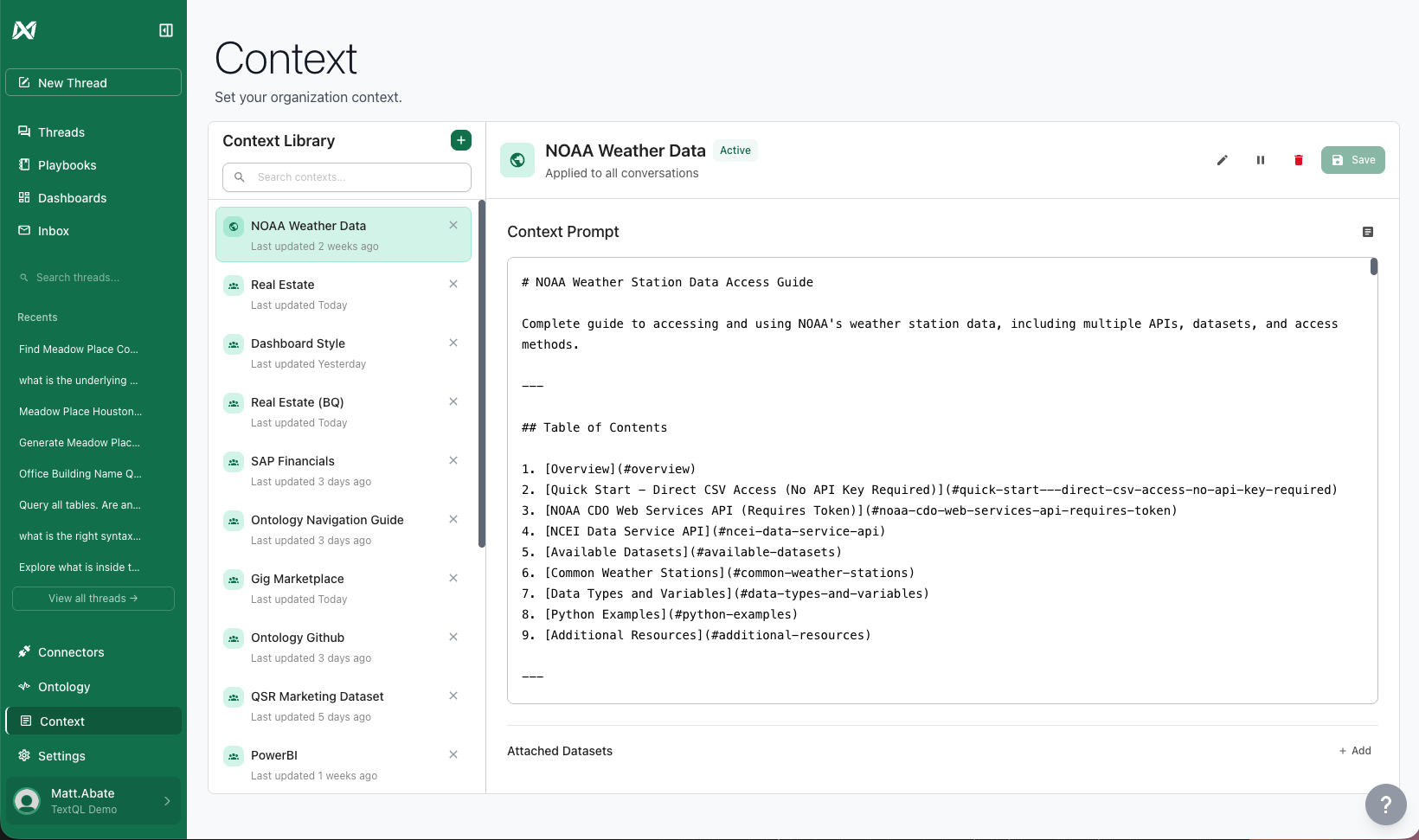
The Context Library is where all your context documents live. It provides a searchable, organized view of all context across your organization.
 ## Creating a New Context Document
Click the **+ (plus)** button in the Context Library to open the create context dialog.
## Creating a New Context Document
Click the **+ (plus)** button in the Context Library to open the create context dialog.
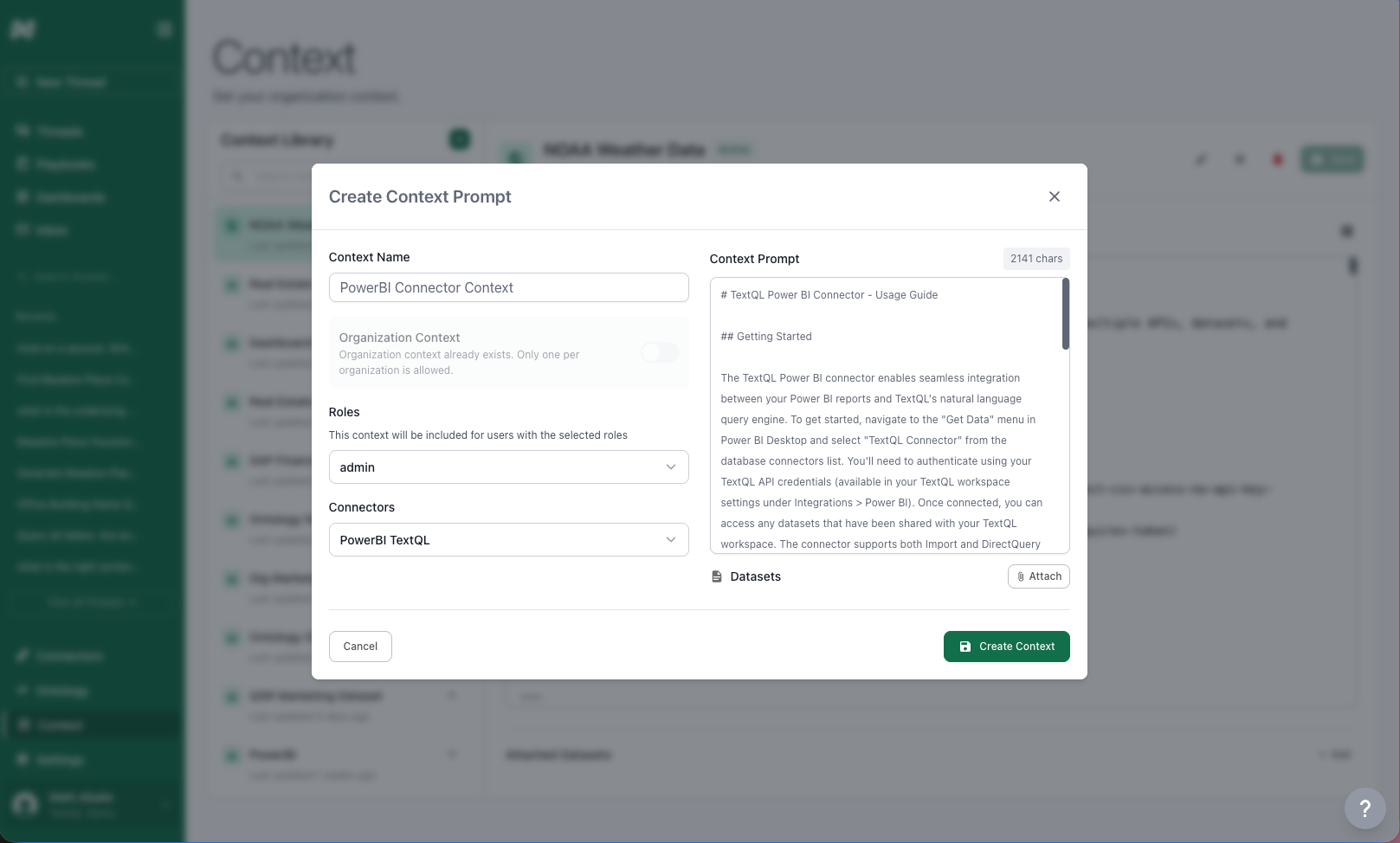 Give your context document a descriptive name that clearly indicates its purpose, like "LinkedIn Analytics Warehouse" or "Sales Team Best Practices".
Choose where this context should apply:
**Organization Context**
* Applies to everyone in your organization
* Only one organization context document is allowed
* If one already exists, this option will be disabled
**Roles**
* Select one or more roles that should see this context
* Users must have the selected role to access this context
**Connectors**
* Select one or more data connectors
* Context applies when users are actively chatting with the selected connector
**Role + Connector Combination**
* Select both roles AND connectors
* Context applies only when a user with the specified role queries the specified connector
* This is the most targeted form of context scoping
**Scoping Strategy:** Start broad (organization-level) and add specific context as needed. Learn more in [Context Scoping](/core/guides/context/context-scoping).
Enter your context content in the plain text editor. No special formatting or structure is required — just write naturally. You can also ask Ana to write context for you (see [Best Practices](#best-practices) below).
Click the **+ Attach** button under "Datasets" to link relevant data files to this context.
Attached datasets help Ana understand the structure and content of your data when this context is active.
Click **Create Context** to save your new context document. It becomes immediately available to users based on your scoping settings.
## Uploading Files
The context editor supports uploading any file type. Here are some common examples:
PDFs, Microsoft Word, markdown, or any text-based documentation.
PowerPoint presentations, Keynote files, or slide decks saved as PDF.
CSVs, Excel spreadsheets, Parquet files, Oracle Primavera P6 exports, and more.
Any other file type your team works with — just upload it.
### How to Upload Files
1. Click the **Upload** or **Attach** button in the context editor
2. Select your file from your computer
3. Wait for the upload to complete
4. The file content is automatically processed and incorporated into the context
## Editing Existing Context
To edit a context document:
1. Find the document in the Context Library
2. Click the **Edit** icon (pencil) next to the document name
3. Make your changes in the editor
4. Click **Save** to update the context
**Remember to Save:** After making changes, click **Save** to apply them. Saved changes apply to all new chats immediately. Existing chats may need to be refreshed.
## Ana-Proposed Context Edits
Ana can read and propose changes to your shared context library directly from a chat. Instead of applying edits immediately, Ana uses a **review-before-apply** workflow so you stay in control of what gets saved.
### How it works
When you ask Ana to update or create a context document, she reads and writes files in a sandboxed copy of your library. Nothing is changed in the shared library yet.
Ana calls `generate_patch` to produce a unified diff of all her edits and displays it in the chat as a fenced code block. You can read exactly what will change before anything is applied.
The system renders a confirmation prompt — **Apply these changes?** or **Discard?** — directly in the chat. You do not need to copy anything or navigate away.
* **Apply**: the patch is uploaded and applied to the shared library immediately.
* **Discard**: the proposed changes are thrown away and the library is unchanged.
**Review the diff carefully.** Context that is wrong is often worse than no context at all — Ana will confidently apply an incorrect rule to every future conversation. Take a moment to read the proposed changes before confirming.
### Triggering a context edit
You can ask Ana to update the context library in natural language:
* *"Add a note to the context library that we always exclude test accounts from revenue calculations."*
* *"Update the Sales Team context to reflect the new quota structure."*
* *"Create a new context document for the Finance team with our fiscal calendar."*
Ana will make the edits, show you the diff, and wait for your confirmation before anything is saved.
## Managing Context Documents
Click on any context document in the library to view its full content, scope, attached datasets, and status. From there you can edit, pause, or delete the document. Pausing a context document temporarily disables it without deleting it — useful for testing or temporarily removing context without losing your work.
## Best Practices
The most effective way to create context is to have Ana write it for you. After a successful chat where Ana performed an action the way you wanted, ask her to turn those instructions into a context document. We've found that Ana follows instructions best when she wrote them herself based on a real, successful interaction.
Ana will show you a diff of the proposed changes and ask for your confirmation before saving anything to the shared library.
Each context document should have a clear, single purpose. Don't try to cram everything into one document.
**Good:** "Sales Team Terminology"
**Bad:** "Everything About Our Company"
Name context documents so anyone in your organization can understand their purpose at a glance.
Context should evolve with your organization. Review and update context documents quarterly or when business processes change.
After creating context, test it by chatting with Ana to ensure she's interpreting it correctly.
## What's Next?
Learn how to apply context at different levels and understand scoping rules
Manage context documents through version-controlled GitHub repositories
Give your context document a descriptive name that clearly indicates its purpose, like "LinkedIn Analytics Warehouse" or "Sales Team Best Practices".
Choose where this context should apply:
**Organization Context**
* Applies to everyone in your organization
* Only one organization context document is allowed
* If one already exists, this option will be disabled
**Roles**
* Select one or more roles that should see this context
* Users must have the selected role to access this context
**Connectors**
* Select one or more data connectors
* Context applies when users are actively chatting with the selected connector
**Role + Connector Combination**
* Select both roles AND connectors
* Context applies only when a user with the specified role queries the specified connector
* This is the most targeted form of context scoping
**Scoping Strategy:** Start broad (organization-level) and add specific context as needed. Learn more in [Context Scoping](/core/guides/context/context-scoping).
Enter your context content in the plain text editor. No special formatting or structure is required — just write naturally. You can also ask Ana to write context for you (see [Best Practices](#best-practices) below).
Click the **+ Attach** button under "Datasets" to link relevant data files to this context.
Attached datasets help Ana understand the structure and content of your data when this context is active.
Click **Create Context** to save your new context document. It becomes immediately available to users based on your scoping settings.
## Uploading Files
The context editor supports uploading any file type. Here are some common examples:
PDFs, Microsoft Word, markdown, or any text-based documentation.
PowerPoint presentations, Keynote files, or slide decks saved as PDF.
CSVs, Excel spreadsheets, Parquet files, Oracle Primavera P6 exports, and more.
Any other file type your team works with — just upload it.
### How to Upload Files
1. Click the **Upload** or **Attach** button in the context editor
2. Select your file from your computer
3. Wait for the upload to complete
4. The file content is automatically processed and incorporated into the context
## Editing Existing Context
To edit a context document:
1. Find the document in the Context Library
2. Click the **Edit** icon (pencil) next to the document name
3. Make your changes in the editor
4. Click **Save** to update the context
**Remember to Save:** After making changes, click **Save** to apply them. Saved changes apply to all new chats immediately. Existing chats may need to be refreshed.
## Ana-Proposed Context Edits
Ana can read and propose changes to your shared context library directly from a chat. Instead of applying edits immediately, Ana uses a **review-before-apply** workflow so you stay in control of what gets saved.
### How it works
When you ask Ana to update or create a context document, she reads and writes files in a sandboxed copy of your library. Nothing is changed in the shared library yet.
Ana calls `generate_patch` to produce a unified diff of all her edits and displays it in the chat as a fenced code block. You can read exactly what will change before anything is applied.
The system renders a confirmation prompt — **Apply these changes?** or **Discard?** — directly in the chat. You do not need to copy anything or navigate away.
* **Apply**: the patch is uploaded and applied to the shared library immediately.
* **Discard**: the proposed changes are thrown away and the library is unchanged.
**Review the diff carefully.** Context that is wrong is often worse than no context at all — Ana will confidently apply an incorrect rule to every future conversation. Take a moment to read the proposed changes before confirming.
### Triggering a context edit
You can ask Ana to update the context library in natural language:
* *"Add a note to the context library that we always exclude test accounts from revenue calculations."*
* *"Update the Sales Team context to reflect the new quota structure."*
* *"Create a new context document for the Finance team with our fiscal calendar."*
Ana will make the edits, show you the diff, and wait for your confirmation before anything is saved.
## Managing Context Documents
Click on any context document in the library to view its full content, scope, attached datasets, and status. From there you can edit, pause, or delete the document. Pausing a context document temporarily disables it without deleting it — useful for testing or temporarily removing context without losing your work.
## Best Practices
The most effective way to create context is to have Ana write it for you. After a successful chat where Ana performed an action the way you wanted, ask her to turn those instructions into a context document. We've found that Ana follows instructions best when she wrote them herself based on a real, successful interaction.
Ana will show you a diff of the proposed changes and ask for your confirmation before saving anything to the shared library.
Each context document should have a clear, single purpose. Don't try to cram everything into one document.
**Good:** "Sales Team Terminology"
**Bad:** "Everything About Our Company"
Name context documents so anyone in your organization can understand their purpose at a glance.
Context should evolve with your organization. Review and update context documents quarterly or when business processes change.
After creating context, test it by chatting with Ana to ensure she's interpreting it correctly.
## What's Next?
Learn how to apply context at different levels and understand scoping rules
Manage context documents through version-controlled GitHub repositories