> ## Documentation Index
> Fetch the complete documentation index at: https://docs.textql.com/llms.txt
> Use this file to discover all available pages before exploring further.
# Context Scoping
> Understand how to apply context at different levels: organization, role, and connector
## Understanding Context Scopes
Context scoping determines **who** sees your context and **when** they see it. TextQL offers flexible scoping options that let you provide the right context to the right people at the right time.
**Key Concept:** Context can be scoped to your entire organization, specific roles, specific connectors, or combinations of roles and connectors.
## The Three Scoping Dimensions
Context in TextQL operates across three dimensions:
Context that applies to everyone in your organization, regardless of role or connector.
Context that applies to users with specific assigned roles.
Context that applies when querying specific data sources.
## Organization-Level Context
Organization context is the broadest scope and applies to **every user** in your organization across **all connectors**.
### When to Use Organization Context
Use organization-level context for:
* Company-wide business rules and policies
* Universal terminology and definitions
* General data interpretation guidelines
* Organization-wide best practices
### Example Organization Context
```markdown theme={null}
# Acme Corp Business Context
## Fiscal Calendar
- Our fiscal year runs from July 1 to June 30
- Q1: July-September, Q2: October-December, Q3: January-March, Q4: April-June
## Currency Standards
- All financial reporting should be in USD
- Use 2 decimal places for currency values
## Key Business Rules
- Revenue is recognized at time of shipment, not order
- Refunds are excluded from revenue calculations
```
### Important Limitation
**Only One Organization Context Allowed**
You can only have **one** organization-level context document. If you need to add more organization-wide information, edit your existing organization context rather than creating a new one.
## Role-Based Context
Role-based context applies to users who have been assigned specific roles in your organization.
### When to Use Role-Based Context
Use role-based context for:
* Department-specific terminology or processes
* Persona-based customization of Ana's behavior
* Skill-level appropriate guidance
* Team-specific best practices
### Example Role Contexts
**For "Sales Team" Role:**
```markdown theme={null}
# Sales Team Context
## CRM Fields
- **Stage**: Current position in sales pipeline
- **Close Date**: Expected contract signature date
- **ARR**: Annual Recurring Revenue
## Reporting Preferences
- Focus on pipeline velocity and conversion rates
- Always include win/loss analysis
```
### How Roles Work
Roles in TextQL are part of the RBAC (Role-Based Access Control) system. They:
* Control access to features like dashboards and playbooks
* Enable custom context for different user personas
* Are assigned by administrators
**Multiple Roles:** Users can have multiple roles, and they'll receive context from all assigned roles.
## Connector-Based Context
Connector-based context applies when users are actively querying a specific data source.
### When to Use Connector-Based Context
Use connector-based context for:
* Database-specific schema information
* Data source-specific business logic
* Connector-specific query patterns
* Data quality notes or caveats
### Example Connector Context
**For "Salesforce Production" Connector:**
```markdown theme={null}
# Salesforce Production Database Context
## Schema Information
- **Account**: Customer organizations
- **Opportunity**: Sales deals in pipeline
- **Contact**: Individual people at customer organizations
## Important Notes
- Closed-Won opportunities have Stage = "Closed Won"
- Amount field is in USD
- Data is synced hourly at :15 past the hour
## Common Queries
- Pipeline value: SUM(Amount) WHERE Stage != "Closed Lost"
- Win rate: COUNT(Closed Won) / COUNT(All Opportunities)
```
### Best Practices for Connector Context
Don't document your entire schema in context. Focus on:
* Non-obvious table relationships
* Important business logic in the data
* Common query patterns
Ana can discover schema through other means, so context should add business understanding, not just technical details.
Use connector context to highlight:
* Known data quality issues
* Unusual field meanings
* Important filters or exclusions
## Role + Connector Intersection
The most targeted form of context applies only when a user with a **specific role** queries a **specific connector**.
### When to Use Intersection Context
Use role + connector context for:
* Highly specialized use cases
* Role-specific views of particular data sources
* Advanced users who need detailed technical context
* Compliance or security-sensitive scenarios
### Example Intersection Context
**For "Finance Team" Role + "Salesforce Production" Connector:**
```markdown theme={null}
# Finance Team - Salesforce Context
## Revenue Recognition Rules
When analyzing Salesforce data for financial reporting:
- Only include opportunities with Stage = "Closed Won"
- Use CloseDate for revenue period assignment
- Exclude opportunities with Type = "Internal"
## Required Filters
Always apply these filters for financial reports:
- IsDeleted = false
- Amount > 0
- CloseDate within reporting period
```
### How Intersection Works
For intersection context to apply, **both conditions must be true**:
1. The user must have the specified role assigned
2. The user must be actively chatting with the specified connector
If either condition is false, the context won't be applied.
## Context Priority and Layering
When multiple context documents apply to a user, Ana considers all of them. Context is layered from broadest to most specific:
Always applies to every user. This is the foundation layer that everyone sees.
Applies if the user has the specified role assigned. Adds role-specific information on top of organization context.
Applies when the user is actively querying the specified data source. Adds data-specific information.
Applies only when both the role and connector match. The most targeted layer for highly specialized needs.
**All Applicable Context is Used:** Ana doesn't choose one context over another. She considers all context that applies to the current user and situation.
## Scoping Strategy
The best way to build context for a new connector is to let Ana learn it with you:
Set up a new connector in TextQL and start a chat with it.
Ask Ana questions about the data. She'll explore the schema, run SQL queries, and sometimes fail as she learns the shape of your data — that's expected.
Once you've had a successful chat, ask Ana: "Can you write me a context document as markdown that I can copy back to your context library?" She'll produce a well-structured context document based on what she learned.
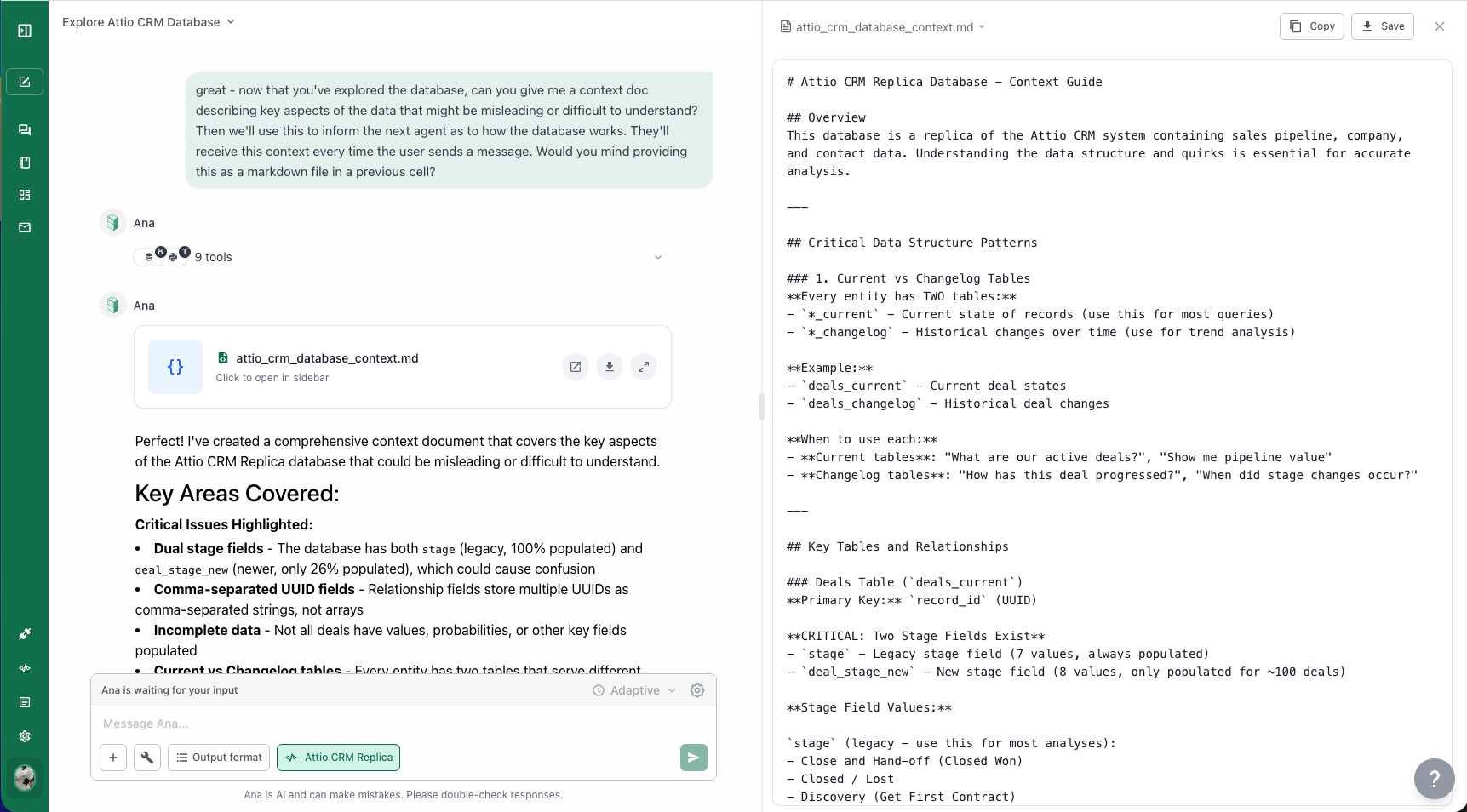 Open the Context Library, create a new context document scoped to that connector, and paste in what Ana wrote. Currently, context must be manually copied from the chat — there is no automatic context updating from conversations, except through the [GitHub integration](/core/guides/context/github-integration).
## What's Next?
Return to the editor guide to create your scoped context documents
Manage context documents through version-controlled GitHub repositories
Open the Context Library, create a new context document scoped to that connector, and paste in what Ana wrote. Currently, context must be manually copied from the chat — there is no automatic context updating from conversations, except through the [GitHub integration](/core/guides/context/github-integration).
## What's Next?
Return to the editor guide to create your scoped context documents
Manage context documents through version-controlled GitHub repositories