> ## Documentation Index
> Fetch the complete documentation index at: https://docs.textql.com/llms.txt
> Use this file to discover all available pages before exploring further.
# Object Links
> Connect objects with relationships in your ontology
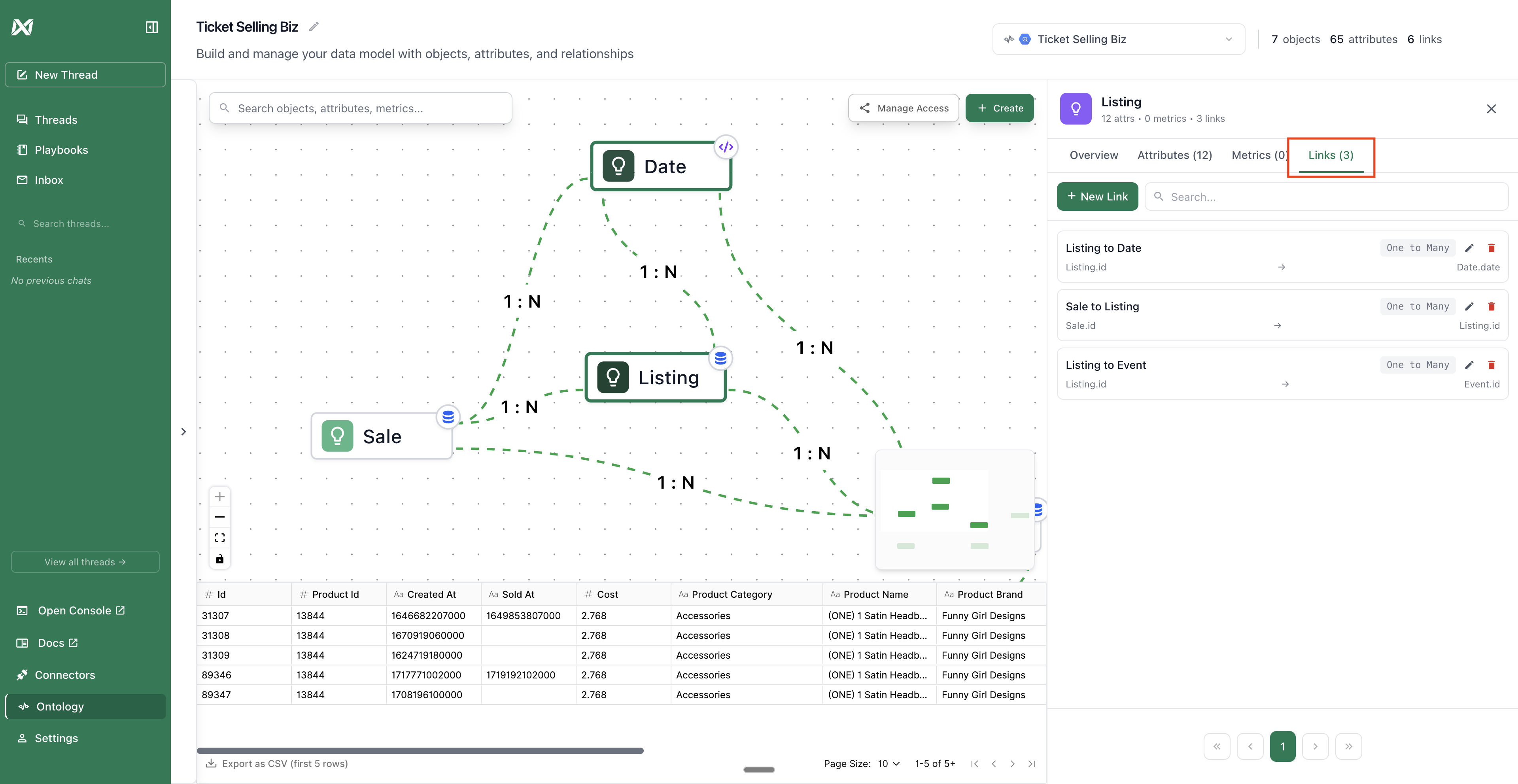
Links define how objects in your ontology relate to each other. They represent the join paths between tables and enable multi-table queries.
 ## Link Types
Links can be:
* **One to one**: Each record in Object A relates to exactly one record in Object B
* **One to Many / Many to One**: Each record in one object relates to multiple records in the other
* **Many to Many**: Records in both objects can relate to multiple records in the other
## Creating Links
There are two ways to create links:
### Method 1: Drag Between Objects
1. Click on the source object on the canvas
2. Drag from the edge of the source object to the target object
3. Configure the link properties (join keys are optional)
4. Click "Save"
### Method 2: New Link Button
Use the "New Link" button in the toolbar to create a link without dragging.
When creating or editing a link, you'll fill out a form with the following fields:
* **Title**: Optional display name for the link (auto-generated if not provided)
* **Description**: Help users understand the relationship
* **Link Source**: Select the source object
* **Link Destination**: Select the destination object
* **Source Key**: Select the attribute from the source object to join on (optional)
* **Destination Key**: Select the attribute from the destination object to join on (optional)
* **Relation Type**: Choose the cardinality (One to One, One to Many, Many to One, Many to Many)
* **Join Formula**: Optional custom join formula using `[SOURCE_TABLE]` and `[DESTINATION_TABLE]` template parameters
**Join Keys Not Required**: You don't need to set join keys when creating links. You can:
1. Create the link first
2. Set join keys later when you know which attributes to use
3. Use a custom join formula for complex relationships
## Editing Links
## Link Types
Links can be:
* **One to one**: Each record in Object A relates to exactly one record in Object B
* **One to Many / Many to One**: Each record in one object relates to multiple records in the other
* **Many to Many**: Records in both objects can relate to multiple records in the other
## Creating Links
There are two ways to create links:
### Method 1: Drag Between Objects
1. Click on the source object on the canvas
2. Drag from the edge of the source object to the target object
3. Configure the link properties (join keys are optional)
4. Click "Save"
### Method 2: New Link Button
Use the "New Link" button in the toolbar to create a link without dragging.
When creating or editing a link, you'll fill out a form with the following fields:
* **Title**: Optional display name for the link (auto-generated if not provided)
* **Description**: Help users understand the relationship
* **Link Source**: Select the source object
* **Link Destination**: Select the destination object
* **Source Key**: Select the attribute from the source object to join on (optional)
* **Destination Key**: Select the attribute from the destination object to join on (optional)
* **Relation Type**: Choose the cardinality (One to One, One to Many, Many to One, Many to Many)
* **Join Formula**: Optional custom join formula using `[SOURCE_TABLE]` and `[DESTINATION_TABLE]` template parameters
**Join Keys Not Required**: You don't need to set join keys when creating links. You can:
1. Create the link first
2. Set join keys later when you know which attributes to use
3. Use a custom join formula for complex relationships
## Editing Links
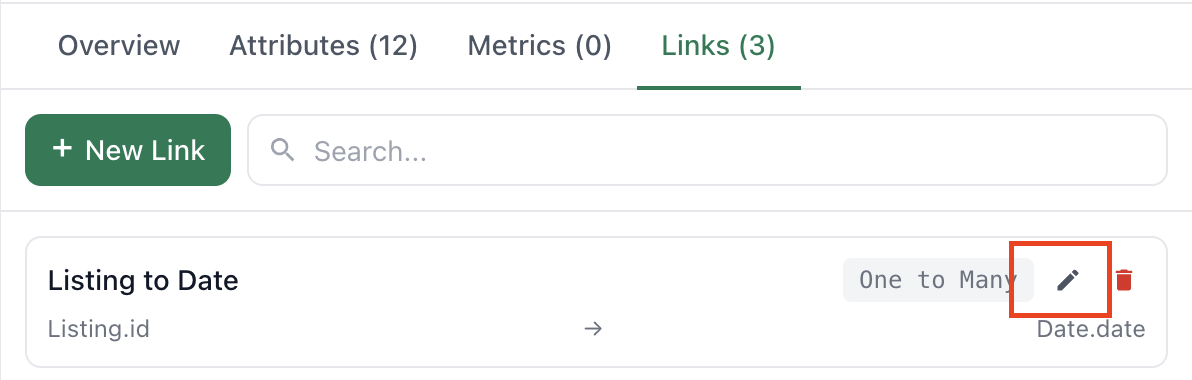 To edit an existing link:
1. Click on the link line connecting two objects on the canvas
2. If multiple links exist between the same objects, select which one to edit from the dropdown
3. Modify the properties (join keys, cardinality, name, description)
4. Click "Save"
## Deleting Links
1. Click on the link to open the link sidebar
2. Click the delete/trash icon
3. Confirm the deletion
To edit an existing link:
1. Click on the link line connecting two objects on the canvas
2. If multiple links exist between the same objects, select which one to edit from the dropdown
3. Modify the properties (join keys, cardinality, name, description)
4. Click "Save"
## Deleting Links
1. Click on the link to open the link sidebar
2. Click the delete/trash icon
3. Confirm the deletion