> ## Documentation Index
> Fetch the complete documentation index at: https://docs.textql.com/llms.txt
> Use this file to discover all available pages before exploring further.
# Anthropic API Connector
> Call the Anthropic API as a processing step inside Ana's Python sandbox — run Claude on warehouse data at scale to summarize, classify, or extract structured fields from text columns, and chain model outputs with SQL results in a single workflow.
### **1. Overview**
The TextQL Anthropic connector gives Ana direct access to the Anthropic API from within its Python sandbox. This means Ana can call Claude models through the Messages API as part of any analysis — generating text, classifying or summarizing content, and extracting structured data — and combine those outputs with your warehouse data in a single workflow. The connector is secured via API key, which is stored in the TextQL credential vault and injected at the network boundary, so your key is never exposed directly.
The Anthropic API lets Ana call Claude programmatically inside workflows so you can run Claude on warehouse data.
### **2. Prerequisites**
You'll need:
* An active Anthropic account
* A TextQL account with permission to add API connectors
### **2.5. What is the Anthropic API used for?**
The Anthropic API connector whitelists `api.anthropic.com` and securely injects your Anthropic API key at the network boundary, so Ana's Python sandbox can make authenticated calls to the Anthropic API without ever exposing your credentials directly.
### **3. Capabilities**
Once configured, Ana can:
* Call Claude models from the Python sandbox as part of any analysis or workflow.
* Run inference on query results, such as summarizing, classifying, or extracting structured fields from text columns at scale.
* Combine Claude's responses with data from your warehouse in a single workflow, without leaving Ana.
### **4. Setup Instructions**
***
#### Step 1. Create an API key
1. Sign in to [Anthropic Console](https://platform.claude.com/)
2. On the left sidebar, click API keys
3. Click Create new secret key
4. Fill in the following:
* Name: enter a name to help identify the key (e.g. “TextQL connector”)
* Project: Select the Anthropic project that this integration will use. The project determines which credentials, permissions, usage tracking, and billing settings apply to API requests made through the connector.
* Permissions: Select the access level for the API key within the chosen Anthropic project. Choose All for full access, Restricted to limit the key to specific capabilities, or Read only for viewing resources without making changes. Most application integrations require either All or appropriately configured Restricted permissions.
5. Copy the token.
#### Step 2: Add Anthropic as an API connector in TextQL
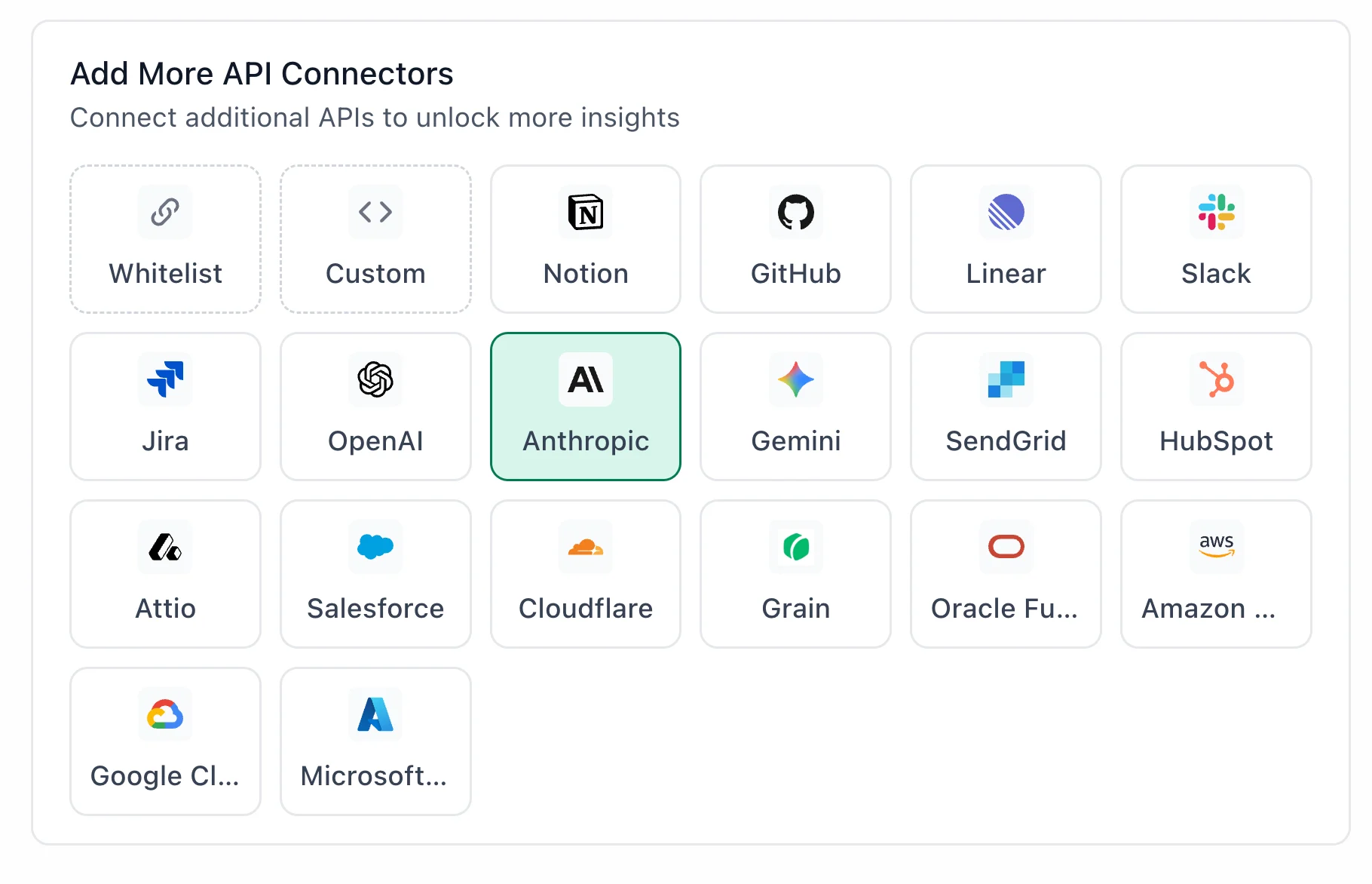 1. Go to [app.textql.com](https://app.textql.com/) and sign in.
2. In the bottom left sidebar, click Connectors > APIs and select Anthropic.
3. Paste your API token from Step 1.
4. Click Save.
#### Step 3: Verify the connection
1. Go to [app.textql.com](https://app.textql.com/) and sign in.
2. In the bottom left sidebar, click Connectors > APIs and select Anthropic.
3. Paste your API token from Step 1.
4. Click Save.
#### Step 3: Verify the connection
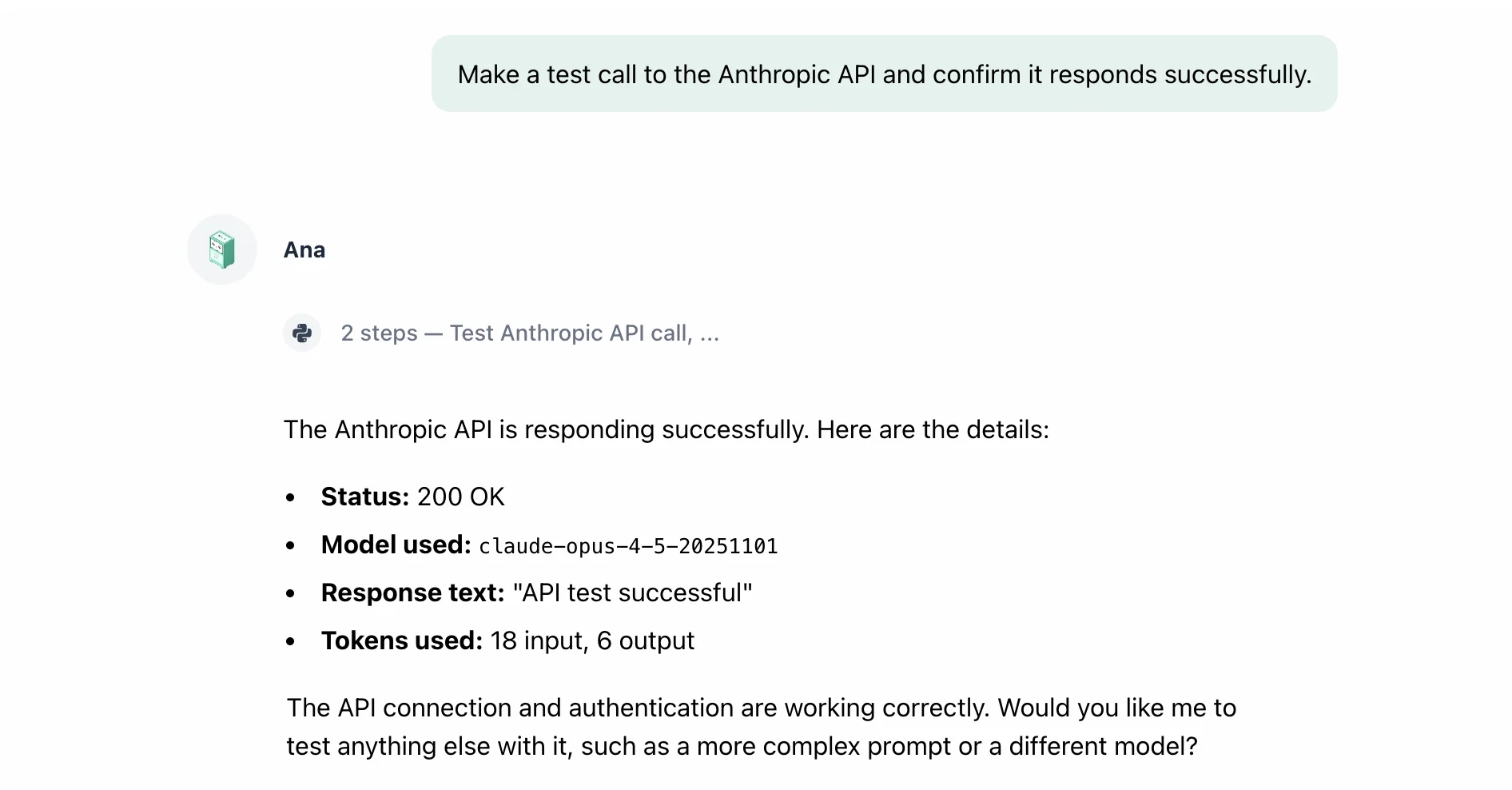 Once saved, confirm that the connector is active:
1. Click on the Anthropic connector and select Test Connection at the bottom of the panel.
* A successful setup will return Connection successful (200).
* If the test fails, refer to the [Troubleshooting](#6-troubleshooting) section for next steps.
***
### **5. Usage Examples**
Once configured, you can ask Ana:
* Review our user-generated content and flag entries that may violate our content policy.
* Classify each product review by sentiment and assign a topic label.
* Extract structured fields (date, amount, vendor) from a column of free-text notes.
* Draft a personalized follow-up email for each deal in our pipeline based on the latest notes in the CRM.
* Summarize the 200 most recent support tickets from our database into a one-paragraph executive briefing.
### **6. Troubleshooting**
| **Symptom** | **Likely Cause** | **Fix** |
| -------------------------------------- | ----------------------------------------------- | ------------------------------------------------------------------------------------------------------------------------------------------------------------------------------------------------------------------------------------------------------------------------------------------ |
| 401 authentication\_error (API Token) | Invalid, revoked, or incorrectly copied API key | Generate a new API key in Anthropic and update the connector in TextQL. |
| Ana returns no results | Insufficient permissions | Review the API key permissions in the Anthropic Console and ensure the key has access to the Anthropic features you are querying in Ana. Update the key's permissions or create a new key with the appropriate access level, then reconnect the Anthropic connector and retry the request. |
### **7. Security Notes**
* Anthropic API keys do not expire automatically. Rotate keys periodically and replace any key that may have been exposed.
* API keys can be configured with All, Restricted, or Read only permissions. For production deployments, use the minimum permissions required by your Ana workflows.
* The integration authenticates using an Anthropic API key. Ana uses this key to submit requests to Anthropic services on your behalf and cannot modify your Anthropic organization settings, projects, billing configuration, or API resources.
* The Anthropic connector gives Ana access to Anthropic API endpoints only. It cannot access your Anthropic organization settings, billing configuration, fine-tuned models, or usage logs. Ana uses the API key solely to submit requests on your behalf.
* Store API keys securely and never expose them in source code, client-side applications, or public repositories.
* To revoke access, delete or disable the API key in the Anthropic Console. Any integrations using that key will immediately lose access to the Anthropic API.
* For more details on how Anthropic handles API tokens and permissions, refer to [Anthropic’s official support docs](https://platform.claude.com/docs/en/home).
***
### **Need Help?**
For further assistance, please contact [support@textql.com](mailto:support@textql.com).
### **Privacy Policy**
For information about how we handle your data and protect your privacy, please review our [Privacy Policy](https://textql.com/privacy).
Once saved, confirm that the connector is active:
1. Click on the Anthropic connector and select Test Connection at the bottom of the panel.
* A successful setup will return Connection successful (200).
* If the test fails, refer to the [Troubleshooting](#6-troubleshooting) section for next steps.
***
### **5. Usage Examples**
Once configured, you can ask Ana:
* Review our user-generated content and flag entries that may violate our content policy.
* Classify each product review by sentiment and assign a topic label.
* Extract structured fields (date, amount, vendor) from a column of free-text notes.
* Draft a personalized follow-up email for each deal in our pipeline based on the latest notes in the CRM.
* Summarize the 200 most recent support tickets from our database into a one-paragraph executive briefing.
### **6. Troubleshooting**
| **Symptom** | **Likely Cause** | **Fix** |
| -------------------------------------- | ----------------------------------------------- | ------------------------------------------------------------------------------------------------------------------------------------------------------------------------------------------------------------------------------------------------------------------------------------------ |
| 401 authentication\_error (API Token) | Invalid, revoked, or incorrectly copied API key | Generate a new API key in Anthropic and update the connector in TextQL. |
| Ana returns no results | Insufficient permissions | Review the API key permissions in the Anthropic Console and ensure the key has access to the Anthropic features you are querying in Ana. Update the key's permissions or create a new key with the appropriate access level, then reconnect the Anthropic connector and retry the request. |
### **7. Security Notes**
* Anthropic API keys do not expire automatically. Rotate keys periodically and replace any key that may have been exposed.
* API keys can be configured with All, Restricted, or Read only permissions. For production deployments, use the minimum permissions required by your Ana workflows.
* The integration authenticates using an Anthropic API key. Ana uses this key to submit requests to Anthropic services on your behalf and cannot modify your Anthropic organization settings, projects, billing configuration, or API resources.
* The Anthropic connector gives Ana access to Anthropic API endpoints only. It cannot access your Anthropic organization settings, billing configuration, fine-tuned models, or usage logs. Ana uses the API key solely to submit requests on your behalf.
* Store API keys securely and never expose them in source code, client-side applications, or public repositories.
* To revoke access, delete or disable the API key in the Anthropic Console. Any integrations using that key will immediately lose access to the Anthropic API.
* For more details on how Anthropic handles API tokens and permissions, refer to [Anthropic’s official support docs](https://platform.claude.com/docs/en/home).
***
### **Need Help?**
For further assistance, please contact [support@textql.com](mailto:support@textql.com).
### **Privacy Policy**
For information about how we handle your data and protect your privacy, please review our [Privacy Policy](https://textql.com/privacy).