> ## Documentation Index
> Fetch the complete documentation index at: https://docs.textql.com/llms.txt
> Use this file to discover all available pages before exploring further.
# Google Cloud Connector
> Query and explore your cloud data with your warehouse in natural language.
### **1. Overview**
The Google Cloud integration connects your GCP environment to TextQL, giving Ana visibility into your BigQuery datasets, Cloud Storage buckets, Logging streams, and more. Once configured, Ana can query your cloud data using natural language, join it with your warehouse for cross-source analysis, and help you build automated reports or alerts around your infrastructure and data pipelines. Note that the integration requires either a service account JSON key or Workload Identity, along with your admin whitelisting the relevant GCP domains (e.g., `googleapis.com`) in the TextQL admin console.
Connect your Google Cloud environment to TextQL by providing a service account key or Workload Identity credentials, then let Ana query and analyze your BigQuery, Cloud Storage, Logging, and more.
### **2. Prerequisites**
You'll need:
* Access to the Google Cloud project you want to connect
* Permission to manage Service Accounts in Google Cloud
* Permission to grant IAM roles in Google Cloud
* Admin access in TextQL to add and configure a new connector
### **3. Capabilities**
Once configured, Ana can:
* Explore your BigQuery datasets, Cloud Storage buckets, Logging streams, and other GCP services in natural language
* Query and join cloud data with your warehouse for cross-source analysis in a single question
* Analyze resource usage, pipeline health, and infrastructure activity across your GCP environment
* Set up playbooks or feed agents that monitor your cloud data on a schedule and deliver updates to Slack or email
### **4. Setup Instructions**
***
#### Step 1. Open service accounts
1. Sign in to [Google Cloud Console](https://console.cloud.google.com/)
2. Select the Google Cloud project you want to connect
3. Navigate to IAM & Admin > Service Accounts in the left sidebar
#### Step 2. Create or Select a Service Account
**Option A:** Use an Existing Service Account
If you already have a service account with access to the resources you want TextQL to query, select it and proceed to Step 3.
**Option B:** Create a New Service Account
1. Click Create Service Account.
2. Enter a name such as:
```
textql-integration
```
1. Click Create and Continue
2. Grant the minimum permissions required for the resources you want TextQL to access. We recommend these based on your intended usage:
| Service | Role | Access |
| ----------------------- | --------------------- | ---------------------------------------------------------------------------------------------------------- |
| BigQuery | BigQuery Data Viewer | Access to view datasets and all of their contents |
| | BigQuery Job User | Access to run jobs |
| Cloud Storage | Storage Object Viewer | Grants access to view objects and their metadata, excluding ACLs and can also list the objects in a bucket |
| Cloud Logging | Logs Viewer | Access to view logs, except for logs with private contents |
| General / Cross-service | Viewer | View most Google Cloud Resources |
3. Click Done
#### Step 3. Generate a JSON Key
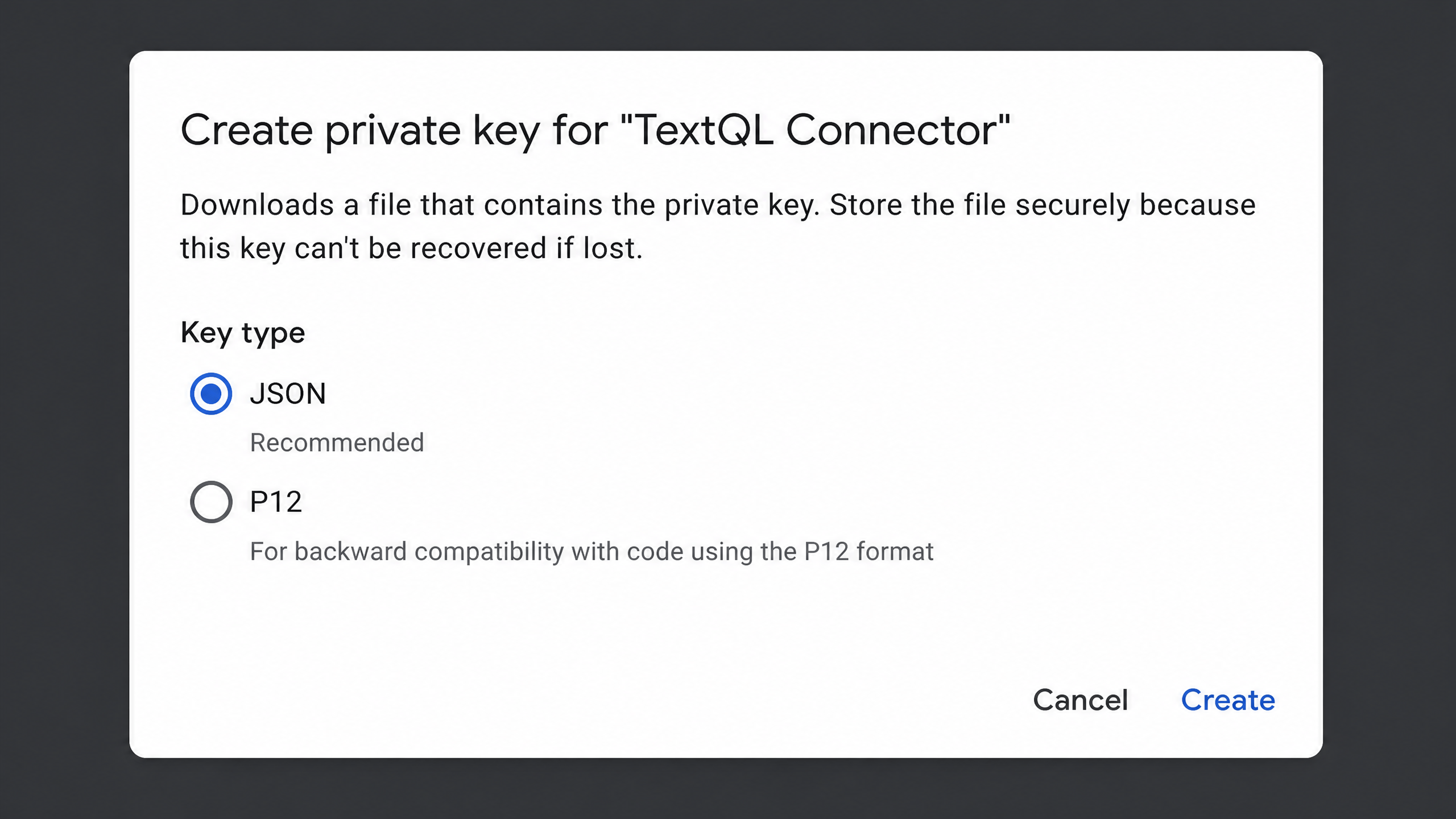 1. Open the Service Account.
2. Select the Keys tab.
3. Click Add Key > Create New Key.
4. Choose JSON.
5. Click Create. A JSON key file will automatically download to your computer.
6. Open the file in a text editor
7. Copy the entire block of text
#### Step 4. Add Google Cloud as an API connector in TextQL
1. Open the Service Account.
2. Select the Keys tab.
3. Click Add Key > Create New Key.
4. Choose JSON.
5. Click Create. A JSON key file will automatically download to your computer.
6. Open the file in a text editor
7. Copy the entire block of text
#### Step 4. Add Google Cloud as an API connector in TextQL
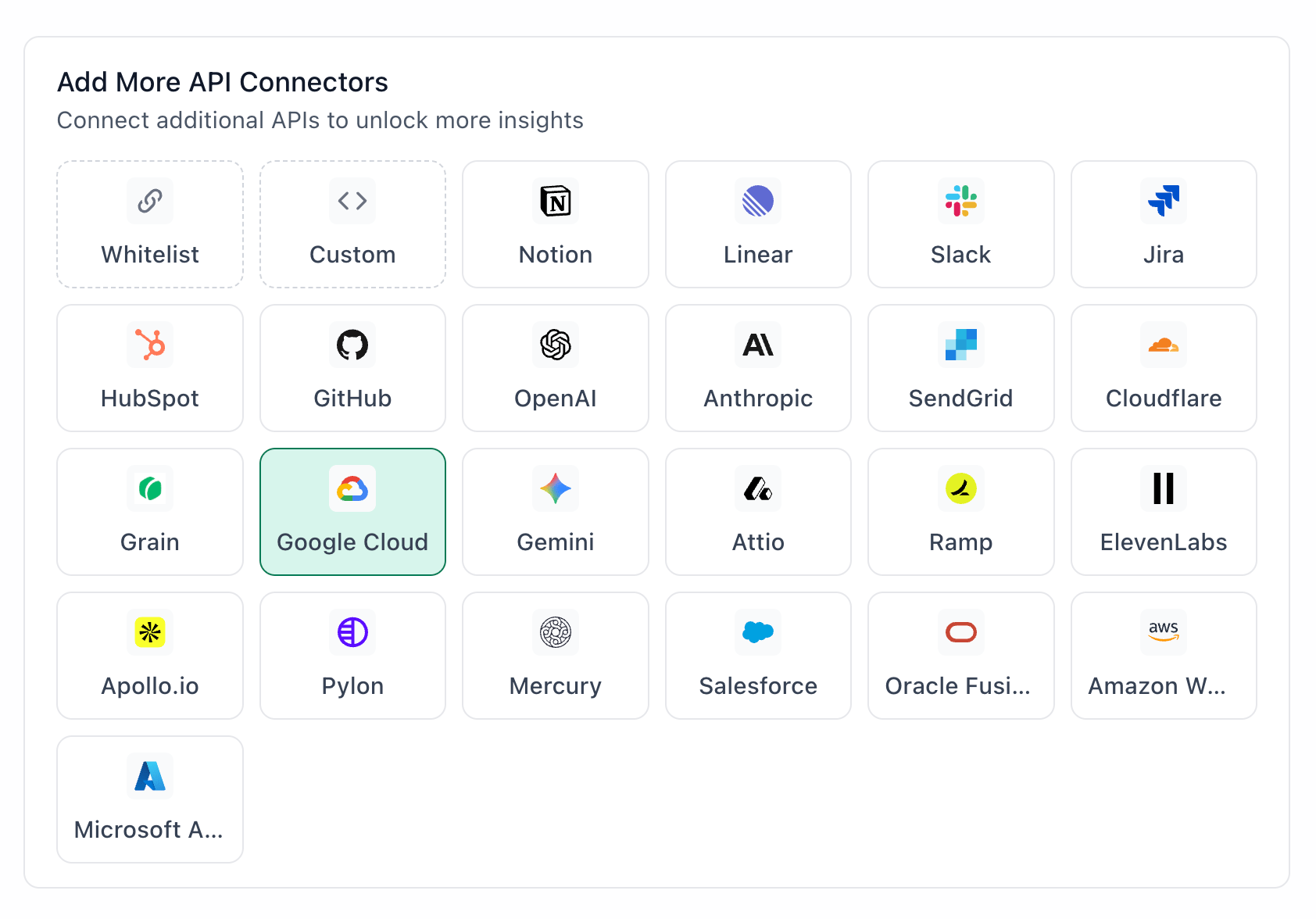 1. Go to [app.textql.com](https://app.textql.com/) and sign in.
2. In the bottom left sidebar, click Connectors > APIs and select Google Cloud
3. In the configuration panel, fill in:
* Name (e.g. Google Cloud Workspace)
* Service Account JSON: paste the entire contents from your JSON key file
4. Click Save.
#### Step 5. Verify the connection
Once saved, confirm the connector is active:
1. Click on the Google Cloud connector and select Test Connection at the bottom of the panel.
* A successful setup will return Connection successful (200).
* If the test fails, refer to the **Troubleshooting** section for next steps.
***
### **5. Usage Examples**
Once configured, you can ask Ana:
* "Show me all tables in my BigQuery dataset and their row counts"
* "What queries have been running the longest in BigQuery over the past 7 days?"
* "Summarize the error logs from Cloud Logging for my production environment this week"
* "Join my BigQuery sales data with my Snowflake warehouse and show me revenue by region"
* "Create a daily Slack report tracking BigQuery job failures and storage usage trends"
### **6. Troubleshooting**
| **Symptom** | **Likely Cause** | **Fix** |
| ---------------------------- | ---------------------------------------------------------------- | ------------------------------------------------------------------------------------------------------------- |
| Invalid Service Account JSON | JSON file is malformed, incomplete, or not a Service Account key | Generate a new Service Account key in Google Cloud and upload the downloaded JSON file without modifications. |
| Failed to Parse JSON | JSON contents were edited, truncated, or copied incorrectly | Re-download the Service Account JSON key and upload or paste it again. |
### **7. Security Notes**
* The recommended setup grants the minimum IAM roles needed (e.g. `roles/bigquery.dataViewer`, `roles/storage.objectViewer`) — avoid granting broad roles like `roles/owner` or `roles/editor` unless strictly necessary
* The integration uses service account JSON key or Workload Identity authentication — Ana can only access the GCP resources the service account has been granted permissions to, so scoping IAM roles tightly is the safest way to control access
* Do not share API keys, client secrets, or OAuth credentials in email, chat, tickets, or other unsecured locations.
* To revoke access, go to [Google Cloud Platform Console](https://console.cloud.google.com/) > IAM & Admin > Service Accounts, select the relevant account, and delete or disable the key
* For more details on how GCP handles service account authentication and IAM permissions, refer to Google Cloud's official documentation
***
### **Need Help?**
For further assistance, please contact [support@textql.com](mailto:support@textql.com).
### **Privacy Policy**
For information about how we handle your data and protect your privacy, please review our [Privacy Policy](https://textql.com/privacy).
1. Go to [app.textql.com](https://app.textql.com/) and sign in.
2. In the bottom left sidebar, click Connectors > APIs and select Google Cloud
3. In the configuration panel, fill in:
* Name (e.g. Google Cloud Workspace)
* Service Account JSON: paste the entire contents from your JSON key file
4. Click Save.
#### Step 5. Verify the connection
Once saved, confirm the connector is active:
1. Click on the Google Cloud connector and select Test Connection at the bottom of the panel.
* A successful setup will return Connection successful (200).
* If the test fails, refer to the **Troubleshooting** section for next steps.
***
### **5. Usage Examples**
Once configured, you can ask Ana:
* "Show me all tables in my BigQuery dataset and their row counts"
* "What queries have been running the longest in BigQuery over the past 7 days?"
* "Summarize the error logs from Cloud Logging for my production environment this week"
* "Join my BigQuery sales data with my Snowflake warehouse and show me revenue by region"
* "Create a daily Slack report tracking BigQuery job failures and storage usage trends"
### **6. Troubleshooting**
| **Symptom** | **Likely Cause** | **Fix** |
| ---------------------------- | ---------------------------------------------------------------- | ------------------------------------------------------------------------------------------------------------- |
| Invalid Service Account JSON | JSON file is malformed, incomplete, or not a Service Account key | Generate a new Service Account key in Google Cloud and upload the downloaded JSON file without modifications. |
| Failed to Parse JSON | JSON contents were edited, truncated, or copied incorrectly | Re-download the Service Account JSON key and upload or paste it again. |
### **7. Security Notes**
* The recommended setup grants the minimum IAM roles needed (e.g. `roles/bigquery.dataViewer`, `roles/storage.objectViewer`) — avoid granting broad roles like `roles/owner` or `roles/editor` unless strictly necessary
* The integration uses service account JSON key or Workload Identity authentication — Ana can only access the GCP resources the service account has been granted permissions to, so scoping IAM roles tightly is the safest way to control access
* Do not share API keys, client secrets, or OAuth credentials in email, chat, tickets, or other unsecured locations.
* To revoke access, go to [Google Cloud Platform Console](https://console.cloud.google.com/) > IAM & Admin > Service Accounts, select the relevant account, and delete or disable the key
* For more details on how GCP handles service account authentication and IAM permissions, refer to Google Cloud's official documentation
***
### **Need Help?**
For further assistance, please contact [support@textql.com](mailto:support@textql.com).
### **Privacy Policy**
For information about how we handle your data and protect your privacy, please review our [Privacy Policy](https://textql.com/privacy).