> ## Documentation Index
> Fetch the complete documentation index at: https://docs.textql.com/llms.txt
> Use this file to discover all available pages before exploring further.
# Linear Connector
> Query your Linear issues, projects, and team workflows directly in Ana.
### **1. Overview**
The Ana x Linear integration connects your Linear workspace to Ana, giving you natural language access to your team's roadmap, issues, projects, and cycles data. Once configured, Ana can query issue statuses, track cycle progress, surface blockers, and analyze engineering throughput — all without leaving your workflow.
Connect Linear to Ana to query and analyze your team's project and issue data using natural language.
### **2. Prerequisites**
You'll need:
* A Linear account you want Ana to query
* Owner or admin access to your Linear workspace if you are setting up an org-level integration
* A TextQL account with permission to add API connectors
### Which type of connection should I use?
| | **API Token** | **OAuth (Org-level)** | OAuth (Per-member) |
| ------------------- | --------------------------------------------------------------------------------------------- | ----------------------------------------------- | ------------------------------------------------------ |
| **Best For** | Individual users, service accounts, or shared team access tied to a single user's permissions | Shared team access to a single Linear workspace | Individual user access with personal permissions |
| **Scope** | Access tied to the token owner's permissions | Full org workspace access under one shared auth | Each user queries Linear as themselves |
| **Authentication** | API Token from Linear settings | One-time OAuth flow by an admin | Each member completes their own OAuth flow |
| **Data Visibility** | Limited to what the token owner can see | Consistent view across all Ana users | Each user sees only what they have access to in Linear |
| **Limitations** | Token must be rotated manually if compromised | Requires admin to re-auth if token expires | Higher setup overhead; each member must connect |
### **3. Capabilities**
Once configured, Ana can:
* Query about open, in-progress, or blocked issues across any team or project in plain language.
* Track how much work is completed, in flight, or unstarted within any active cycle.
* Analyze how many issues a team is closing over time and identify velocity trends.
* Get a snapshot of project milestones, priorities, and any at-risk items across your workspace.
### **4. Setup Instructions**
***
### Step 1: Generate your Linear credentials
**Before you begin, choose your connection type:**
* **API Token:** best for individuals or shared team access tied to one person's permissions.
* **OAuth (Org-level):** an admin authorizes once; all Ana users share that workspace-level access.
* **OAuth (Per-member):** each user authorizes individually and sees only what they have access to in Linear.
If you're unsure, refer to [Which connection type should I use?](#which-connection-type-should-i-use) Then follow the instructions below for your chosen type.
 1. Go to linear.app and sign in.
2. Click your workspace name in the top-left corner.
3. Go to **Settings**.
4. In the left sidebar, navigate to **Security & Access**.
5. Click **API Keys** (or **Personal API Keys**, depending on your workspace settings).
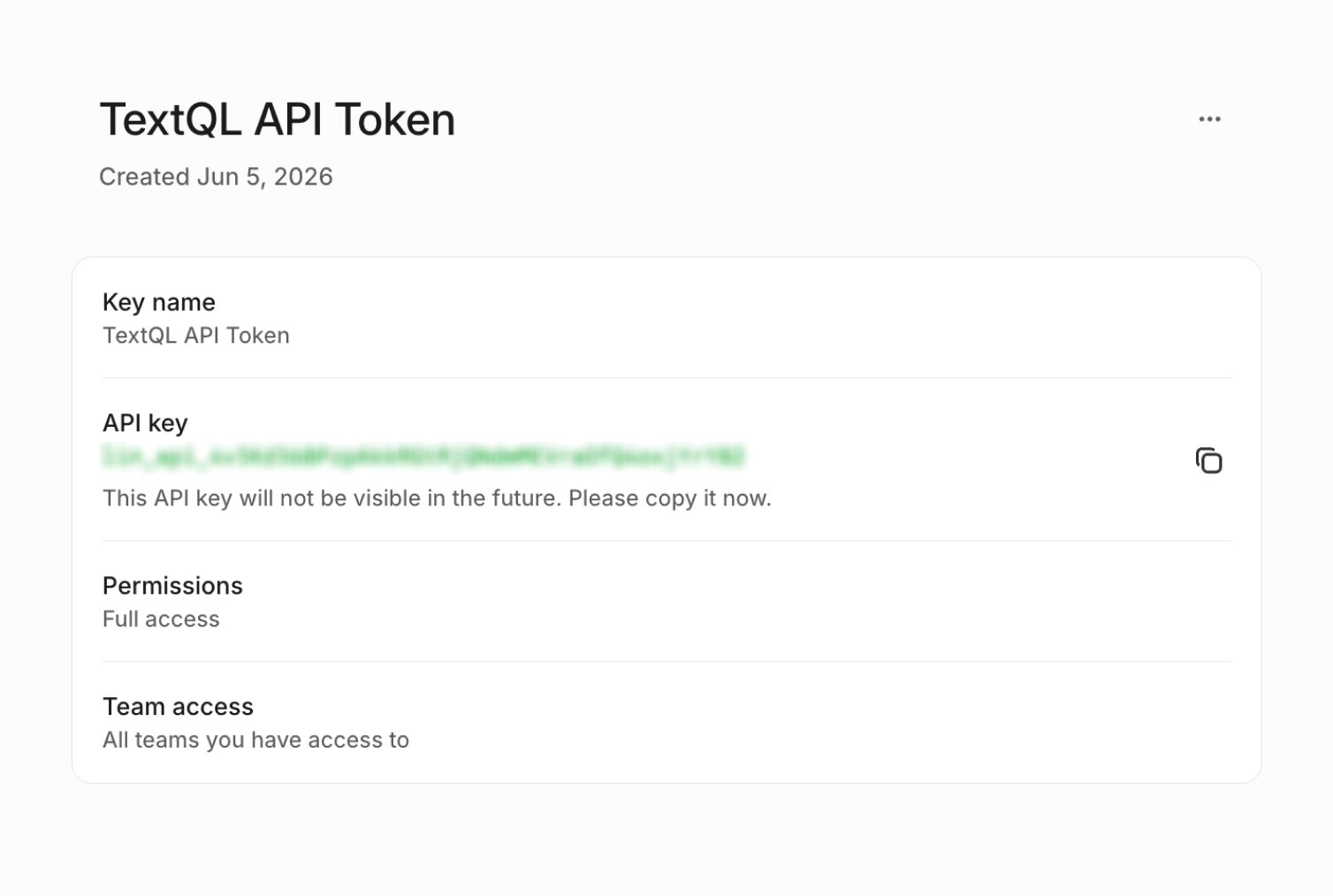
6. Click **Create new API key**.
7. Enter a name (e.g. `TextQL` or `Ana Integration`).
8. Select the **workspace/team access** you want this key to have.
9. Configure the API key permissions:
* Permissions: Select Full access or Only selected permissions depending on your organization's security requirements. If using selected permissions, grant the minimum access required for the data you want Ana to query.
* Team Access: Select All teams you have access to or Only selected teams. Limiting access to specific teams will restrict the data Ana can query to those teams.
10. Click **Create**.
11. Copy the API key immediately and store it securely.
1. Go to linear.app and sign in.
2. Click your workspace name in the top-left corner.
3. Go to **Settings**.
4. In the left sidebar, navigate to **Security & Access**.
5. Click **API Keys** (or **Personal API Keys**, depending on your workspace settings).
6. Click **Create new API key**.
7. Enter a name (e.g. `TextQL` or `Ana Integration`).
8. Select the **workspace/team access** you want this key to have.
9. Configure the API key permissions:
* Permissions: Select Full access or Only selected permissions depending on your organization's security requirements. If using selected permissions, grant the minimum access required for the data you want Ana to query.
* Team Access: Select All teams you have access to or Only selected teams. Limiting access to specific teams will restrict the data Ana can query to those teams.
10. Click **Create**.
11. Copy the API key immediately and store it securely.
 1. Go to Linear and sign in.
2. Click your workspace name in the top-left corner.
3. Navigate to **Settings**.
4. In the left sidebar, scroll to **Developers**.
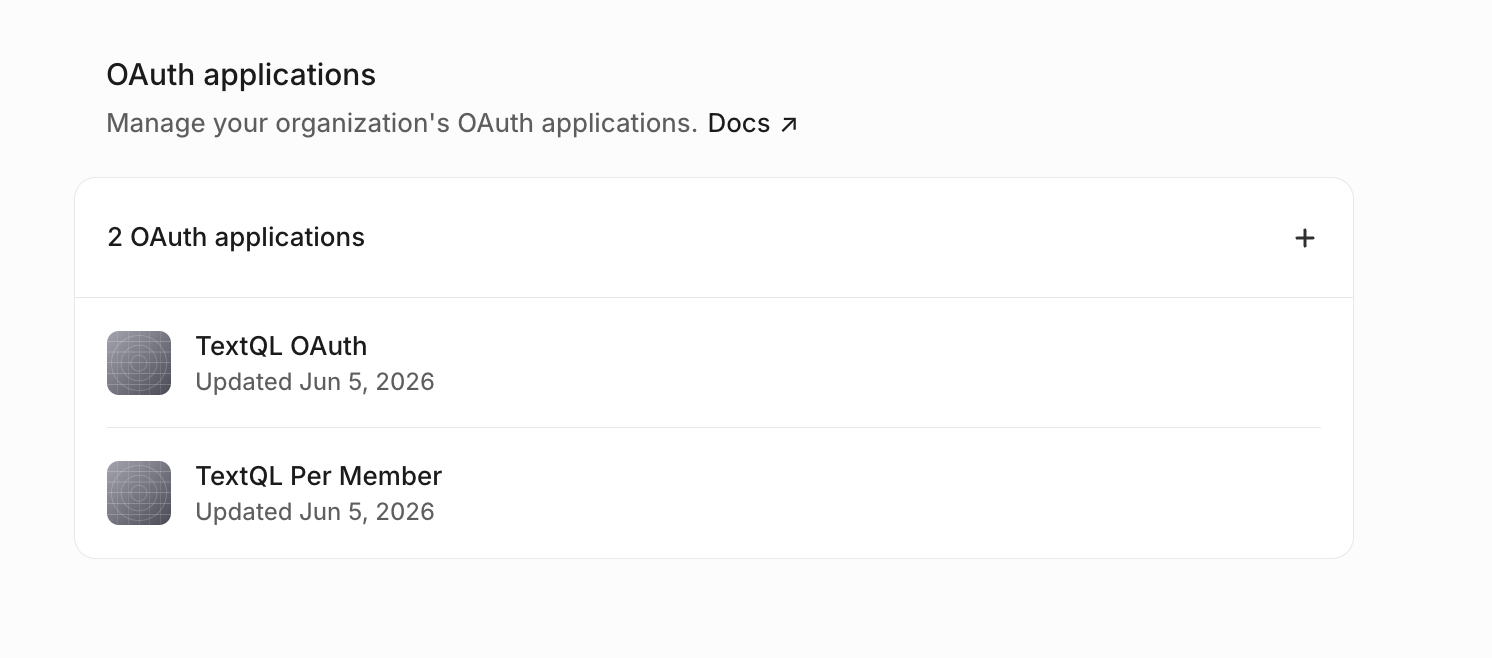
5. Click **OAuth applications**.
6. Click **New OAuth application**.
7. Fill in the application details:
* **Application name**: `textql` or `ana-integration`
* **Developer URL**: `https://textql.com`
* **Redirect URL**: `https://app.textql.com/auth/api-oauth/callback`
8. When creating your Linear OAuth application, you may see several optional permissions and capabilities. Configure these based on your organization's requirements and the functionality you need from the integration.
* **Public**: Allows the OAuth application to be installed and authorized by users outside your workspace.
* **Client Credentials**: Enables machine-to-machine authentication using the OAuth client credentials flow.
* **Webhooks**: Allows the application to subscribe to Linear events (such as issue updates, project changes, or comments) and receive notifications in real time.
9. Click **Create application**.
10. After creation, locate your **Client ID** and **Client Secret**.
11. Copy and store both securely (you will not be able to fully re-display the secret later).
In Linear, OAuth is a single unified system. The difference between org-level and per-member connections is determined by how TextQL manages authentication:
* **Org-level connection**: one workspace member authorizes Linear once, and TextQL stores a shared workspace-level token for that organization.
* **Per-member connection**: each user in TextQL completes OAuth individually, and TextQL stores separate tokens per user, preserving identity and permissions.
Both use the same Linear OAuth application — only the authorization behavior and token storage differ.
### **Step 2: Add Linear as an API connector in TextQL**
1. Go to Linear and sign in.
2. Click your workspace name in the top-left corner.
3. Navigate to **Settings**.
4. In the left sidebar, scroll to **Developers**.
5. Click **OAuth applications**.
6. Click **New OAuth application**.
7. Fill in the application details:
* **Application name**: `textql` or `ana-integration`
* **Developer URL**: `https://textql.com`
* **Redirect URL**: `https://app.textql.com/auth/api-oauth/callback`
8. When creating your Linear OAuth application, you may see several optional permissions and capabilities. Configure these based on your organization's requirements and the functionality you need from the integration.
* **Public**: Allows the OAuth application to be installed and authorized by users outside your workspace.
* **Client Credentials**: Enables machine-to-machine authentication using the OAuth client credentials flow.
* **Webhooks**: Allows the application to subscribe to Linear events (such as issue updates, project changes, or comments) and receive notifications in real time.
9. Click **Create application**.
10. After creation, locate your **Client ID** and **Client Secret**.
11. Copy and store both securely (you will not be able to fully re-display the secret later).
In Linear, OAuth is a single unified system. The difference between org-level and per-member connections is determined by how TextQL manages authentication:
* **Org-level connection**: one workspace member authorizes Linear once, and TextQL stores a shared workspace-level token for that organization.
* **Per-member connection**: each user in TextQL completes OAuth individually, and TextQL stores separate tokens per user, preserving identity and permissions.
Both use the same Linear OAuth application — only the authorization behavior and token storage differ.
### **Step 2: Add Linear as an API connector in TextQL**
 1. Go to app.textql.com and sign in.
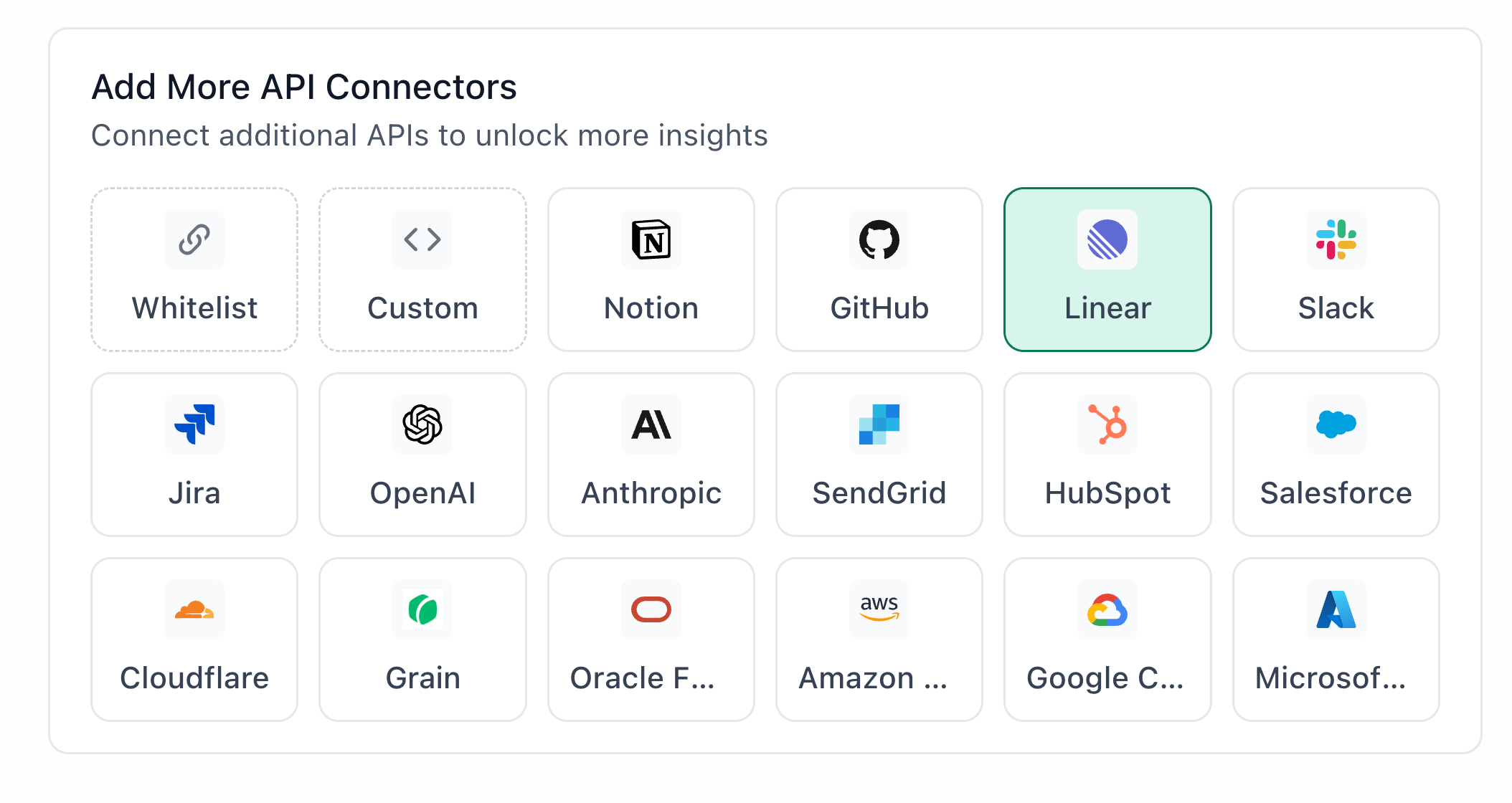
2. In the bottom left sidebar, click **Connectors > APIs** and select Linear.
3. In the configuration panel, fill in the fields depending on your connection type:
* **API Token**
* Name (e.g. Linear `API Token`)
* Authentication type: select **API Token**
* Token: paste the API Token copied from Step 1
* **OAuth (Org-level or Per-member)**
* Name (e.g. Linear `OAuth`)
* Authentication type: select **OAuth (org-level)** or **OAuth (per-member)**
* Client ID and Client Secret: paste the values copied from Step 1
* OAuth Authentication: click **Authenticate** — a popup will appear asking for permissions to access your Linear account. Click **Allow**.
4. Click **Save**.
### **Step 3: Verify the connection**
Once saved, confirm the connector is active:
1. Click on the Linear connector and select Test Connection at the bottom of the panel.
* A successful setup will return Connection successful (200).
* If the test fails, refer to the [Troubleshooting](#6-troubleshooting) section for next steps.
***
### **5. Usage Examples**
Once configured, you can ask Ana:
* "What issues are currently blocked on the mobile team, and who owns them?"
* "How many issues did we close last cycle compared to the one before?"
* "Show me all high-priority bugs that haven't been updated in more than 7 days."
* "Which projects are behind schedule this quarter?"
* "Give me a breakdown of open issues by assignee for the backend team."
* "What percentage of this cycle's scope is completed so far?"
### **6. Troubleshooting**
| **Symptom** | **Likely Cause** | **Fix** |
| ----------------------------------------------------- | ------------------------------------------------------------------------------------------------- | ---------------------------------------------------------------------------------------------------------------------------------------------------------------------------------------------------------------------------------------------------- |
| Could not find OAuth client with clientId (OAuth) | Client ID or Client Secret is incorrect, missing, or the OAuth application has been reconfigured. | Confirm the Client ID and Client Secret were pasted correctly in Connectors → APIs → Linear with no extra spaces. If authentication has expired or been revoked, re-run the OAuth authentication flow in TextQL and authorize the application again. |
| Authentication failed (OAuth org-level or per-member) | Incorrect redirect URL | In your Linear integration settings, make sure [https://app.textql.com/auth/api-oauth/callback](https://app.textql.com/auth/api-oauth/callback) is listed exactly as a redirect URL. |
| 401 Bad Credentials Error (API Token) | Invalid, revoked, or incorrectly copied API key | Generate a new API key in Linear and update the connector in TextQL. |
| Ana returns no results | Insufficient permissions or team access | Verify the API key or OAuth connection has access to the teams and data you expect Ana to query. |
### **7. Security Notes**
* Follow the principle of least privilege when creating API keys or OAuth applications. Grant only the permissions and team access required for Ana to query the data you need.
* API Tokens remain valid until they are manually revoked. Store them securely and rotate them if you suspect they have been exposed.
* OAuth access may require re-authentication if authorization is revoked, credentials are changed, or access expires.
* Do not share API keys, client secrets, or OAuth credentials in email, chat, tickets, or other unsecured locations.
* If you no longer need the integration, revoke the API key or OAuth application's access in Linear and remove the connector from TextQL.
* For more details on how Linear handles API authentication and permissions, refer to [Linear’s official API documentation](https://linear.app/docs/api-and-webhooks).
***
### **Need Help?**
For further assistance, please contact [support@textql.com](mailto:support@textql.com).
### **Privacy Policy**
For information about how we handle your data and protect your privacy, please review our [Privacy Policy](https://textql.com/privacy).
1. Go to app.textql.com and sign in.
2. In the bottom left sidebar, click **Connectors > APIs** and select Linear.
3. In the configuration panel, fill in the fields depending on your connection type:
* **API Token**
* Name (e.g. Linear `API Token`)
* Authentication type: select **API Token**
* Token: paste the API Token copied from Step 1
* **OAuth (Org-level or Per-member)**
* Name (e.g. Linear `OAuth`)
* Authentication type: select **OAuth (org-level)** or **OAuth (per-member)**
* Client ID and Client Secret: paste the values copied from Step 1
* OAuth Authentication: click **Authenticate** — a popup will appear asking for permissions to access your Linear account. Click **Allow**.
4. Click **Save**.
### **Step 3: Verify the connection**
Once saved, confirm the connector is active:
1. Click on the Linear connector and select Test Connection at the bottom of the panel.
* A successful setup will return Connection successful (200).
* If the test fails, refer to the [Troubleshooting](#6-troubleshooting) section for next steps.
***
### **5. Usage Examples**
Once configured, you can ask Ana:
* "What issues are currently blocked on the mobile team, and who owns them?"
* "How many issues did we close last cycle compared to the one before?"
* "Show me all high-priority bugs that haven't been updated in more than 7 days."
* "Which projects are behind schedule this quarter?"
* "Give me a breakdown of open issues by assignee for the backend team."
* "What percentage of this cycle's scope is completed so far?"
### **6. Troubleshooting**
| **Symptom** | **Likely Cause** | **Fix** |
| ----------------------------------------------------- | ------------------------------------------------------------------------------------------------- | ---------------------------------------------------------------------------------------------------------------------------------------------------------------------------------------------------------------------------------------------------- |
| Could not find OAuth client with clientId (OAuth) | Client ID or Client Secret is incorrect, missing, or the OAuth application has been reconfigured. | Confirm the Client ID and Client Secret were pasted correctly in Connectors → APIs → Linear with no extra spaces. If authentication has expired or been revoked, re-run the OAuth authentication flow in TextQL and authorize the application again. |
| Authentication failed (OAuth org-level or per-member) | Incorrect redirect URL | In your Linear integration settings, make sure [https://app.textql.com/auth/api-oauth/callback](https://app.textql.com/auth/api-oauth/callback) is listed exactly as a redirect URL. |
| 401 Bad Credentials Error (API Token) | Invalid, revoked, or incorrectly copied API key | Generate a new API key in Linear and update the connector in TextQL. |
| Ana returns no results | Insufficient permissions or team access | Verify the API key or OAuth connection has access to the teams and data you expect Ana to query. |
### **7. Security Notes**
* Follow the principle of least privilege when creating API keys or OAuth applications. Grant only the permissions and team access required for Ana to query the data you need.
* API Tokens remain valid until they are manually revoked. Store them securely and rotate them if you suspect they have been exposed.
* OAuth access may require re-authentication if authorization is revoked, credentials are changed, or access expires.
* Do not share API keys, client secrets, or OAuth credentials in email, chat, tickets, or other unsecured locations.
* If you no longer need the integration, revoke the API key or OAuth application's access in Linear and remove the connector from TextQL.
* For more details on how Linear handles API authentication and permissions, refer to [Linear’s official API documentation](https://linear.app/docs/api-and-webhooks).
***
### **Need Help?**
For further assistance, please contact [support@textql.com](mailto:support@textql.com).
### **Privacy Policy**
For information about how we handle your data and protect your privacy, please review our [Privacy Policy](https://textql.com/privacy).