> ## Documentation Index
> Fetch the complete documentation index at: https://docs.textql.com/llms.txt
> Use this file to discover all available pages before exploring further.
# Oracle Fusion Connector
> Query and analyze your Oracle Fusion data in Ana.
### **1. Overview**
Once you connect Oracle, Ana can look at the Oracle Cloud data you give it access to and answer questions about it. You can also have Ana mix Oracle data with data from your warehouse to answer one question across both.
Connect your Oracle Cloud account to Ana so you can ask questions about your Oracle data in plain English — and combine it with your warehouse data.
### **2. Prerequisites**
You'll need:
* An Oracle Cloud account that can see the data you want Ana to use
* Permission in Oracle to create an API key (or, for the OAuth option, to create an "application")
* A TextQL account that lets you add connectors
### Which type of connection should I use?
| | **API Token** | **OAuth (Org-level)** |
| --------------------- | ----------------------------------------------------- | -------------------------------------------------------------- |
| **Good for** | Getting set up quickly on your own | Company-wide setups managed by an admin |
| **How it works** | Oracle gives you a key file; you paste it into TextQL | Oracle gives you an ID and secret; you paste those into TextQL |
| **Who can set it up** | You, if you can manage your own Oracle keys | Oracle Admin access required |
### **3. Capabilities**
Once configured, Ana can:
* Query ERP, HCM, and SCM data across your Oracle Fusion modules in plain language — no PL/SQL required.
* Track financial transactions, headcount changes, and supply chain activity in real time.
* Analyze procurement cycles, payroll data, and operational metrics over any time period.
* Get a snapshot of employee records, vendor relationships, and order status including approval workflows and audit history.
* Surface anomalies, bottlenecks, and compliance gaps across your enterprise data — and join it all with your data warehouse for a complete picture.
### **4. Setup Instructions**
***
### Step 1: Generate your Oracle credentials
Before you begin, choose your connection type. If you're unsure, refer to [Which type of connection should I use?](#which-type-of-connection-should-i-use) Then follow the instructions below for your chosen type.
1. Sign in to [Oracle Cloud](https://cloud.oracle.com/).
2. Click your profile icon (top-right) and choose My Profile.
3. Find API Keys and click Add API Key.
4. Leave Generate API key pair selected. Click Download Private Key and save the file somewhere safe — you'll need it in a moment.
5. Click Add.
6. Copy the **fingerprint** shown in the configuration file preview dialog — you'll need it when filling in the TextQL connector form.
1. Sign in to [Oracle Cloud](https://cloud.oracle.com/).
2. Open the menu and go to Identity & Security > Domains, then pick your domain.
3. Click Integrated applications > Add application.
4. Choose Confidential Application and start the setup.
5. Give it a name, then click through to the authorization step.
6. Turn on Client Credentials as the grant type.
7. Finish the setup and activate the application.
### Step 2: Add Oracle as an API connector in TextQL
 1. Go to [app.textql.com](https://app.textql.com/) and sign in.
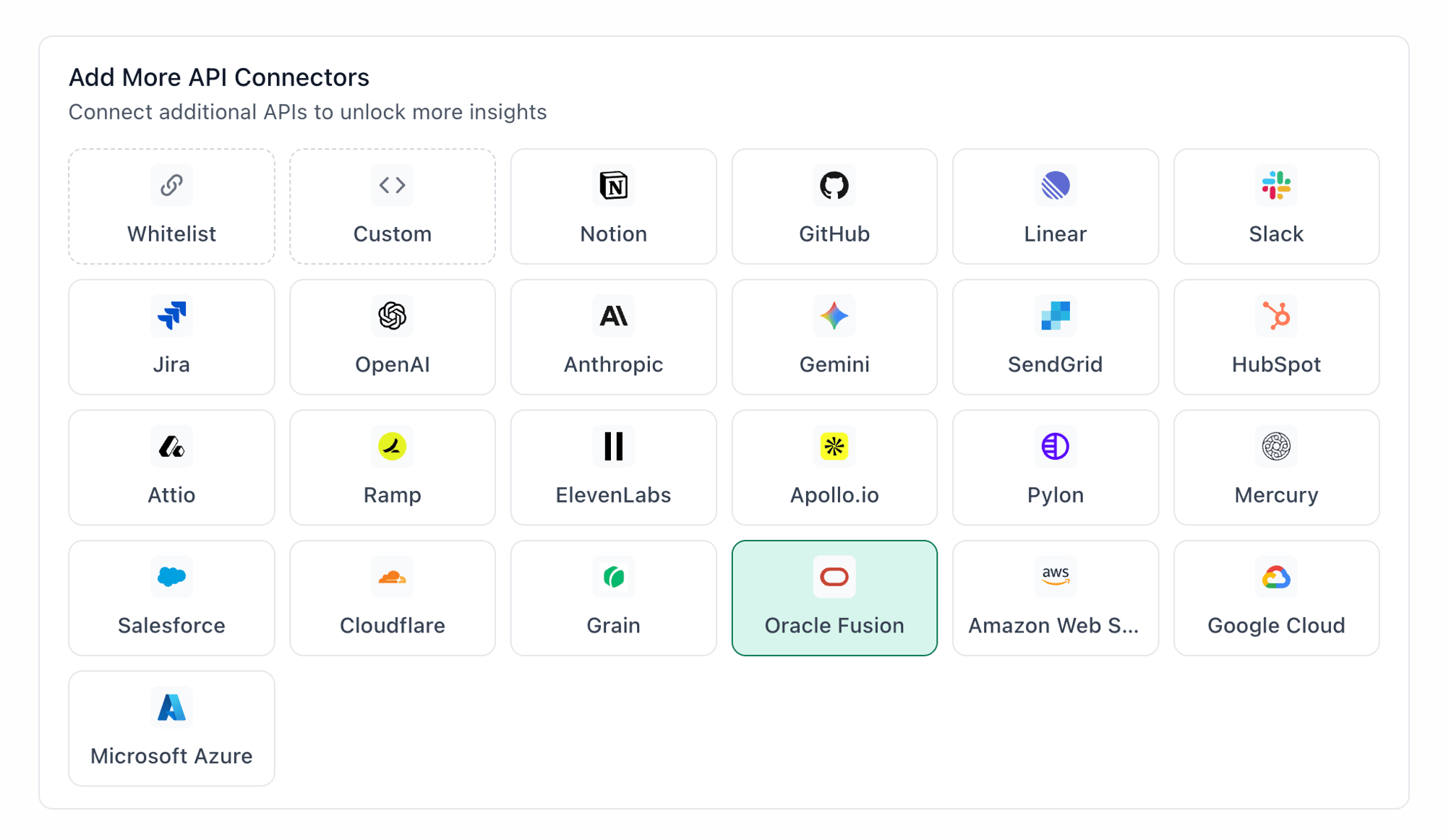
2. In the bottom left sidebar, click **Connectors > APIs** and select **Oracle Fusion**.
3. In the configuration panel, fill in the fields depending on your connection type:
* **API Token**
* Name (e.g. Oracle `API Token`)
* Authentication type: select **API Token**
* Private Key: paste the full contents of the private key file you downloaded in Step 1
* **OAuth (Org-level or Per-member)**
* Name (e.g. Oracle `OAuth`)
* Authentication type: select **OAuth (org-level)** or **OAuth (per-member)**
* Client ID and Client Secret: paste the values copied from Step 1
* OAuth Authentication: click **Authenticate** — a popup will appear asking for permissions to access your Oracle account. Click **Allow**.
4. Click **Save**.
### Step 3: Verify the connection
Once saved, confirm the connector is active:
1. Click on the Oracle Fusion connector and select Test Connection at the bottom of the panel.
* A successful setup will return Connection successful (200).
* If the test fails, refer to the [Troubleshooting](#6-troubleshooting) section for next steps.
***
### **5. Usage Examples**
Once configured, you can ask Ana:
* "Show me all purchase orders over \$100k that are still pending approval."
* "Which employees were hired in the last 90 days and haven't completed onboarding?"
* "What's our total payroll expense by department this quarter?"
* "Show me all supplier invoices that are overdue or flagged for review."
* "How has headcount changed across regions over the last 12 months?"
### **6. Troubleshooting**
| **Symptom** | **Likely Cause** | **Fix** |
| ----------------------------------------------------- | ----------------------------------------------------------------- | ---------------------------------------------------------------------------------------------------------------------------------------------------------------------------------------------------------------------------------------------------- |
| Could not find OAuth client with clientId (OAuth) | Client ID or secret were not configured or expired | Confirm the Client ID and Client Secret were pasted correctly in Connectors → APIs → Oracle with no extra spaces. If authentication has expired or been revoked, re-run the OAuth authentication flow in TextQL and authorize the application again. |
| Authentication failed (OAuth org-level or per-member) | Incorrect redirect URL | In your Oracle confidential application settings, make sure `https://app.textql.com/auth/api-oauth/callback` is listed exactly as a redirect URL. |
| Invalid private key (API Token) | Key file pasted incorrectly or truncated | Re-open the downloaded private key file and paste its full contents, including the `-----BEGIN PRIVATE KEY-----` and `-----END PRIVATE KEY-----` lines, with no extra spaces. |
| Authorization failed / insufficient privileges | The Oracle user or application lacks access to the requested data | Confirm the account or confidential application has been granted access to the Oracle modules and records you want Ana to query. |
### **7. Security Notes**
* Follow the principle of least privilege when creating API keys or confidential applications in Oracle. Grant only the access required for Ana to query the data you need — for example, if you only need procurement and HCM data, do not grant access to financials or administrative settings.
* API keys remain valid until they are manually deleted. Store the downloaded private key file securely and rotate it if you suspect it has been exposed.
* OAuth access may require re-authentication if the connected Oracle user's account is deactivated, their role is changed, or the confidential application's authorization is revoked from within Oracle.
* Do not share private key files, client secrets, or OAuth credentials in email, chat, tickets, or other unsecured locations.
* If you no longer need the integration, delete the API key or deactivate the confidential application under **Identity & Security > Domains > Integrated applications** in Oracle, and remove the connector from TextQL.
* For more details on how Oracle handles API authentication and credential security, refer to the [Oracle Cloud Infrastructure Documentation](https://docs.oracle.com/en-us/iaas/Content/API/Concepts/apisigningkey.htm).
***
### **Need Help?**
For further assistance, please contact [support@textql.com](mailto:support@textql.com).
### **Privacy Policy**
For information about how we handle your data and protect your privacy, please review our [Privacy Policy](https://textql.com/privacy).
1. Go to [app.textql.com](https://app.textql.com/) and sign in.
2. In the bottom left sidebar, click **Connectors > APIs** and select **Oracle Fusion**.
3. In the configuration panel, fill in the fields depending on your connection type:
* **API Token**
* Name (e.g. Oracle `API Token`)
* Authentication type: select **API Token**
* Private Key: paste the full contents of the private key file you downloaded in Step 1
* **OAuth (Org-level or Per-member)**
* Name (e.g. Oracle `OAuth`)
* Authentication type: select **OAuth (org-level)** or **OAuth (per-member)**
* Client ID and Client Secret: paste the values copied from Step 1
* OAuth Authentication: click **Authenticate** — a popup will appear asking for permissions to access your Oracle account. Click **Allow**.
4. Click **Save**.
### Step 3: Verify the connection
Once saved, confirm the connector is active:
1. Click on the Oracle Fusion connector and select Test Connection at the bottom of the panel.
* A successful setup will return Connection successful (200).
* If the test fails, refer to the [Troubleshooting](#6-troubleshooting) section for next steps.
***
### **5. Usage Examples**
Once configured, you can ask Ana:
* "Show me all purchase orders over \$100k that are still pending approval."
* "Which employees were hired in the last 90 days and haven't completed onboarding?"
* "What's our total payroll expense by department this quarter?"
* "Show me all supplier invoices that are overdue or flagged for review."
* "How has headcount changed across regions over the last 12 months?"
### **6. Troubleshooting**
| **Symptom** | **Likely Cause** | **Fix** |
| ----------------------------------------------------- | ----------------------------------------------------------------- | ---------------------------------------------------------------------------------------------------------------------------------------------------------------------------------------------------------------------------------------------------- |
| Could not find OAuth client with clientId (OAuth) | Client ID or secret were not configured or expired | Confirm the Client ID and Client Secret were pasted correctly in Connectors → APIs → Oracle with no extra spaces. If authentication has expired or been revoked, re-run the OAuth authentication flow in TextQL and authorize the application again. |
| Authentication failed (OAuth org-level or per-member) | Incorrect redirect URL | In your Oracle confidential application settings, make sure `https://app.textql.com/auth/api-oauth/callback` is listed exactly as a redirect URL. |
| Invalid private key (API Token) | Key file pasted incorrectly or truncated | Re-open the downloaded private key file and paste its full contents, including the `-----BEGIN PRIVATE KEY-----` and `-----END PRIVATE KEY-----` lines, with no extra spaces. |
| Authorization failed / insufficient privileges | The Oracle user or application lacks access to the requested data | Confirm the account or confidential application has been granted access to the Oracle modules and records you want Ana to query. |
### **7. Security Notes**
* Follow the principle of least privilege when creating API keys or confidential applications in Oracle. Grant only the access required for Ana to query the data you need — for example, if you only need procurement and HCM data, do not grant access to financials or administrative settings.
* API keys remain valid until they are manually deleted. Store the downloaded private key file securely and rotate it if you suspect it has been exposed.
* OAuth access may require re-authentication if the connected Oracle user's account is deactivated, their role is changed, or the confidential application's authorization is revoked from within Oracle.
* Do not share private key files, client secrets, or OAuth credentials in email, chat, tickets, or other unsecured locations.
* If you no longer need the integration, delete the API key or deactivate the confidential application under **Identity & Security > Domains > Integrated applications** in Oracle, and remove the connector from TextQL.
* For more details on how Oracle handles API authentication and credential security, refer to the [Oracle Cloud Infrastructure Documentation](https://docs.oracle.com/en-us/iaas/Content/API/Concepts/apisigningkey.htm).
***
### **Need Help?**
For further assistance, please contact [support@textql.com](mailto:support@textql.com).
### **Privacy Policy**
For information about how we handle your data and protect your privacy, please review our [Privacy Policy](https://textql.com/privacy).