> ## Documentation Index
> Fetch the complete documentation index at: https://docs.textql.com/llms.txt
> Use this file to discover all available pages before exploring further.
# SendGrid Connector
> Send transactional and data-driven emails from Ana's Python sandbox — deliver reports, alerts, and personalized messages built from your warehouse data in a single workflow.
### **1. Overview**
The SendGrid connector links Ana to Twilio SendGrid's email delivery API, enabling programmatic sending of transactional and marketing emails directly from your workflows. Once configured, Ana can compose and dispatch emails — including reports, alerts, and data summaries — to individuals or lists without leaving the platform. Delivery status and error handling are managed through SendGrid's API response layer. Note that this connector is outbound-only; it does not read inbox data or track engagement metrics.
Connect SendGrid to let Ana send emails on your behalf using your organization's SendGrid account.
### **2. Prerequisites**
You'll need:
* A Twilio SendGrid account with a verified sender identity (domain or single sender)
* A TextQL account with permission to add API connectors
### **3. Capabilities**
Once configured, Ana can:
* Send transactional emails such as report deliveries, data alerts, and scheduled summaries to specified recipients
* Compose dynamic email content populated with query results, charts, or analysis outputs
* Trigger emails programmatically as part of a playbook or automated workflow
* Route notifications to individuals or distribution lists using your verified SendGrid sender identity
### **4. Setup Instructions**
***
#### Step 1. Create an API key
 1. Sign in to [SendGrid](https://app.sendgrid.com/)
2. On the left sidebar, click Settings > API Keys
3. Click Create API key
4. Fill in the following:
1. Name: enter a name to help identify the key (e.g. “TextQL connector”)
2. Permissions: API key permissions control what actions a key is allowed to perform on your account, such as reading data, making changes, or accessing billing information. They let you limit a key's scope to only what's needed, so a key can be restricted to specific functions rather than having full control over everything. If you are unsure which permissions to choose, we recommend granting Full Access.
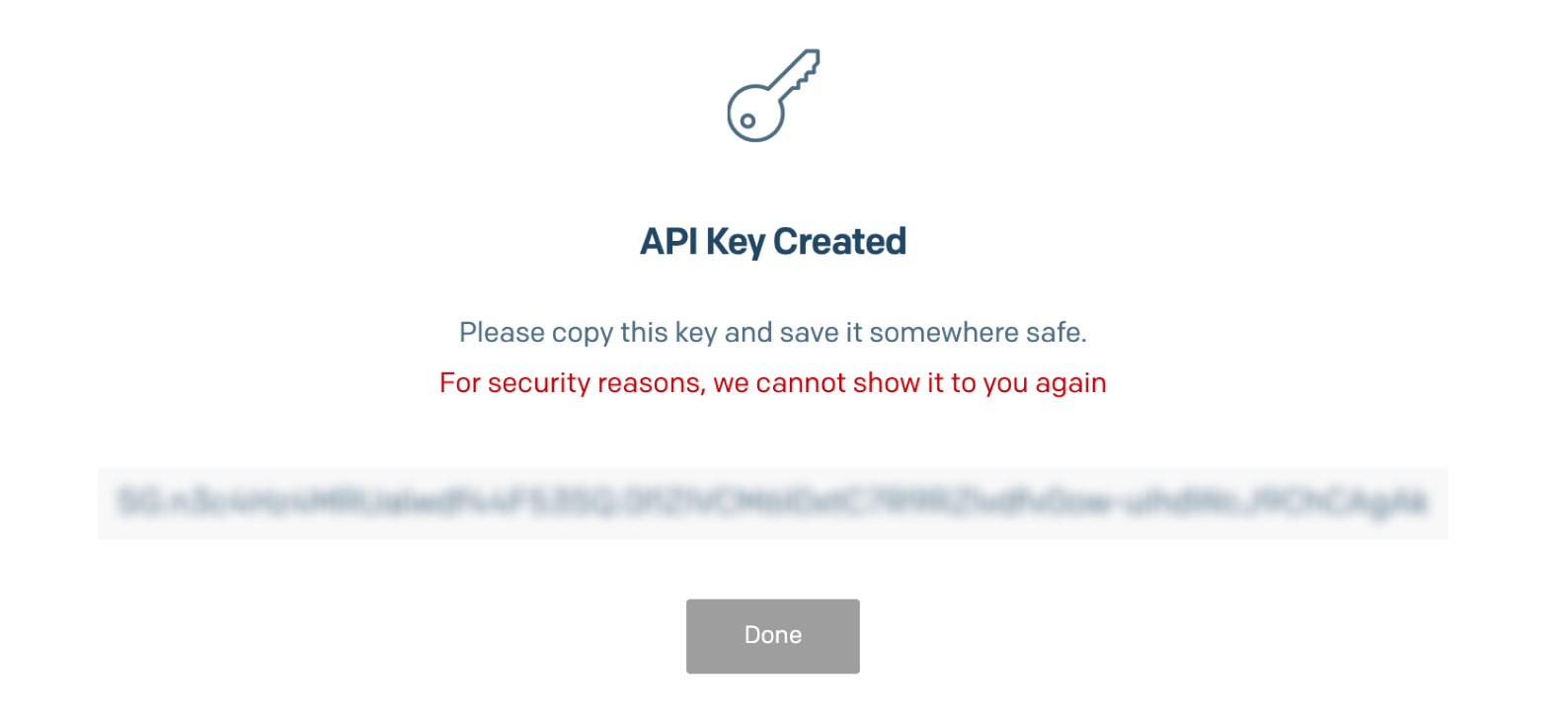
5. Copy the token immediately.
### What permissions should I choose?
| Access Type | Usage | Compatibility with TextQL |
| -------------------------------------- | -------------------------------------------------------------------------------------------------------------------------------------------------------------------- | ------------------------- |
| Full Access | Includes Mail Send plus everything else, so the connector works out of the box. Easiest option if you're not worried about scoping the key tightly. | Compatible |
| Custom Access (with Mail Send enabled) | Grants only the permission the integration actually needs. The key can send email but can't touch anything else. Best practice if you want to limit the key's scope. | Compatible |
| Custom Access (without Mail Send) | The key saves fine but fails with a 403 error the moment Ana tries to send — because the one permission that matters is off. | Misconfigured |
| Billing Access | Only grants access to billing endpoints. Cannot send email at all, so the integration will never work. | Incompatible |
#### Step 2. Add SendGrid as a connector in TextQL
1. Sign in to [SendGrid](https://app.sendgrid.com/)
2. On the left sidebar, click Settings > API Keys
3. Click Create API key
4. Fill in the following:
1. Name: enter a name to help identify the key (e.g. “TextQL connector”)
2. Permissions: API key permissions control what actions a key is allowed to perform on your account, such as reading data, making changes, or accessing billing information. They let you limit a key's scope to only what's needed, so a key can be restricted to specific functions rather than having full control over everything. If you are unsure which permissions to choose, we recommend granting Full Access.
5. Copy the token immediately.
### What permissions should I choose?
| Access Type | Usage | Compatibility with TextQL |
| -------------------------------------- | -------------------------------------------------------------------------------------------------------------------------------------------------------------------- | ------------------------- |
| Full Access | Includes Mail Send plus everything else, so the connector works out of the box. Easiest option if you're not worried about scoping the key tightly. | Compatible |
| Custom Access (with Mail Send enabled) | Grants only the permission the integration actually needs. The key can send email but can't touch anything else. Best practice if you want to limit the key's scope. | Compatible |
| Custom Access (without Mail Send) | The key saves fine but fails with a 403 error the moment Ana tries to send — because the one permission that matters is off. | Misconfigured |
| Billing Access | Only grants access to billing endpoints. Cannot send email at all, so the integration will never work. | Incompatible |
#### Step 2. Add SendGrid as a connector in TextQL
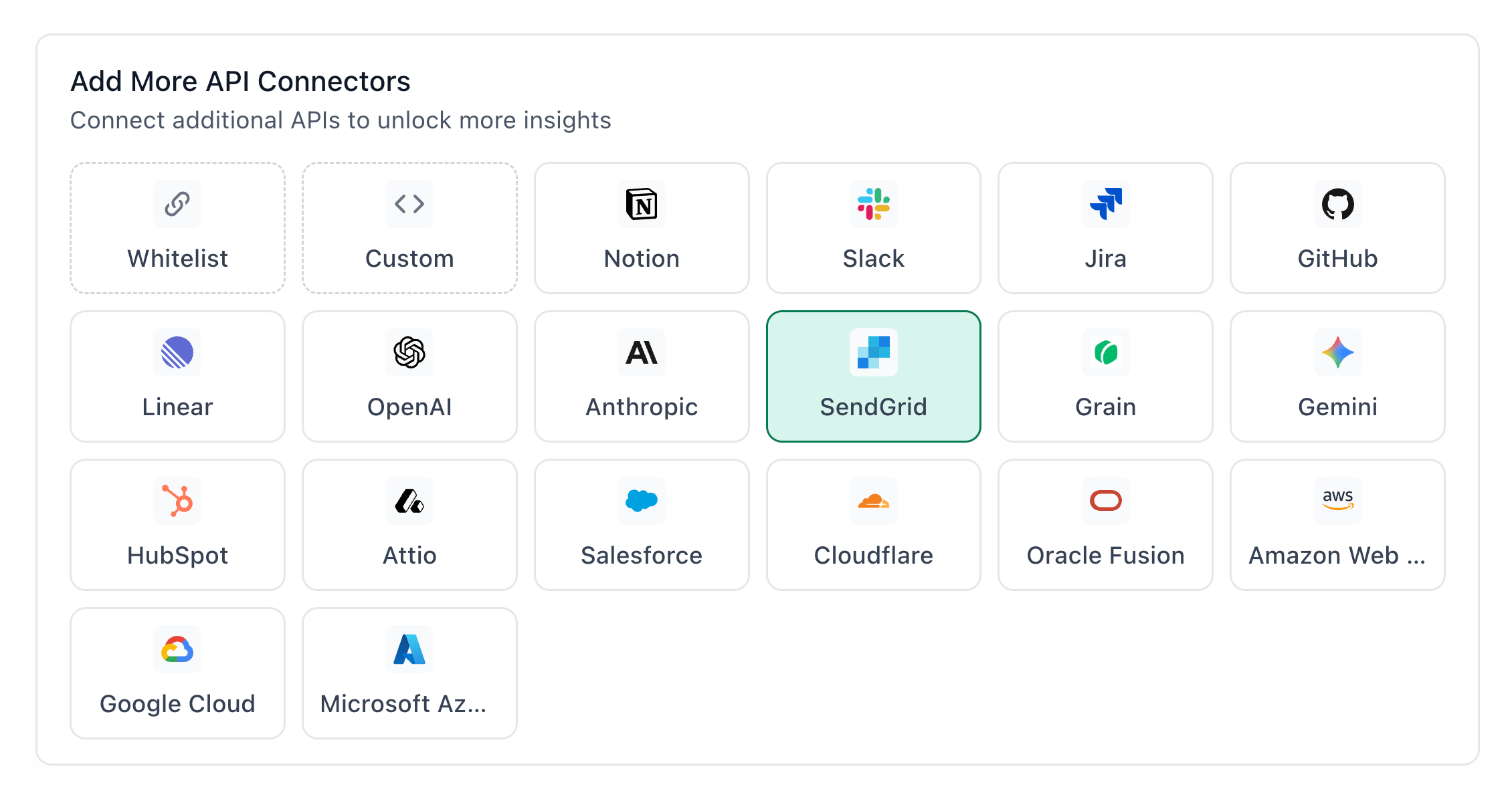 1. Go to [app.textql.com](https://app.textql.com/) and sign in.
2. In the bottom left sidebar, click Connectors > APIs and select SendGrid.
3. Paste your API token from Step 1.
4. Click Save.
#### Step 3: Verify the connection
Once saved, confirm that the connector is active:
1. Click on the SendGrid connector and select Test Connection at the bottom of the panel.
* A successful setup will return Connection successful (200).
* If the test fails, refer to the [Troubleshooting](#6-troubleshooting) section for next steps.
***
### **5. Usage Examples**
Once configured, you can ask Ana:
* "Email the top 10 customers by revenue this quarter to my sales lead."
* "Draft and send a data anomaly notification to the engineering team."
* "After this analysis, email a PDF summary to the stakeholders on this list."
* "Set up a weekly churn report and deliver it to the customer success team every Friday."
* "Send me a one-off email with the results of this SQL query."
### **6. Troubleshooting**
| **Symptom** | **Likely Cause** | **Fix** |
| ---------------- | ---------------------------- | ------------------------------------------------------------------------------------------------------------------------------------------------------------------- |
| 401 Unauthorized | API key is invalid | Verify that the correct key was entered when configuring the connector in TextQL, and that the key has not been revoked or regenerated in SendGrid. |
| 403 Forbidden | Insufficient permissions | Ensure the key has Mail Send permissions — either Full Access, or Custom Access with Mail Send enabled. Billing Access cannot send email. |
| 403 Forbidden | Sender identity not verified | In SendGrid, go to Settings > Sender Authentication and confirm your sending address or domain is verified. Emails sent from an unverified sender will be rejected. |
### **7. Security Notes**
* API keys do not expire automatically, but should be rotated periodically as a best practice. If a key is compromised, revoke it immediately in SendGrid and issue a new one.
* The integration uses API key authentication — Ana cannot modify your SendGrid account settings, suppression lists, templates, or billing information.
* Do not share API keys, client secrets, or OAuth credentials in email, chat, tickets, or other unsecured locations.
* To revoke access, go to Settings > API Keys in your SendGrid dashboard, locate the key used for this integration, and delete it. Then remove or update the credential in TextQL under Connectors.
* For more details on how SendGrid handles API tokens and permissions, refer to [SendGrid’s official documentation](https://www.twilio.com/docs/sendgrid/api-reference).
***
### **Need Help?**
For further assistance, please contact [support@textql.com](mailto:support@textql.com).
### **Privacy Policy**
For information about how we handle your data and protect your privacy, please review our [Privacy Policy](https://textql.com/privacy).
1. Go to [app.textql.com](https://app.textql.com/) and sign in.
2. In the bottom left sidebar, click Connectors > APIs and select SendGrid.
3. Paste your API token from Step 1.
4. Click Save.
#### Step 3: Verify the connection
Once saved, confirm that the connector is active:
1. Click on the SendGrid connector and select Test Connection at the bottom of the panel.
* A successful setup will return Connection successful (200).
* If the test fails, refer to the [Troubleshooting](#6-troubleshooting) section for next steps.
***
### **5. Usage Examples**
Once configured, you can ask Ana:
* "Email the top 10 customers by revenue this quarter to my sales lead."
* "Draft and send a data anomaly notification to the engineering team."
* "After this analysis, email a PDF summary to the stakeholders on this list."
* "Set up a weekly churn report and deliver it to the customer success team every Friday."
* "Send me a one-off email with the results of this SQL query."
### **6. Troubleshooting**
| **Symptom** | **Likely Cause** | **Fix** |
| ---------------- | ---------------------------- | ------------------------------------------------------------------------------------------------------------------------------------------------------------------- |
| 401 Unauthorized | API key is invalid | Verify that the correct key was entered when configuring the connector in TextQL, and that the key has not been revoked or regenerated in SendGrid. |
| 403 Forbidden | Insufficient permissions | Ensure the key has Mail Send permissions — either Full Access, or Custom Access with Mail Send enabled. Billing Access cannot send email. |
| 403 Forbidden | Sender identity not verified | In SendGrid, go to Settings > Sender Authentication and confirm your sending address or domain is verified. Emails sent from an unverified sender will be rejected. |
### **7. Security Notes**
* API keys do not expire automatically, but should be rotated periodically as a best practice. If a key is compromised, revoke it immediately in SendGrid and issue a new one.
* The integration uses API key authentication — Ana cannot modify your SendGrid account settings, suppression lists, templates, or billing information.
* Do not share API keys, client secrets, or OAuth credentials in email, chat, tickets, or other unsecured locations.
* To revoke access, go to Settings > API Keys in your SendGrid dashboard, locate the key used for this integration, and delete it. Then remove or update the credential in TextQL under Connectors.
* For more details on how SendGrid handles API tokens and permissions, refer to [SendGrid’s official documentation](https://www.twilio.com/docs/sendgrid/api-reference).
***
### **Need Help?**
For further assistance, please contact [support@textql.com](mailto:support@textql.com).
### **Privacy Policy**
For information about how we handle your data and protect your privacy, please review our [Privacy Policy](https://textql.com/privacy).