> ## Documentation Index
> Fetch the complete documentation index at: https://docs.textql.com/llms.txt
> Use this file to discover all available pages before exploring further.
# Tableau Connector
> Connecting Tableau to TextQL
### Tableau Authentication Credentials
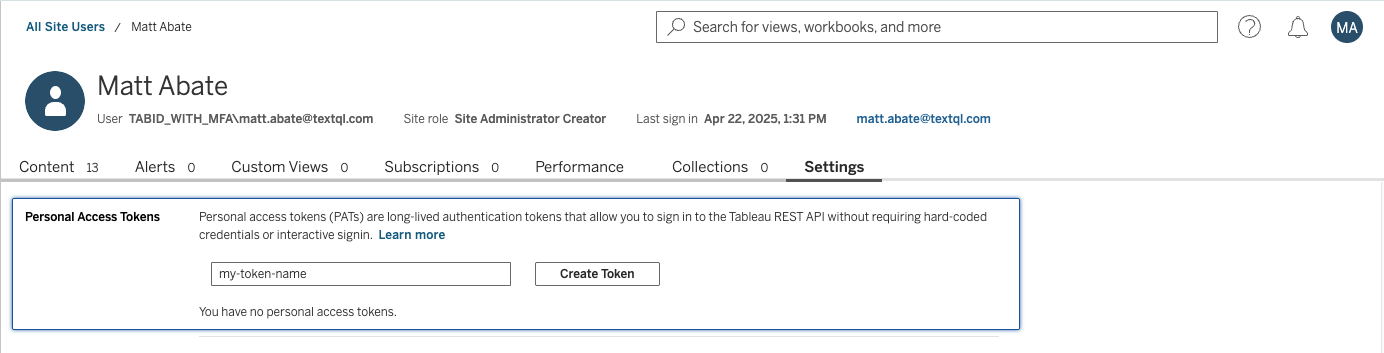
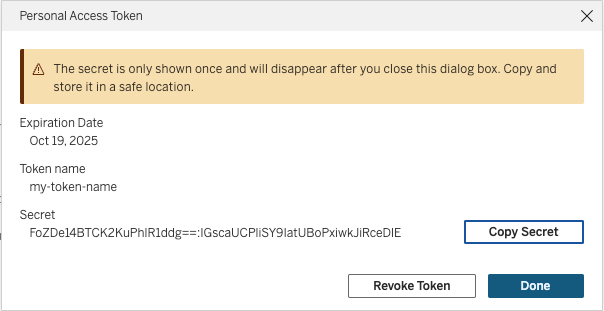
Generate a personal access token (PAT) for your Tableau account.
 ### Creating the Connector in TextQL
Navigate to the [TextQL Connectors Page](/core/datasources/the-connectors-page) and click **Create New Connector**. Then submit the creation form with Tableau selected. This will open a form for entering the credentials for reaching your Tableau connected app.
### Creating the Connector in TextQL
Navigate to the [TextQL Connectors Page](/core/datasources/the-connectors-page) and click **Create New Connector**. Then submit the creation form with Tableau selected. This will open a form for entering the credentials for reaching your Tableau connected app.
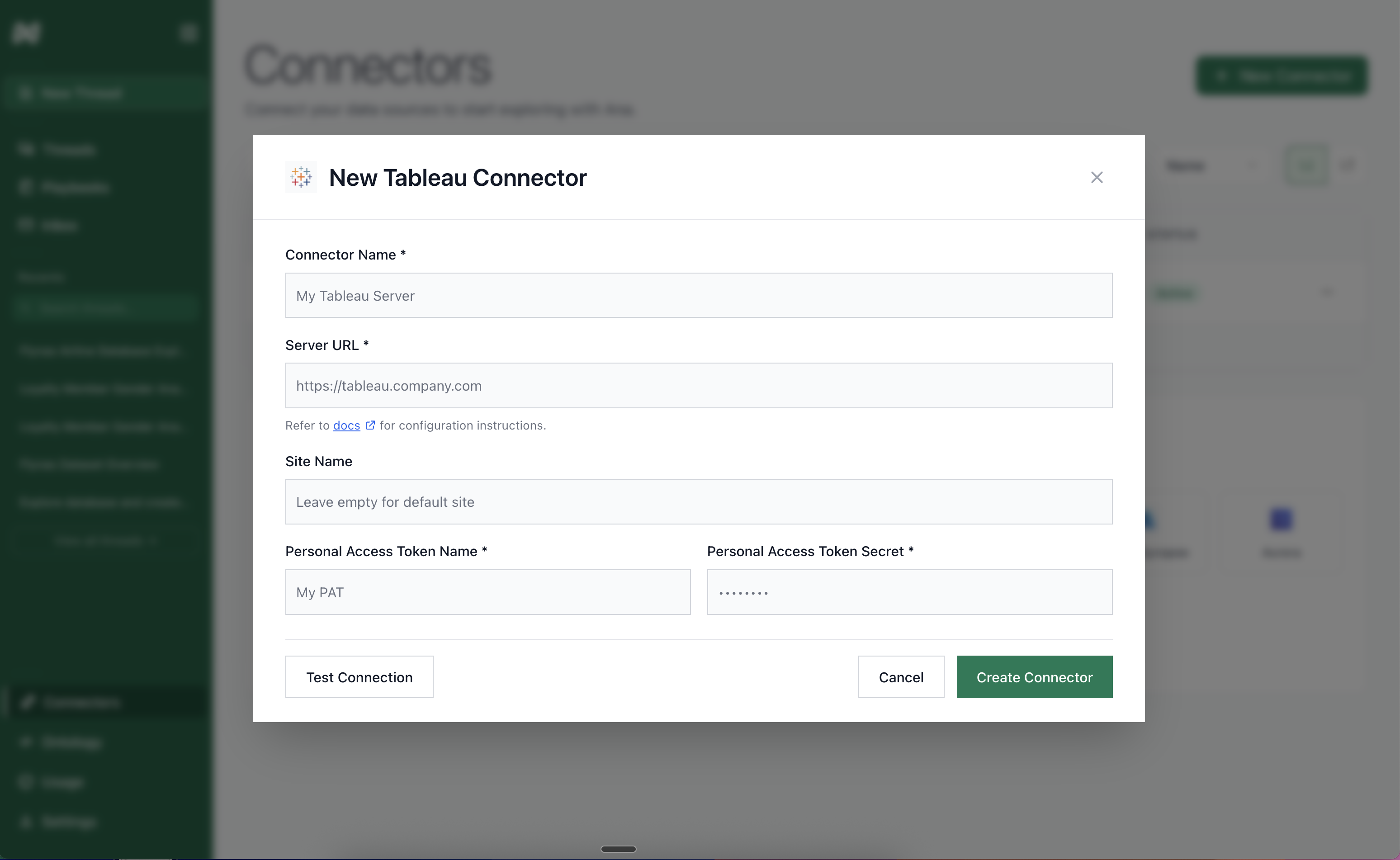 The **Connector Name** can be addressed without navigating from the TextQL site: this is a generic name used to identify what data is served from the connector. For Example, "Marketing Dashboards" or "Dashboards Central."
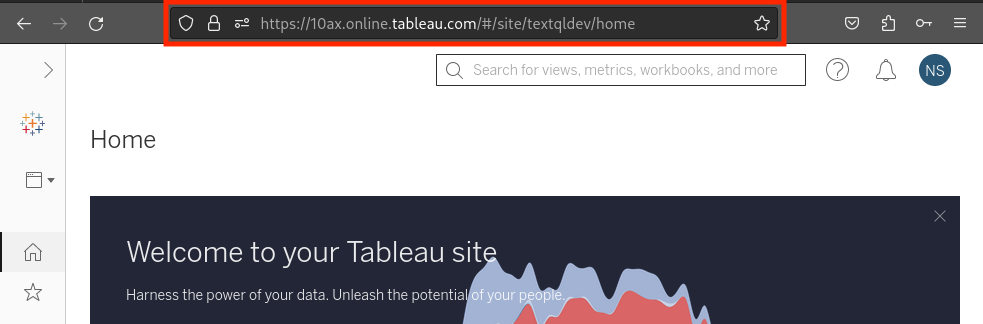
Next, identify and add the **URL of your Tableau Server,** for example `https://10ax.online.Tableau.com/#/site/textqldev/home`. From the server url, you can additionally extract your
* **Server**: the base url, for example, `https://10ax.online.Tableau.com`, and your
* **Site:** which is found in the server url after the "site/," for example, "textqldev."
The **Connector Name** can be addressed without navigating from the TextQL site: this is a generic name used to identify what data is served from the connector. For Example, "Marketing Dashboards" or "Dashboards Central."
Next, identify and add the **URL of your Tableau Server,** for example `https://10ax.online.Tableau.com/#/site/textqldev/home`. From the server url, you can additionally extract your
* **Server**: the base url, for example, `https://10ax.online.Tableau.com`, and your
* **Site:** which is found in the server url after the "site/," for example, "textqldev."
 Finally, add the **PAT ID** and **PAT Value** obtained by following the steps above in the section **Tableau Authentication Credentials**.
When the form is complete, click **Create** to create and save your Tableau connector.
At any time, you can edit your Tableau connector credentials by selecting the connector from the Connectors Page and selecting edit from the actions dropdown. Note that when modifying an existing connector, the TextQL site will redact secrets.
### Syncing The Connector -- Add Your Dashboards
After setting up your Tableau connector, you'll need to select the dashboards
to be made available to Ana. To do this, click into your connector, and then select the projects you want to include.
Finally, add the **PAT ID** and **PAT Value** obtained by following the steps above in the section **Tableau Authentication Credentials**.
When the form is complete, click **Create** to create and save your Tableau connector.
At any time, you can edit your Tableau connector credentials by selecting the connector from the Connectors Page and selecting edit from the actions dropdown. Note that when modifying an existing connector, the TextQL site will redact secrets.
### Syncing The Connector -- Add Your Dashboards
After setting up your Tableau connector, you'll need to select the dashboards
to be made available to Ana. To do this, click into your connector, and then select the projects you want to include.
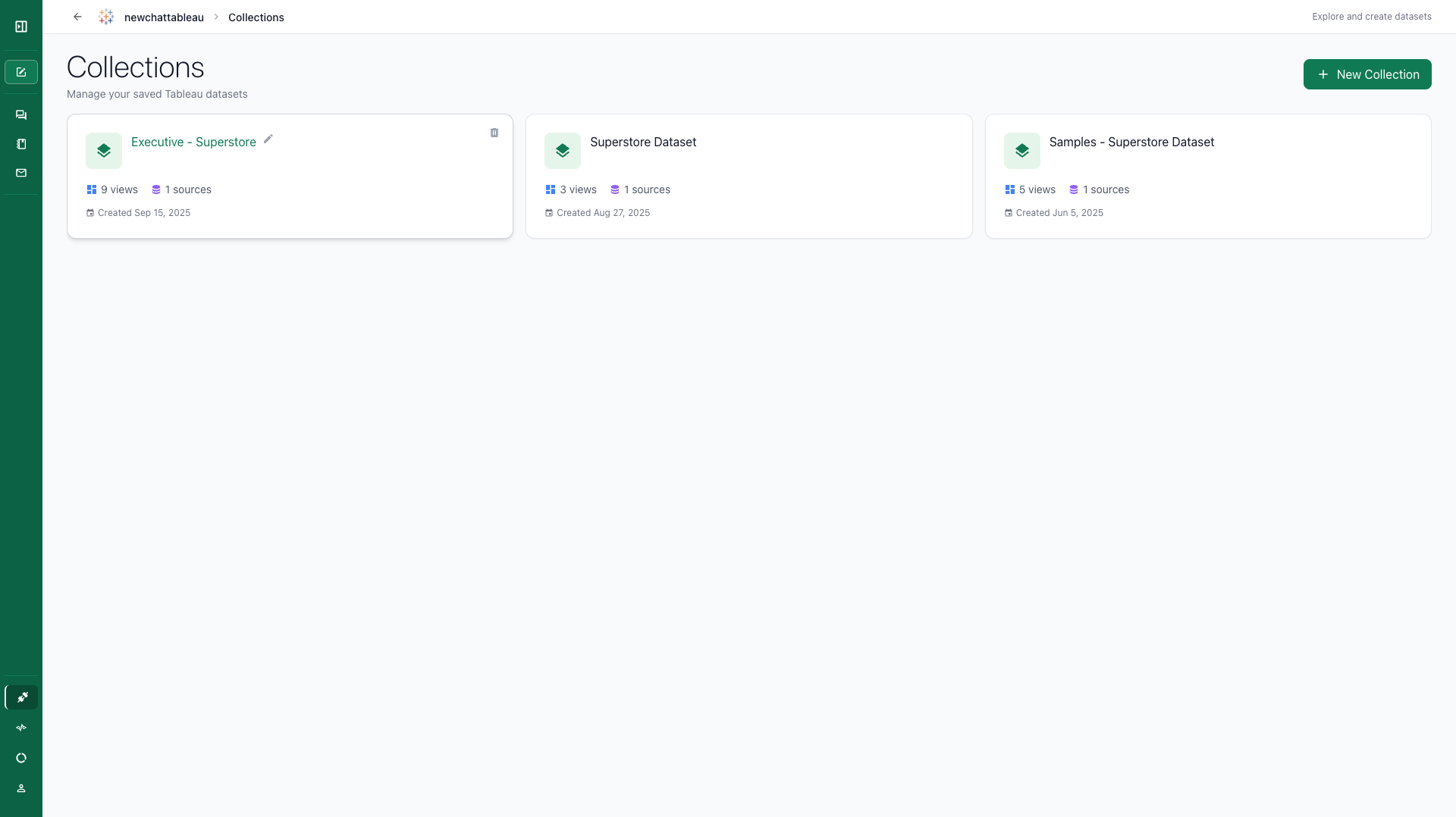 Click "New collection" in the top right.
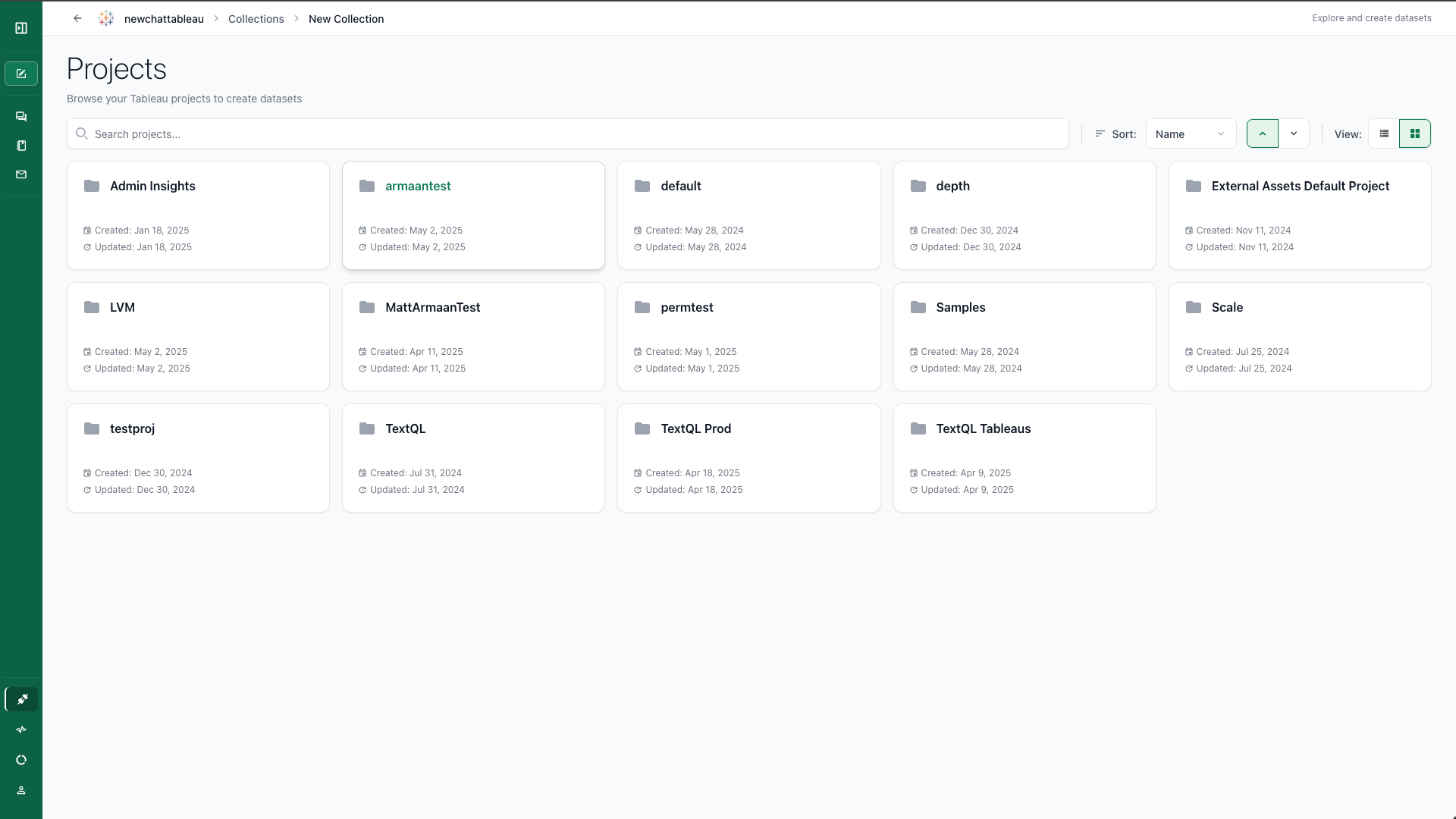 Select a project.
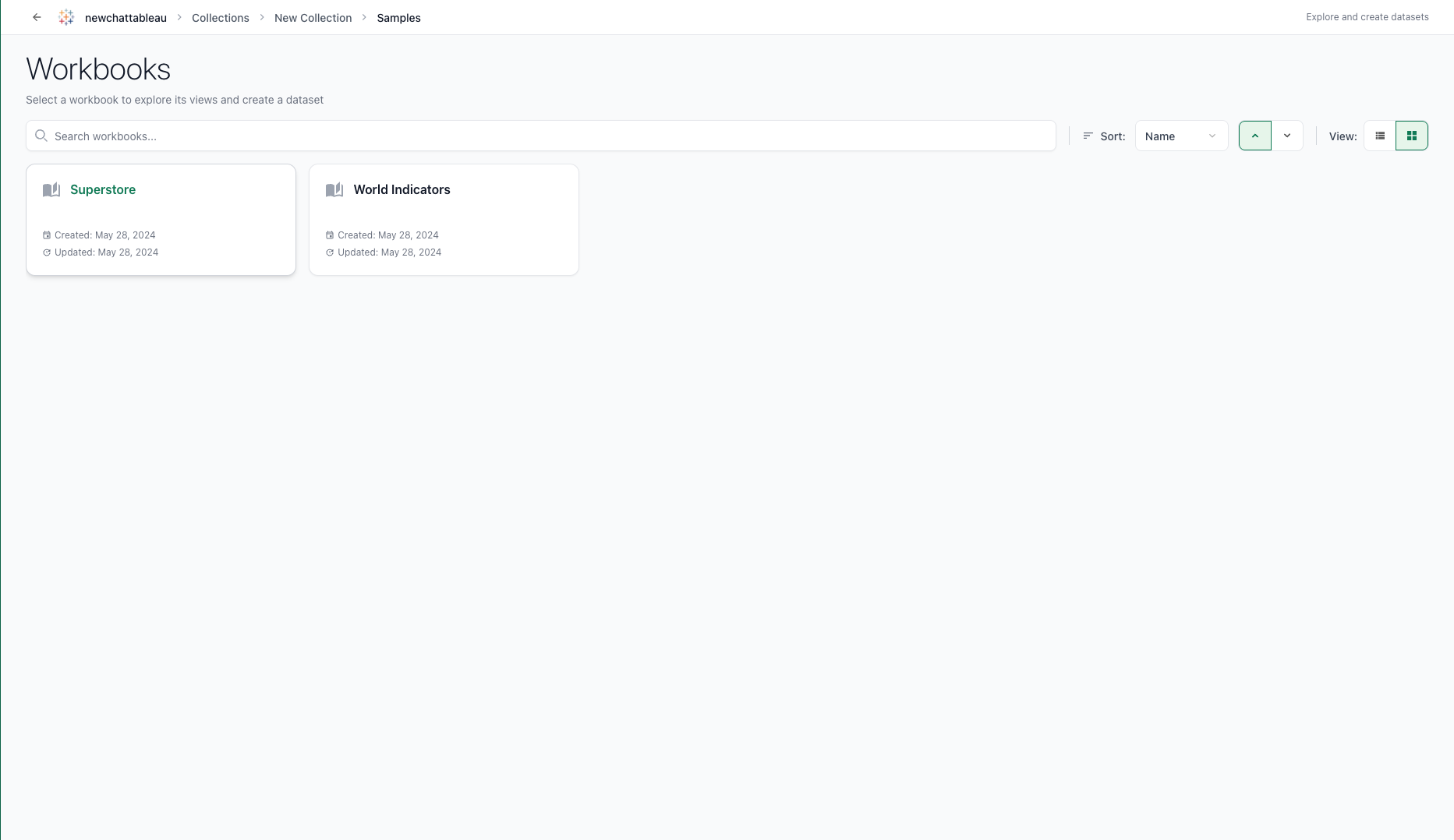 Select a workbook.
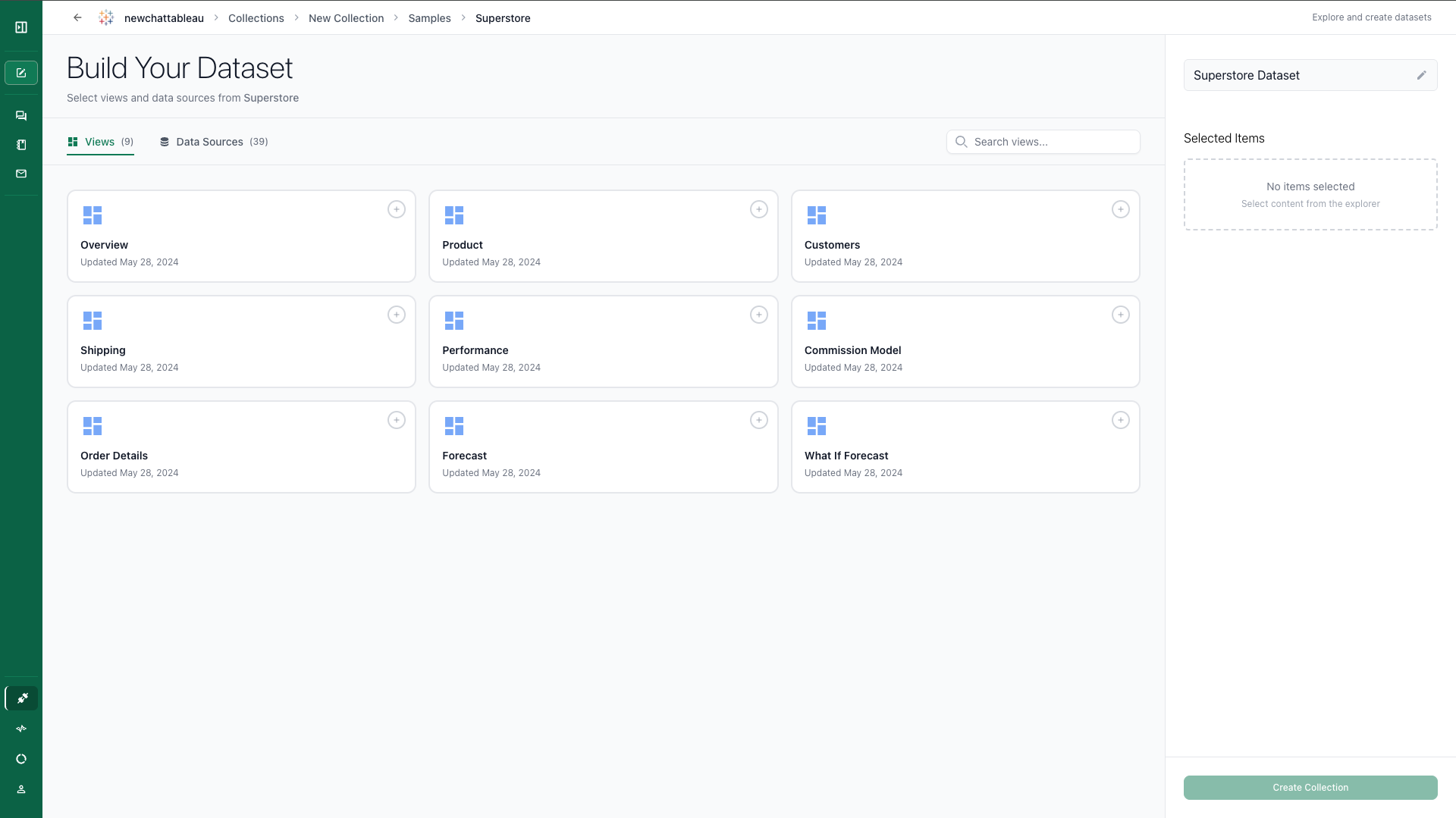 NOTE: Tableau datasources connected to TextQL must be **Extract**. Querying from **Live** datasources is still in development.
Select one or more views.
NOTE: Tableau datasources connected to TextQL must be **Extract**. Querying from **Live** datasources is still in development.
Select one or more views.
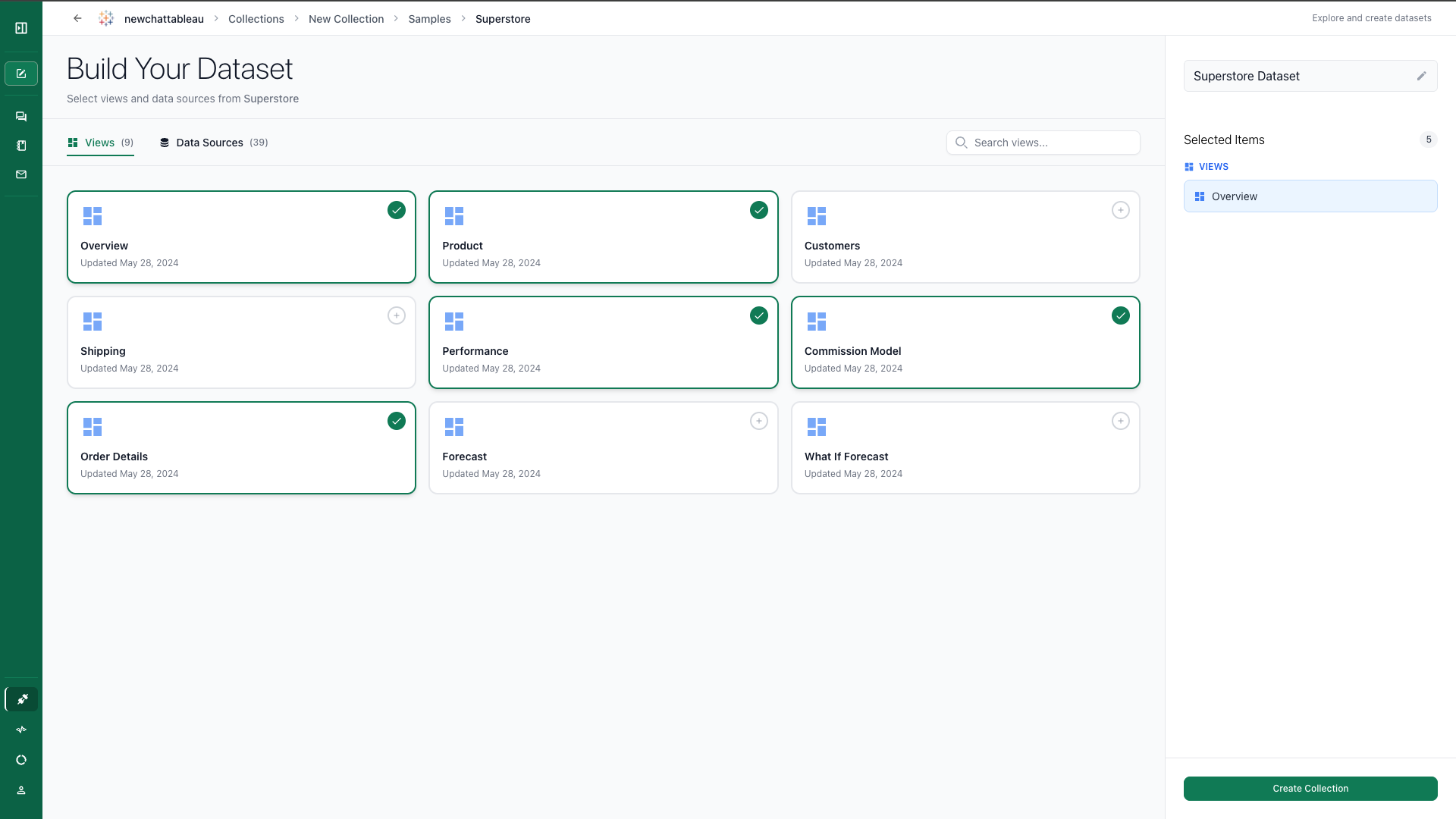 Select one or more datasources.
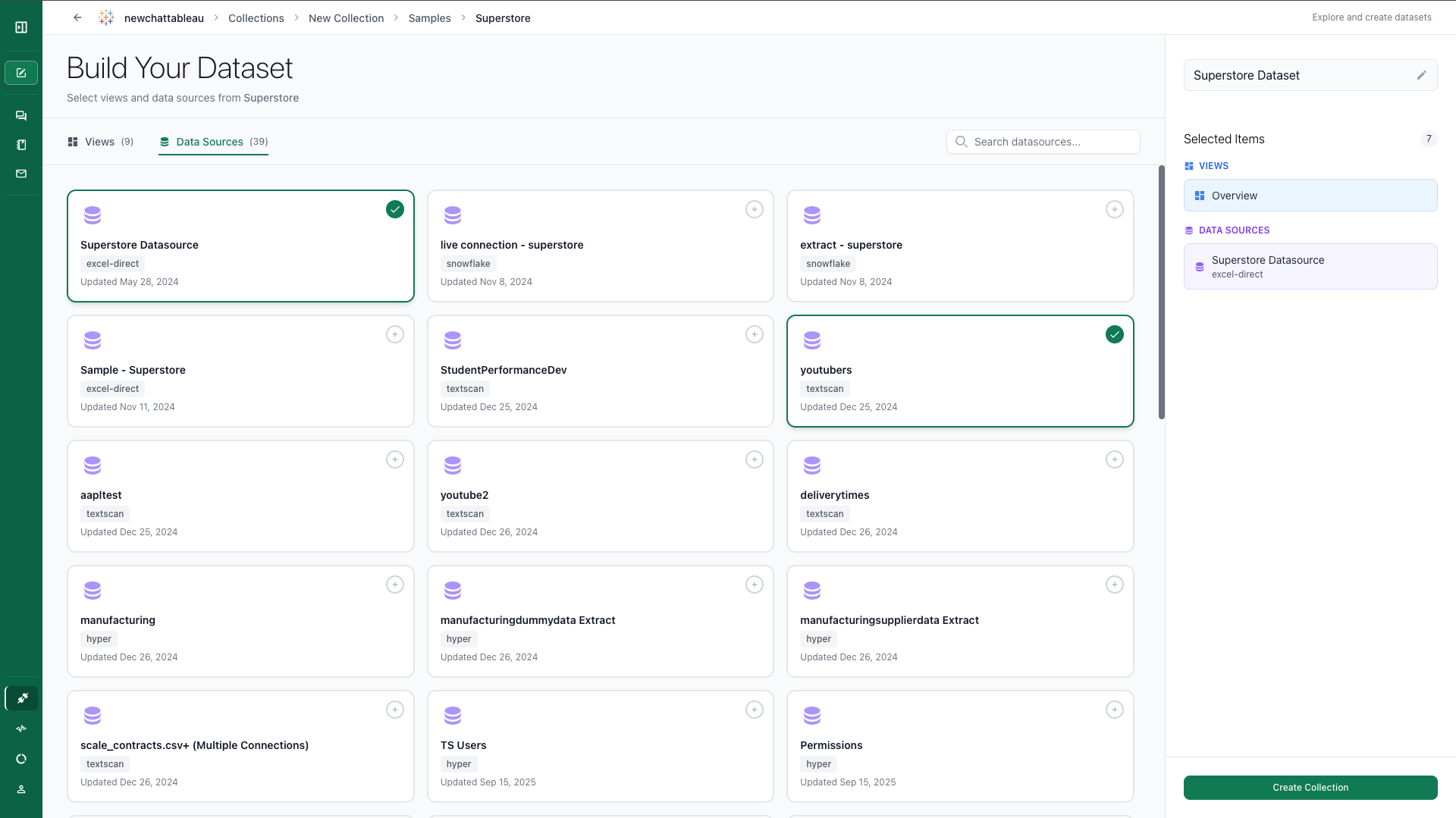 After you are done, click "Create Collection" in the bottom right.
### Refreshing a Collection
If your Tableau workbooks or datasources have changed since you created a collection, you can manually refresh it to pull in the latest views and datasources.
On the collections list, hover over a collection card and click the **Refresh** icon (circular arrow) in the top-right corner of the card. TextQL will re-authenticate with Tableau, fetch the current list of views and datasources, update the collection, and invalidate any cached introspection data.
The refresh re-syncs the views and datasources available in the collection. It does not change which project or workbook the collection points to. To change the scope of a collection, delete it and create a new one.
## Chatting with your dashboards
Once your Tableau connector is set up and synced, you can start chatting with your dashboards. Navigate to [TextQL Chat](https://app.textql.com/chat/new) to begin asking questions about your Tableau data.
Hover over the "+" icon and Click "Attach Tableau".
After you are done, click "Create Collection" in the bottom right.
### Refreshing a Collection
If your Tableau workbooks or datasources have changed since you created a collection, you can manually refresh it to pull in the latest views and datasources.
On the collections list, hover over a collection card and click the **Refresh** icon (circular arrow) in the top-right corner of the card. TextQL will re-authenticate with Tableau, fetch the current list of views and datasources, update the collection, and invalidate any cached introspection data.
The refresh re-syncs the views and datasources available in the collection. It does not change which project or workbook the collection points to. To change the scope of a collection, delete it and create a new one.
## Chatting with your dashboards
Once your Tableau connector is set up and synced, you can start chatting with your dashboards. Navigate to [TextQL Chat](https://app.textql.com/chat/new) to begin asking questions about your Tableau data.
Hover over the "+" icon and Click "Attach Tableau".
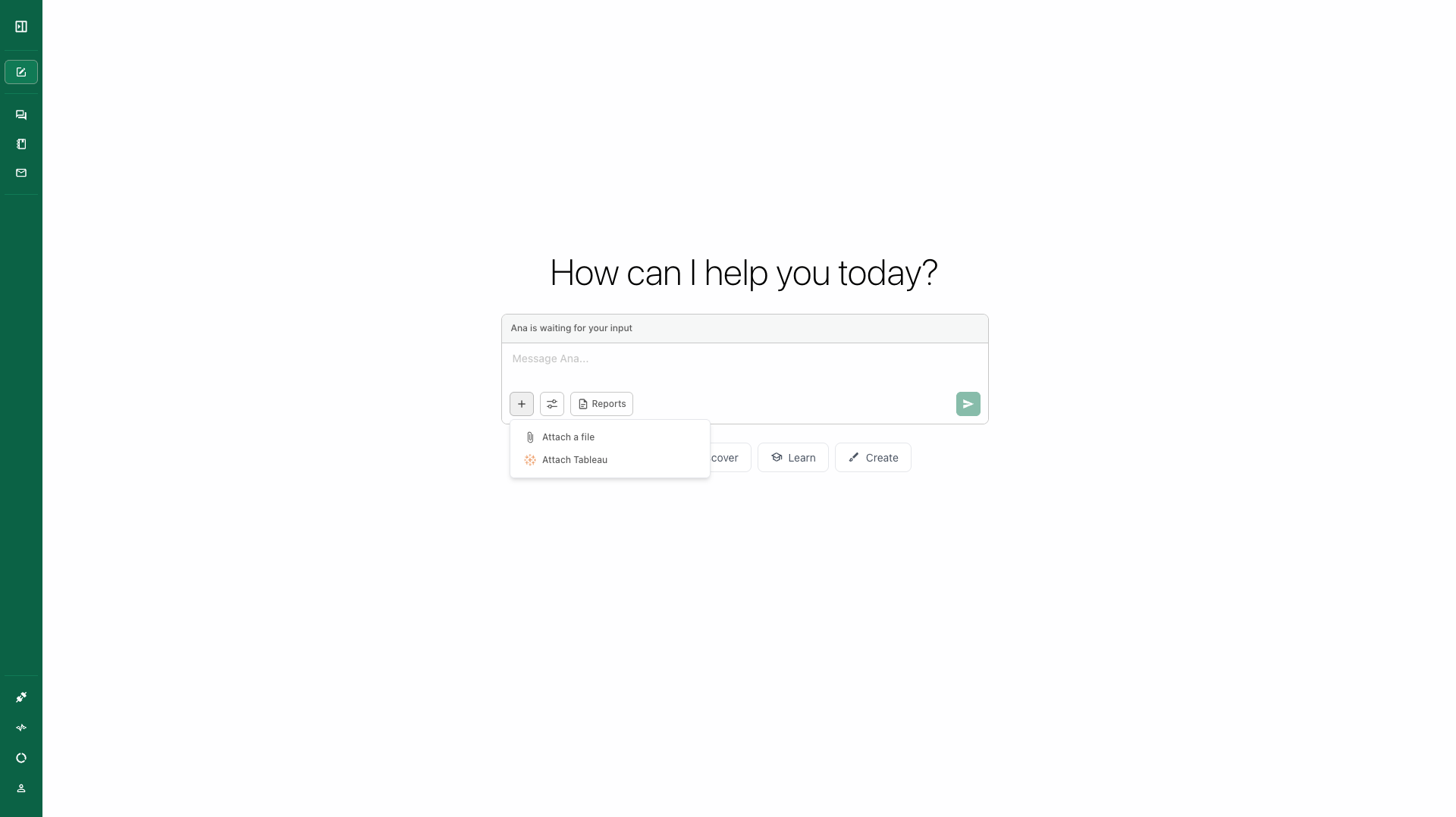 Choose the connector you just made.
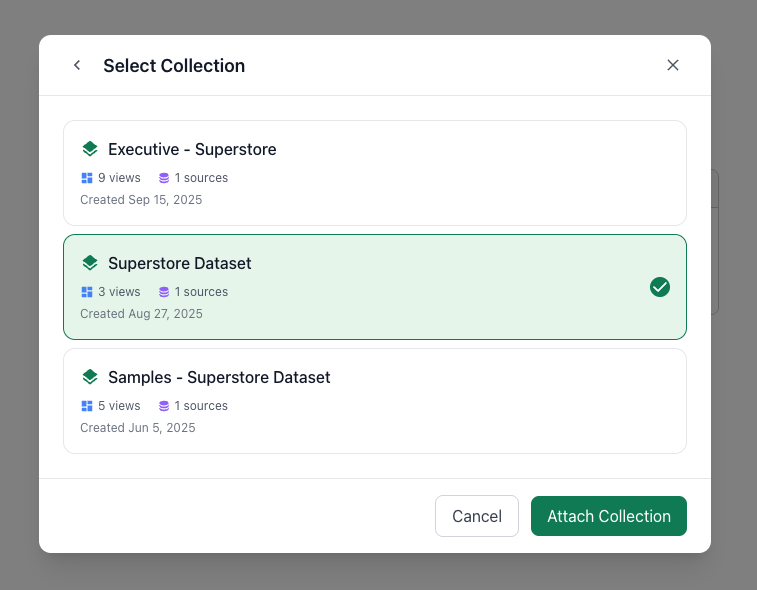
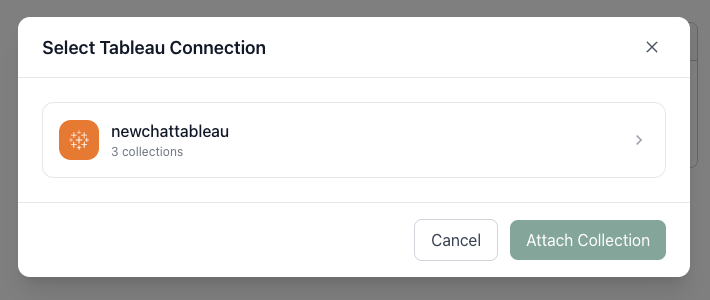 Choose the collection you just made.
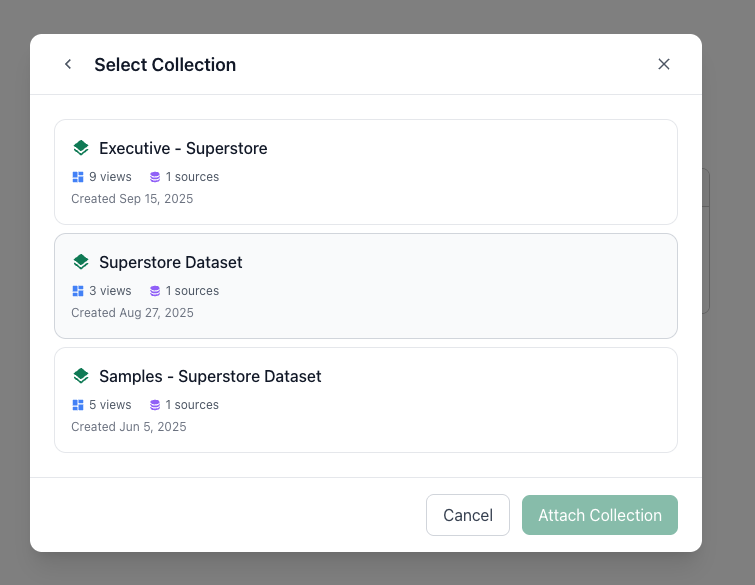 Click "Attach Collection".
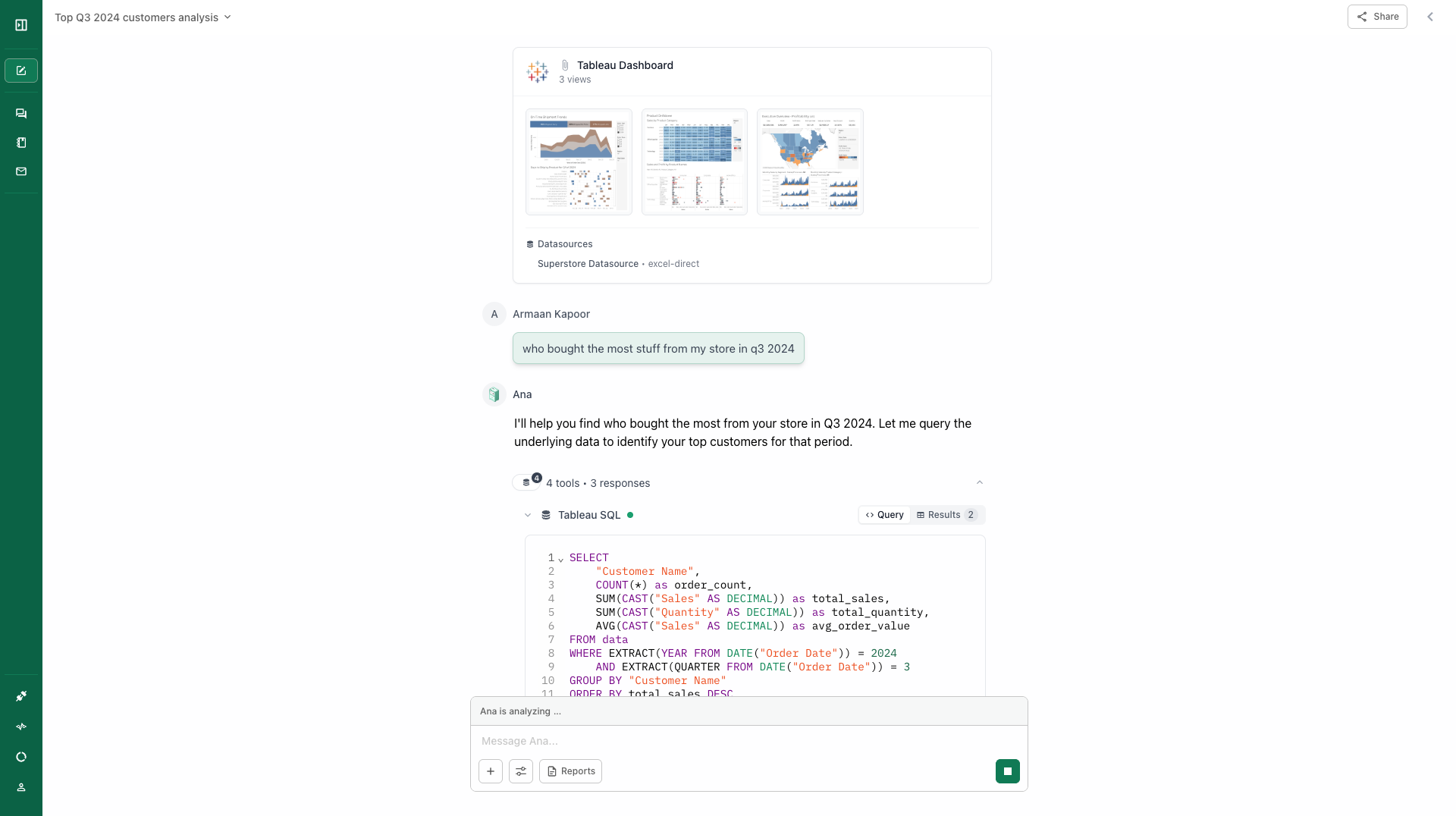
 Ask Ana anything you want. She can see / filter the views in your collection, and run SQL and Python over your underlying datasources.
 ### Sharing Collections via Embed Links
Admins can generate embed links for Tableau collections. Embed links authenticate as service accounts (bot users) created in Settings → Service Accounts.
**Service accounts:**
* Are regular org members with RBAC-controlled permissions
* Default to "member" role (can read datasets, create chats)
* Don't expose admin credentials
* Can be deleted to revoke all associated embed links
To share a collection, click the link icon on a collection card and select which service account to use.
### Tableau Connected App (deprecated)
Generally, you will need to be a server / site administrator within your Tableau account to complete the following steps.
From within your Tableau account, navigate to **Settings** **> Connected Apps.** Then click the **New Connected App** dropdown and select **Direct Trust.**
### Sharing Collections via Embed Links
Admins can generate embed links for Tableau collections. Embed links authenticate as service accounts (bot users) created in Settings → Service Accounts.
**Service accounts:**
* Are regular org members with RBAC-controlled permissions
* Default to "member" role (can read datasets, create chats)
* Don't expose admin credentials
* Can be deleted to revoke all associated embed links
To share a collection, click the link icon on a collection card and select which service account to use.
### Tableau Connected App (deprecated)
Generally, you will need to be a server / site administrator within your Tableau account to complete the following steps.
From within your Tableau account, navigate to **Settings** **> Connected Apps.** Then click the **New Connected App** dropdown and select **Direct Trust.**
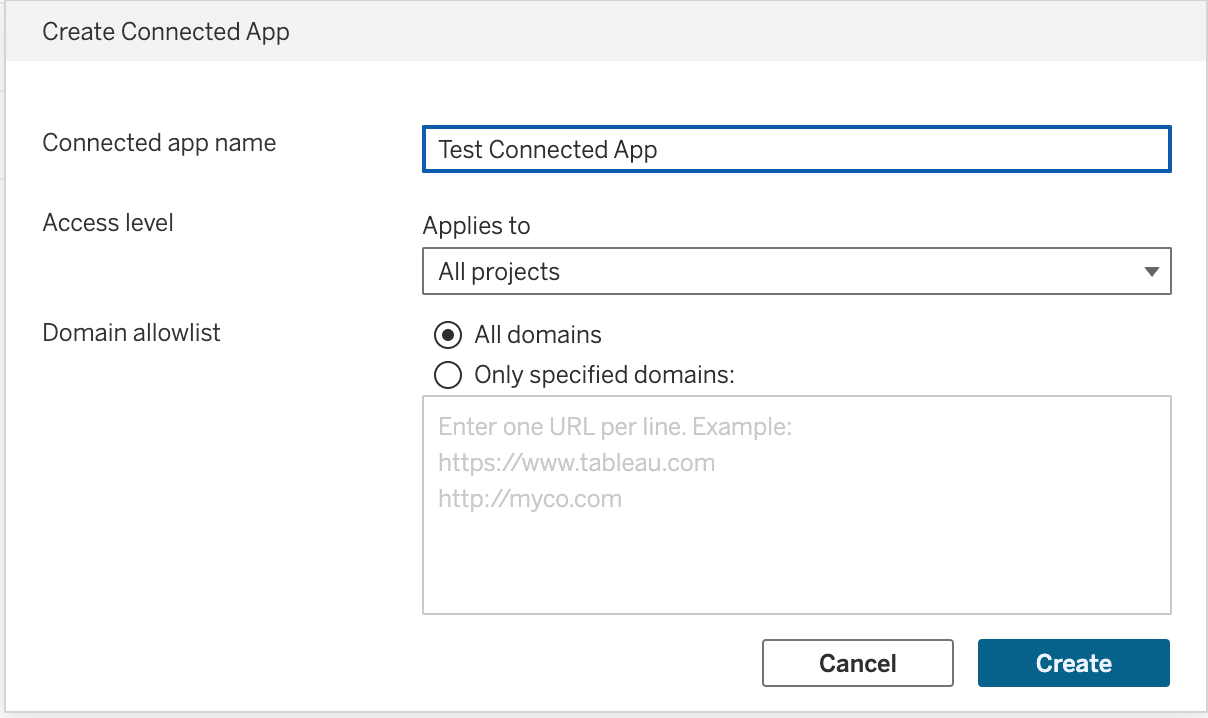
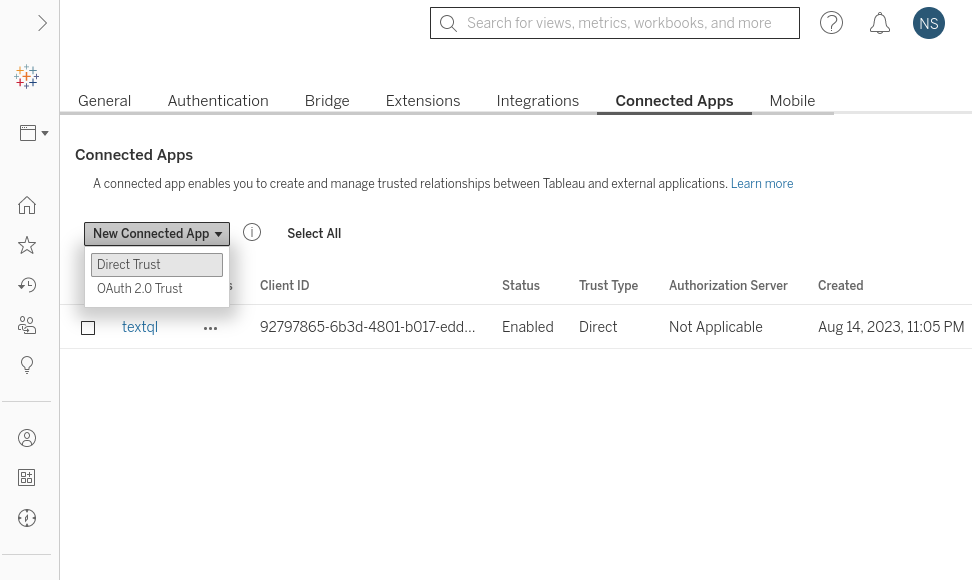 A form will appear, asking you to enter a **Connected App Name**, and choose an **Access Level.** Note that the Access Level options determine the projects and dashboard that will become available in TextQL. Finally, click **Create** to create the new connected App.
 Click into your connected app, and then click **Generate New Secret.**
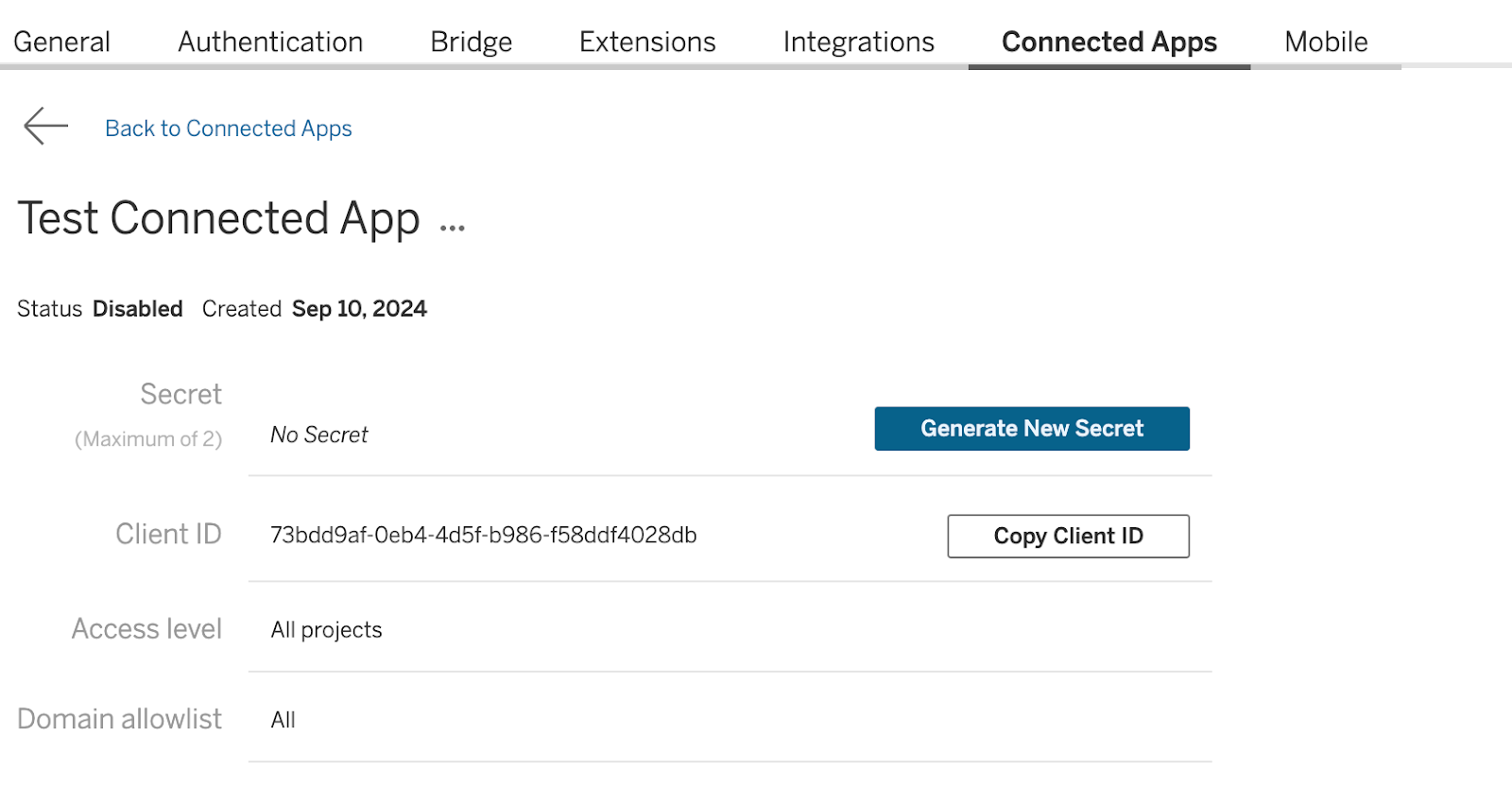 This action will provide you with:
* **App / Client ID**
* **Secret Value**
* **Secret ID**
This authentication method is deprecated, so reach out to a TextQL admin to continue.
This action will provide you with:
* **App / Client ID**
* **Secret Value**
* **Secret ID**
This authentication method is deprecated, so reach out to a TextQL admin to continue.