> ## Documentation Index
> Fetch the complete documentation index at: https://docs.textql.com/llms.txt
> Use this file to discover all available pages before exploring further.
# ClickHouse Connector
> Connecting TextQL to ClickHouse
To connect TextQL with your ClickHouse instance, you will need to gather the following connection details:
* Host and port (HTTP: 8123, Native TCP: 9000)
* Database name
* Authentication credentials (username and password)
* Protocol preference (HTTP recommended)
### Creating the Connector in TextQL
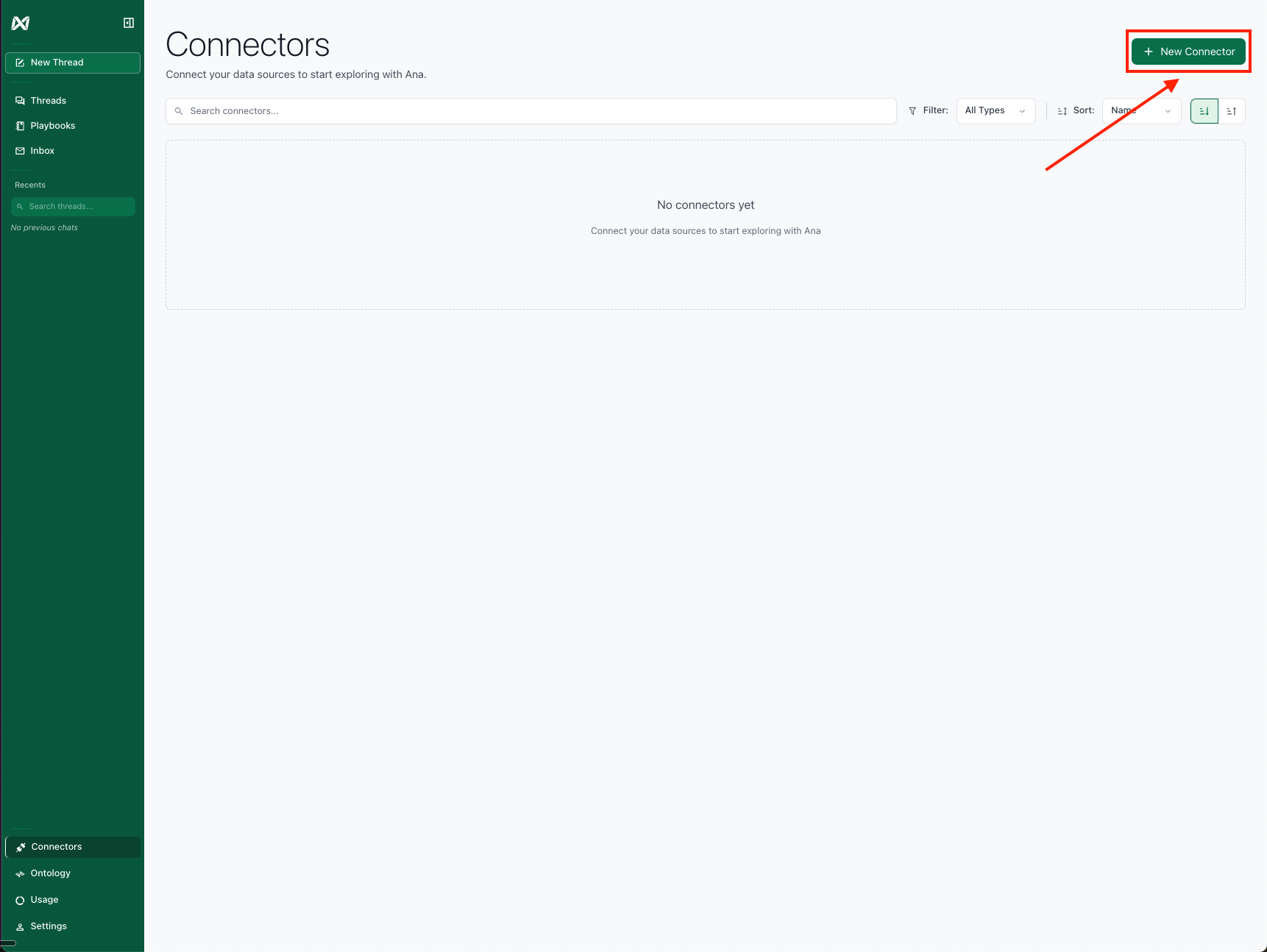
Navigate to the [TextQL Connectors Page](/core/datasources/the-connectors-page) and click **Create New Connector**. Select ClickHouse from the available connectors to open the configuration form.
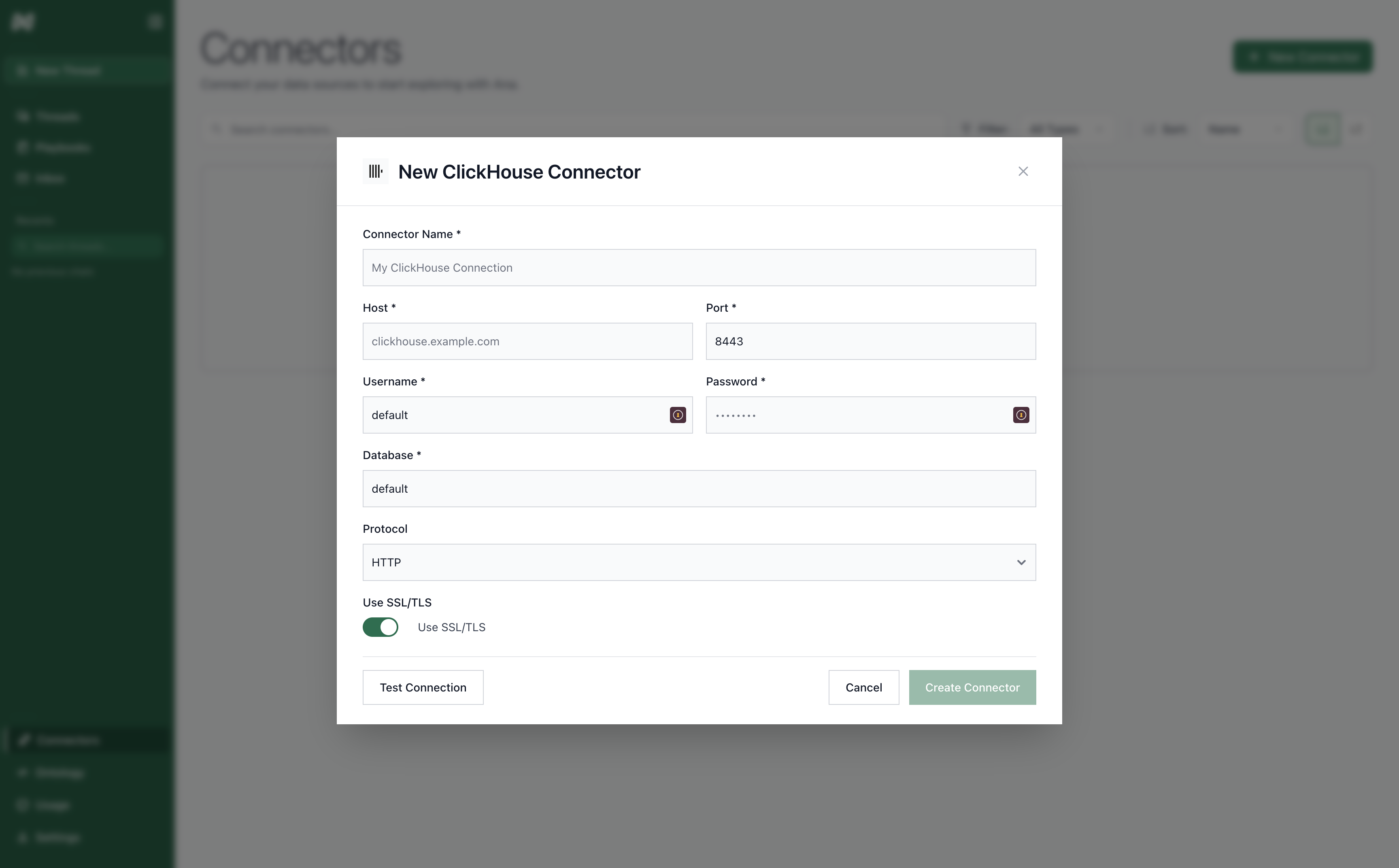
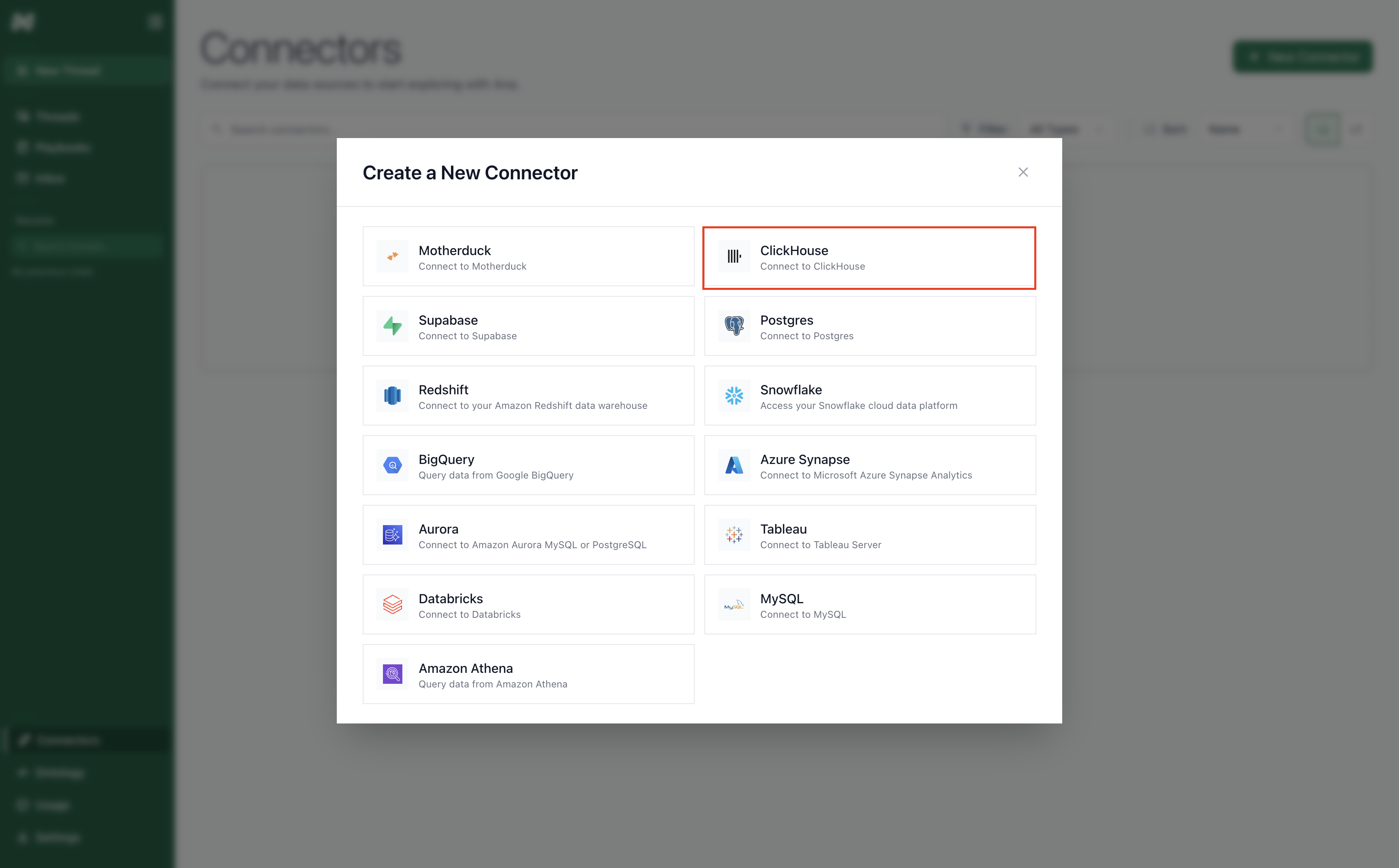 The form requires the following information:
* **Connector Name:** A descriptive name to identify this specific ClickHouse connection in TextQL.
* **Host:** Your ClickHouse server hostname or IP address.
* **Port:** The ClickHouse port (8123 for HTTP, 9000 for Native TCP).
* **Database:** The name of your target ClickHouse database.
* **Username:** Your ClickHouse username.
* **Password:** Your ClickHouse password.
* **Protocol:** Choose HTTP or Native TCP protocol.
The form requires the following information:
* **Connector Name:** A descriptive name to identify this specific ClickHouse connection in TextQL.
* **Host:** Your ClickHouse server hostname or IP address.
* **Port:** The ClickHouse port (8123 for HTTP, 9000 for Native TCP).
* **Database:** The name of your target ClickHouse database.
* **Username:** Your ClickHouse username.
* **Password:** Your ClickHouse password.
* **Protocol:** Choose HTTP or Native TCP protocol.
 ### SSL Configuration
For secure connections, ClickHouse supports SSL/TLS encryption:
* **Use SSL/TLS:** Toggle to enable SSL/TLS encryption for the connection
### Supported Deployments
TextQL supports the following ClickHouse deployments:
* ClickHouse Cloud
* Self-hosted single node
* Self-hosted clusters
* ClickHouse on Kubernetes
### Testing the Connection
After entering your credentials, click **Create** to establish the connection. TextQL will validate your credentials and create the connector. If the connection fails, verify your host, port, protocol, and authentication details.
Having trouble connecting? See the [Network Configuration Guide](/core/datasources/databases/network-configuration) for firewall and IP whitelisting setup.
### Next Steps
### SSL Configuration
For secure connections, ClickHouse supports SSL/TLS encryption:
* **Use SSL/TLS:** Toggle to enable SSL/TLS encryption for the connection
### Supported Deployments
TextQL supports the following ClickHouse deployments:
* ClickHouse Cloud
* Self-hosted single node
* Self-hosted clusters
* ClickHouse on Kubernetes
### Testing the Connection
After entering your credentials, click **Create** to establish the connection. TextQL will validate your credentials and create the connector. If the connection fails, verify your host, port, protocol, and authentication details.
Having trouble connecting? See the [Network Configuration Guide](/core/datasources/databases/network-configuration) for firewall and IP whitelisting setup.
### Next Steps