> ## Documentation Index
> Fetch the complete documentation index at: https://docs.textql.com/llms.txt
> Use this file to discover all available pages before exploring further.
# Supabase Connector
> Connecting TextQL to Supabase
## Supabase Account Details
To connect TextQL with your Supabase database, you will need to gather the following information from your Supabase account:
* Host URL and Port (default: 5432)
* Username and Database password
* Database (default: postgres)
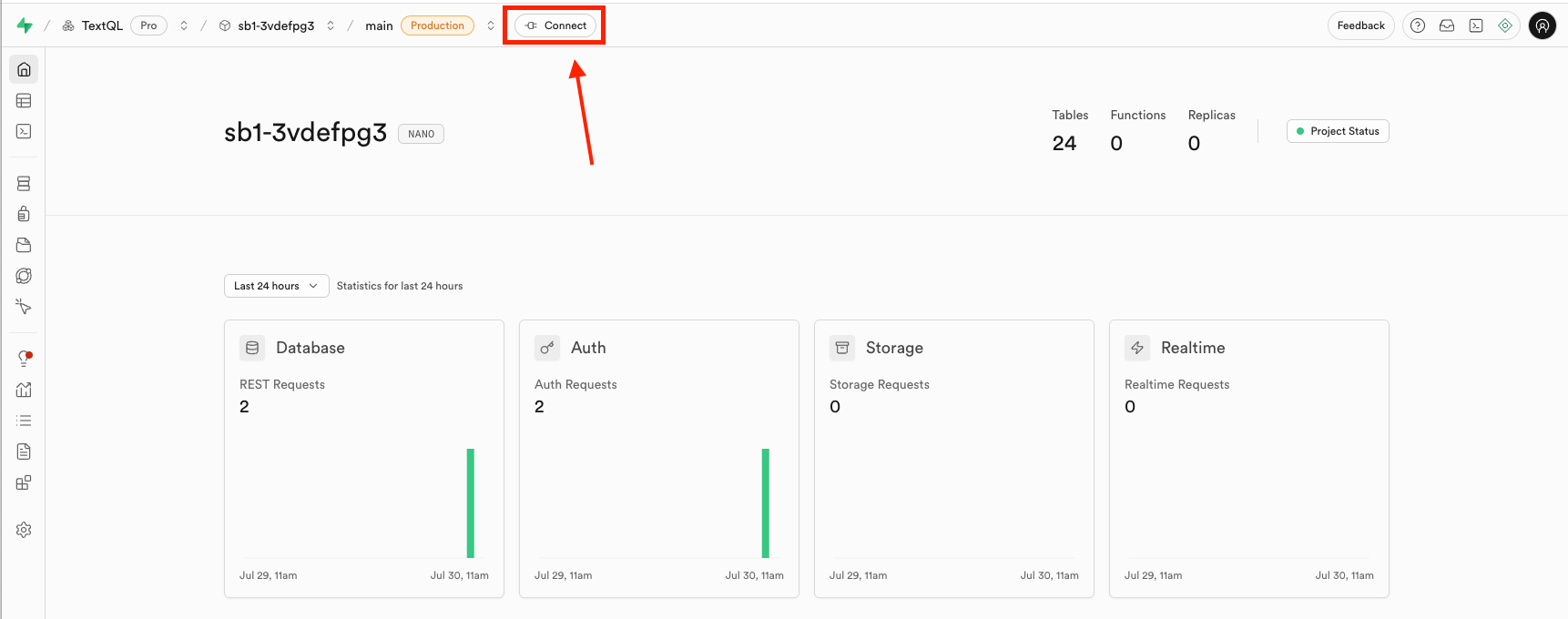
Navigate to your Supabase project, and click **Connect**.
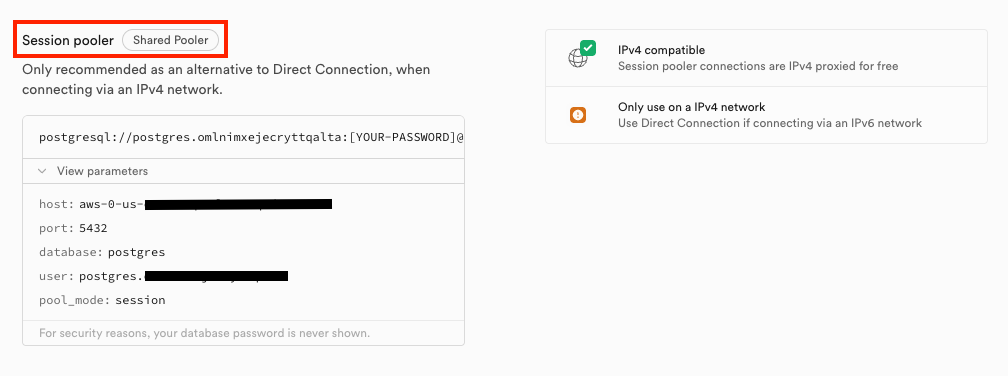
Scroll to the bottom of the form and click **View Parameters** under the Session Pooler tab.
This will open a dropdown with your host url, port, database, and user.
Our connectors by default connect via IPv4.
Supabase databases support session pooler with IPv4 for free.
## Creating the Connector in TextQL
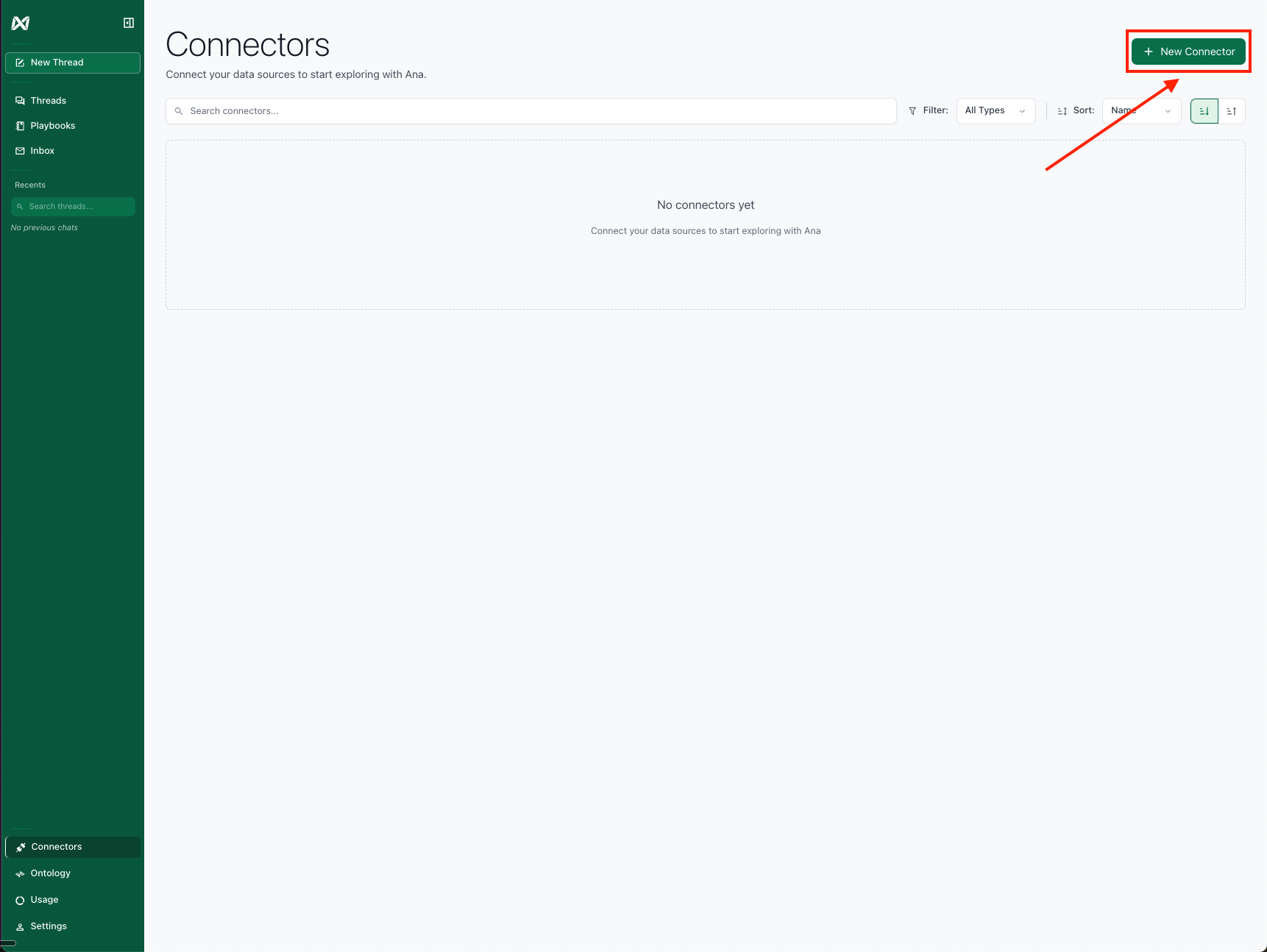
Navigate to the [TextQL Connectors Page](/core/datasources/the-connectors-page) and click **New Connector**.
Select Supabase from the available connectors to open the configuration form.
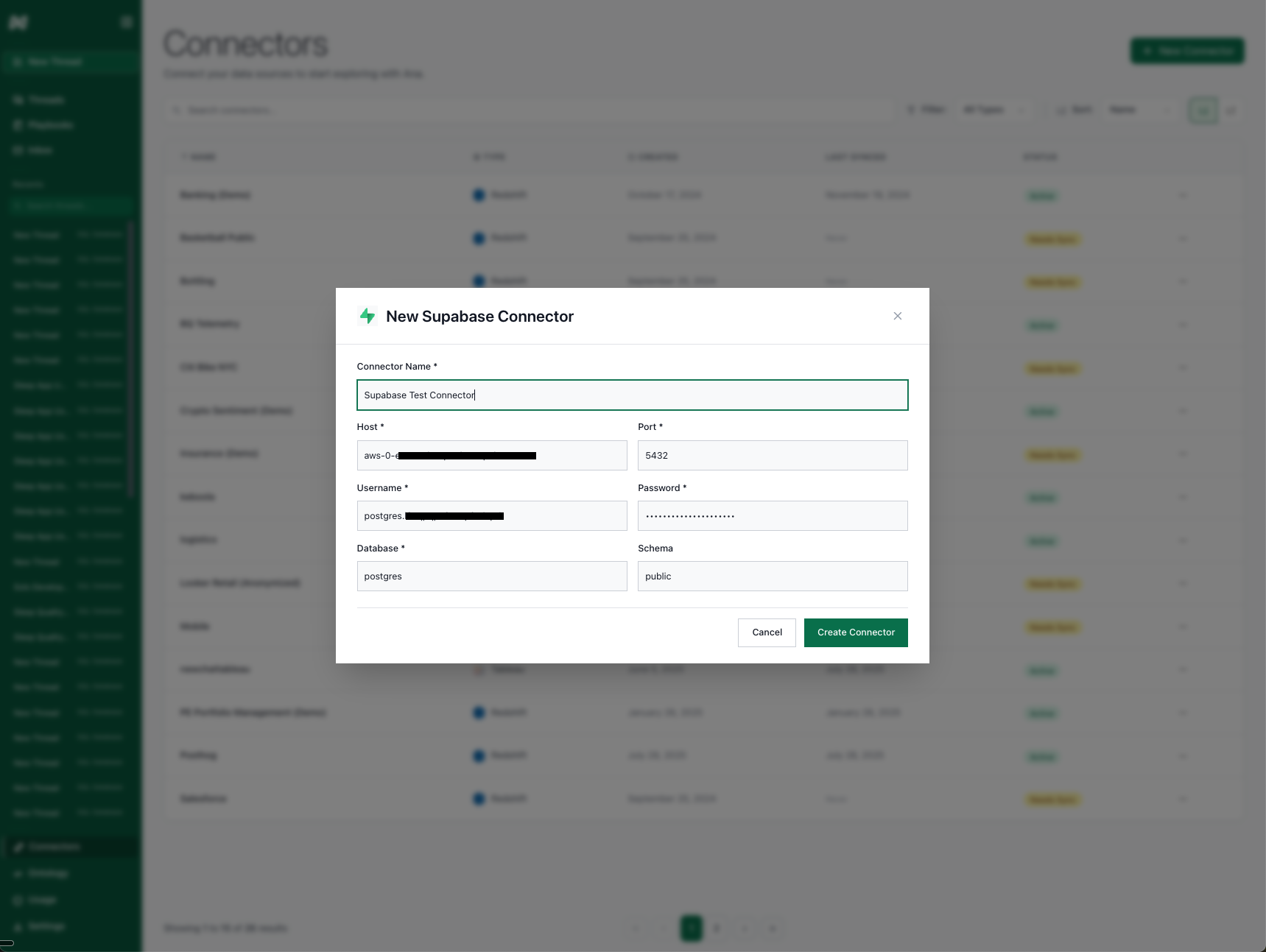
The form requires the following information:
* **Connector Name:** A descriptive name to identify this specific Supabase connection in TextQL.
* **Host URL:** The endpoint URL of your Supabase database.
* **Port:** The port number for your Supabase connection (default is 5432).
* **User:** postgres
* **Password:** Database password
* **Database:** postgres
Having trouble connecting? See the [Network Configuration Guide](/core/datasources/databases/network-configuration) for firewall and IP whitelisting setup.
 Scroll to the bottom of the form and click **View Parameters** under the Session Pooler tab.
This will open a dropdown with your host url, port, database, and user.
Scroll to the bottom of the form and click **View Parameters** under the Session Pooler tab.
This will open a dropdown with your host url, port, database, and user.
 Our connectors by default connect via IPv4.
Supabase databases support session pooler with IPv4 for free.
## Creating the Connector in TextQL
Navigate to the [TextQL Connectors Page](/core/datasources/the-connectors-page) and click **New Connector**.
Our connectors by default connect via IPv4.
Supabase databases support session pooler with IPv4 for free.
## Creating the Connector in TextQL
Navigate to the [TextQL Connectors Page](/core/datasources/the-connectors-page) and click **New Connector**.
 Select Supabase from the available connectors to open the configuration form.
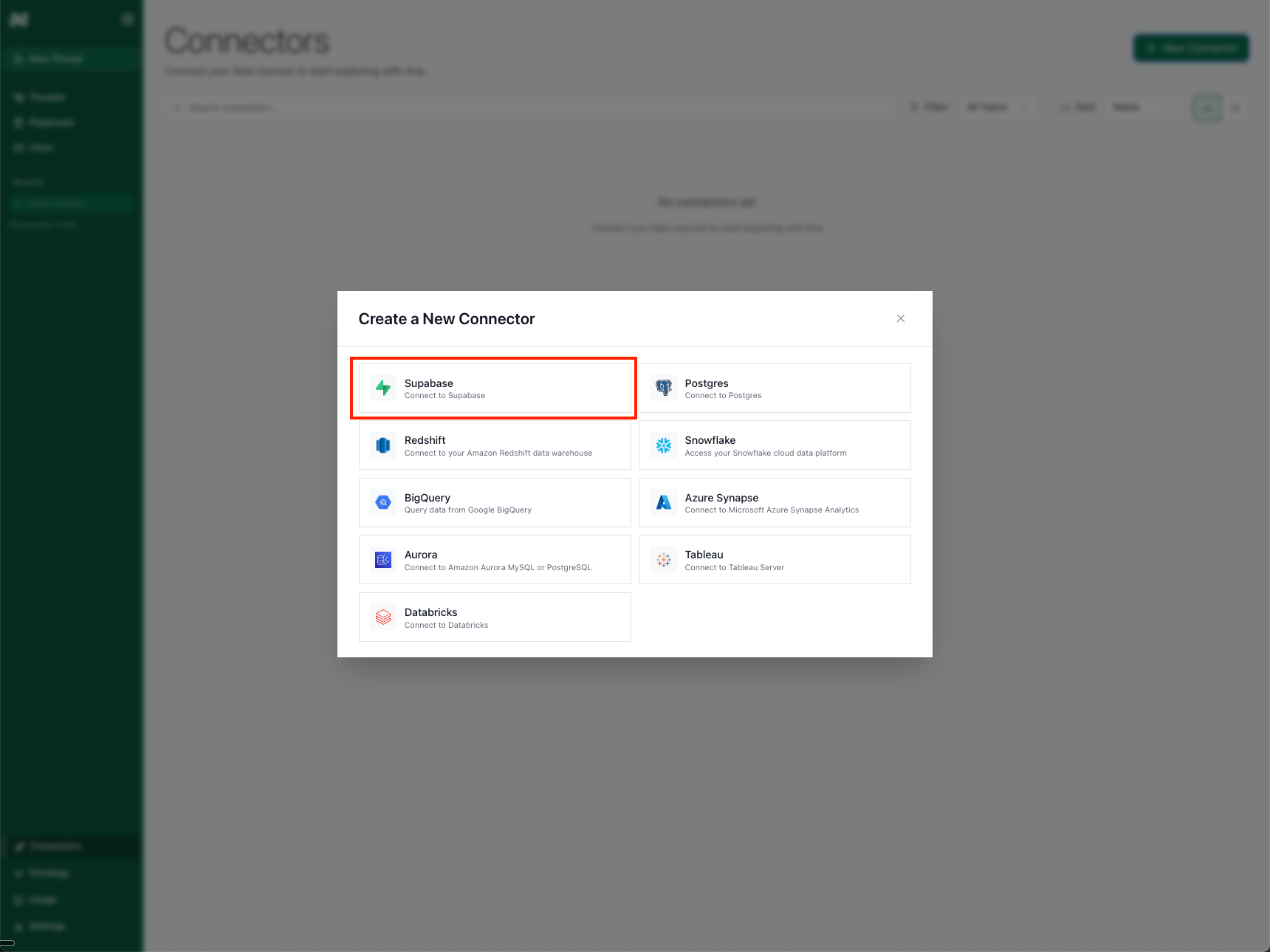 The form requires the following information:
* **Connector Name:** A descriptive name to identify this specific Supabase connection in TextQL.
* **Host URL:** The endpoint URL of your Supabase database.
* **Port:** The port number for your Supabase connection (default is 5432).
* **User:** postgres
* **Password:** Database password
* **Database:** postgres
The form requires the following information:
* **Connector Name:** A descriptive name to identify this specific Supabase connection in TextQL.
* **Host URL:** The endpoint URL of your Supabase database.
* **Port:** The port number for your Supabase connection (default is 5432).
* **User:** postgres
* **Password:** Database password
* **Database:** postgres