> ## Documentation Index
> Fetch the complete documentation index at: https://docs.textql.com/llms.txt
> Use this file to discover all available pages before exploring further.
# Embedding Ana
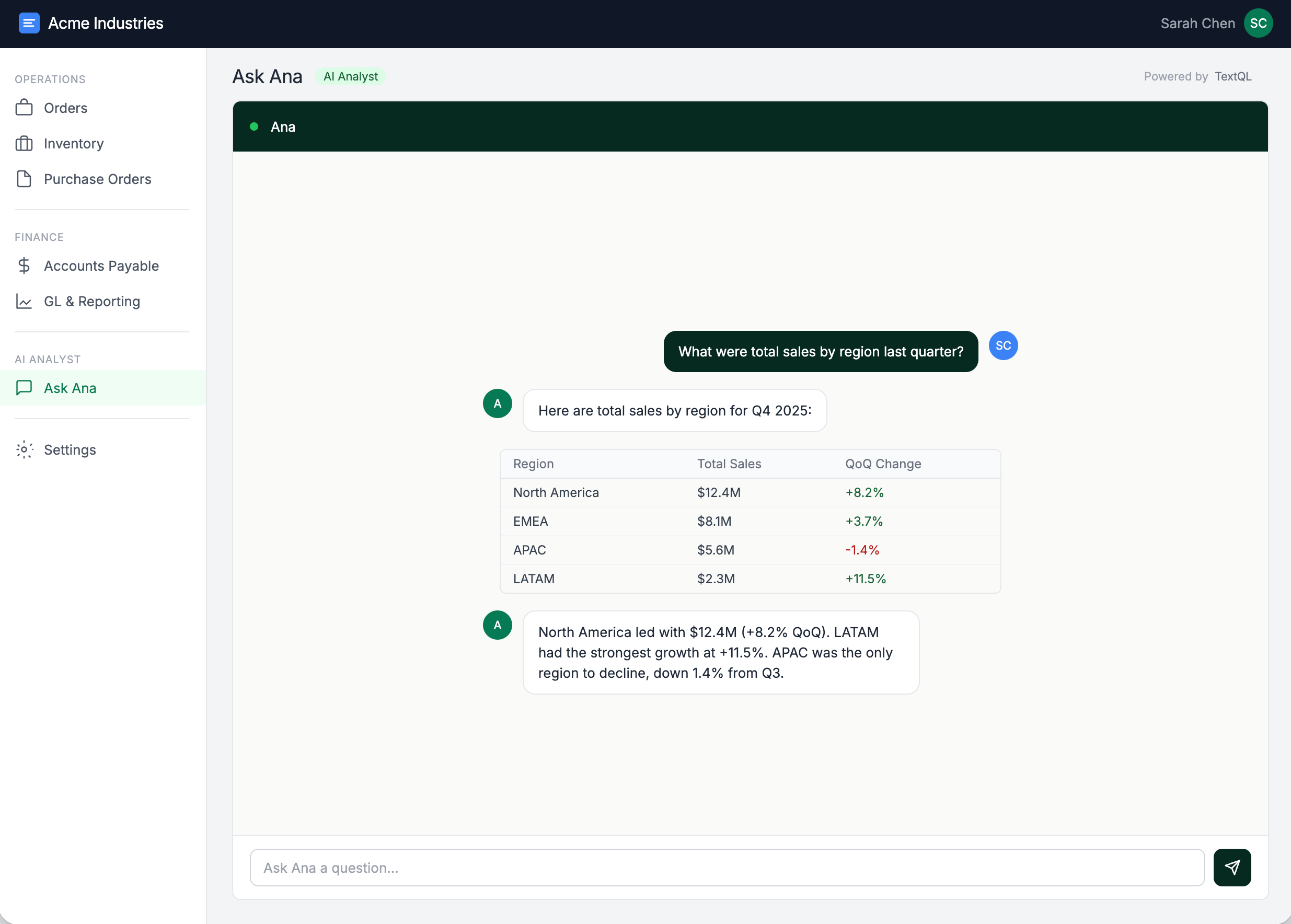
> Embed Ana in your application, use the TextQL API, and manage authentication for embedded deployments.
Embed Ana directly into your own application using an iframe, or access her programmatically via the TextQL API. This guide covers authentication, access control, API usage, and security.
## Quick Start
The fastest way to embed Ana is an iframe with an API key.
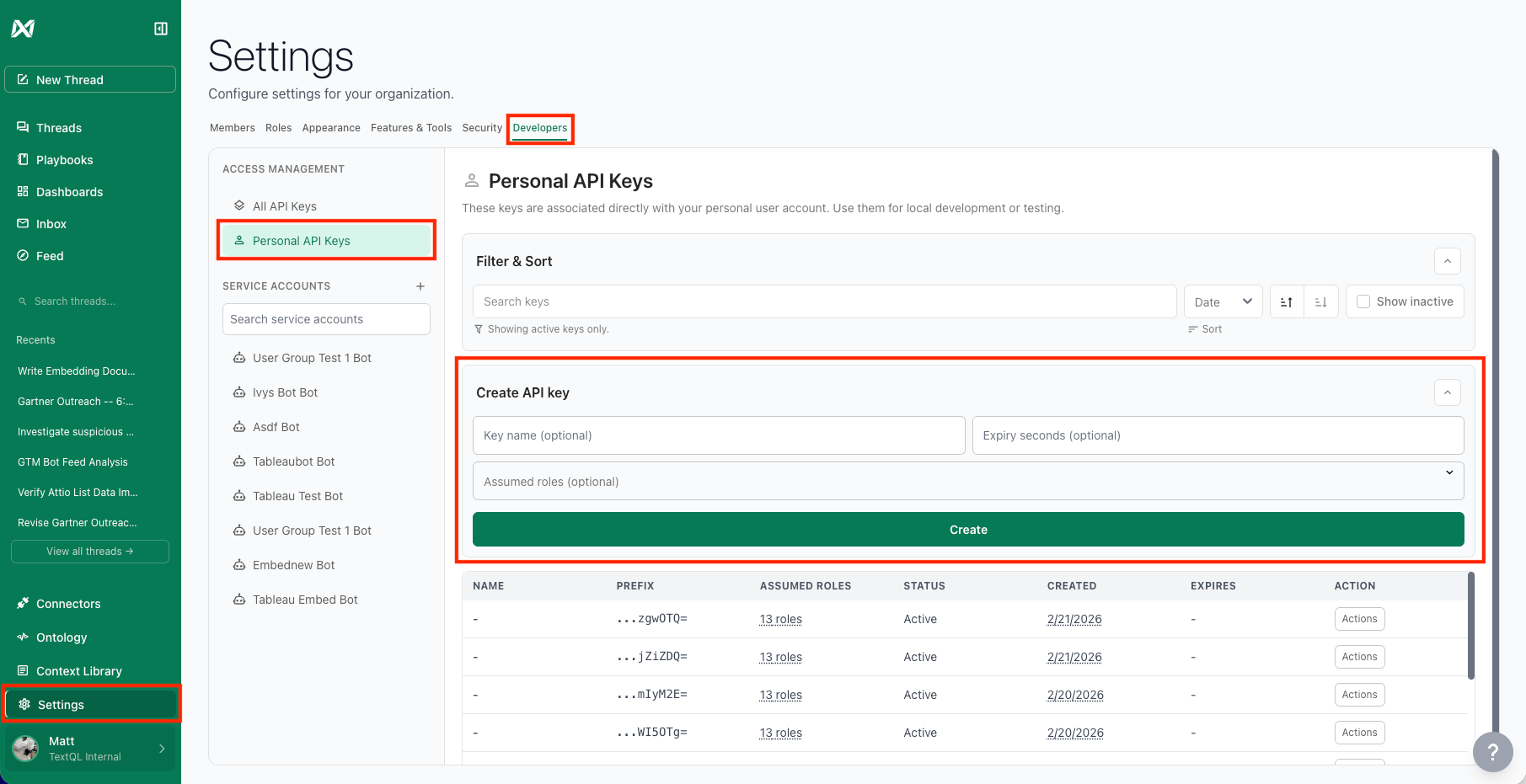
Go to **Settings → Developers** and click **+ Create API Key**. Copy it immediately — the full key is only shown once.
Open this URL in an incognito window to confirm the key works:
```
https://app.textql.com/embed?authKey=YOUR_API_KEY
```
```html theme={null}
```
 For production, never expose a long-lived API key in frontend code. See [Security](#security) for the recommended architecture.
## Authentication
### Personal API Keys vs Service Accounts
TextQL has two types of identities for programmatic access:
| | Personal API Key | Service Account Key |
| ------------------------------ | --------------------------------- | ------------------------------ |
| **Acts as** | You | A dedicated bot identity |
| **Roles** | Your roles (can change over time) | Fixed at creation (immutable) |
| **Best for** | Dev, testing, scripts | Production embeds, automations |
| **Survives employee turnover** | No | Yes |
**Personal API Keys** — Go to **Settings → Developers → API Keys** and click **+ Create API Key**. You can optionally set a key name, expiry (e.g., `3600` for 1 hour), and assumed roles.
For production, never expose a long-lived API key in frontend code. See [Security](#security) for the recommended architecture.
## Authentication
### Personal API Keys vs Service Accounts
TextQL has two types of identities for programmatic access:
| | Personal API Key | Service Account Key |
| ------------------------------ | --------------------------------- | ------------------------------ |
| **Acts as** | You | A dedicated bot identity |
| **Roles** | Your roles (can change over time) | Fixed at creation (immutable) |
| **Best for** | Dev, testing, scripts | Production embeds, automations |
| **Survives employee turnover** | No | Yes |
**Personal API Keys** — Go to **Settings → Developers → API Keys** and click **+ Create API Key**. You can optionally set a key name, expiry (e.g., `3600` for 1 hour), and assumed roles.
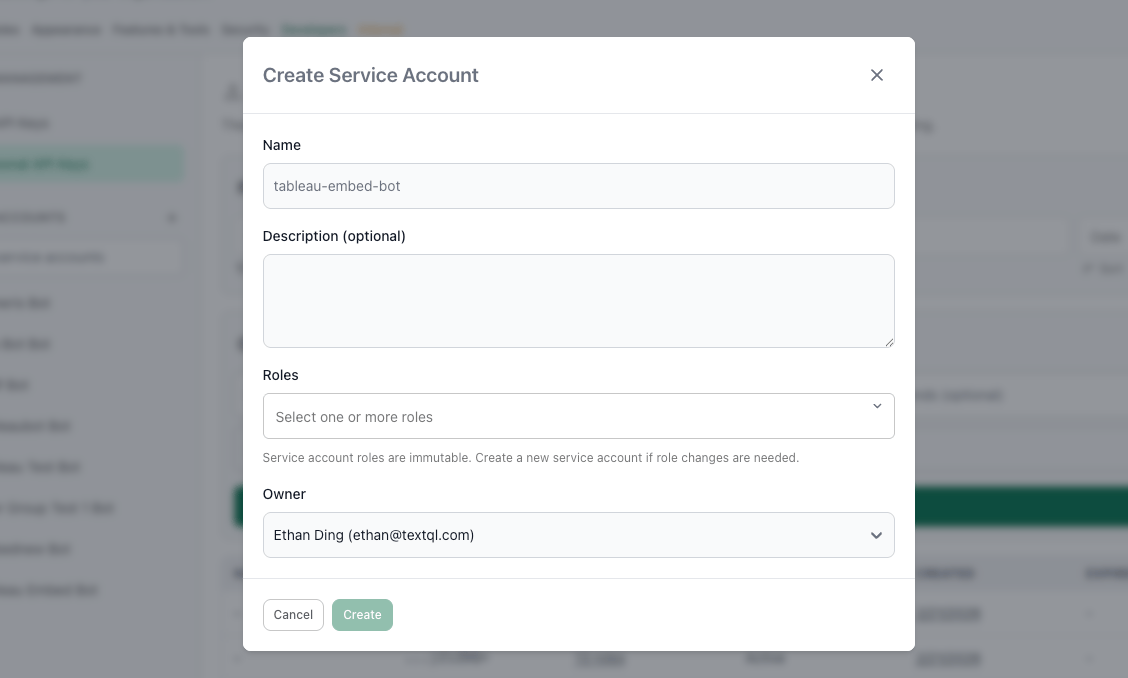
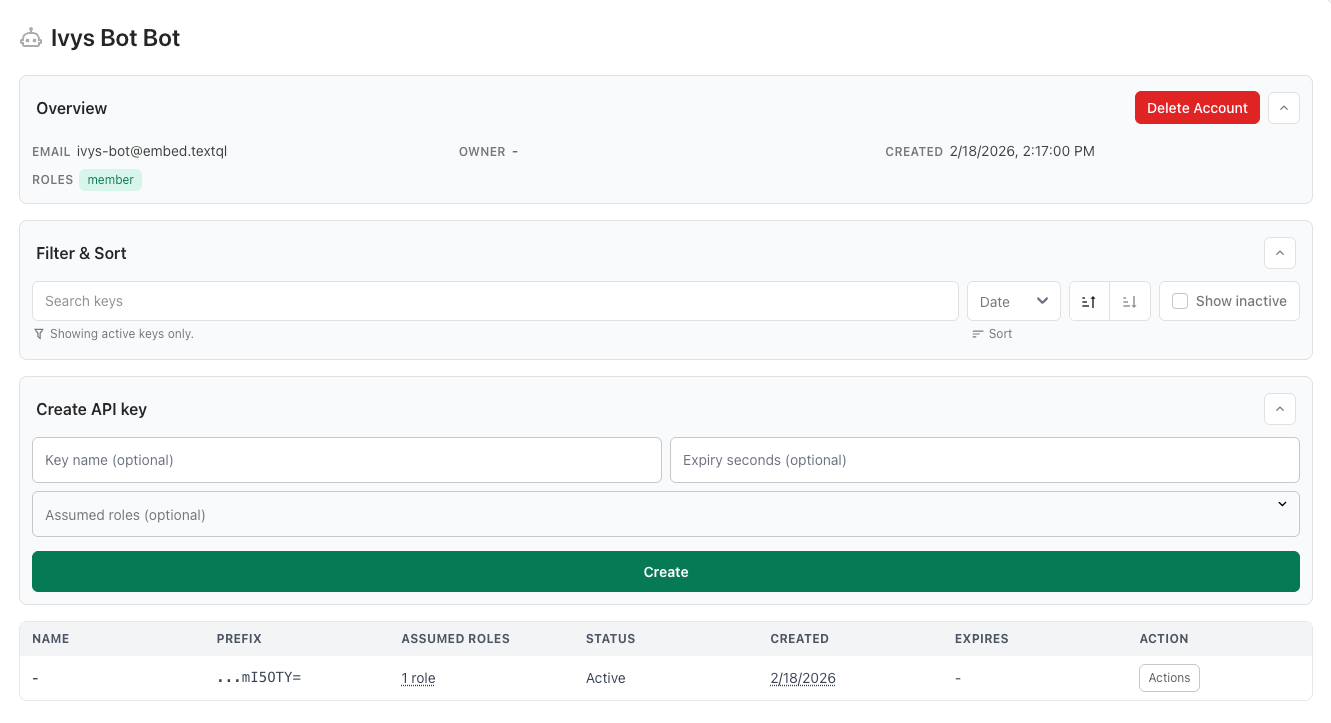
 **Service Accounts** — Go to **Settings → Developers** and click the **Service Accounts** tab. Set a name, description, roles (immutable after creation), and owner. Once created, generate API keys from the service account's detail page — these keys act as the service account, not as you.
 Admins can view and revoke all keys across the org under **Settings → Developers → API Keys**.
## Access Control
### How Roles Work
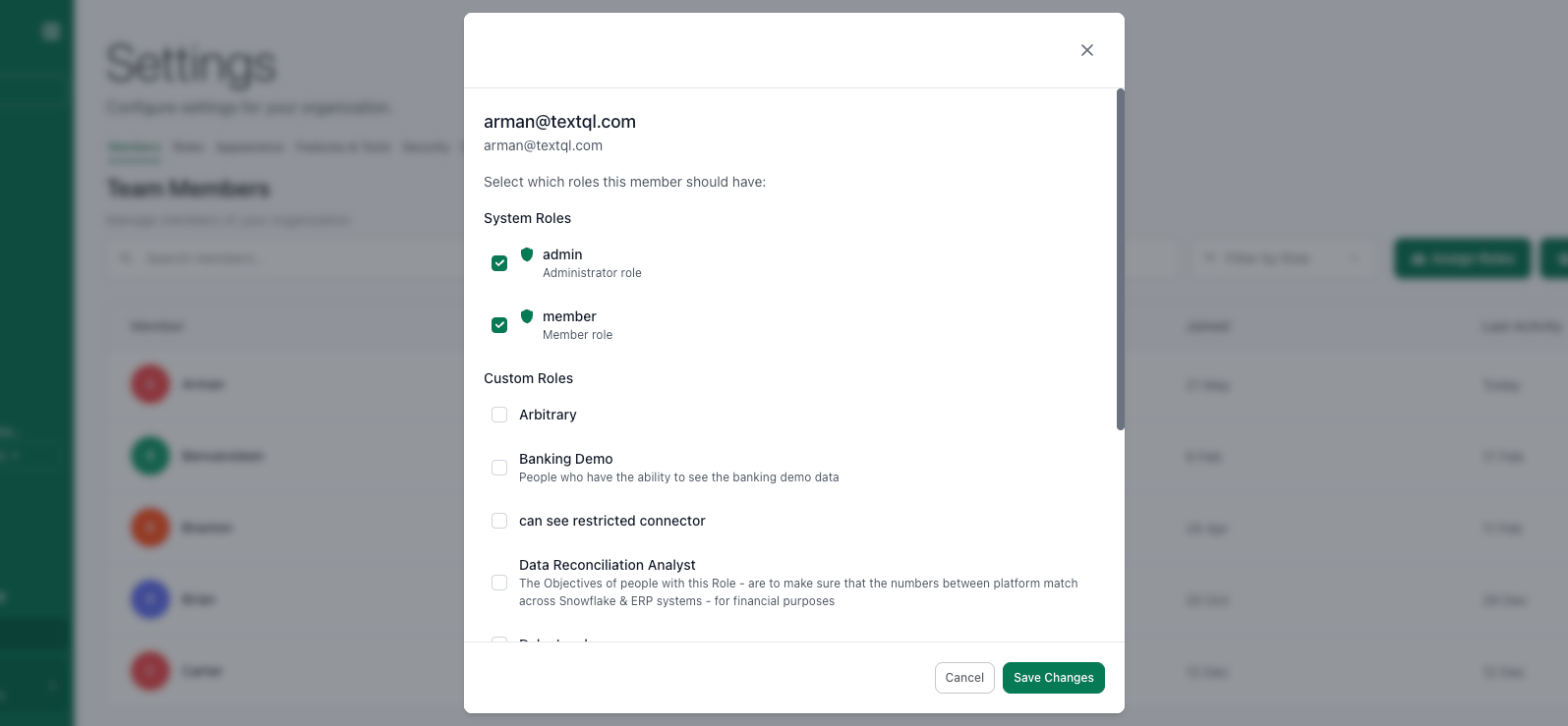
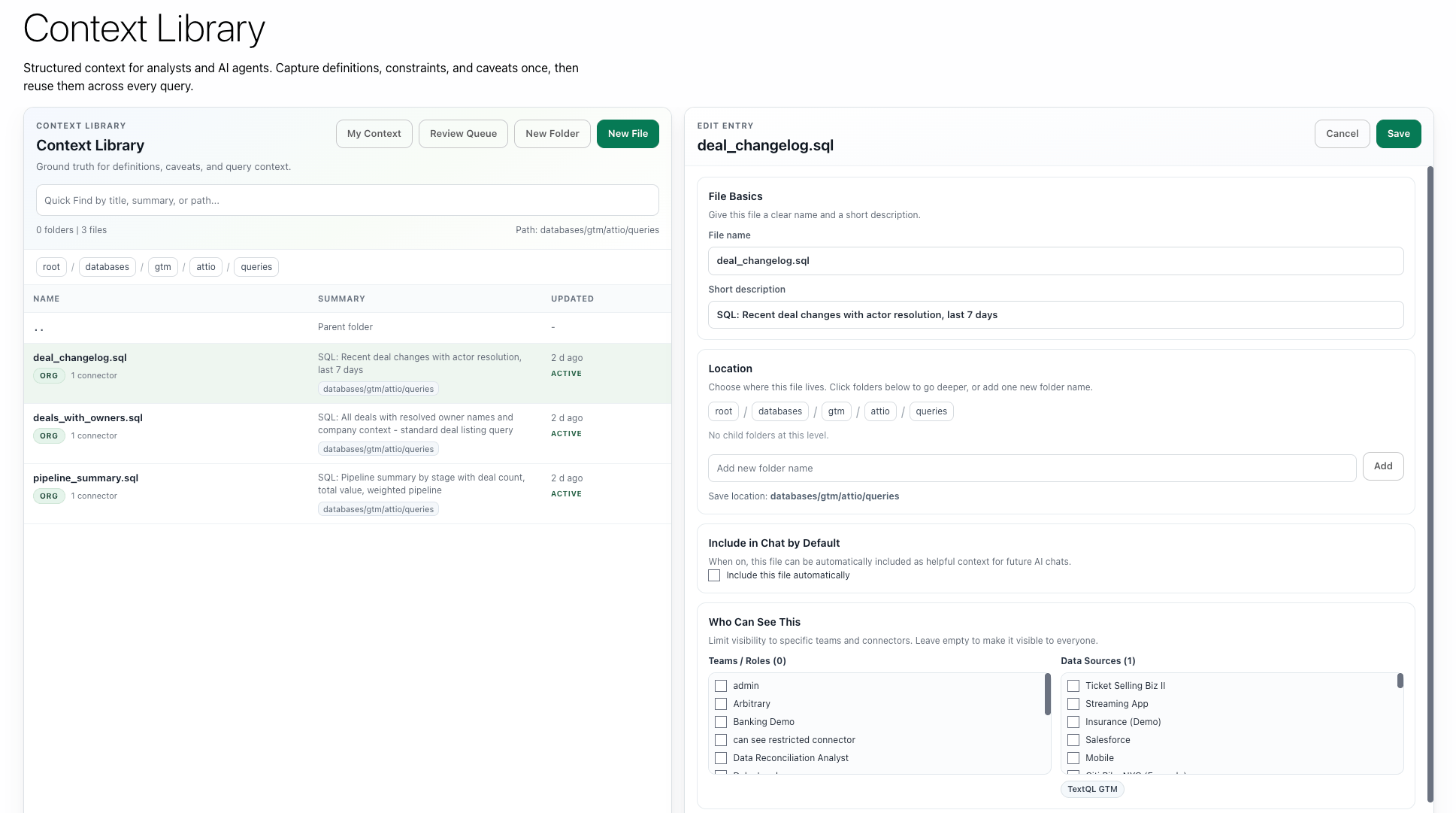
Roles control which connectors and context an API key can access. The embedded experience shows exactly the data the key's identity has access to.
Context can be scoped at three levels:
| Scope | Who Sees It |
| ---------------- | -------------------------------------------- |
| **Organization** | Everyone in the org |
| **Role** | Only users with that specific role |
| **Connector** | Only when querying that specific data source |
Admins can view and revoke all keys across the org under **Settings → Developers → API Keys**.
## Access Control
### How Roles Work
Roles control which connectors and context an API key can access. The embedded experience shows exactly the data the key's identity has access to.
Context can be scoped at three levels:
| Scope | Who Sees It |
| ---------------- | -------------------------------------------- |
| **Organization** | Everyone in the org |
| **Role** | Only users with that specific role |
| **Connector** | Only when querying that specific data source |
 ### Programmatic Role Scoping
Your backend can mint scoped API keys on demand with the
[Create API Key](/api-reference/v2/api-keys/create-api-key) endpoint — no
separate TextQL user accounts needed per role or per tenant.
**Step 1 — List available roles:**
```bash theme={null}
curl 'https://app.textql.com/rpc/public/textql.rpc.public.rbac.RBACService/ListRoles' \
-H 'Content-Type: application/json' \
-H 'connect-protocol-version: 1' \
-H 'Authorization: Bearer YOUR_MASTER_API_KEY' \
--data-raw '{}'
```
**Step 2 — Create a scoped key:**
```bash theme={null}
curl -X POST 'https://app.textql.com/v2/api-keys' \
-H 'Content-Type: application/json' \
-H 'Authorization: Bearer YOUR_MASTER_API_KEY' \
--data-raw '{
"expirySeconds": 3600,
"assumedRoles": [
"80de0196-496f-44fe-9d4c-8013b3b44082"
],
"clientId": "{\"tenant_id\": \"acme\", \"user_email\": \"jane@acme.com\"}"
}'
```
The response returns `key` — the full bearer secret, shown exactly once — plus
an `api_key` object with the key's id and metadata. Use `key` as the
`Authorization: Bearer` credential for API calls, or as the `?authKey=` value
for embed URLs. Revoke a key before it expires with
[Revoke API Key](/api-reference/v2/api-keys/revoke-api-key).
**Row-level security with `clientId`:** the `clientId` string is stored on the
key and, when it is a JSON object string, saved TQL queries can read each field
as `_tql.client_attributes_json.`. Mint one key per tenant or end-user
session and a single saved query serves all of them — each key only ever sees
its own rows:
```tql theme={null}
let
tenant_id = _tql.client_attributes_json.tenant_id
in sql"SELECT * FROM orders WHERE tenant_id = ${tenant_id}"
```
See [fail-closed row-level scoping](/core/ontology/tql-reference#5-fail-closed-row-level-scoping)
for the recommended pattern that refuses to render unscoped SQL.
**Pattern — mint a scoped key per user session:**
```python theme={null}
def get_embed_for_user(user):
role_map = {
"finance": ["uuid-for-finance-role"],
"marketing": ["uuid-for-marketing-role"],
"executive": ["uuid-for-finance-role", "uuid-for-marketing-role"],
}
resp = requests.post(
"https://app.textql.com/v2/api-keys",
headers={
"Content-Type": "application/json",
"Authorization": f"Bearer {MASTER_KEY}",
},
json={
"expirySeconds": 3600,
"assumedRoles": role_map[user.role],
"clientId": json.dumps({"tenant_id": user.tenant_id, "user_email": user.email}),
},
)
key = resp.json()["key"]
return f"https://app.textql.com/embed?authKey={key}"
```
### SSO and Role Mapping
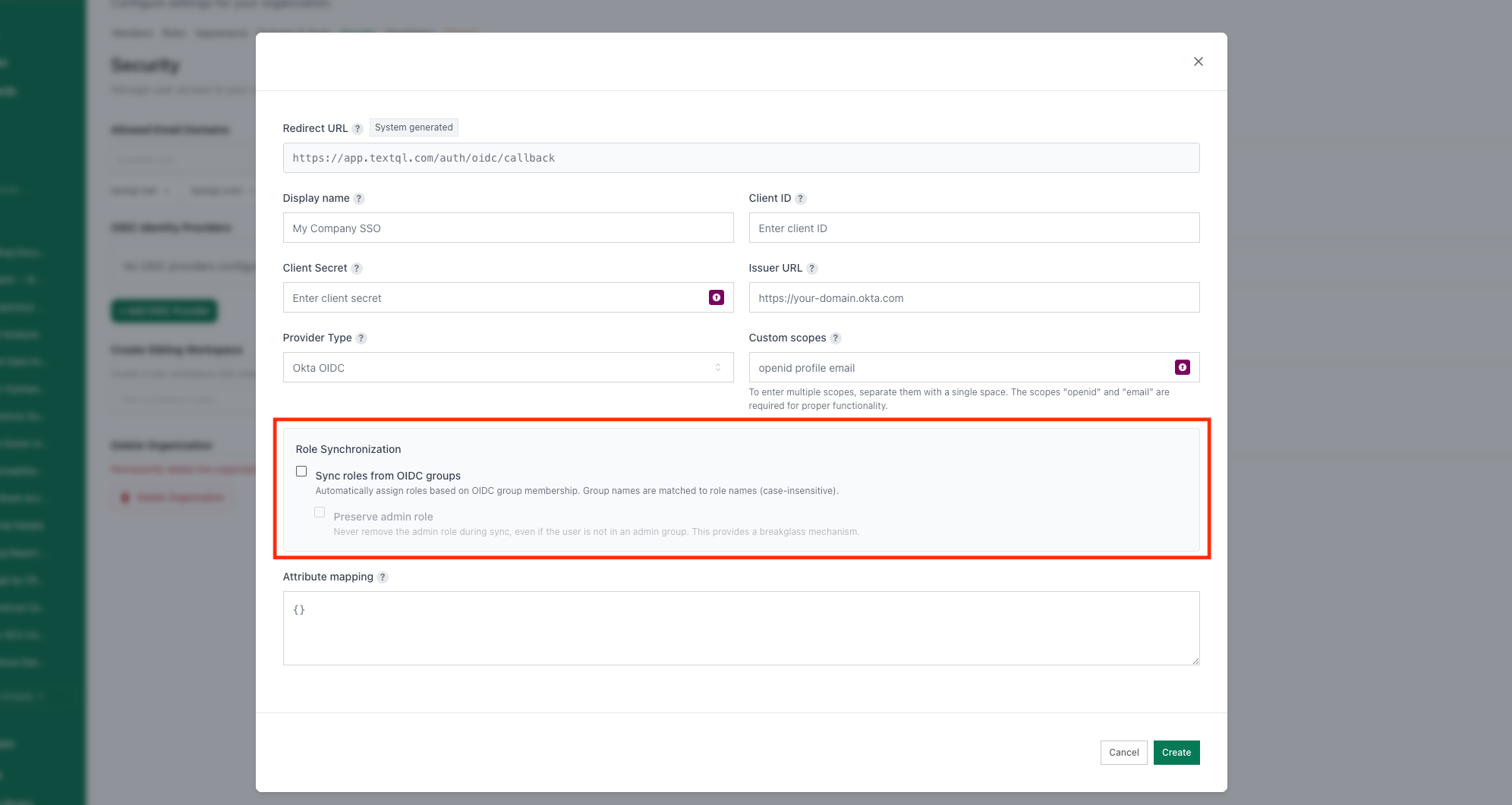
For organizations using SSO (Okta, Azure AD, Ping Identity), roles can be mapped from your identity provider's groups so new users are automatically assigned the correct TextQL role on first login.
### Programmatic Role Scoping
Your backend can mint scoped API keys on demand with the
[Create API Key](/api-reference/v2/api-keys/create-api-key) endpoint — no
separate TextQL user accounts needed per role or per tenant.
**Step 1 — List available roles:**
```bash theme={null}
curl 'https://app.textql.com/rpc/public/textql.rpc.public.rbac.RBACService/ListRoles' \
-H 'Content-Type: application/json' \
-H 'connect-protocol-version: 1' \
-H 'Authorization: Bearer YOUR_MASTER_API_KEY' \
--data-raw '{}'
```
**Step 2 — Create a scoped key:**
```bash theme={null}
curl -X POST 'https://app.textql.com/v2/api-keys' \
-H 'Content-Type: application/json' \
-H 'Authorization: Bearer YOUR_MASTER_API_KEY' \
--data-raw '{
"expirySeconds": 3600,
"assumedRoles": [
"80de0196-496f-44fe-9d4c-8013b3b44082"
],
"clientId": "{\"tenant_id\": \"acme\", \"user_email\": \"jane@acme.com\"}"
}'
```
The response returns `key` — the full bearer secret, shown exactly once — plus
an `api_key` object with the key's id and metadata. Use `key` as the
`Authorization: Bearer` credential for API calls, or as the `?authKey=` value
for embed URLs. Revoke a key before it expires with
[Revoke API Key](/api-reference/v2/api-keys/revoke-api-key).
**Row-level security with `clientId`:** the `clientId` string is stored on the
key and, when it is a JSON object string, saved TQL queries can read each field
as `_tql.client_attributes_json.`. Mint one key per tenant or end-user
session and a single saved query serves all of them — each key only ever sees
its own rows:
```tql theme={null}
let
tenant_id = _tql.client_attributes_json.tenant_id
in sql"SELECT * FROM orders WHERE tenant_id = ${tenant_id}"
```
See [fail-closed row-level scoping](/core/ontology/tql-reference#5-fail-closed-row-level-scoping)
for the recommended pattern that refuses to render unscoped SQL.
**Pattern — mint a scoped key per user session:**
```python theme={null}
def get_embed_for_user(user):
role_map = {
"finance": ["uuid-for-finance-role"],
"marketing": ["uuid-for-marketing-role"],
"executive": ["uuid-for-finance-role", "uuid-for-marketing-role"],
}
resp = requests.post(
"https://app.textql.com/v2/api-keys",
headers={
"Content-Type": "application/json",
"Authorization": f"Bearer {MASTER_KEY}",
},
json={
"expirySeconds": 3600,
"assumedRoles": role_map[user.role],
"clientId": json.dumps({"tenant_id": user.tenant_id, "user_email": user.email}),
},
)
key = resp.json()["key"]
return f"https://app.textql.com/embed?authKey={key}"
```
### SSO and Role Mapping
For organizations using SSO (Okta, Azure AD, Ping Identity), roles can be mapped from your identity provider's groups so new users are automatically assigned the correct TextQL role on first login.
 ## Embedding via iframe
### Iframe Attributes
| Attribute | Recommended Value | Notes |
| ------------- | ------------------------------------------ | ---------------------------------- |
| `src` | `https://app.textql.com/embed?authKey=...` | Embed URL with API key |
| `width` | `100%` | Full width of container |
| `height` | `600px` or more | Ana works best with at least 500px |
| `frameBorder` | `0` | Clean look with no border |
| `allow` | `clipboard-write` | Lets users copy Ana's responses |
### Query Parameters
All parameters are optional. Absent parameters fall back to the org/role defaults configured in TextQL settings.
**Authentication & session**
| Parameter | Type | Description |
| ------------------ | ------ | ------------------------------------------------ |
| `authKey` | string | API key hash (required unless SSO is configured) |
| `chatId` | string | Resume an existing chat by ID |
| `displayPartition` | string | Display partition override |
**Connector selection**
| Parameter | Type | Description |
| -------------- | ------ | ------------------------------------------------------------------------------------------------------------- |
| `connectorIds` | string | Comma-separated connector IDs to pre-select, e.g., `connectorIds=42,99`. Takes precedence over `connectorId`. |
| `connectorId` | number | Single connector ID (legacy; use `connectorIds` for multiple) |
**Tool toggles** — each accepts `true` or `false`; omit to use the org/role default.
| Parameter | Description |
| -------------------- | ------------------------------------------------------ |
| `sqlEnabled` | Allow Ana to write and execute SQL |
| `ontologyEnabled` | Allow Ana to use the semantic ontology layer |
| `pythonEnabled` | Allow Ana to run Python for analysis and visualization |
| `webSearchEnabled` | Allow Ana to search the web |
| `googleDriveEnabled` | Allow Ana to access Google Drive |
| `tableauEnabled` | Allow Ana to interact with Tableau |
| `powerbiEnabled` | Allow Ana to interact with Power BI |
**Example — SQL-only embed locked to two connectors:**
```html theme={null}
```
### Embedding in Tableau
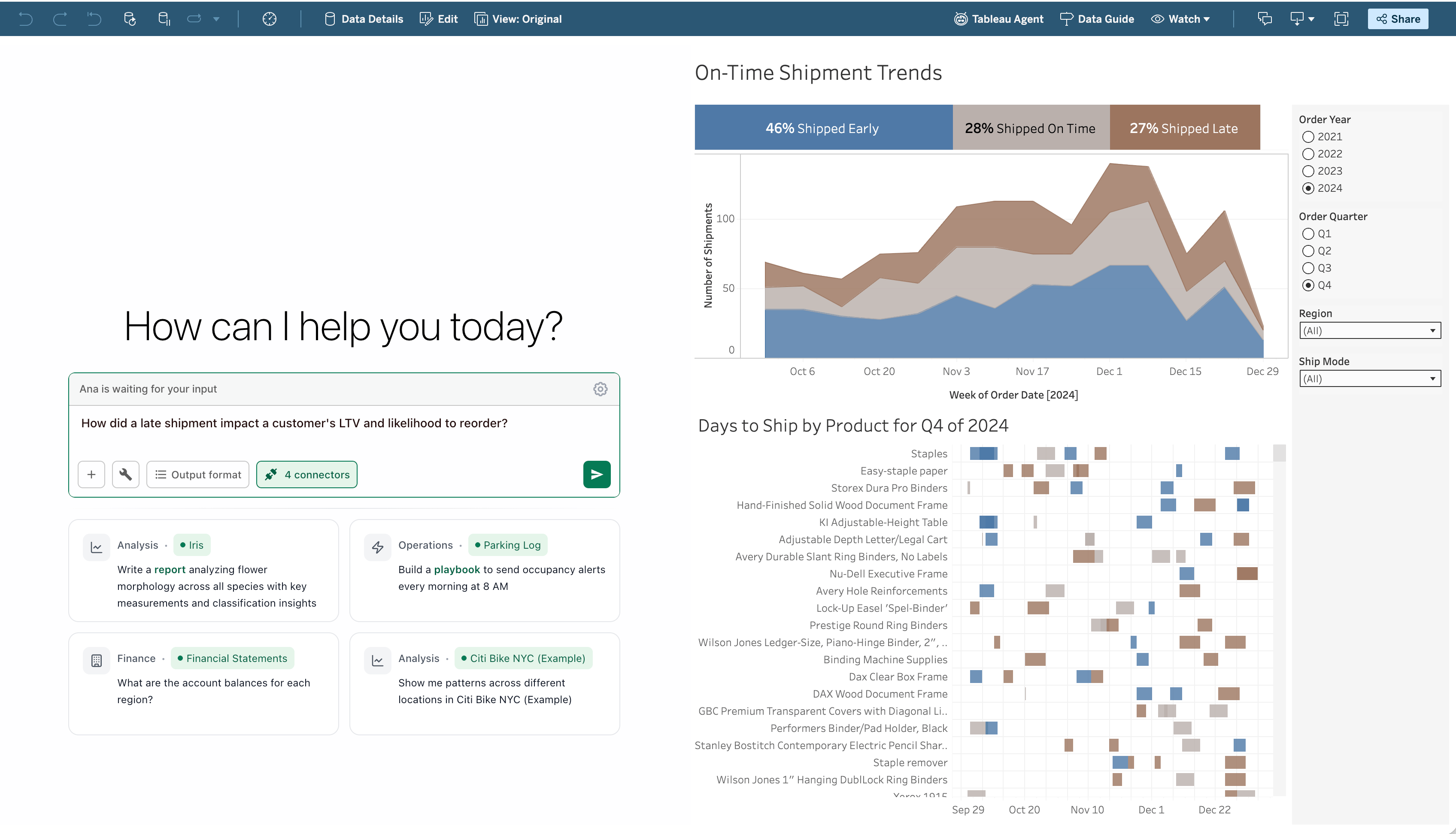
1. In Tableau, create a new workbook and add a dashboard
2. From the **Objects** panel, drag a **Web Page** object onto the dashboard
3. Enter your embed URL: `https://app.textql.com/embed?authKey=YOUR_API_KEY`
4. Resize the Web Page object to fit your layout
## Embedding via iframe
### Iframe Attributes
| Attribute | Recommended Value | Notes |
| ------------- | ------------------------------------------ | ---------------------------------- |
| `src` | `https://app.textql.com/embed?authKey=...` | Embed URL with API key |
| `width` | `100%` | Full width of container |
| `height` | `600px` or more | Ana works best with at least 500px |
| `frameBorder` | `0` | Clean look with no border |
| `allow` | `clipboard-write` | Lets users copy Ana's responses |
### Query Parameters
All parameters are optional. Absent parameters fall back to the org/role defaults configured in TextQL settings.
**Authentication & session**
| Parameter | Type | Description |
| ------------------ | ------ | ------------------------------------------------ |
| `authKey` | string | API key hash (required unless SSO is configured) |
| `chatId` | string | Resume an existing chat by ID |
| `displayPartition` | string | Display partition override |
**Connector selection**
| Parameter | Type | Description |
| -------------- | ------ | ------------------------------------------------------------------------------------------------------------- |
| `connectorIds` | string | Comma-separated connector IDs to pre-select, e.g., `connectorIds=42,99`. Takes precedence over `connectorId`. |
| `connectorId` | number | Single connector ID (legacy; use `connectorIds` for multiple) |
**Tool toggles** — each accepts `true` or `false`; omit to use the org/role default.
| Parameter | Description |
| -------------------- | ------------------------------------------------------ |
| `sqlEnabled` | Allow Ana to write and execute SQL |
| `ontologyEnabled` | Allow Ana to use the semantic ontology layer |
| `pythonEnabled` | Allow Ana to run Python for analysis and visualization |
| `webSearchEnabled` | Allow Ana to search the web |
| `googleDriveEnabled` | Allow Ana to access Google Drive |
| `tableauEnabled` | Allow Ana to interact with Tableau |
| `powerbiEnabled` | Allow Ana to interact with Power BI |
**Example — SQL-only embed locked to two connectors:**
```html theme={null}
```
### Embedding in Tableau
1. In Tableau, create a new workbook and add a dashboard
2. From the **Objects** panel, drag a **Web Page** object onto the dashboard
3. Enter your embed URL: `https://app.textql.com/embed?authKey=YOUR_API_KEY`
4. Resize the Web Page object to fit your layout
 ### One-Click Tableau Collection Chats
TextQL supports direct links to start chats with a specific Tableau collection already attached.
**Generating embed links (Admin only)**
1. Open any chat and click **Attach Tableau**
2. Hover over a collection card and click the **link icon** in the top-left corner
3. The embed URL is automatically copied to your clipboard
**URL format**
```
https://app.textql.com/tableau?authKey=EMBED_USER_KEY&tableauDatasetId=COLLECTION_ID&message=OPTIONAL_MESSAGE
```
* `authKey` — your organization's Embed User API key (auto-generated)
* `tableauDatasetId` — the ID of the Tableau collection to attach
* `message` — an optional initial message to auto-send when the chat opens
**Optional connector & tool parameters**
By default the chat is scoped to the Tableau collection only. To also give Ana access to your warehouse or semantic layer, attach the relevant connectors and enable the tools explicitly:
| Parameter | Type | Description |
| ----------------- | ------- | ---------------------------------------------------------------------------------------------------- |
| `connectorIds` | string | Comma-separated connector IDs to attach alongside the Tableau collection, e.g., `connectorIds=42,99` |
| `sqlEnabled` | boolean | Allow Ana to write and execute SQL against the attached connectors (default `false`) |
| `ontologyEnabled` | boolean | Allow Ana to use the semantic ontology layer (default `false`) |
`sqlEnabled=true` requires `connectorIds` — SQL resolves against the attached warehouse connectors, so enabling it without connectors fails the chat. `ontologyEnabled=true` works on its own: it defaults to the ontology of the Tableau collection's connector, and `connectorIds` can additionally attach other connectors whose ontologies should be available.
```
https://app.textql.com/tableau?authKey=EMBED_USER_KEY&tableauDatasetId=COLLECTION_ID&ontologyEnabled=true
```
```html theme={null}
```
Embed links use a dedicated service account with restricted permissions. Rotate the Embed User's API key from **Settings → Developers → API Keys** if compromised.
### Embedding in Other BI Tools
The same iframe pattern works in any tool that supports embedded web content:
* **Internal portals** — React, Angular, Vue, etc.
* **Confluence / SharePoint** — via HTML embed macros
* **Retool / Appsmith** — via iframe components
## API Reference
All API requests use base URL `https://app.textql.com/v1` with a Bearer token in the `Authorization` header.
### Endpoints
| Endpoint | Description |
| ---------------------- | -------------------------------------------------------- |
| `POST /v1/chat` | One-shot chat — send a question, get a complete response |
| `POST /v1/stream` | Streaming chat — receive response tokens in real-time |
| `POST /v1/chat/get` | Get details of a specific chat by ID |
| `POST /v1/chat/cancel` | Cancel a running chat |
| `POST /v1/playbooks` | List, create, update, deploy, delete playbooks |
| `POST /v1/connectors` | List configured data sources |
### One-Shot Chat
Best for backend automations and scripts where you don't need to show partial results.
```json theme={null}
{
"question": "What were total sales last quarter?",
"chatId": null,
"tools": {
"connectorIds": [42],
"sqlEnabled": true,
"pythonEnabled": true,
"ontologyEnabled": true,
"webSearchEnabled": false
}
}
```
* `question` — the natural-language question for Ana
* `chatId` — pass an existing ID to continue a conversation, or omit to start a new one
* `tools` — configure which tools Ana can use (defaults applied if omitted)
### Streaming Chat
Uses **Connect-RPC** to deliver tokens in real-time — ideal for user-facing apps with a live typing experience.
The streaming endpoint requires a Connect-RPC client and cannot be tested with a simple `curl`. Use the official SDKs.
Stream flow: initialize transport → send `StreamRequest` → receive metadata → stream `text` tokens and `preview` URLs → final `QUERY_STATUS_COMPLETE`
### Client SDKs
```bash theme={null}
pip install textql
```
```python theme={null}
from textql import TextQLClient
client = TextQLClient(api_key="YOUR_API_KEY")
tools = {
"connector_ids": [42],
"sql_enabled": True,
"python_enabled": True,
"ontology_enabled": True,
"web_search_enabled": False,
}
# Streaming
for response in client.chat.stream(question="Show me revenue by region", tools=tools):
if response.HasField('text'):
print(response.text, end='', flush=True)
# One-shot
response = client.chat.create(question="What is our current churn rate?", tools=tools)
print(response.response)
```
### Tool Configuration
| Tool | Type | Description |
| -------------------- | ---------- | ------------------------------------------------------ |
| `connectorIds` | `number[]` | Database connector IDs to query |
| `sqlEnabled` | `boolean` | Allow Ana to write and execute SQL |
| `pythonEnabled` | `boolean` | Allow Ana to run Python for analysis and visualization |
| `ontologyEnabled` | `boolean` | Allow Ana to use the semantic ontology layer |
| `webSearchEnabled` | `boolean` | Allow Ana to search the web |
| `tableauEnabled` | `boolean` | Allow Ana to interact with Tableau |
| `powerbiEnabled` | `boolean` | Allow Ana to interact with Power BI |
| `googleDriveEnabled` | `boolean` | Allow Ana to access Google Drive |
Tool configuration is locked for the duration of a chat. Start a new chat if you need different tools.
## Security
The core principle: **never expose a long-lived API key in frontend code.**
```
Your Frontend --> Your Backend --> TextQL API
^ |
+-- short-lived key -+
```
**Recommended — Short-lived scoped keys (Pattern B):** Your backend mints a fresh key per user session via `CreateApiKey`. Keys expire automatically, each session is auditable, and roles are scoped per key. See the [code example above](#programmatic-role-scoping).
**Most secure — Backend proxy (Pattern A):** Your frontend never sees a TextQL key at all. Your backend proxies all API calls, adding the `Authorization: Bearer` header server-side.
**Simpler alternative — Role-based static keys (Pattern C):** Create a dedicated TextQL user and key per user group. Your backend selects the right key based on the authenticated user's role.
**Security checklist:**
* API keys stored server-side only (env vars, secrets manager)
* Frontend never contains hardcoded API keys
* Each embed use case has its own dedicated key
* Keys rotated on a regular schedule and unused keys revoked promptly
* SSO role mappings configured so new users get appropriate access automatically
## Quick Reference
| Resource | URL |
| ------------------- | -------------------------------------------- |
| TextQL App | `https://app.textql.com` |
| API Base URL | `https://app.textql.com/v1` |
| Embed Base URL | `https://app.textql.com/embed?authKey=...` |
| Full API Docs | [API Reference](/api-reference/introduction) |
| Security Whitepaper | [Security](/core/admin/compliance/security) |
| Pricing | [Pricing & Consumption](/core/admin/pricing) |
API usage consumes ACUs just like interactive usage. Each chat sandbox stays warm for 1 hour after last activity (500 ACUs/hour), plus inference costs. See [Pricing](/core/admin/pricing) for the full rate table.
### One-Click Tableau Collection Chats
TextQL supports direct links to start chats with a specific Tableau collection already attached.
**Generating embed links (Admin only)**
1. Open any chat and click **Attach Tableau**
2. Hover over a collection card and click the **link icon** in the top-left corner
3. The embed URL is automatically copied to your clipboard
**URL format**
```
https://app.textql.com/tableau?authKey=EMBED_USER_KEY&tableauDatasetId=COLLECTION_ID&message=OPTIONAL_MESSAGE
```
* `authKey` — your organization's Embed User API key (auto-generated)
* `tableauDatasetId` — the ID of the Tableau collection to attach
* `message` — an optional initial message to auto-send when the chat opens
**Optional connector & tool parameters**
By default the chat is scoped to the Tableau collection only. To also give Ana access to your warehouse or semantic layer, attach the relevant connectors and enable the tools explicitly:
| Parameter | Type | Description |
| ----------------- | ------- | ---------------------------------------------------------------------------------------------------- |
| `connectorIds` | string | Comma-separated connector IDs to attach alongside the Tableau collection, e.g., `connectorIds=42,99` |
| `sqlEnabled` | boolean | Allow Ana to write and execute SQL against the attached connectors (default `false`) |
| `ontologyEnabled` | boolean | Allow Ana to use the semantic ontology layer (default `false`) |
`sqlEnabled=true` requires `connectorIds` — SQL resolves against the attached warehouse connectors, so enabling it without connectors fails the chat. `ontologyEnabled=true` works on its own: it defaults to the ontology of the Tableau collection's connector, and `connectorIds` can additionally attach other connectors whose ontologies should be available.
```
https://app.textql.com/tableau?authKey=EMBED_USER_KEY&tableauDatasetId=COLLECTION_ID&ontologyEnabled=true
```
```html theme={null}
```
Embed links use a dedicated service account with restricted permissions. Rotate the Embed User's API key from **Settings → Developers → API Keys** if compromised.
### Embedding in Other BI Tools
The same iframe pattern works in any tool that supports embedded web content:
* **Internal portals** — React, Angular, Vue, etc.
* **Confluence / SharePoint** — via HTML embed macros
* **Retool / Appsmith** — via iframe components
## API Reference
All API requests use base URL `https://app.textql.com/v1` with a Bearer token in the `Authorization` header.
### Endpoints
| Endpoint | Description |
| ---------------------- | -------------------------------------------------------- |
| `POST /v1/chat` | One-shot chat — send a question, get a complete response |
| `POST /v1/stream` | Streaming chat — receive response tokens in real-time |
| `POST /v1/chat/get` | Get details of a specific chat by ID |
| `POST /v1/chat/cancel` | Cancel a running chat |
| `POST /v1/playbooks` | List, create, update, deploy, delete playbooks |
| `POST /v1/connectors` | List configured data sources |
### One-Shot Chat
Best for backend automations and scripts where you don't need to show partial results.
```json theme={null}
{
"question": "What were total sales last quarter?",
"chatId": null,
"tools": {
"connectorIds": [42],
"sqlEnabled": true,
"pythonEnabled": true,
"ontologyEnabled": true,
"webSearchEnabled": false
}
}
```
* `question` — the natural-language question for Ana
* `chatId` — pass an existing ID to continue a conversation, or omit to start a new one
* `tools` — configure which tools Ana can use (defaults applied if omitted)
### Streaming Chat
Uses **Connect-RPC** to deliver tokens in real-time — ideal for user-facing apps with a live typing experience.
The streaming endpoint requires a Connect-RPC client and cannot be tested with a simple `curl`. Use the official SDKs.
Stream flow: initialize transport → send `StreamRequest` → receive metadata → stream `text` tokens and `preview` URLs → final `QUERY_STATUS_COMPLETE`
### Client SDKs
```bash theme={null}
pip install textql
```
```python theme={null}
from textql import TextQLClient
client = TextQLClient(api_key="YOUR_API_KEY")
tools = {
"connector_ids": [42],
"sql_enabled": True,
"python_enabled": True,
"ontology_enabled": True,
"web_search_enabled": False,
}
# Streaming
for response in client.chat.stream(question="Show me revenue by region", tools=tools):
if response.HasField('text'):
print(response.text, end='', flush=True)
# One-shot
response = client.chat.create(question="What is our current churn rate?", tools=tools)
print(response.response)
```
### Tool Configuration
| Tool | Type | Description |
| -------------------- | ---------- | ------------------------------------------------------ |
| `connectorIds` | `number[]` | Database connector IDs to query |
| `sqlEnabled` | `boolean` | Allow Ana to write and execute SQL |
| `pythonEnabled` | `boolean` | Allow Ana to run Python for analysis and visualization |
| `ontologyEnabled` | `boolean` | Allow Ana to use the semantic ontology layer |
| `webSearchEnabled` | `boolean` | Allow Ana to search the web |
| `tableauEnabled` | `boolean` | Allow Ana to interact with Tableau |
| `powerbiEnabled` | `boolean` | Allow Ana to interact with Power BI |
| `googleDriveEnabled` | `boolean` | Allow Ana to access Google Drive |
Tool configuration is locked for the duration of a chat. Start a new chat if you need different tools.
## Security
The core principle: **never expose a long-lived API key in frontend code.**
```
Your Frontend --> Your Backend --> TextQL API
^ |
+-- short-lived key -+
```
**Recommended — Short-lived scoped keys (Pattern B):** Your backend mints a fresh key per user session via `CreateApiKey`. Keys expire automatically, each session is auditable, and roles are scoped per key. See the [code example above](#programmatic-role-scoping).
**Most secure — Backend proxy (Pattern A):** Your frontend never sees a TextQL key at all. Your backend proxies all API calls, adding the `Authorization: Bearer` header server-side.
**Simpler alternative — Role-based static keys (Pattern C):** Create a dedicated TextQL user and key per user group. Your backend selects the right key based on the authenticated user's role.
**Security checklist:**
* API keys stored server-side only (env vars, secrets manager)
* Frontend never contains hardcoded API keys
* Each embed use case has its own dedicated key
* Keys rotated on a regular schedule and unused keys revoked promptly
* SSO role mappings configured so new users get appropriate access automatically
## Quick Reference
| Resource | URL |
| ------------------- | -------------------------------------------- |
| TextQL App | `https://app.textql.com` |
| API Base URL | `https://app.textql.com/v1` |
| Embed Base URL | `https://app.textql.com/embed?authKey=...` |
| Full API Docs | [API Reference](/api-reference/introduction) |
| Security Whitepaper | [Security](/core/admin/compliance/security) |
| Pricing | [Pricing & Consumption](/core/admin/pricing) |
API usage consumes ACUs just like interactive usage. Each chat sandbox stays warm for 1 hour after last activity (500 ACUs/hour), plus inference costs. See [Pricing](/core/admin/pricing) for the full rate table.