> ## Documentation Index
> Fetch the complete documentation index at: https://docs.textql.com/llms.txt
> Use this file to discover all available pages before exploring further.
# Slack triggers
> Let people open the Slack agent picker with the /agent command.
Slack triggers let teammates open a Feed agent picker from Slack with the `/agent` command. Use them when an agent should be available on demand in Slack, not only on a scheduled run or from the Feed UI.
When a Slack trigger is enabled, the agent appears in the `/agent` modal for allowed Slack channels. The person running the command chooses the agent, enters the prompt in the modal, and submits the run from there.
## Prerequisites
* [Slack is connected](/core/integrations/slack) for your organization
* [Feed agents](/core/how-it-works/feed/agents) are enabled
* You can edit the agent you want to expose in Slack
* The Slack user running `/agent` has a matching TextQL account
## Enable a Slack trigger
1. Open **Feed > Manage Agents**.
2. Select the agent you want to make available in Slack.
3. Open the agent editor.
4. Find **Slack Trigger**.
5. Turn the trigger on.
6. Choose whether the agent is available in all Slack channels or only selected channels.
7. Save the agent.
Slack trigger access is separate from the agent's scheduled posting frequency. Turning on a Slack trigger does not add a schedule, and removing a schedule does not disable the Slack trigger.
## Configuration states
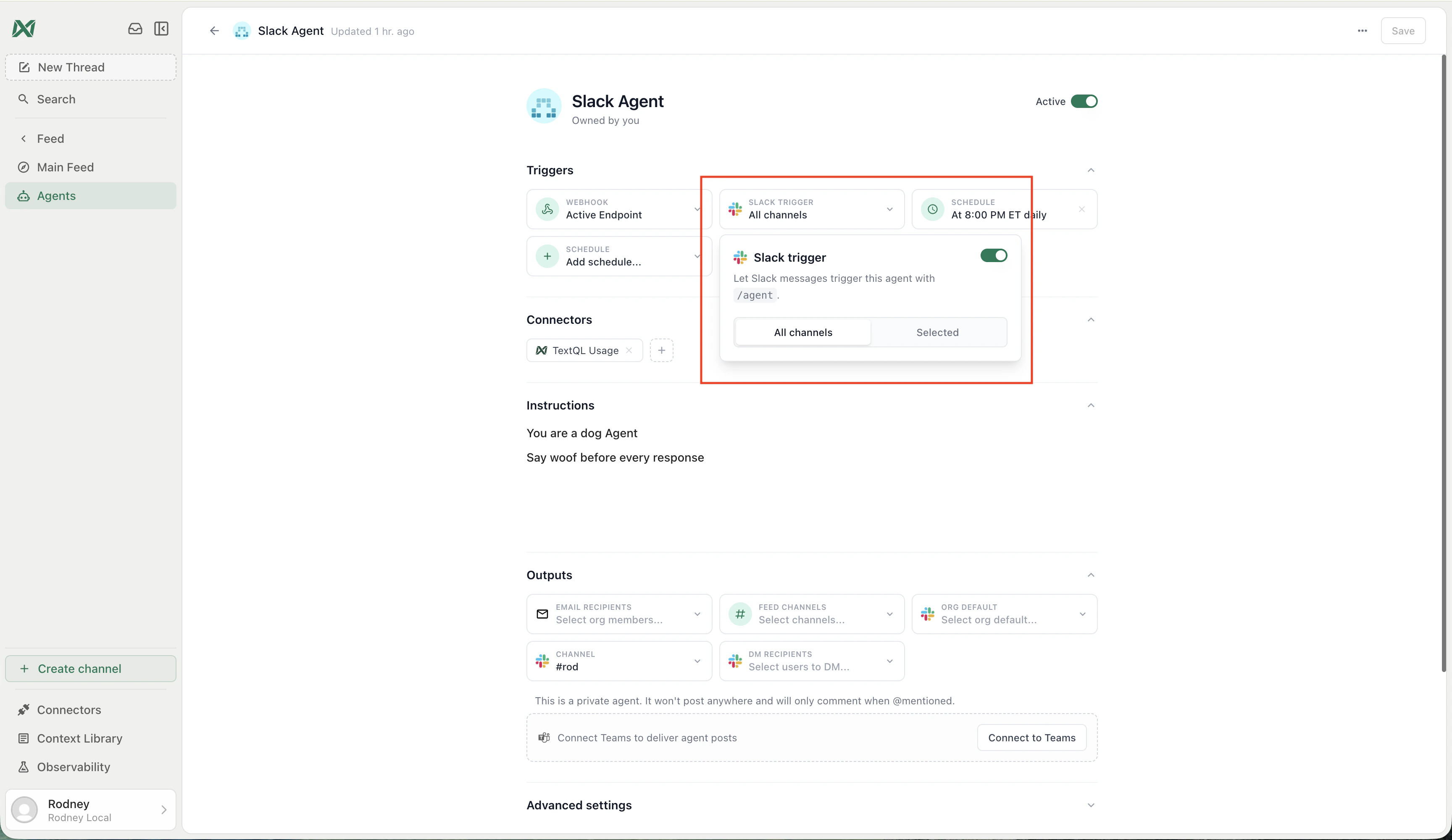
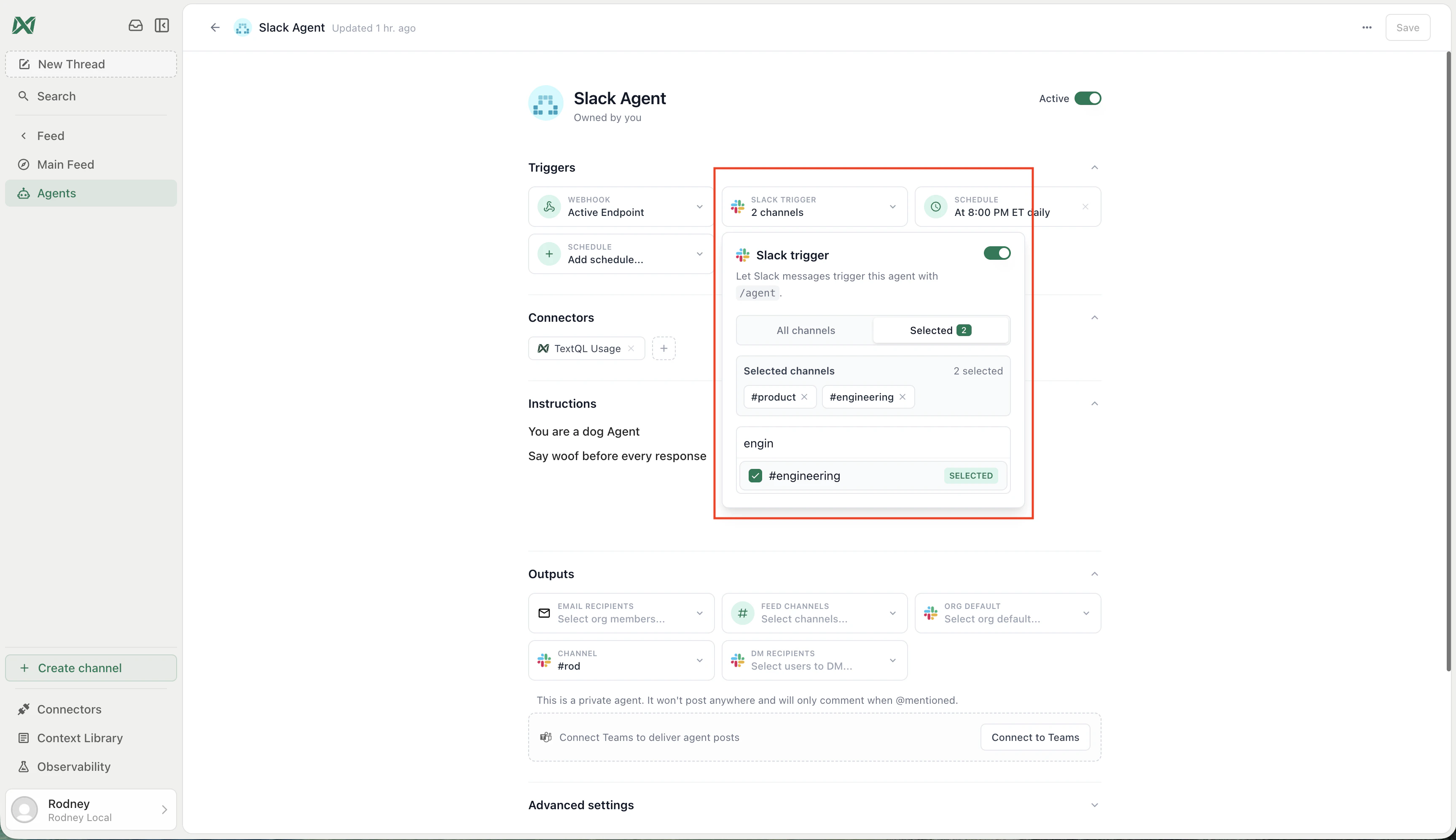
The agent editor shows Slack triggers in the **Triggers** section with the other ways an agent can run.
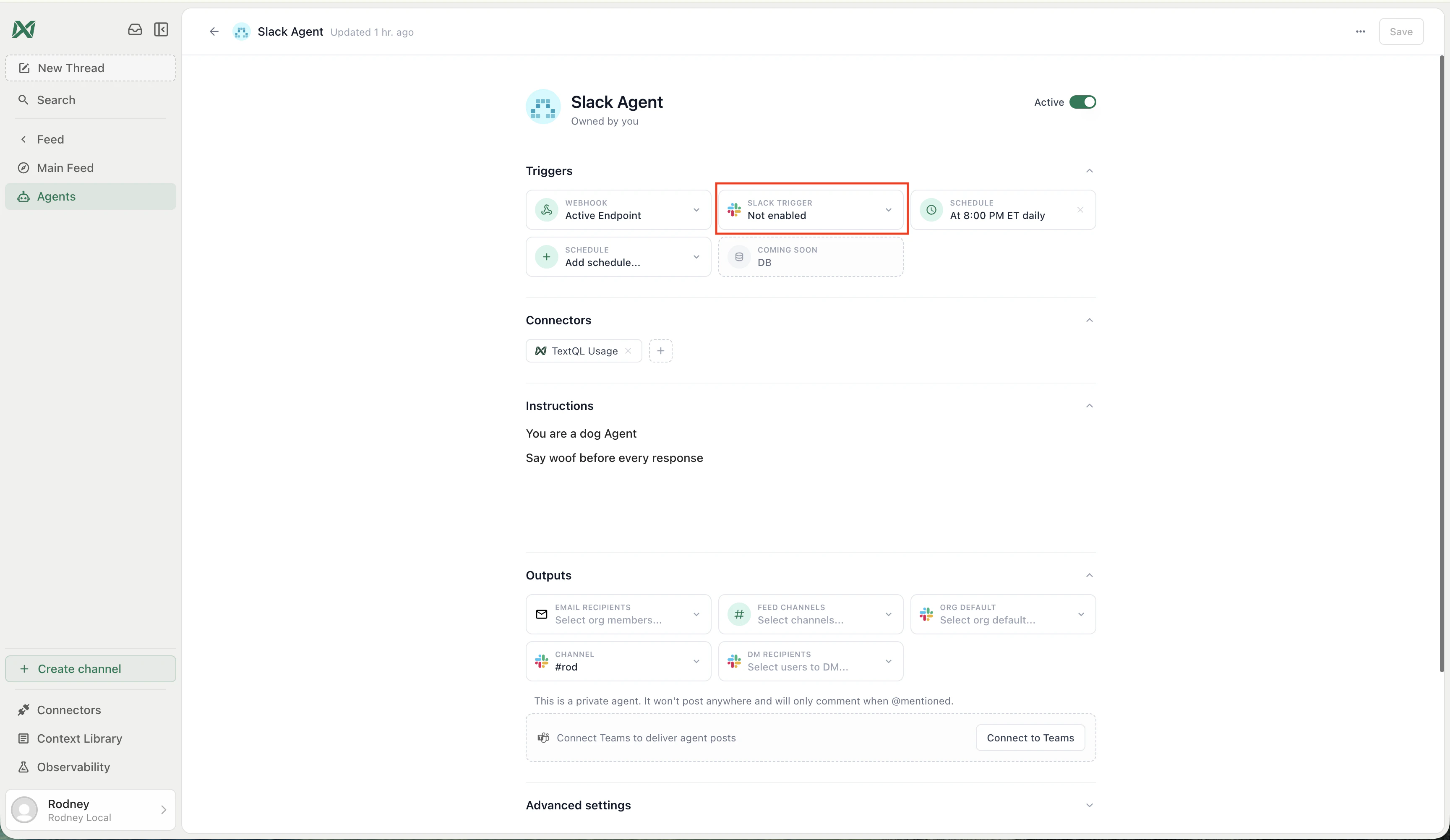 Open the Slack Trigger card to turn the trigger on and choose the channel mode.
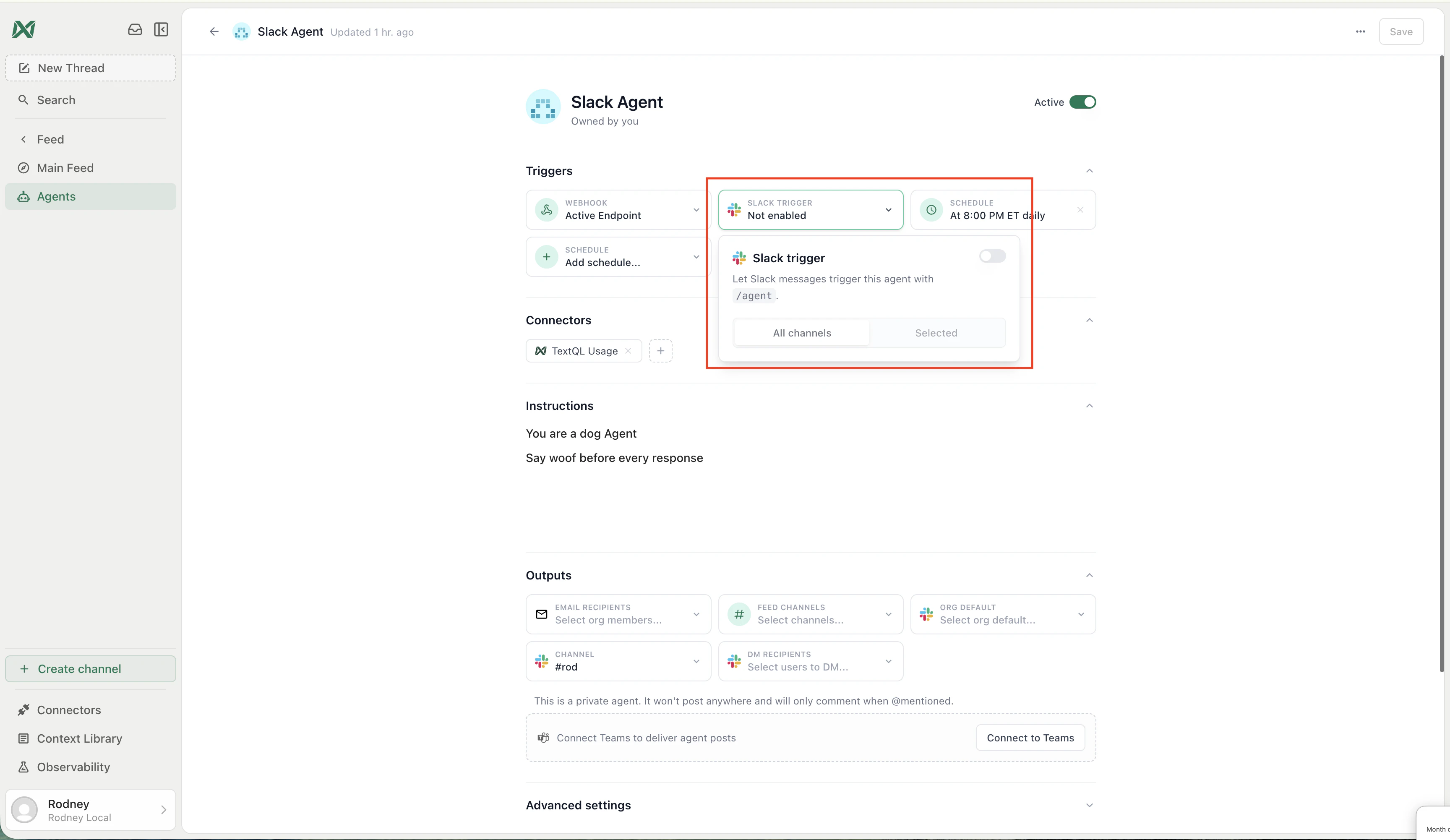 Choose **All channels** when the agent should be available from any connected Slack channel.
 Choose **Selected** when the agent should only be available from specific Slack channels.
 ## Channel access
Slack triggers support two channel modes:
| Mode | What it means |
| --------------------- | -------------------------------------------------------------------------------------------------------- |
| **All channels** | The agent appears in the `/agent` modal from any Slack channel connected to your TextQL Slack workspace. |
| **Selected channels** | The agent appears in the `/agent` modal only from the Slack channels you choose in the agent editor. |
Use **Selected channels** for agents that are sensitive, noisy, or specific to one team. Use **All channels** for broadly useful agents such as a company KPI explainer or general data quality assistant.
## Run an agent from Slack
In Slack, type only:
```text theme={null}
/agent
```
TextQL opens a modal where you choose the agent and write the prompt for this run. This keeps the Slack command simple and makes agent selection explicit.
## Follow up with @Ana
After the agent posts its result in Slack, the thread behaves like a chat with that Feed agent. Reply in the same thread and mention `@Ana` to continue the conversation.
Ana responds using the selected Feed agent's configuration, including its instructions, connectors, model settings, and other agent context. In practice, this is the Slack version of chatting with that agent directly.
## What happens after the command
After you type `/agent`:
1. TextQL checks that your Slack user maps to a TextQL member.
2. TextQL lists the Feed agents visible to you.
3. TextQL filters that list to agents with an active Slack trigger for the current Slack channel.
4. TextQL opens the `/agent` modal with the available agents.
5. You choose an agent, enter the prompt, and submit the modal.
6. The selected agent runs and posts the result back to Slack.
7. Follow-up `@Ana` replies in the Slack thread continue with that same Feed agent.
If no Slack-enabled agents are available in the channel, Slack shows an ephemeral message telling you to enable a Slack trigger in the agent editor.
## Recommendations
* Give Slack-enabled agents short, distinctive names so they are easy to choose in the `/agent` modal.
* Limit high-impact agents to selected Slack channels.
* Keep the agent instructions explicit about what to analyze and what format to return.
* Pair Slack triggers with Feed channel outputs when the result should be discoverable later.
* Use scheduled triggers for recurring monitoring and Slack triggers for interactive follow-up.
## Related
Create, configure, and deploy Feed agents.
Learn how agent results appear in the Feed.
Connect and manage Slack for your organization.
## Channel access
Slack triggers support two channel modes:
| Mode | What it means |
| --------------------- | -------------------------------------------------------------------------------------------------------- |
| **All channels** | The agent appears in the `/agent` modal from any Slack channel connected to your TextQL Slack workspace. |
| **Selected channels** | The agent appears in the `/agent` modal only from the Slack channels you choose in the agent editor. |
Use **Selected channels** for agents that are sensitive, noisy, or specific to one team. Use **All channels** for broadly useful agents such as a company KPI explainer or general data quality assistant.
## Run an agent from Slack
In Slack, type only:
```text theme={null}
/agent
```
TextQL opens a modal where you choose the agent and write the prompt for this run. This keeps the Slack command simple and makes agent selection explicit.
## Follow up with @Ana
After the agent posts its result in Slack, the thread behaves like a chat with that Feed agent. Reply in the same thread and mention `@Ana` to continue the conversation.
Ana responds using the selected Feed agent's configuration, including its instructions, connectors, model settings, and other agent context. In practice, this is the Slack version of chatting with that agent directly.
## What happens after the command
After you type `/agent`:
1. TextQL checks that your Slack user maps to a TextQL member.
2. TextQL lists the Feed agents visible to you.
3. TextQL filters that list to agents with an active Slack trigger for the current Slack channel.
4. TextQL opens the `/agent` modal with the available agents.
5. You choose an agent, enter the prompt, and submit the modal.
6. The selected agent runs and posts the result back to Slack.
7. Follow-up `@Ana` replies in the Slack thread continue with that same Feed agent.
If no Slack-enabled agents are available in the channel, Slack shows an ephemeral message telling you to enable a Slack trigger in the agent editor.
## Recommendations
* Give Slack-enabled agents short, distinctive names so they are easy to choose in the `/agent` modal.
* Limit high-impact agents to selected Slack channels.
* Keep the agent instructions explicit about what to analyze and what format to return.
* Pair Slack triggers with Feed channel outputs when the result should be discoverable later.
* Use scheduled triggers for recurring monitoring and Slack triggers for interactive follow-up.
## Related
Create, configure, and deploy Feed agents.
Learn how agent results appear in the Feed.
Connect and manage Slack for your organization.