> ## Documentation Index
> Fetch the complete documentation index at: https://docs.textql.com/llms.txt
> Use this file to discover all available pages before exploring further.
# Connecting a Client
> Add Ana as an MCP server in Claude, Cursor, Windsurf, ChatGPT, Copilot, or Claude Code, and authorize once over OAuth.
Add Ana's MCP endpoint — `https://app.textql.com/mcp` — to any MCP-compatible client. Each client authorizes once over OAuth, then connects headlessly.
## Setup
1. Go to **Claude.ai → Settings → Integrations**
2. Click **Add MCP Server**
3. Enter `https://app.textql.com/mcp` as the server URL
4. Name it `ana` and save
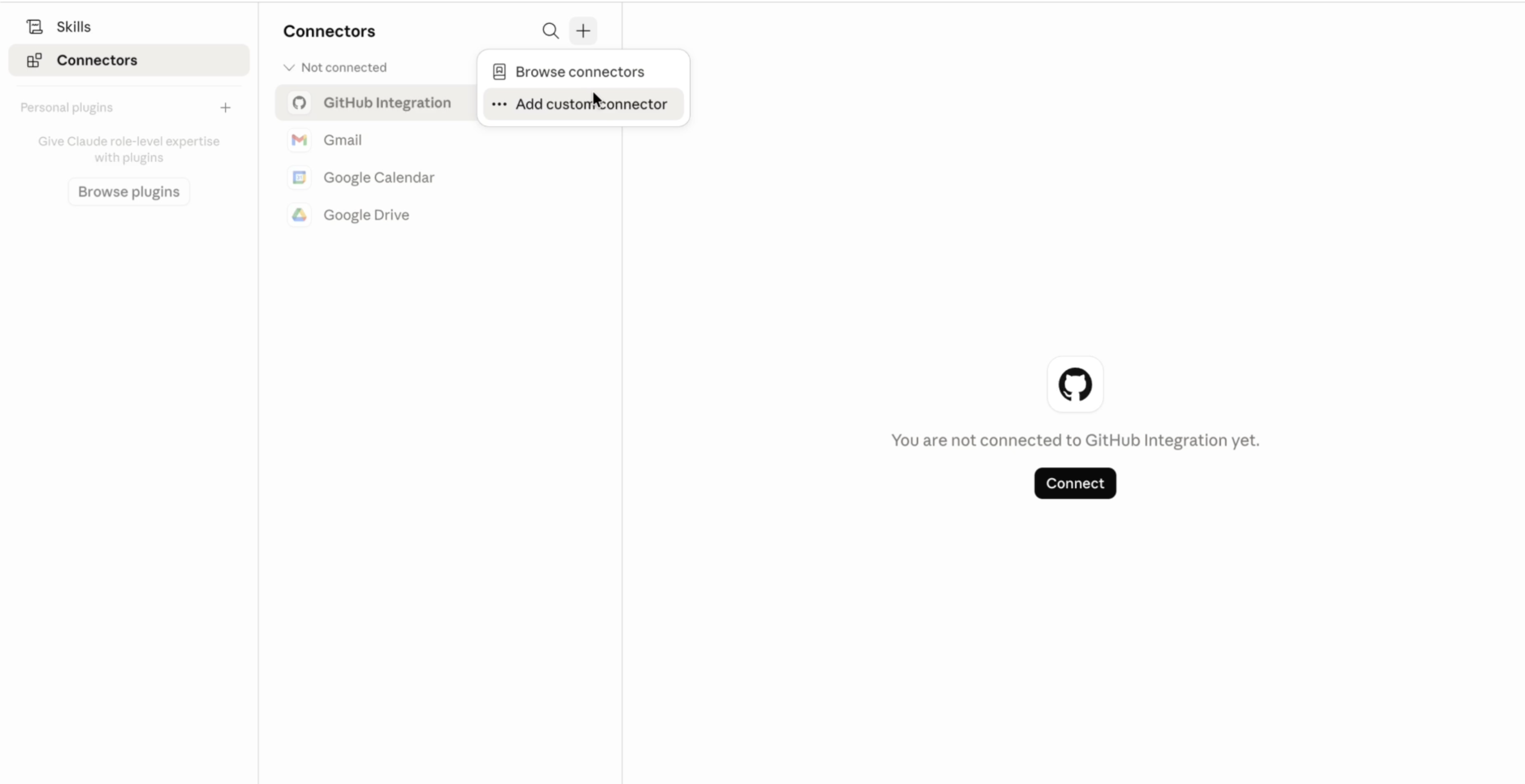 Authorization happens automatically the first time you invoke `ask_question`.
Add Ana to your Cursor MCP configuration. Open (or create) `~/.cursor/mcp.json`:
```json theme={null}
{
"mcpServers": {
"ana": {
"url": "https://app.textql.com/mcp"
}
}
}
```
Restart Cursor. On your first `ask_question` call, Cursor will open a browser window for OAuth authorization.
Open **Windsurf Settings → MCP Servers** and add a new server:
```json theme={null}
{
"mcpServers": {
"ana": {
"url": "https://app.textql.com/mcp"
}
}
}
```
Save and reload. The first use triggers a one-time OAuth flow in your browser.
Add Ana as an MCP server in Claude Code settings:
```json theme={null}
{
"mcpServers": {
"ana": {
"url": "https://app.textql.com/mcp"
}
}
}
```
Or run from the CLI:
```bash theme={null}
claude mcp add --transport http ana https://app.textql.com/mcp
```
The first time you use Ana in a session, you'll be prompted to authorize via OAuth.
1. Go to **ChatGPT → Settings → Connectors**
2. Click **Add connector**
3. Enter `https://app.textql.com/mcp` as the MCP endpoint
4. Follow the OAuth prompt to authorize
Once connected, you can ask Ana data questions directly in any ChatGPT conversation.
1. Open **Copilot Settings → Extensions → MCP**
2. Click **Add MCP server**
3. Enter `https://app.textql.com/mcp`
4. Complete the one-time OAuth authorization
Ana will appear as an available tool in your Copilot sessions.
## First-Time Authorization
The first time your client calls Ana, you'll be redirected to the TextQL UI to complete a one-time OAuth authorization. This connects your TextQL identity to your MCP client — Ana knows which connectors and Ontology to use for your queries.
Authorization happens automatically the first time you invoke `ask_question`.
Add Ana to your Cursor MCP configuration. Open (or create) `~/.cursor/mcp.json`:
```json theme={null}
{
"mcpServers": {
"ana": {
"url": "https://app.textql.com/mcp"
}
}
}
```
Restart Cursor. On your first `ask_question` call, Cursor will open a browser window for OAuth authorization.
Open **Windsurf Settings → MCP Servers** and add a new server:
```json theme={null}
{
"mcpServers": {
"ana": {
"url": "https://app.textql.com/mcp"
}
}
}
```
Save and reload. The first use triggers a one-time OAuth flow in your browser.
Add Ana as an MCP server in Claude Code settings:
```json theme={null}
{
"mcpServers": {
"ana": {
"url": "https://app.textql.com/mcp"
}
}
}
```
Or run from the CLI:
```bash theme={null}
claude mcp add --transport http ana https://app.textql.com/mcp
```
The first time you use Ana in a session, you'll be prompted to authorize via OAuth.
1. Go to **ChatGPT → Settings → Connectors**
2. Click **Add connector**
3. Enter `https://app.textql.com/mcp` as the MCP endpoint
4. Follow the OAuth prompt to authorize
Once connected, you can ask Ana data questions directly in any ChatGPT conversation.
1. Open **Copilot Settings → Extensions → MCP**
2. Click **Add MCP server**
3. Enter `https://app.textql.com/mcp`
4. Complete the one-time OAuth authorization
Ana will appear as an available tool in your Copilot sessions.
## First-Time Authorization
The first time your client calls Ana, you'll be redirected to the TextQL UI to complete a one-time OAuth authorization. This connects your TextQL identity to your MCP client — Ana knows which connectors and Ontology to use for your queries.
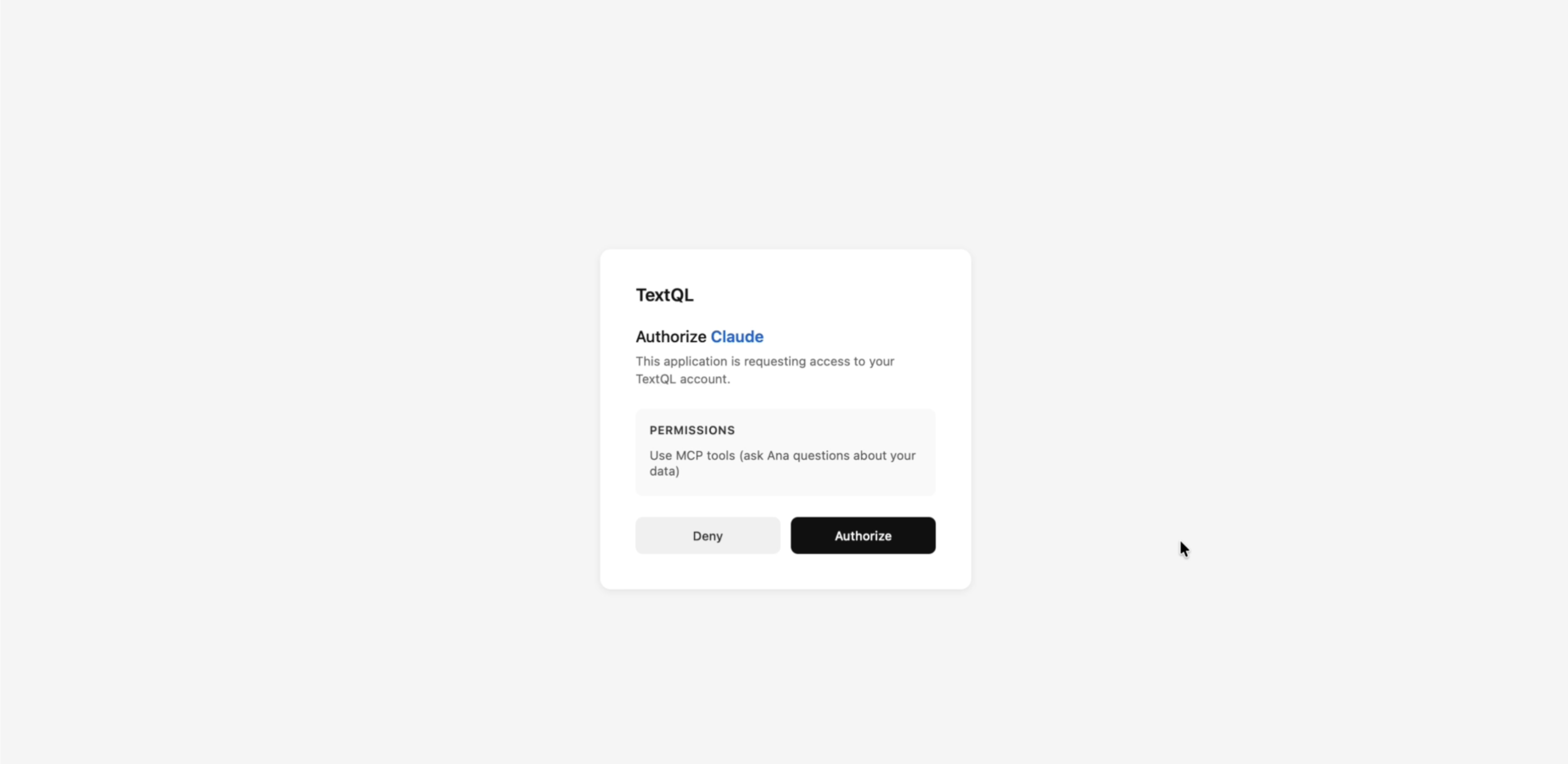 After authorization, your client connects headlessly. You won't need to re-authorize unless you revoke access.
Want to expose more than the default tools, or fewer? See [Tool groups & modes](/core/how-it-works/mcp/tool-groups).
After authorization, your client connects headlessly. You won't need to re-authorize unless you revoke access.
Want to expose more than the default tools, or fewer? See [Tool groups & modes](/core/how-it-works/mcp/tool-groups).