> ## Documentation Index
> Fetch the complete documentation index at: https://docs.textql.com/llms.txt
> Use this file to discover all available pages before exploring further.
# MCP Tools: Getting Started
> Connect Ana to external tools using the Model Context Protocol
## What is MCP?
The **Model Context Protocol (MCP)** is an open standard that lets Ana connect to external services and tools—like Notion, Slack, GitHub, or your internal APIs. Think of it as a universal connector for AI.
MCP Tools are configured by organization administrators through Settings.
**Important:** TextQL currently only supports **HTTP/SSE-based MCP servers**. Standard input/output (stdio) MCP servers are not supported at this time.
**Not sure the difference? If you see `url` in the JSON configuration you're good, but if you see `command` then it's local/stdio and won't work.**
## Why Use MCP?
Connect Ana to services beyond TextQL's built-in integrations:
* **Productivity**: Notion, Google Drive, Slack, Jira
* **Development**: GitHub, GitLab, Linear
* **Custom APIs**: Your organization's internal tools
* **Data Sources**: Industry-specific platforms
## Quick Setup
### Prerequisites
* Organization administrator access
* MCP server URL (we'll use Notion as an example)
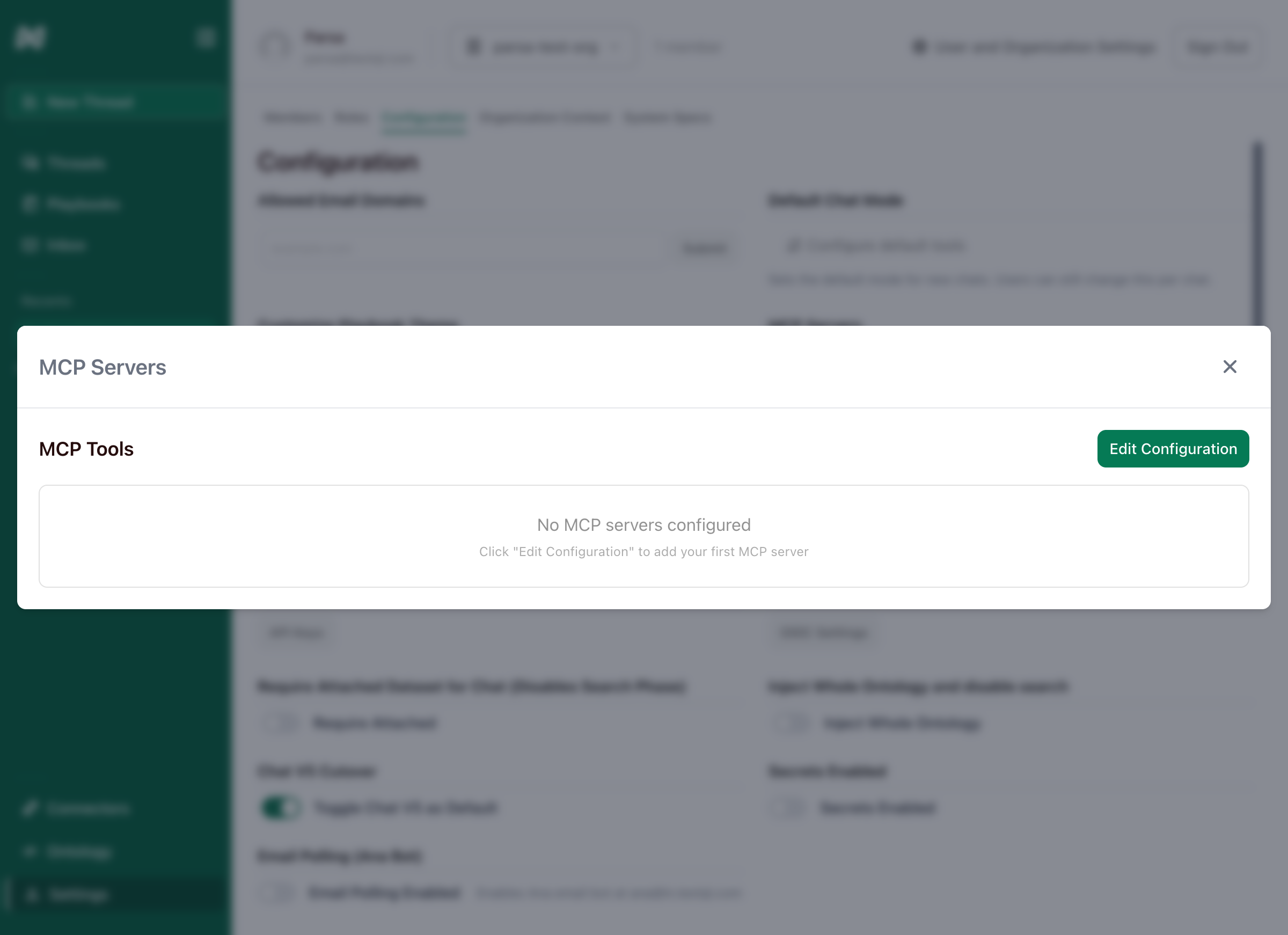
### Step 1: Open MCP Settings
1. Navigate to **Settings** → **Configuration** tab → **MCP Tools**
2. Click **Edit Configuration**
 ### Step 2: Add Your First Server
**Using your own MCP server?** Make sure you see `url` in the JSON, not `command`. Only HTTP/SSE servers work with TextQL.
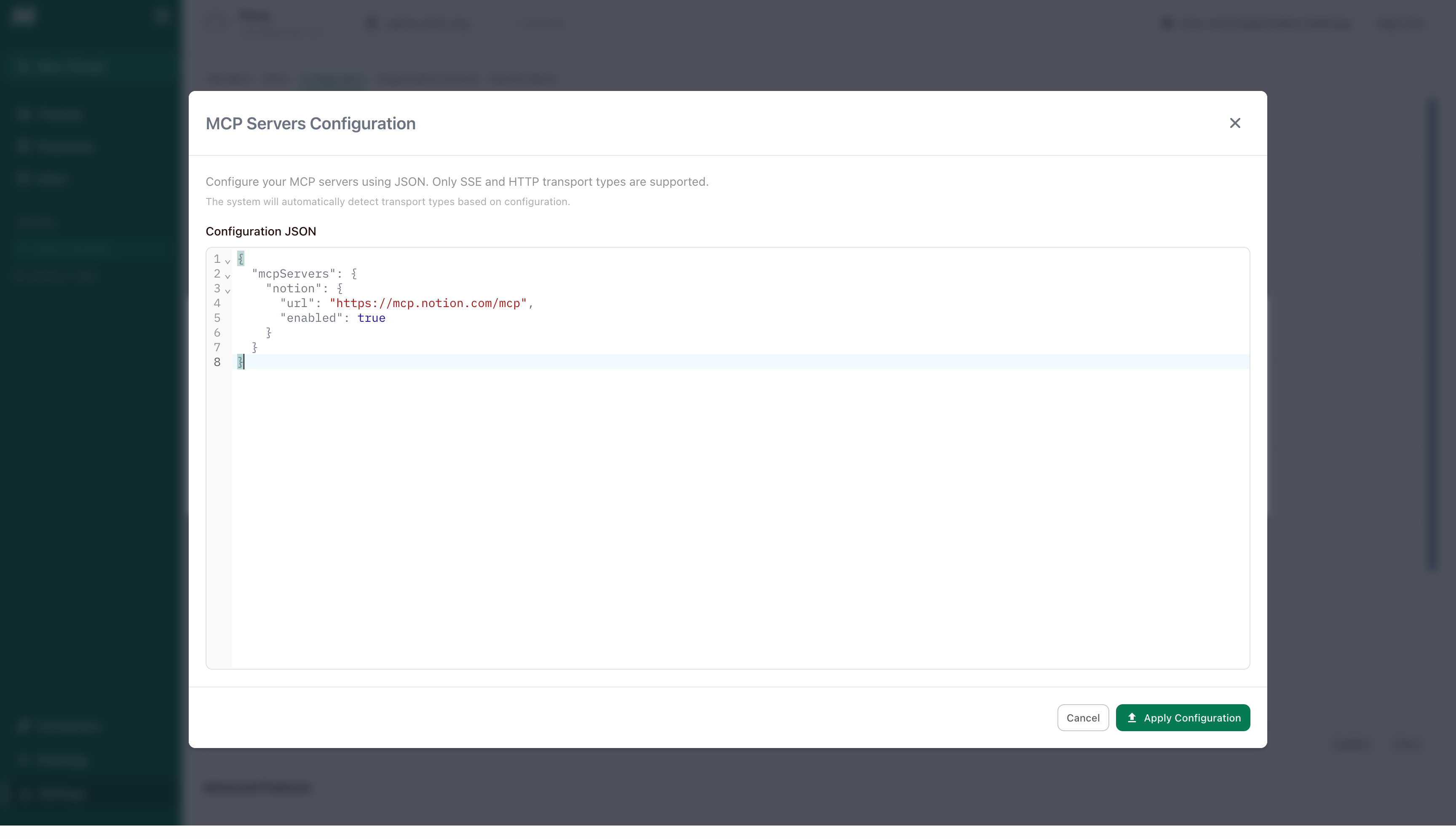
Add this configuration for Notion:
```json theme={null}
{
"mcpServers": {
"notion": {
"url": "https://mcp.notion.com/mcp",
"enabled": true
}
}
}
```
**Configuration breakdown:**
* `"notion"`: Server name (use any descriptive name)
* `"url"`: MCP server endpoint
* `"enabled": true`: Server is active
### Step 2: Add Your First Server
**Using your own MCP server?** Make sure you see `url` in the JSON, not `command`. Only HTTP/SSE servers work with TextQL.
Add this configuration for Notion:
```json theme={null}
{
"mcpServers": {
"notion": {
"url": "https://mcp.notion.com/mcp",
"enabled": true
}
}
}
```
**Configuration breakdown:**
* `"notion"`: Server name (use any descriptive name)
* `"url"`: MCP server endpoint
* `"enabled": true`: Server is active
 ### Step 3: Apply Configuration
1. Click **Apply Configuration**
2. TextQL validates and connects (takes a few seconds)
3. Tools are discovered automatically
### Step 3: Apply Configuration
1. Click **Apply Configuration**
2. TextQL validates and connects (takes a few seconds)
3. Tools are discovered automatically
 ### Step 4: Authenticate (if required)
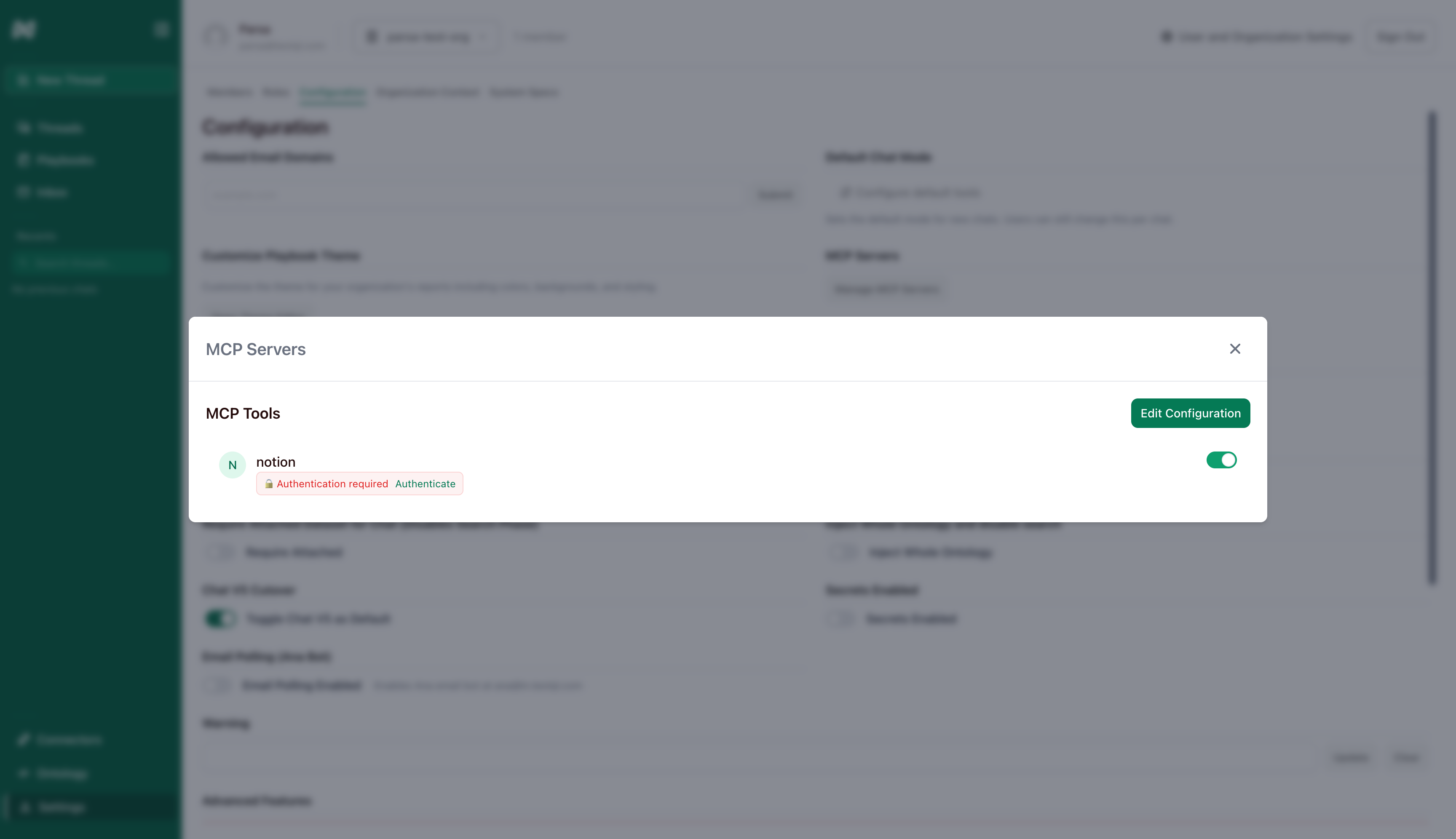
Some servers like Notion require authentication. You'll see an **Authentication required** badge.
1. Click **Authenticate**
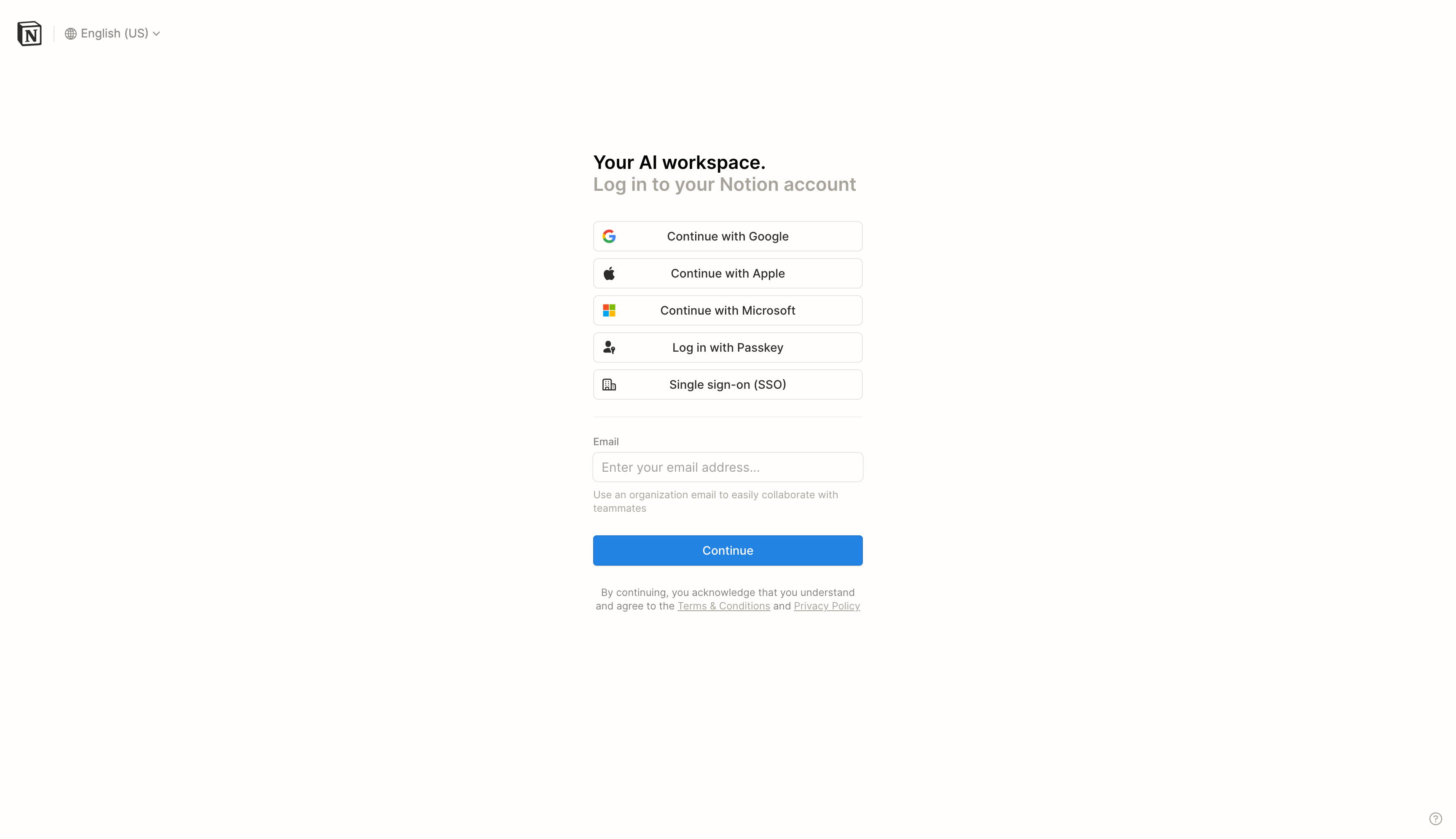
2. A popup opens with the OAuth login page
3. Log in and click **Allow**
4. Popup closes automatically
### Step 4: Authenticate (if required)
Some servers like Notion require authentication. You'll see an **Authentication required** badge.
1. Click **Authenticate**
2. A popup opens with the OAuth login page
3. Log in and click **Allow**
4. Popup closes automatically
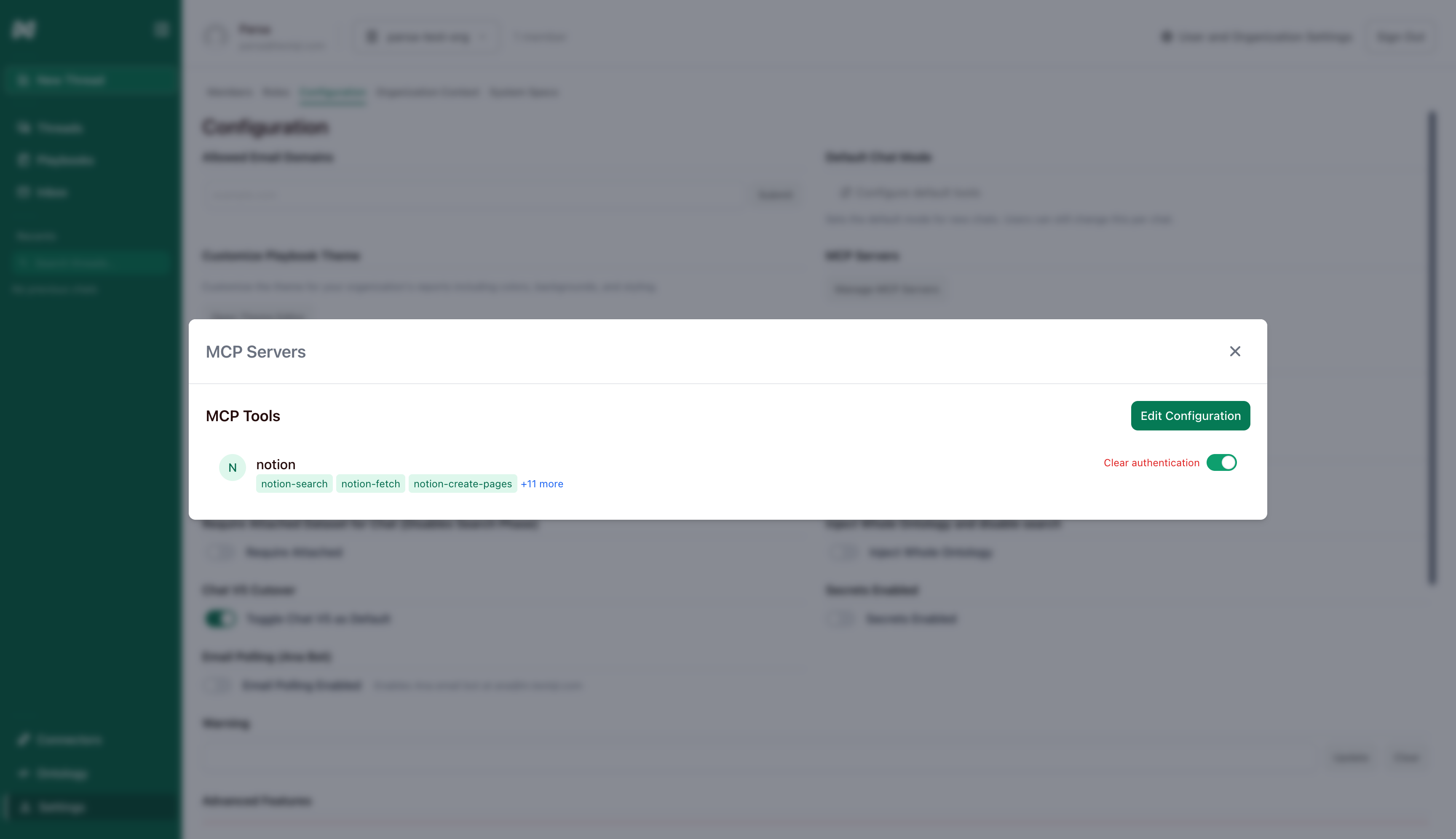
 After authentication:
* Tool badges appear (e.g., `search_pages`, `create_page`)
* The authentication badge is removed
After authentication:
* Tool badges appear (e.g., `search_pages`, `create_page`)
* The authentication badge is removed
 ## Using MCP Tools with Ana
Once connected, simply ask Ana natural questions:
**Search:**
```
"Search my Notion for the product roadmap"
```
**Read:**
```
"What's in my Notion page about Q1 goals?"
```
**Create:**
```
"Create a Notion page with today's meeting notes"
```
Ana automatically selects and uses the appropriate tools—no need to specify tool names.
## Using MCP Tools with Ana
Once connected, simply ask Ana natural questions:
**Search:**
```
"Search my Notion for the product roadmap"
```
**Read:**
```
"What's in my Notion page about Q1 goals?"
```
**Create:**
```
"Create a Notion page with today's meeting notes"
```
Ana automatically selects and uses the appropriate tools—no need to specify tool names.
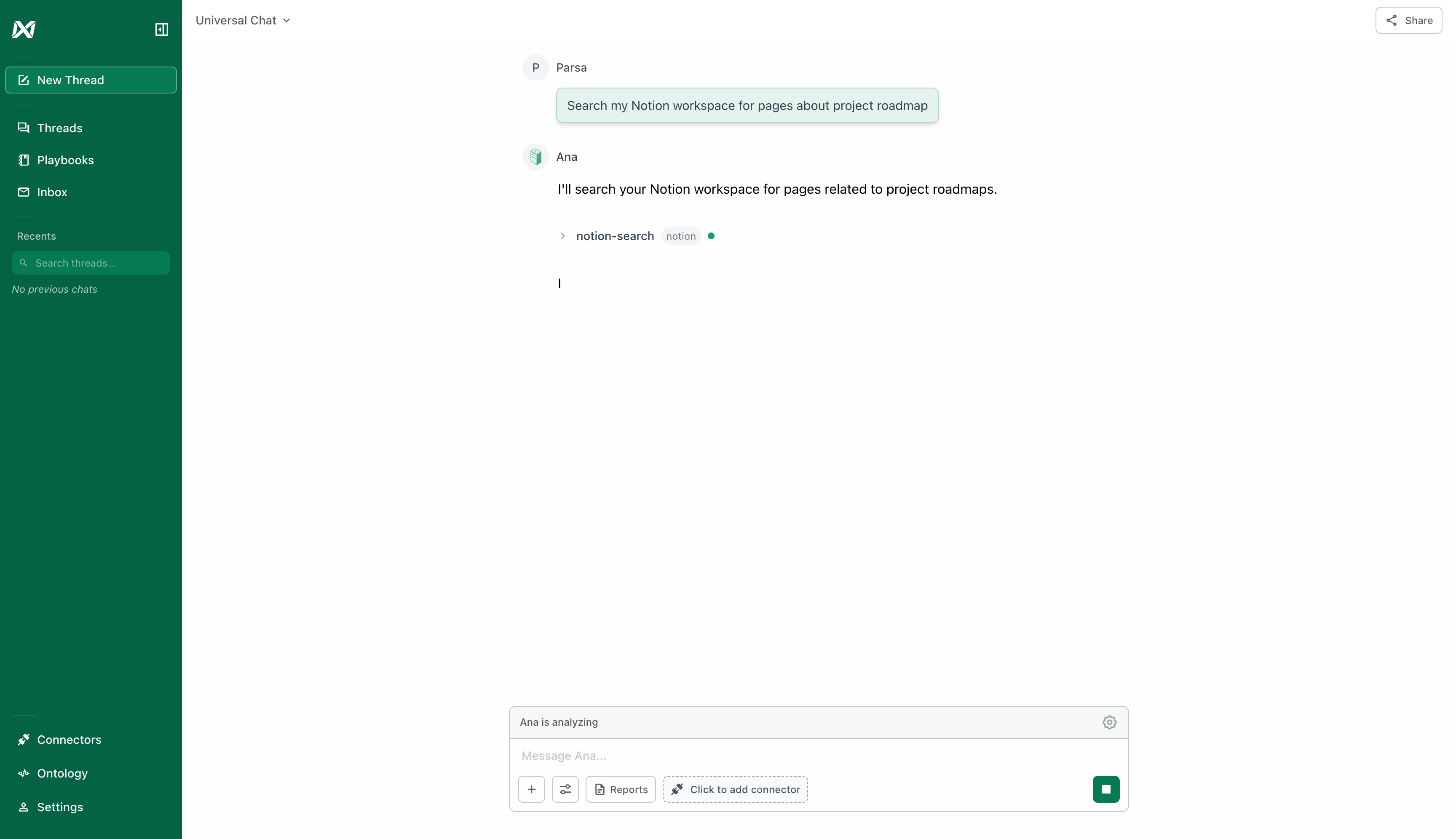 ### Tool Execution
When Ana uses an MCP tool, you'll see:
* Tool name and server
* Execution status (loading → success/error)
* Results and timing
**Example cell:**
```
[MCP: notion] search_pages
✓ Found 3 pages in 0.8s
```
## Multiple Servers
**Using your own MCP server?** Make sure you see `url` in the JSON, not `command`. Only HTTP/SSE servers work with TextQL.
Add multiple servers in one configuration:
```json theme={null}
{
"mcpServers": {
"notion": {
"url": "https://mcp.notion.com/mcp",
"enabled": true
},
"github": {
"url": "https://api.githubcopilot.com/mcp/",
"enabled": true
}
}
}
```
## Managing Servers
* **Disable temporarily**: Toggle the switch (keeps configuration and authentication)
* **Edit configuration**: Click "Edit Configuration" again
* **Clear authentication**: Click "Clear authentication" to revoke access
* **Delete server**: Remove from JSON and apply
Deleting a server removes stored OAuth tokens. You'll need to re-authenticate if you add it back.
## Quick Troubleshooting
**Connection Failed:**
* Verify the URL is correct
* Check if the server is running
* Ensure no firewall is blocking the connection
**Authentication keeps asking:**
* Server requires OAuth—click Authenticate
* Enable pop-ups for your TextQL domain if blocked
**No tools appear:**
* Complete authentication first if the authentication badge is shown
* Server may not implement MCP correctly
* Check the [Reference guide](/core/how-it-works/mcp/reference) for details
**Stdio MCP servers not working:**
* TextQL only supports HTTP/SSE-based MCP servers
* Stdio (standard input/output) transport is not currently supported
* If you have a stdio MCP server, you'll need to wrap it with an HTTP/SSE adapter
## Next Steps
* [See all configuration options and troubleshooting →](/core/how-it-works/mcp/reference)
* Start with read-only tools (search) before adding write tools
* Ask Ana naturally—she'll figure out which tools to use
### Tool Execution
When Ana uses an MCP tool, you'll see:
* Tool name and server
* Execution status (loading → success/error)
* Results and timing
**Example cell:**
```
[MCP: notion] search_pages
✓ Found 3 pages in 0.8s
```
## Multiple Servers
**Using your own MCP server?** Make sure you see `url` in the JSON, not `command`. Only HTTP/SSE servers work with TextQL.
Add multiple servers in one configuration:
```json theme={null}
{
"mcpServers": {
"notion": {
"url": "https://mcp.notion.com/mcp",
"enabled": true
},
"github": {
"url": "https://api.githubcopilot.com/mcp/",
"enabled": true
}
}
}
```
## Managing Servers
* **Disable temporarily**: Toggle the switch (keeps configuration and authentication)
* **Edit configuration**: Click "Edit Configuration" again
* **Clear authentication**: Click "Clear authentication" to revoke access
* **Delete server**: Remove from JSON and apply
Deleting a server removes stored OAuth tokens. You'll need to re-authenticate if you add it back.
## Quick Troubleshooting
**Connection Failed:**
* Verify the URL is correct
* Check if the server is running
* Ensure no firewall is blocking the connection
**Authentication keeps asking:**
* Server requires OAuth—click Authenticate
* Enable pop-ups for your TextQL domain if blocked
**No tools appear:**
* Complete authentication first if the authentication badge is shown
* Server may not implement MCP correctly
* Check the [Reference guide](/core/how-it-works/mcp/reference) for details
**Stdio MCP servers not working:**
* TextQL only supports HTTP/SSE-based MCP servers
* Stdio (standard input/output) transport is not currently supported
* If you have a stdio MCP server, you'll need to wrap it with an HTTP/SSE adapter
## Next Steps
* [See all configuration options and troubleshooting →](/core/how-it-works/mcp/reference)
* Start with read-only tools (search) before adding write tools
* Ask Ana naturally—she'll figure out which tools to use