> ## Documentation Index
> Fetch the complete documentation index at: https://docs.textql.com/llms.txt
> Use this file to discover all available pages before exploring further.
# Templates
> Batch Playbook Execution with Template Variables
Templates are an extension of [Playbooks](/core/how-it-works/playbooks). If you're new to playbooks, start with the playbooks documentation first.
TextQL **Templates** enable you to run the same playbook analysis across multiple rows of data by connecting a backing table with header variables. Instead of running a playbook once, you can iterate through selected rows of your template table, with each row representing a different execution context.
## Overview
Templates add a powerful batch execution layer to playbooks:
* **Backing Table**: Upload or connect a table that serves as your template data source
* **Header Variables**: Reference columns from your template table using `{{"{{ / @"}}` syntax in your playbook
* **Selective Execution**: Choose which rows (y out of x) from your template table to run
* **Version Tracking**: Every batch run is versioned and tracked for historical comparison
* **Centralized Results**: View all generated reports from a batch run in one place
* **Bulk Export**: Export all reports from a batch run at once
Common use cases include:
* "Run weekly sales analysis for each product in my product table"
* "Generate customer health reports for selected enterprise accounts"
* "Analyze marketing performance across specific regional campaigns"
* "Monitor KPIs for a subset of store locations"
## How Templates Work
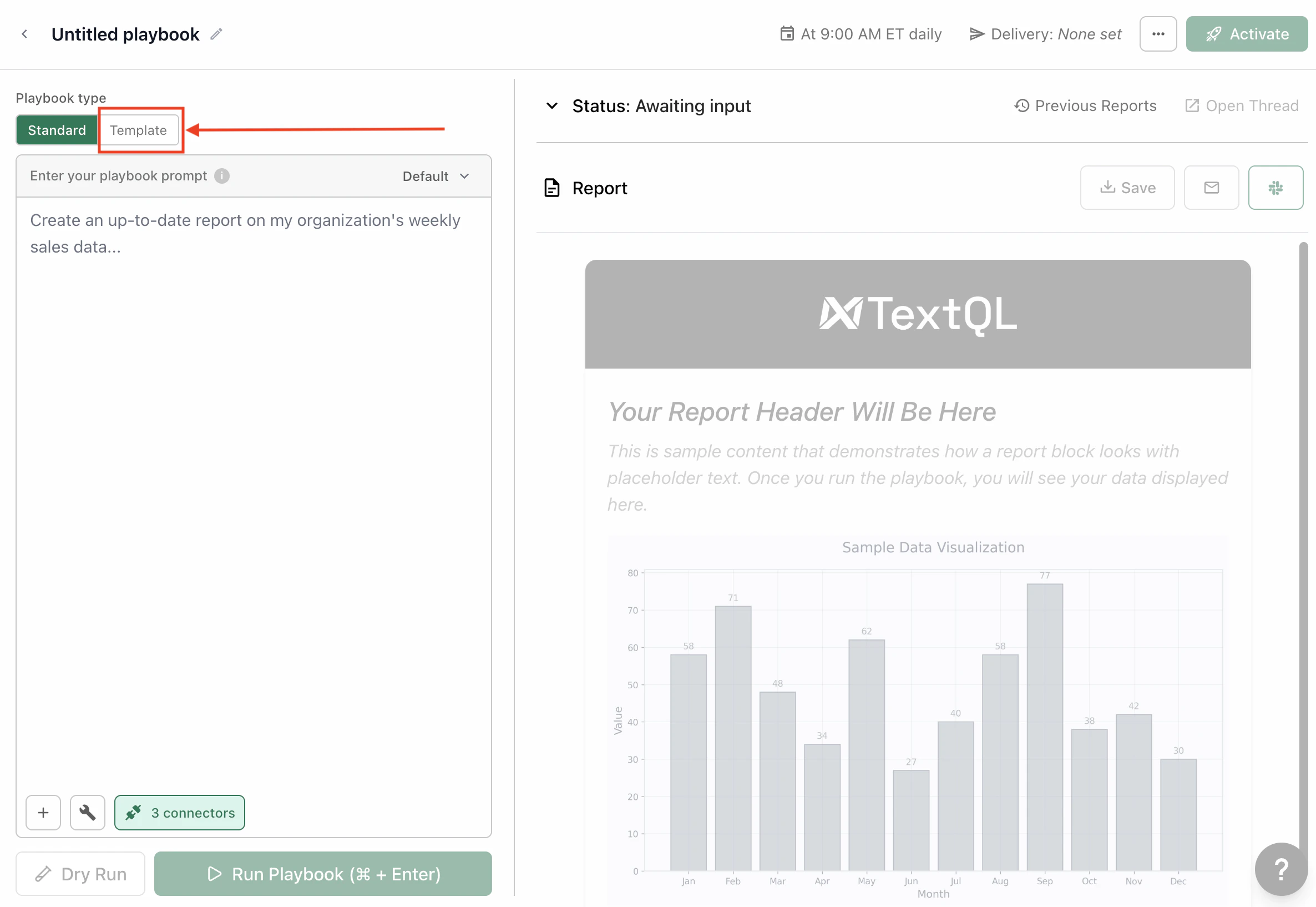 ### Assigning a Template to a Playbook
1. **Create Your Backing Table**
Upload a CSV where each column header becomes a variable name, and each row represents one execution.
Example CSV:
```csv theme={null}
Name,Food,City
Alice,Pizza,New York
Bob,Burger,Los Angeles
Charlie,Sushi,Chicago
Daisy,Pasta,Houston
Ethan,Tacos,Phoenix
Fiona,Salad,Philadelphia
George,Sandwich,San Antonio
Hannah,Steak,San Diego
Ian,Ice Cream,Dallas
Julia,Soup,San Jose
```
You can then reference `\{\{Name\}\}`, `\{\{Food\}\}`, and `\{\{City\}\}` in your playbook.
### Assigning a Template to a Playbook
1. **Create Your Backing Table**
Upload a CSV where each column header becomes a variable name, and each row represents one execution.
Example CSV:
```csv theme={null}
Name,Food,City
Alice,Pizza,New York
Bob,Burger,Los Angeles
Charlie,Sushi,Chicago
Daisy,Pasta,Houston
Ethan,Tacos,Phoenix
Fiona,Salad,Philadelphia
George,Sandwich,San Antonio
Hannah,Steak,San Diego
Ian,Ice Cream,Dallas
Julia,Soup,San Jose
```
You can then reference `\{\{Name\}\}`, `\{\{Food\}\}`, and `\{\{City\}\}` in your playbook.
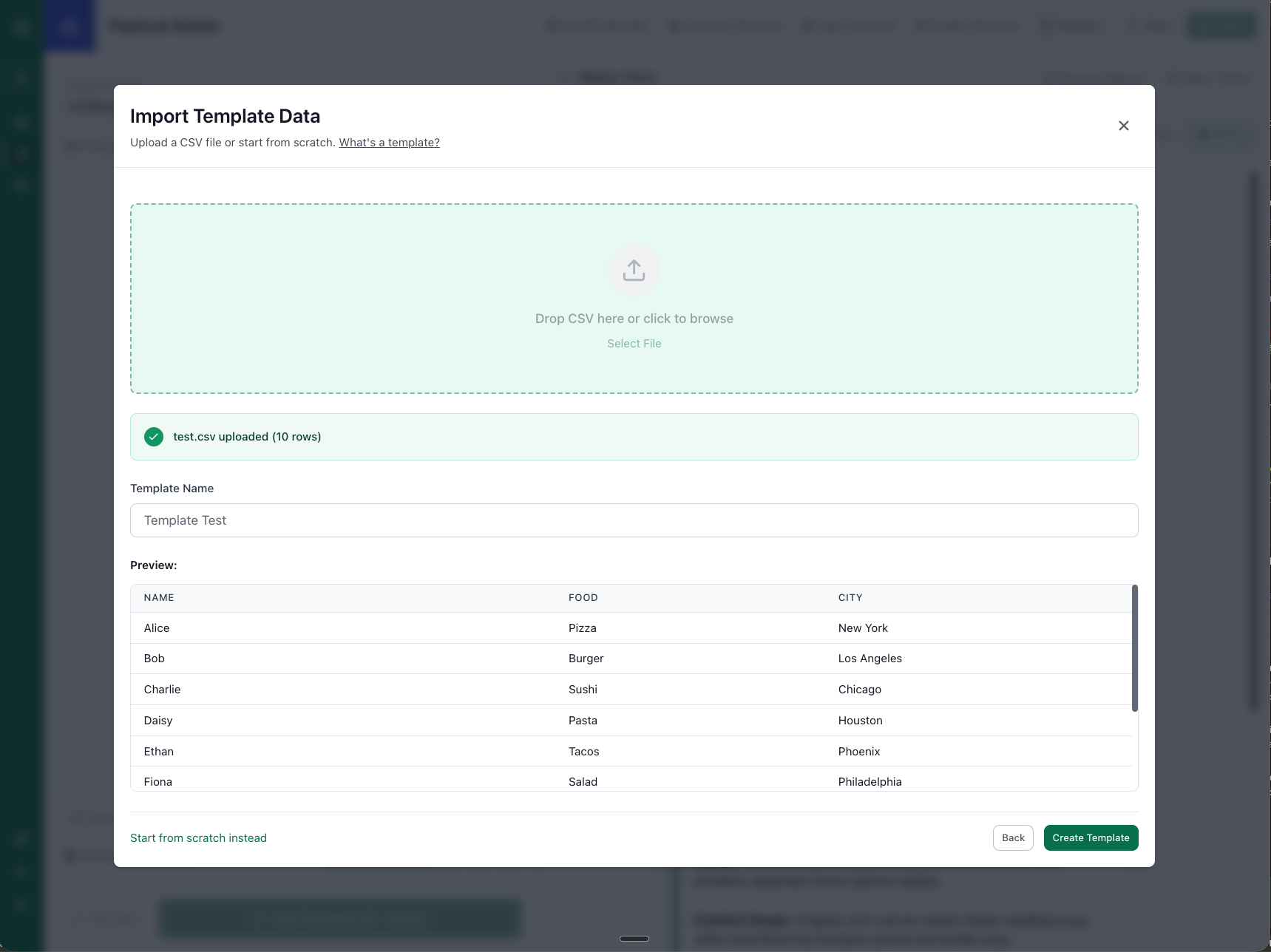 2. **Assign Template to Playbook**
* Open your existing playbook
* Assign a template by selecting a template header ID
* Once assigned, the playbook gains access to all header variables from that table
2. **Assign Template to Playbook**
* Open your existing playbook
* Assign a template by selecting a template header ID
* Once assigned, the playbook gains access to all header variables from that table
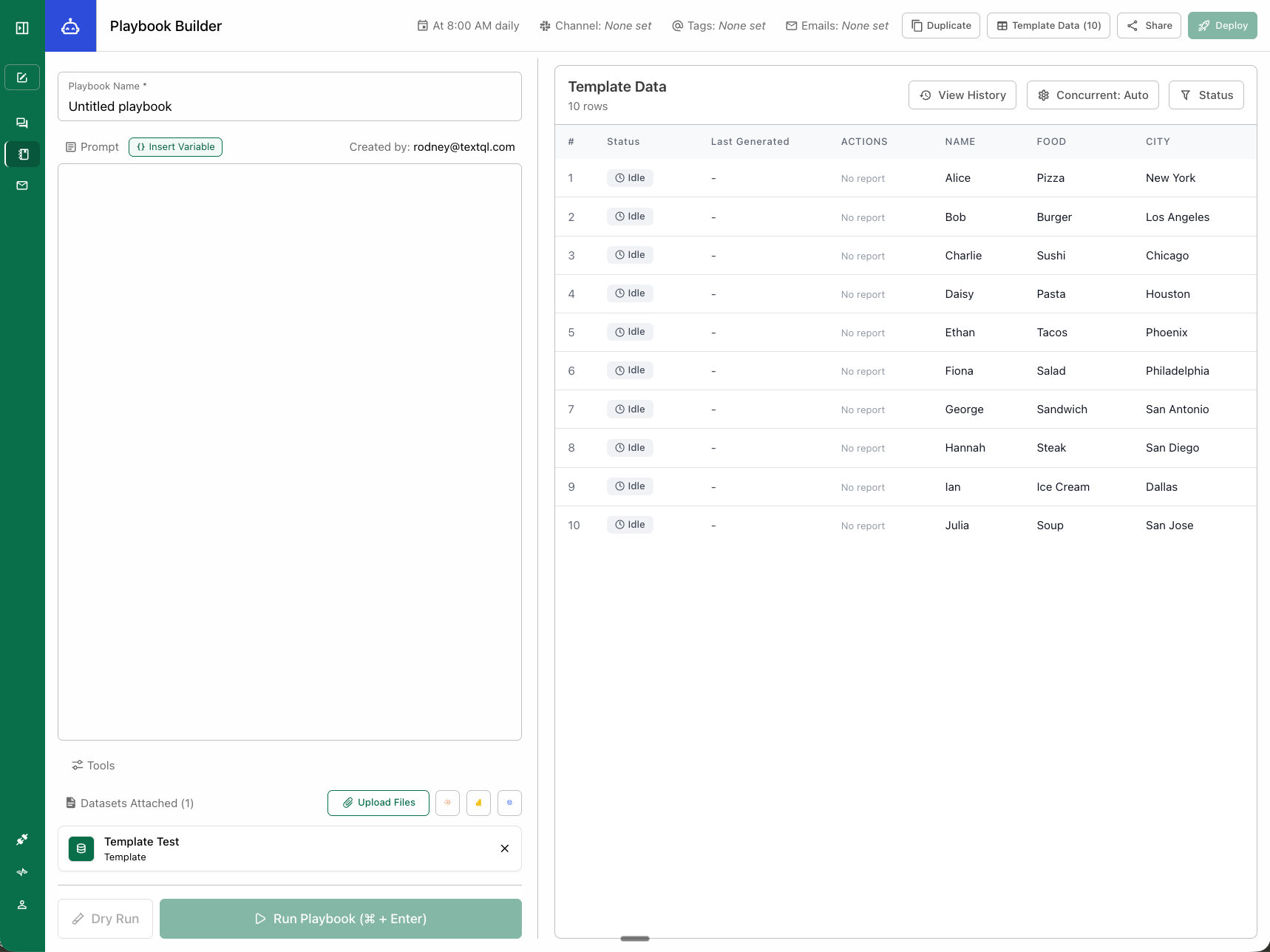 3. **Reference Template Variables**
* Type `{{"{{ / @"}}` in your playbook to access template header variables
* Variables are automatically replaced with values from each row during execution
* Example: "Analyze sales for \{\{product\_name}} in \{\{region}}"
3. **Reference Template Variables**
* Type `{{"{{ / @"}}` in your playbook to access template header variables
* Variables are automatically replaced with values from each row during execution
* Example: "Analyze sales for \{\{product\_name}} in \{\{region}}"
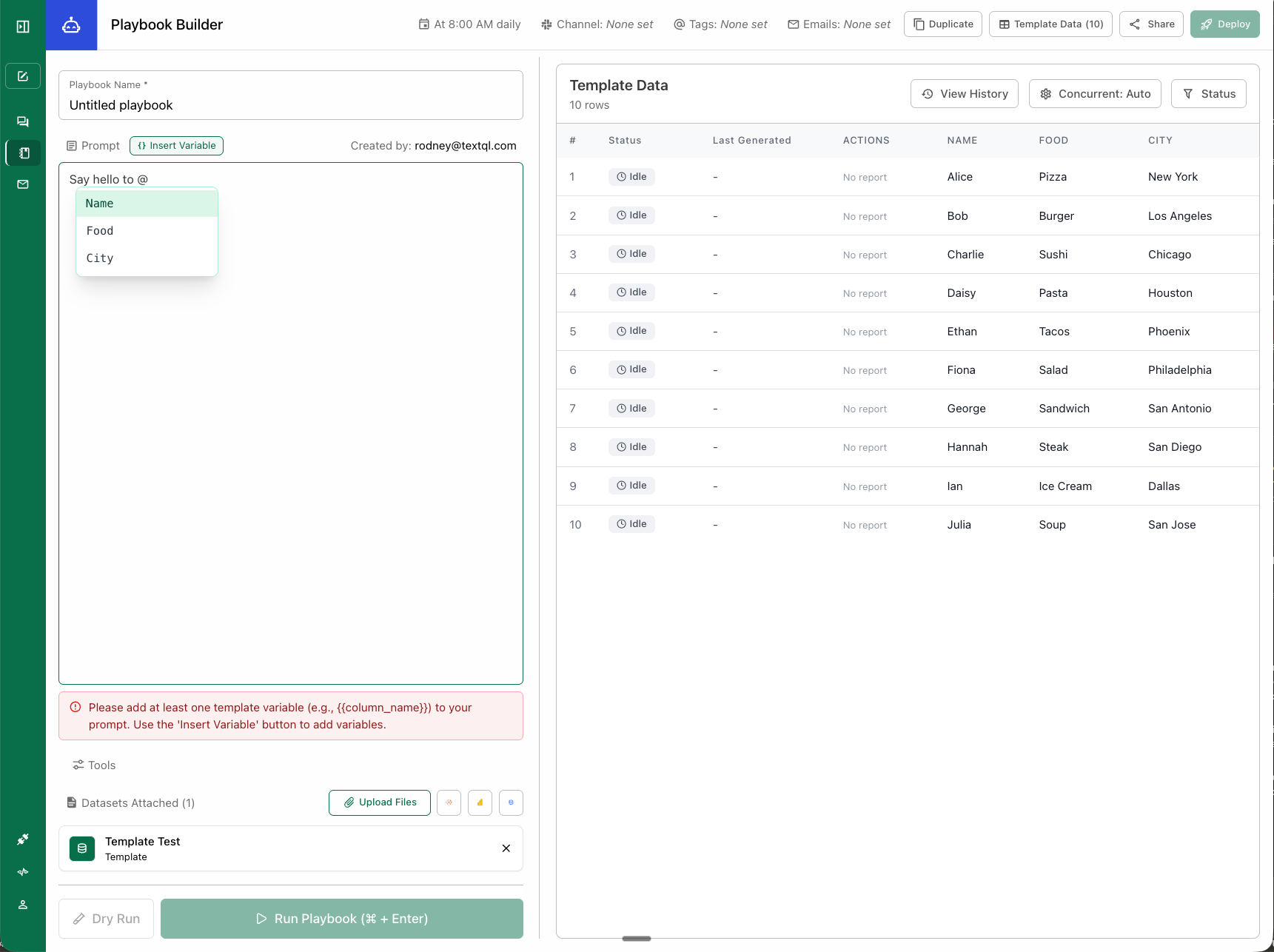
 ### Running a Batch Playbook
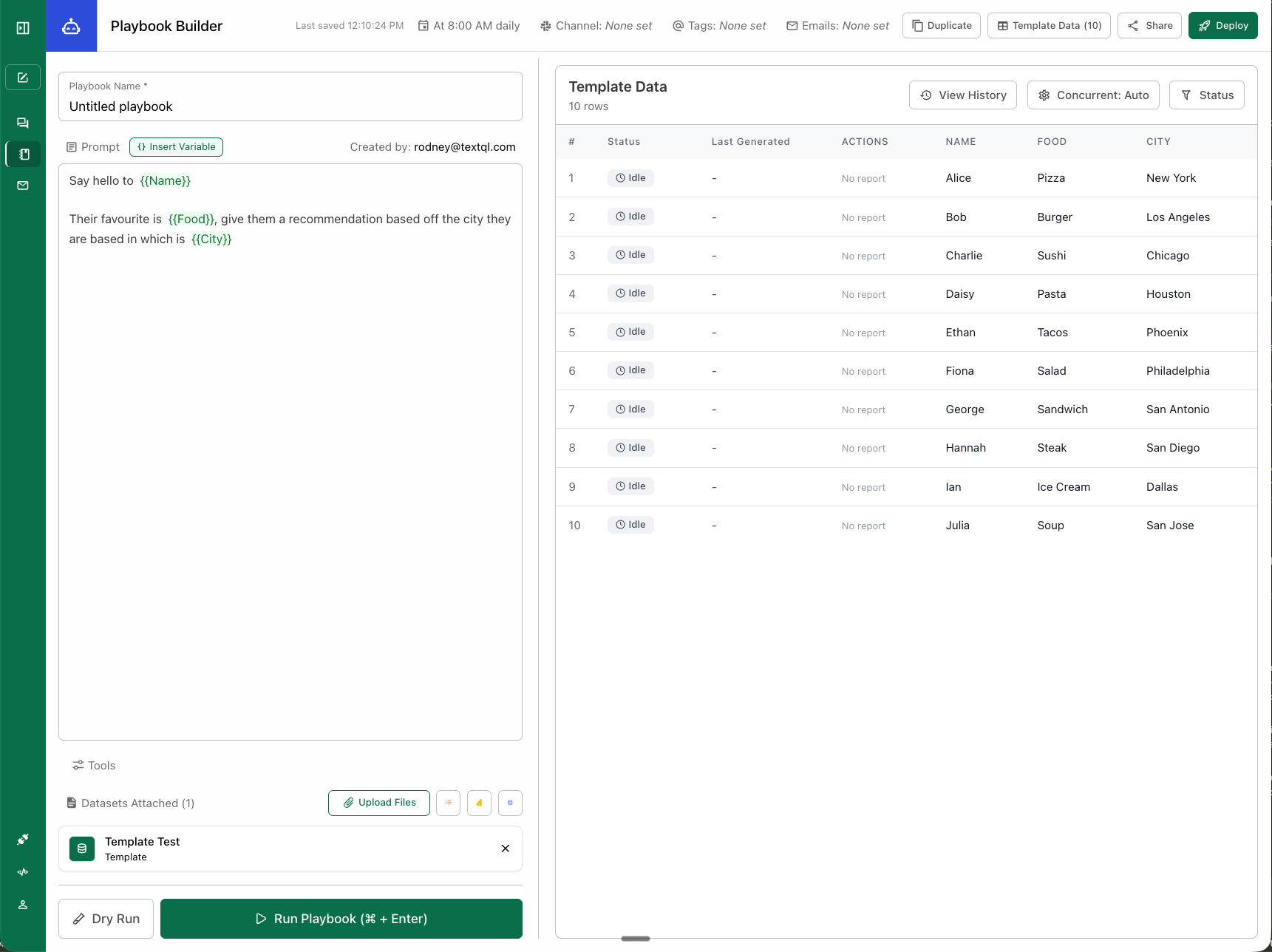
When you run a playbook with an assigned template:
1. **Select Rows to Run**
* Choose which rows (y out of x total rows) from your template table to execute
* You don't have to run all rows - select only the ones you need
2. **Batch Execution**
* The playbook iterates through each selected template data ID (row)
* Each iteration generates its own report with variables substituted from that row
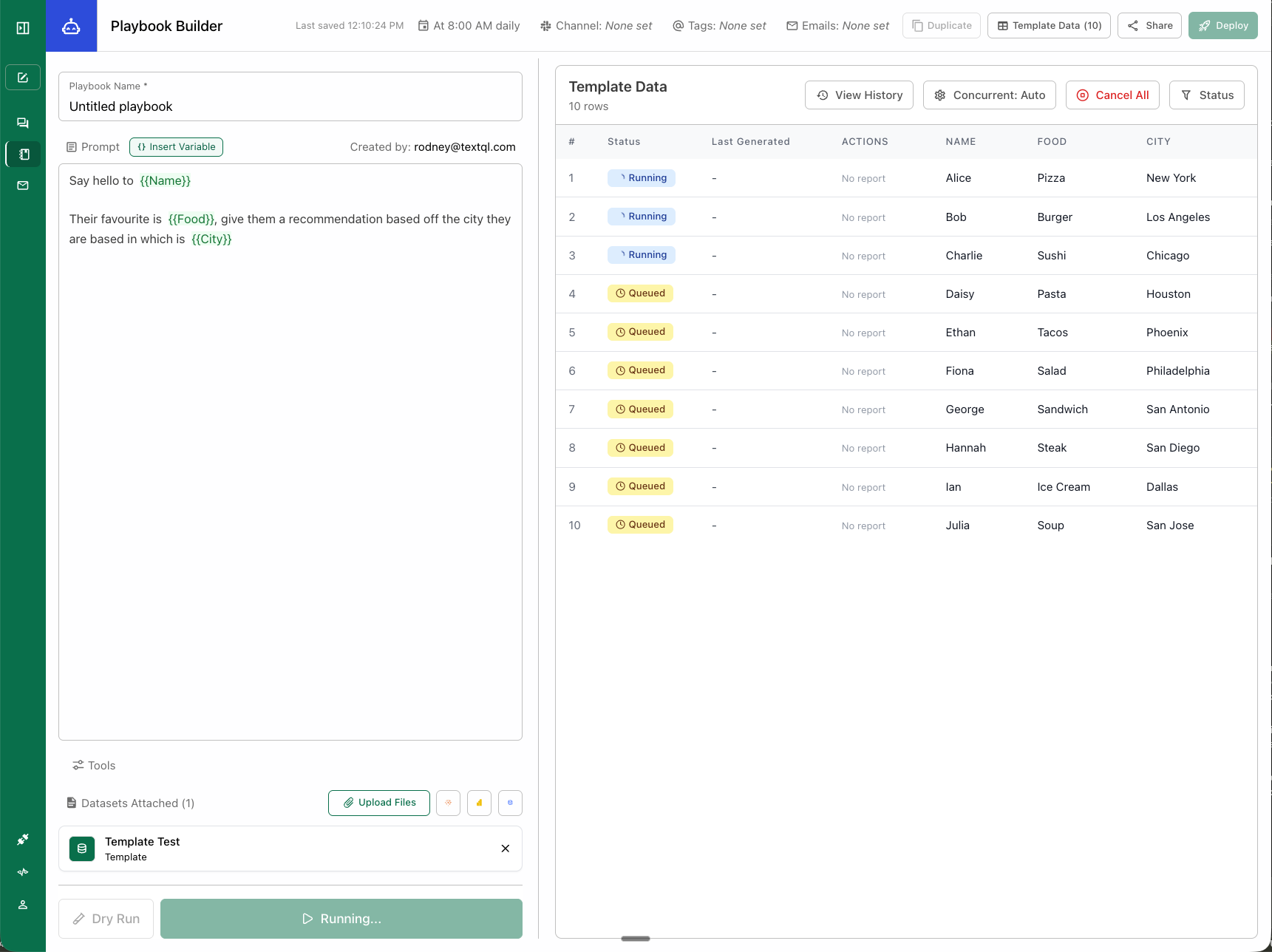
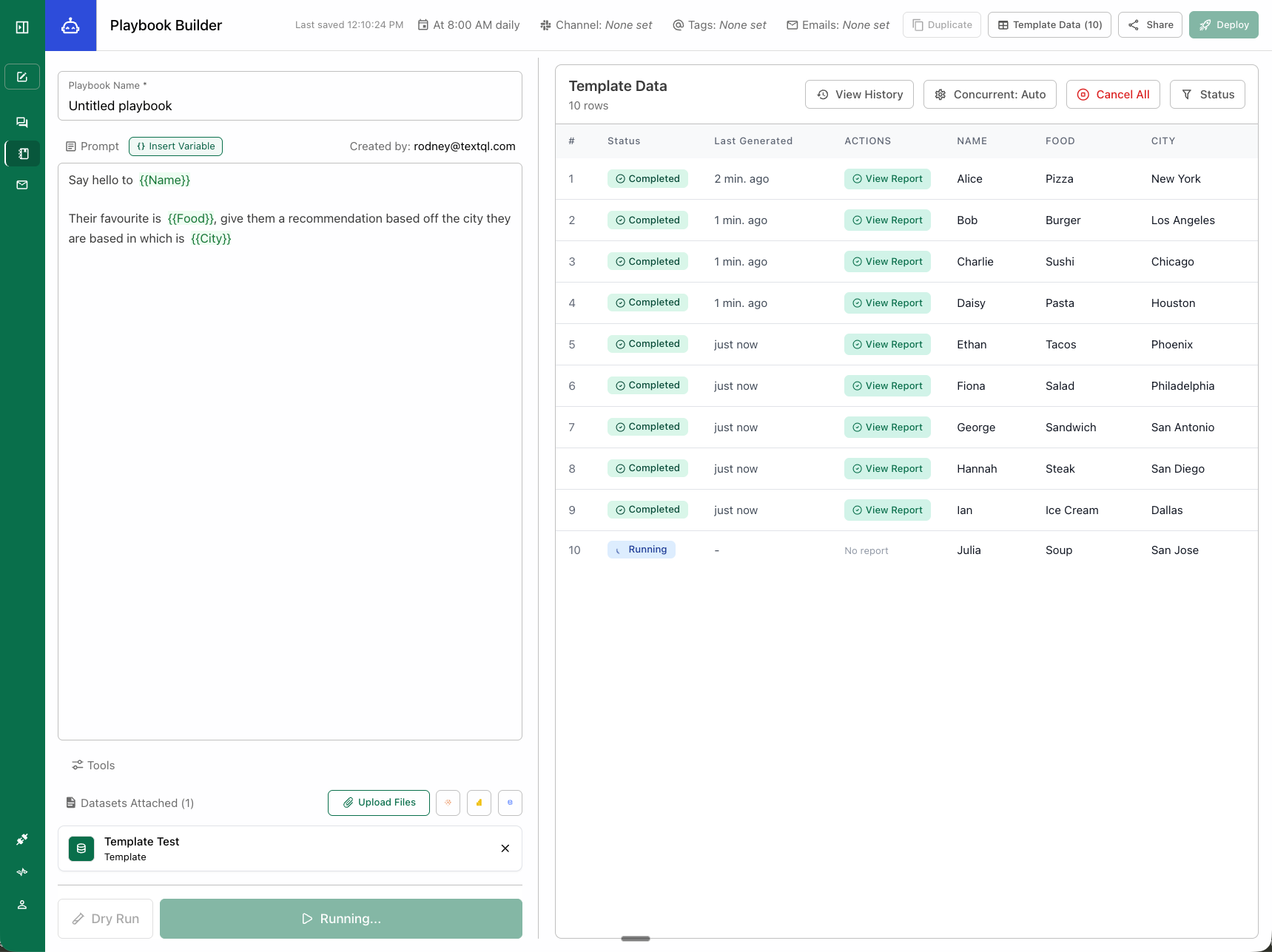
3. **Track and Monitor**
* View real-time progress as each row completes
* Access all generated reports in one centralized location
### Running a Batch Playbook
When you run a playbook with an assigned template:
1. **Select Rows to Run**
* Choose which rows (y out of x total rows) from your template table to execute
* You don't have to run all rows - select only the ones you need
2. **Batch Execution**
* The playbook iterates through each selected template data ID (row)
* Each iteration generates its own report with variables substituted from that row
3. **Track and Monitor**
* View real-time progress as each row completes
* Access all generated reports in one centralized location
 ## Versioning and Historical Tracking
One of the key advantages of batch playbooks is automatic version tracking:
### Batch Run Versions
* **Automatic Versioning**: Each batch run is tracked as a separate version
* **Historical Comparison**: Compare results across different batch runs over time
* **Run Metadata**: Each version stores when it ran, which rows were selected, and execution status
### Accessing Historical Reports
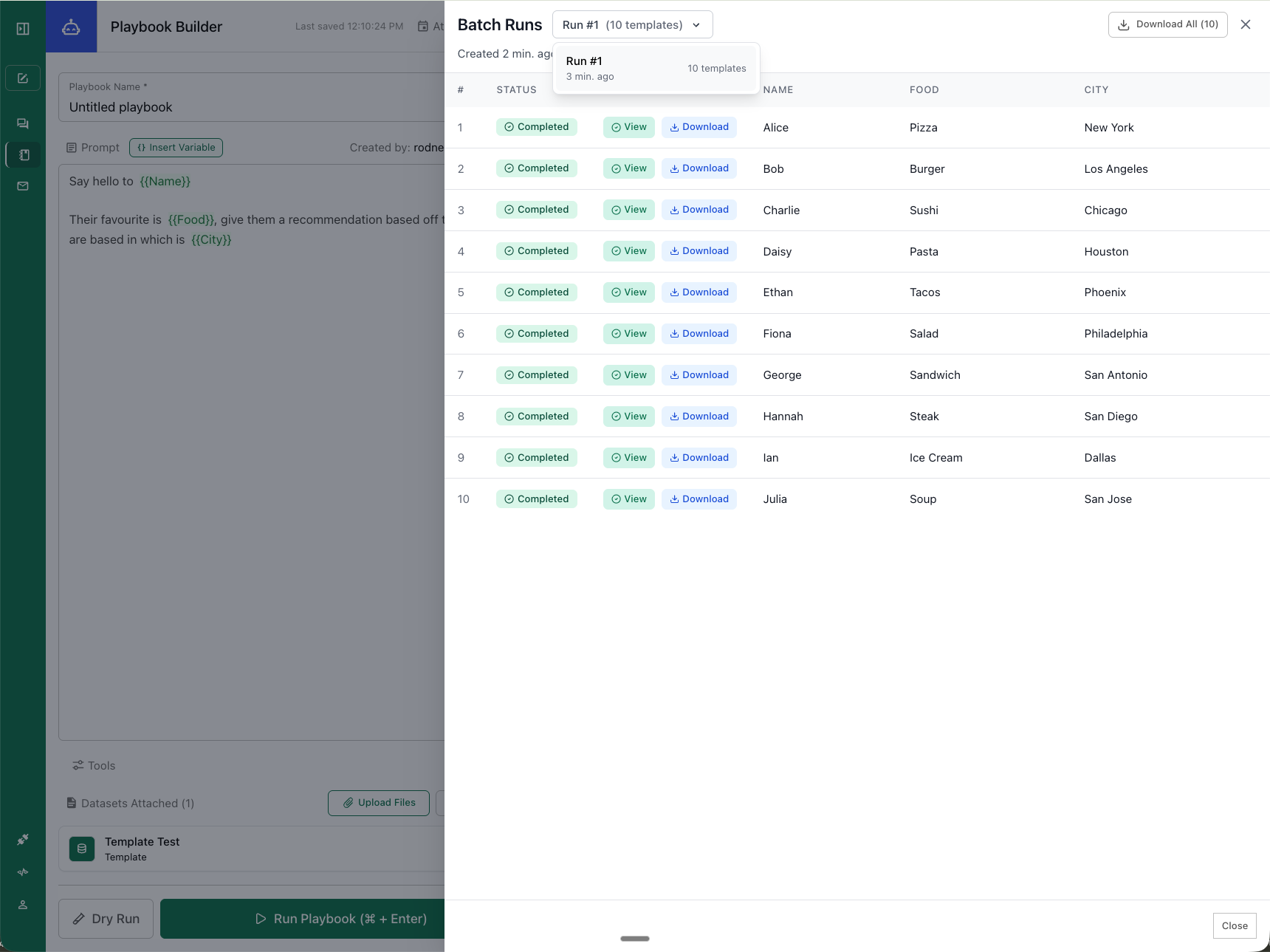
* **Centralized View**: All reports from a batch run are accessible in one place
* **Past Run Review**: Revisit any previous batch run to see generated reports
* **Trend Analysis**: Use historical batch runs to identify trends and changes over time
This versioning system provides helpful context based on your historical runs, making it easy to see how your metrics evolve across different batch executions.
## Versioning and Historical Tracking
One of the key advantages of batch playbooks is automatic version tracking:
### Batch Run Versions
* **Automatic Versioning**: Each batch run is tracked as a separate version
* **Historical Comparison**: Compare results across different batch runs over time
* **Run Metadata**: Each version stores when it ran, which rows were selected, and execution status
### Accessing Historical Reports
* **Centralized View**: All reports from a batch run are accessible in one place
* **Past Run Review**: Revisit any previous batch run to see generated reports
* **Trend Analysis**: Use historical batch runs to identify trends and changes over time
This versioning system provides helpful context based on your historical runs, making it easy to see how your metrics evolve across different batch executions.
 ## Batch Execution
**Concurrency Settings**: We recommend using **Auto Optimize Concurrency** because it balances speed and cost. Alternatively, you can max concurrent runs or allow it to run all workloads concurrently.
**Export All Reports**: Download all reports from a batch run at once instead of individually — a quality-of-life feature requested by customers.
## Best Practices
* Start with a small test table (5-10 rows) before scaling up
* Test with a single row first to verify playbook logic
* Use clear, descriptive column headers
* Adjust concurrency limits based on your data source capacity
## Troubleshooting
* **Variables not replacing**: Ensure syntax `{{"{{ / @"}}` matches column names exactly (case-sensitive)
* **Can't access variables**: Verify template is assigned to playbook with template header ID
* **Some rows failed**: Individual row failures don't affect other reports
Contact [support@textql.com](mailto:support@textql.com) for assistance.
## Batch Execution
**Concurrency Settings**: We recommend using **Auto Optimize Concurrency** because it balances speed and cost. Alternatively, you can max concurrent runs or allow it to run all workloads concurrently.
**Export All Reports**: Download all reports from a batch run at once instead of individually — a quality-of-life feature requested by customers.
## Best Practices
* Start with a small test table (5-10 rows) before scaling up
* Test with a single row first to verify playbook logic
* Use clear, descriptive column headers
* Adjust concurrency limits based on your data source capacity
## Troubleshooting
* **Variables not replacing**: Ensure syntax `{{"{{ / @"}}` matches column names exactly (case-sensitive)
* **Can't access variables**: Verify template is assigned to playbook with template header ID
* **Some rows failed**: Individual row failures don't affect other reports
Contact [support@textql.com](mailto:support@textql.com) for assistance.