> ## Documentation Index
> Fetch the complete documentation index at: https://docs.textql.com/llms.txt
> Use this file to discover all available pages before exploring further.
# Ontology Editing
> Let Ana modify your semantic layer
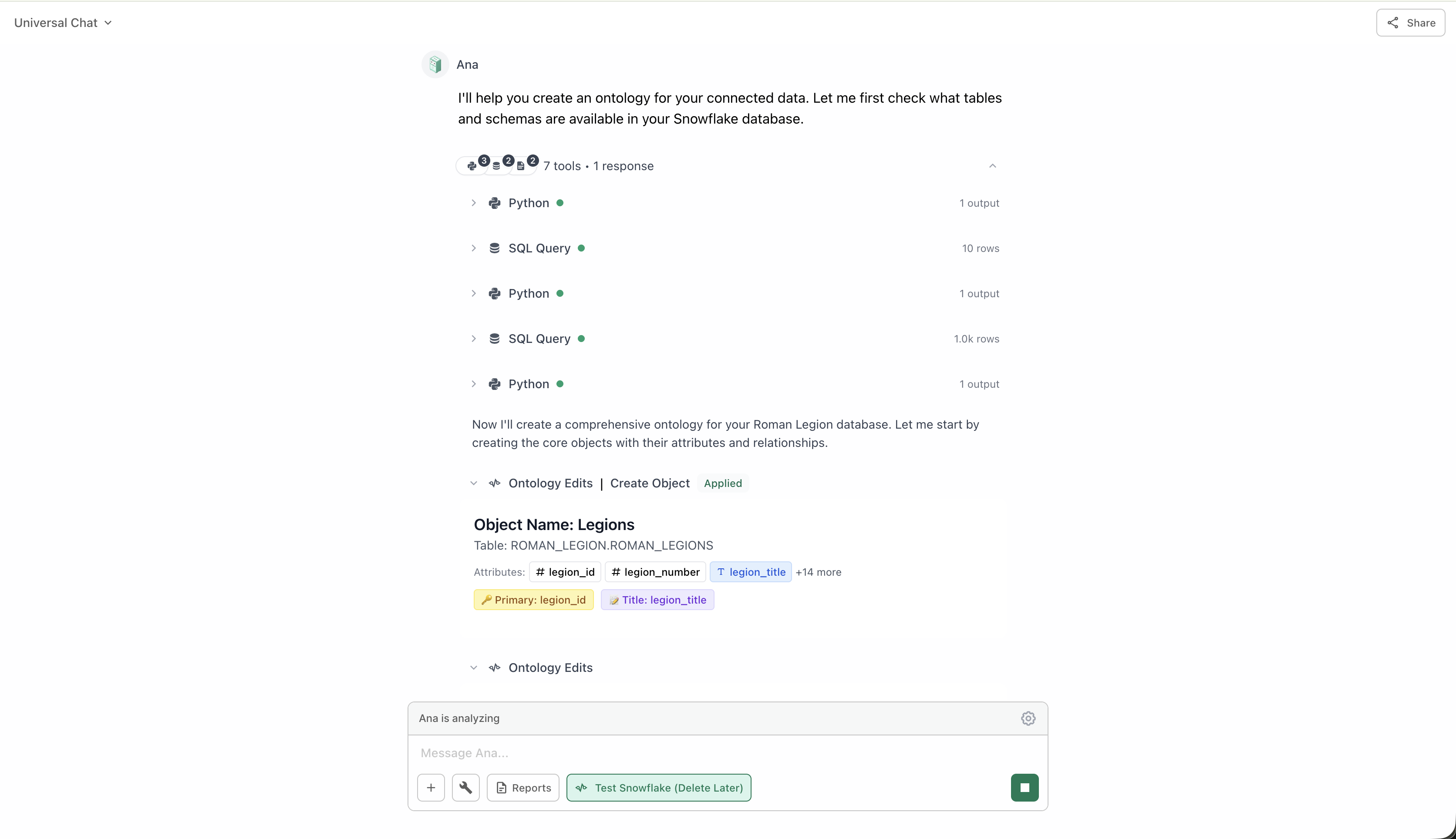
Grants Ana the ability to modify and update your ontology directly during conversations.
**Powerful Feature:** This tool allows Ana to make structural changes to your semantic layer. Use with caution and review changes carefully.
 ## What It Does
When Ontology Editing is enabled, Ana can perform these operations:
Add new business entities that map to your database tables
Create or modify metrics with their SQL calculation logic
Add or modify attributes for grouping and filtering
Create or edit relationships between objects
Remove objects, metrics, dimensions, or links that are no longer needed
Update descriptions, names, and configurations
## When to Use
Enable Ontology Editing when:
**You want Ana to help build your ontology from scratch**
Ana can explore your database schema and suggest logical objects, metrics, and relationships based on your data structure.
**Example:** "Create an ontology for my e-commerce database with customer, order, and product objects"
**You're refining your semantic layer based on conversation**
As you chat with Ana and discover new metrics or relationships, you can ask Ana to add them to your ontology on the fly.
**Example:** "Add a 'customer lifetime value' metric to the customers object"
**You want to quickly add new metrics or dimensions**
Instead of manually navigating to the ontology UI, you can ask Ana to make quick additions during your analysis.
**Example:** "Create a dimension for order status in the orders object"
**You trust Ana to make structural changes to your data model**
For rapid development and iteration, you can let Ana make changes as you refine your understanding of the data.
## Auto Approve for Ontology Edits
When Auto Approve is enabled, Ana automatically approves all ontology changes without requiring manual review. This allows conversations to continue uninterrupted while Ana makes ontology modifications.
### How It Works
Ana suggests creating, updating, or deleting an object, attribute, link, or metric.
**Without Auto Approve:** Ana pauses and waits for your manual approval.
**With Auto Approve:** Changes are automatically approved and applied.
The ontology is updated immediately, allowing the conversation to continue seamlessly.
### When to Use Auto Approve
You trust Ana to make ontology changes without review and are comfortable with automated modifications
You're in rapid ontology building or refinement sessions and want uninterrupted workflows
You're working in a development or testing environment, not production
You're quickly iterating on structure and can review changes afterward
### Requirements
You must have `ontology:write` permissions for auto approve to function. Without these permissions, changes will still require manual approval even if auto approve is enabled.
**Production Warning:** Auto approve applies to all ontology changes in a chat session. Use with extreme caution in production environments where you want to review changes before they're applied.
## Best Practices
Don't enable auto approve until you're comfortable with how Ana structures your ontology. Watch how it makes decisions for a few edits first.
Even with auto approve enabled, review what Ana changed to ensure it matches your expectations and business logic.
Test ontology editing in a development environment before using in production. Build confidence in the feature.
Give Ana specific guidance about naming conventions, structure preferences, and business logic.
**Good:** "Create a metric called 'Monthly Recurring Revenue' that sums subscription amounts"
**Vague:** "Add a revenue metric"
Turn off ontology editing once you've finished building or refining your semantic layer. Don't leave it on for regular analytics chats.
## Common Pitfalls to Avoid
Don't leave Ontology Editing enabled for day-to-day analytics. Only enable it when you're actively building or refining your ontology.
**Why:** You might accidentally modify your ontology during a regular analysis conversation.
Even with auto approve, always review changes afterward to ensure they align with your business logic and naming conventions.
**Tip:** Check the ontology UI after each editing session to see what changed.
Vague instructions lead to unpredictable results. Be specific about what you want Ana to create or modify.
**Example:** Instead of "add metrics", say "add a 'Total Orders' metric that counts distinct order IDs"
Always test ontology editing in a development environment first, especially with auto approve enabled.
**Why:** You can experiment freely without impacting production analytics.
## Related Documentation
Learn the fundamentals of ontologies in TextQL
Use your ontology for querying (without editing)
Manual guide to creating objects
Manual guide to defining metrics
## What It Does
When Ontology Editing is enabled, Ana can perform these operations:
Add new business entities that map to your database tables
Create or modify metrics with their SQL calculation logic
Add or modify attributes for grouping and filtering
Create or edit relationships between objects
Remove objects, metrics, dimensions, or links that are no longer needed
Update descriptions, names, and configurations
## When to Use
Enable Ontology Editing when:
**You want Ana to help build your ontology from scratch**
Ana can explore your database schema and suggest logical objects, metrics, and relationships based on your data structure.
**Example:** "Create an ontology for my e-commerce database with customer, order, and product objects"
**You're refining your semantic layer based on conversation**
As you chat with Ana and discover new metrics or relationships, you can ask Ana to add them to your ontology on the fly.
**Example:** "Add a 'customer lifetime value' metric to the customers object"
**You want to quickly add new metrics or dimensions**
Instead of manually navigating to the ontology UI, you can ask Ana to make quick additions during your analysis.
**Example:** "Create a dimension for order status in the orders object"
**You trust Ana to make structural changes to your data model**
For rapid development and iteration, you can let Ana make changes as you refine your understanding of the data.
## Auto Approve for Ontology Edits
When Auto Approve is enabled, Ana automatically approves all ontology changes without requiring manual review. This allows conversations to continue uninterrupted while Ana makes ontology modifications.
### How It Works
Ana suggests creating, updating, or deleting an object, attribute, link, or metric.
**Without Auto Approve:** Ana pauses and waits for your manual approval.
**With Auto Approve:** Changes are automatically approved and applied.
The ontology is updated immediately, allowing the conversation to continue seamlessly.
### When to Use Auto Approve
You trust Ana to make ontology changes without review and are comfortable with automated modifications
You're in rapid ontology building or refinement sessions and want uninterrupted workflows
You're working in a development or testing environment, not production
You're quickly iterating on structure and can review changes afterward
### Requirements
You must have `ontology:write` permissions for auto approve to function. Without these permissions, changes will still require manual approval even if auto approve is enabled.
**Production Warning:** Auto approve applies to all ontology changes in a chat session. Use with extreme caution in production environments where you want to review changes before they're applied.
## Best Practices
Don't enable auto approve until you're comfortable with how Ana structures your ontology. Watch how it makes decisions for a few edits first.
Even with auto approve enabled, review what Ana changed to ensure it matches your expectations and business logic.
Test ontology editing in a development environment before using in production. Build confidence in the feature.
Give Ana specific guidance about naming conventions, structure preferences, and business logic.
**Good:** "Create a metric called 'Monthly Recurring Revenue' that sums subscription amounts"
**Vague:** "Add a revenue metric"
Turn off ontology editing once you've finished building or refining your semantic layer. Don't leave it on for regular analytics chats.
## Common Pitfalls to Avoid
Don't leave Ontology Editing enabled for day-to-day analytics. Only enable it when you're actively building or refining your ontology.
**Why:** You might accidentally modify your ontology during a regular analysis conversation.
Even with auto approve, always review changes afterward to ensure they align with your business logic and naming conventions.
**Tip:** Check the ontology UI after each editing session to see what changed.
Vague instructions lead to unpredictable results. Be specific about what you want Ana to create or modify.
**Example:** Instead of "add metrics", say "add a 'Total Orders' metric that counts distinct order IDs"
Always test ontology editing in a development environment first, especially with auto approve enabled.
**Why:** You can experiment freely without impacting production analytics.
## Related Documentation
Learn the fundamentals of ontologies in TextQL
Use your ontology for querying (without editing)
Manual guide to creating objects
Manual guide to defining metrics