> ## Documentation Index
> Fetch the complete documentation index at: https://docs.textql.com/llms.txt
> Use this file to discover all available pages before exploring further.
# Text to SQL
> Convert natural language to SQL queries
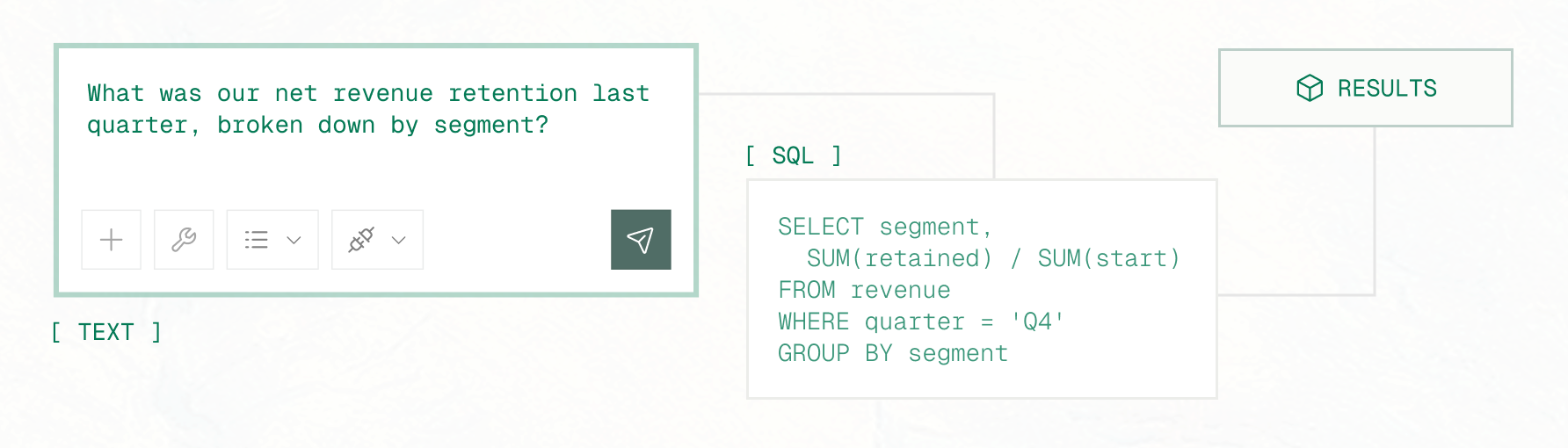 Converts natural language questions into SQL queries and fetches data from your connected data warehouses. Results are automatically loaded as pandas DataFrames into the Python sandbox.
This is Ana's **primary tool for data retrieval** from your connected databases and warehouses.
## How It Works
When you ask a question, Ana intelligently processes your request through these steps:
Ana parses your natural language question to understand what data you're looking for.
Inspects your database structure to identify relevant tables and columns.
Constructs an optimized SQL query in your warehouse's specific dialect.
Runs the query against your data warehouse securely.
Automatically loads results as a pandas DataFrame in the Python sandbox for further analysis.
Converts natural language questions into SQL queries and fetches data from your connected data warehouses. Results are automatically loaded as pandas DataFrames into the Python sandbox.
This is Ana's **primary tool for data retrieval** from your connected databases and warehouses.
## How It Works
When you ask a question, Ana intelligently processes your request through these steps:
Ana parses your natural language question to understand what data you're looking for.
Inspects your database structure to identify relevant tables and columns.
Constructs an optimized SQL query in your warehouse's specific dialect.
Runs the query against your data warehouse securely.
Automatically loads results as a pandas DataFrame in the Python sandbox for further analysis.
 ## When to Use
"Show me the top 10 customers by revenue"
"What are our monthly sales for the past year?"
"Calculate the average order value by region"
"Find all orders from customers in California with a value over \$1000"
## Available For
All connected database connectors:
* **Snowflake** - Cloud data platform
* **BigQuery** - Google Cloud data warehouse
* **Redshift** - Amazon Web Services data warehouse
* **Databricks** - Lakehouse platform
* **Azure Synapse Analytics** - Microsoft cloud analytics
* **Postgres** - Open source relational database
* **MySQL** - Popular open source database
* **Amazon Aurora MySQL** - AWS managed database
* **Supabase** - Open source Firebase alternative
* **ClickHouse** - OLAP database for analytics
* **Motherduck** - Serverless analytics
* **Athena** - AWS serverless query service
## Best Practices
**Pro Tip:** The more specific and detailed your question, the more accurate the generated SQL will be!
Include details like column names, table names, and exact metrics you want to calculate.
**Good:** "Show me total revenue from the `orders` table grouped by month"
**Vague:** "Show me sales"
If you know the table names, include them in your question to help Ana target the right data.
**Example:** "Query the `customers` table for users who signed up this year"
Always include date ranges when querying time-series data for better performance.
**Example:** "Sales from January 1, 2024 to March 31, 2024"
Check the generated SQL to ensure it matches your intent and doesn't miss any important filters.
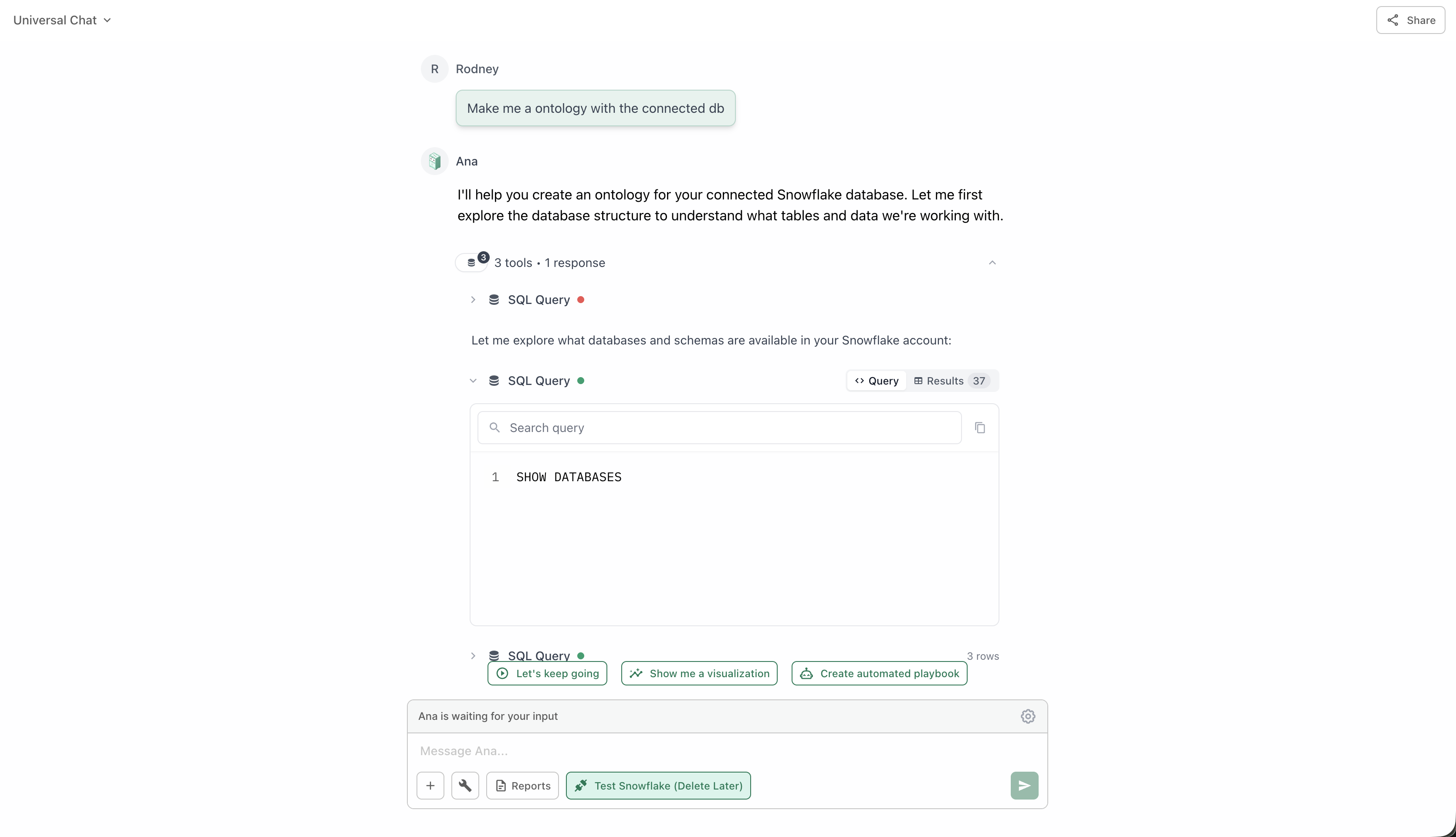
You can view both the SQL query and the results in the chat interface.
**Performance Note:** For large tables, be specific with your filters and time ranges to avoid long-running queries that may time out.
## When to Use
"Show me the top 10 customers by revenue"
"What are our monthly sales for the past year?"
"Calculate the average order value by region"
"Find all orders from customers in California with a value over \$1000"
## Available For
All connected database connectors:
* **Snowflake** - Cloud data platform
* **BigQuery** - Google Cloud data warehouse
* **Redshift** - Amazon Web Services data warehouse
* **Databricks** - Lakehouse platform
* **Azure Synapse Analytics** - Microsoft cloud analytics
* **Postgres** - Open source relational database
* **MySQL** - Popular open source database
* **Amazon Aurora MySQL** - AWS managed database
* **Supabase** - Open source Firebase alternative
* **ClickHouse** - OLAP database for analytics
* **Motherduck** - Serverless analytics
* **Athena** - AWS serverless query service
## Best Practices
**Pro Tip:** The more specific and detailed your question, the more accurate the generated SQL will be!
Include details like column names, table names, and exact metrics you want to calculate.
**Good:** "Show me total revenue from the `orders` table grouped by month"
**Vague:** "Show me sales"
If you know the table names, include them in your question to help Ana target the right data.
**Example:** "Query the `customers` table for users who signed up this year"
Always include date ranges when querying time-series data for better performance.
**Example:** "Sales from January 1, 2024 to March 31, 2024"
Check the generated SQL to ensure it matches your intent and doesn't miss any important filters.
You can view both the SQL query and the results in the chat interface.
**Performance Note:** For large tables, be specific with your filters and time ranges to avoid long-running queries that may time out.