> ## Documentation Index
> Fetch the complete documentation index at: https://docs.textql.com/llms.txt
> Use this file to discover all available pages before exploring further.
# SMS & iMessage
> Text your personal agent over iMessage or SMS
TextQL's SMS and iMessage integration lets you text a custom agent directly from your phone. Choose any agent, configure its context, connectors, model, and instructions, then text it on the go without opening the TextQL app.
## Availability
SMS is currently available for **US and Canada phone numbers only**. Both iMessage and standard SMS are supported.
## Enable SMS for your organization
TextQL hosted only. For on-prem or VPC deployments, contact [support@textql.com](mailto:support@textql.com).
## Set up your phone number
1. **Navigate to [Settings → Personal](https://app.textql.com/settings/personal)**. The SMS section appears under Thread Default Tools when your organization has the feature enabled.
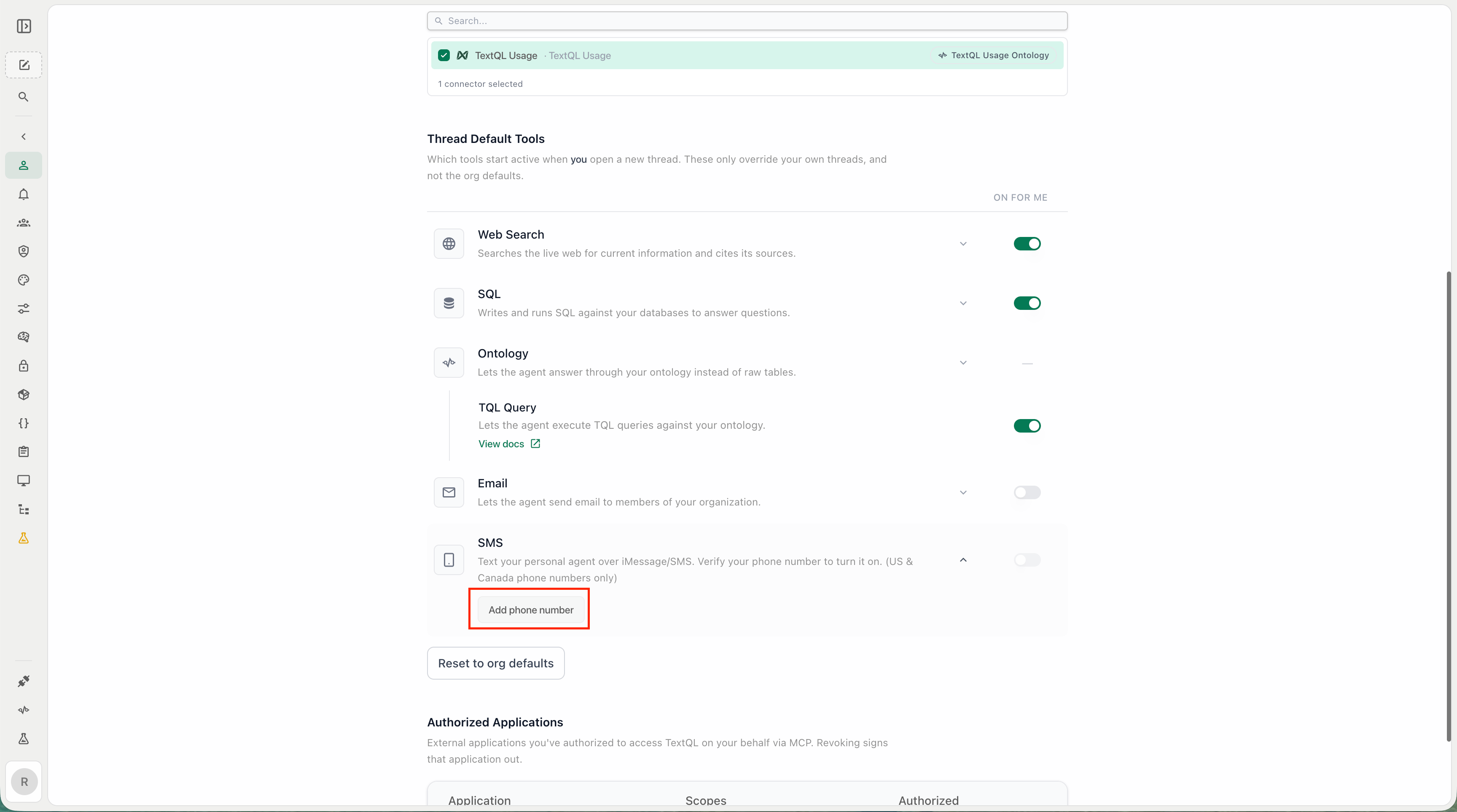 2. In the **SMS** section, click **Add phone number**.
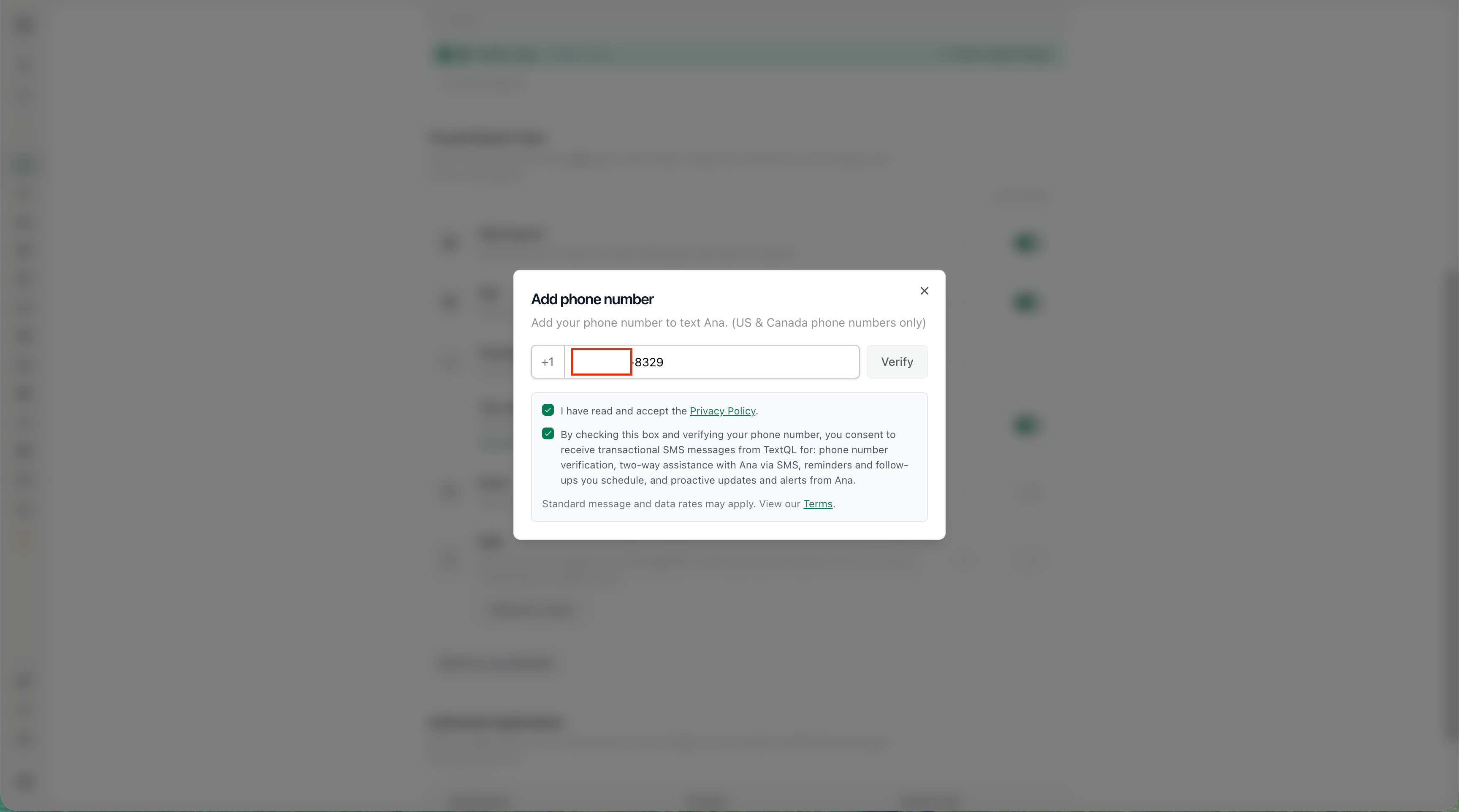 3. Enter your phone number in the modal and click **Verify**.
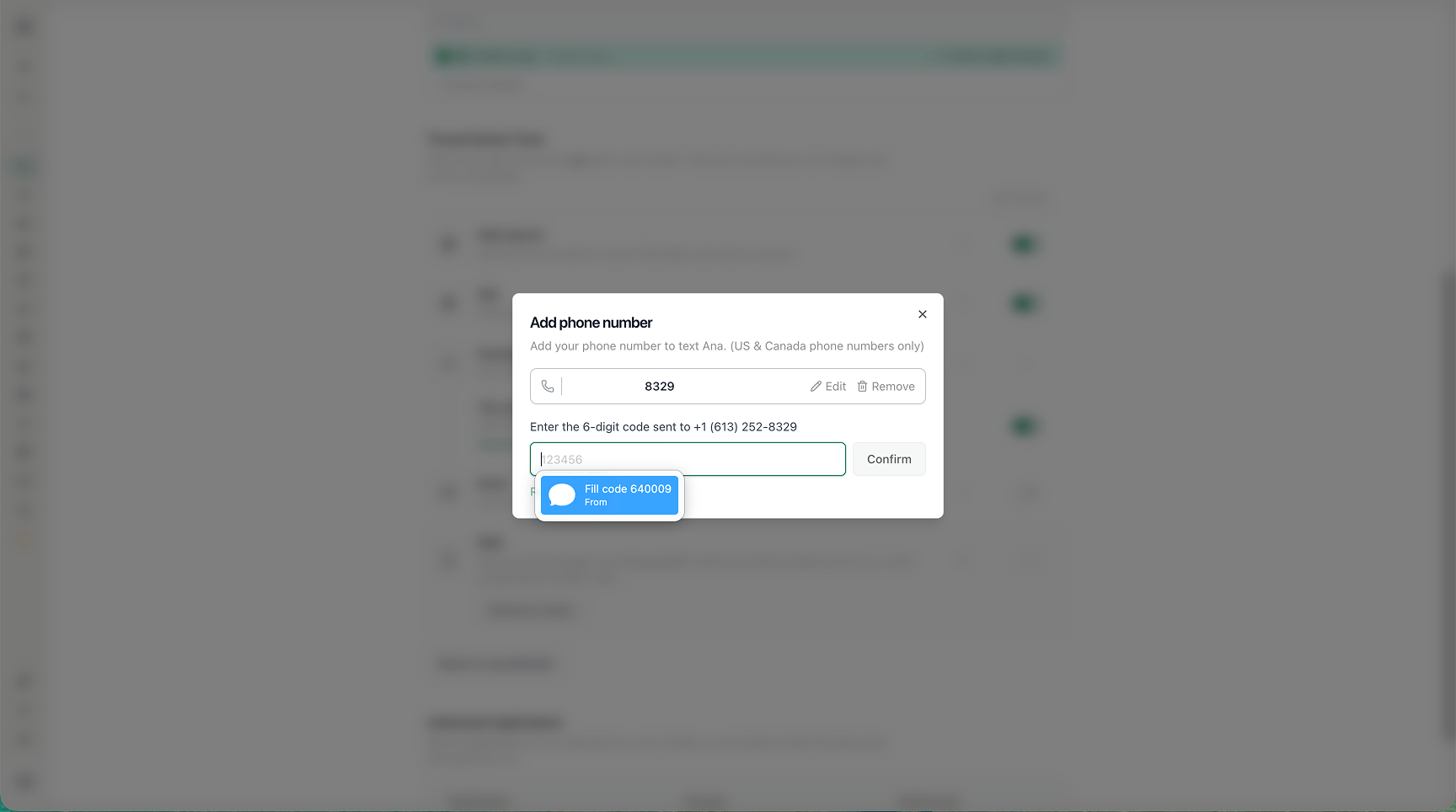 4. Enter the six-digit code sent to your phone and click **Confirm**.
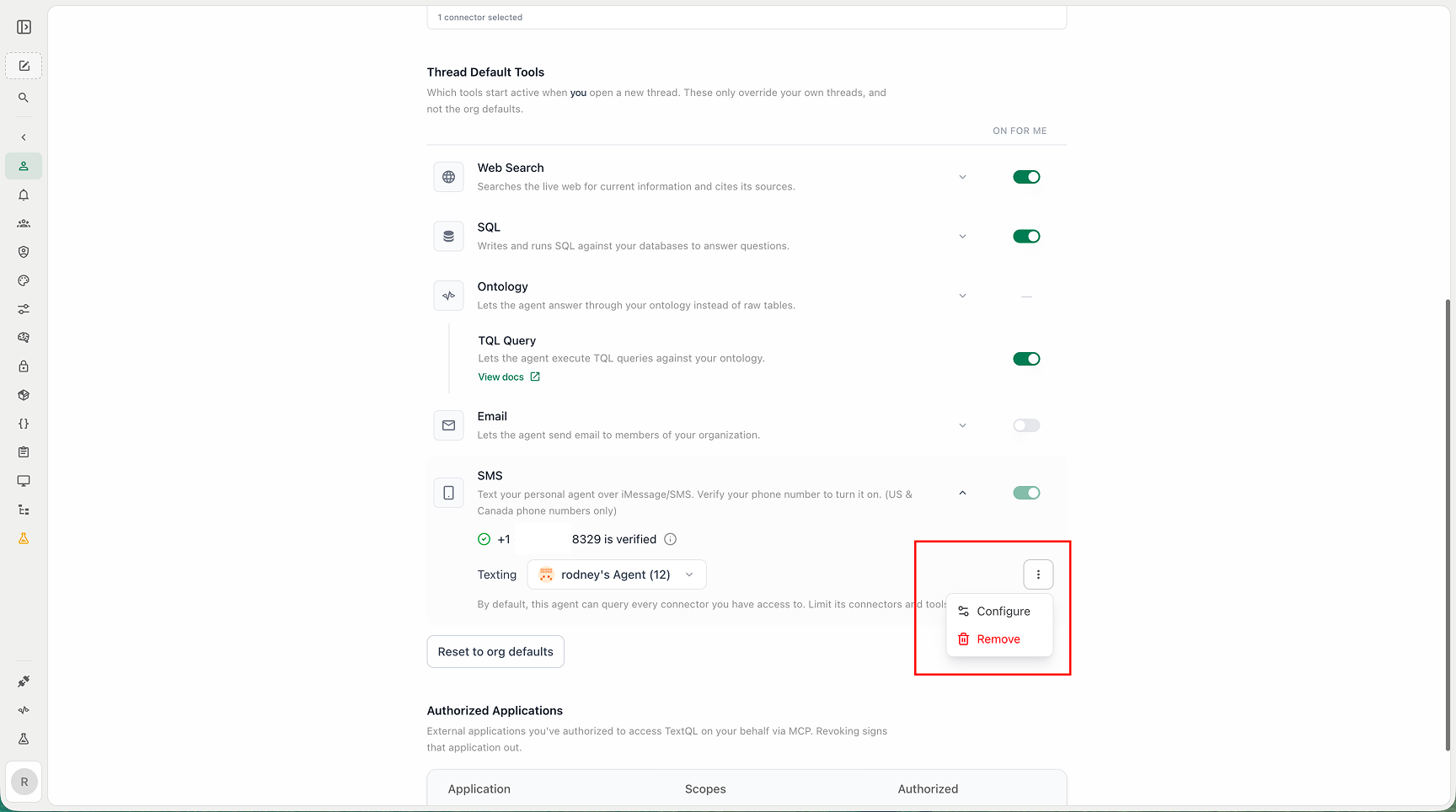
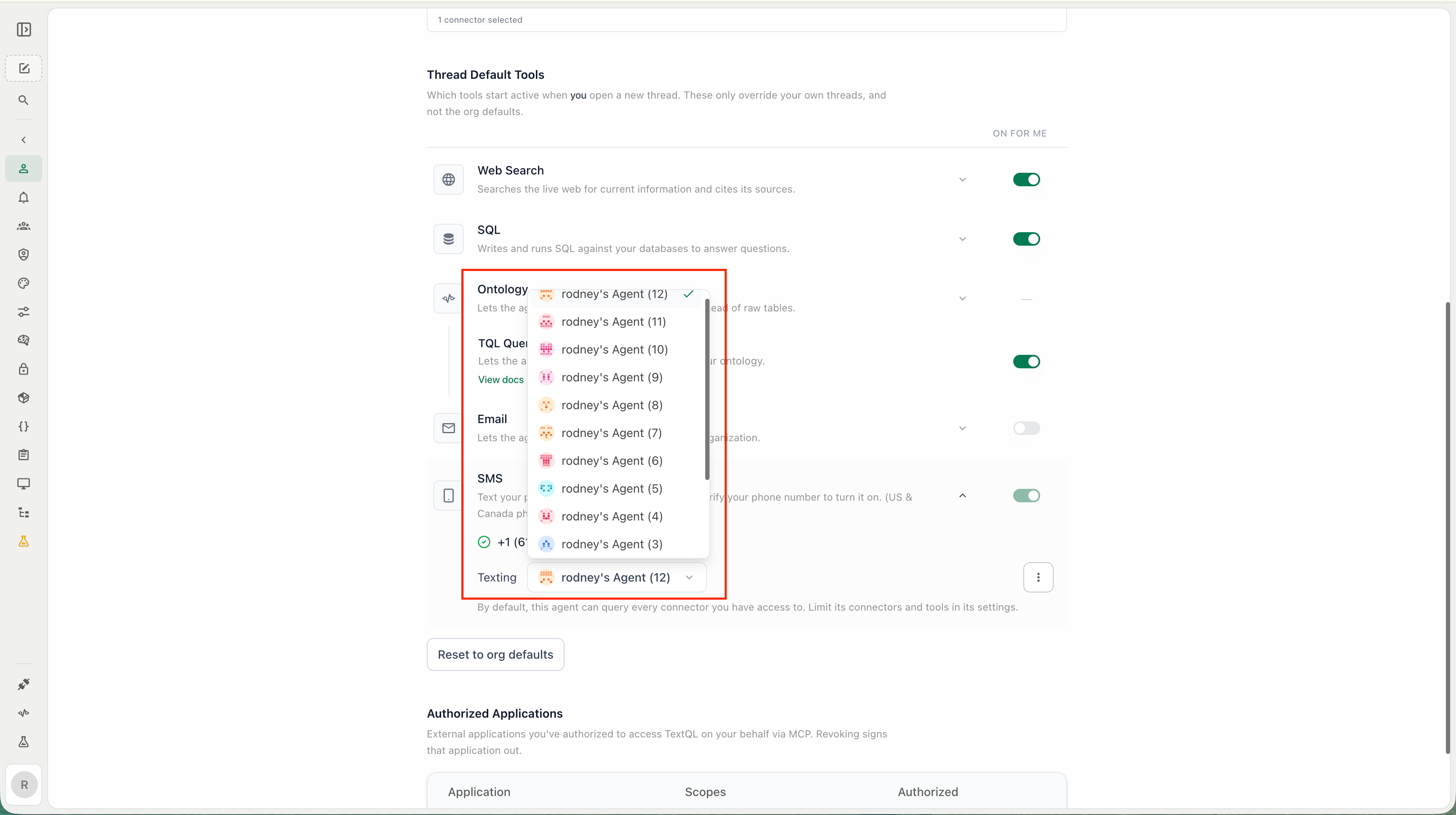
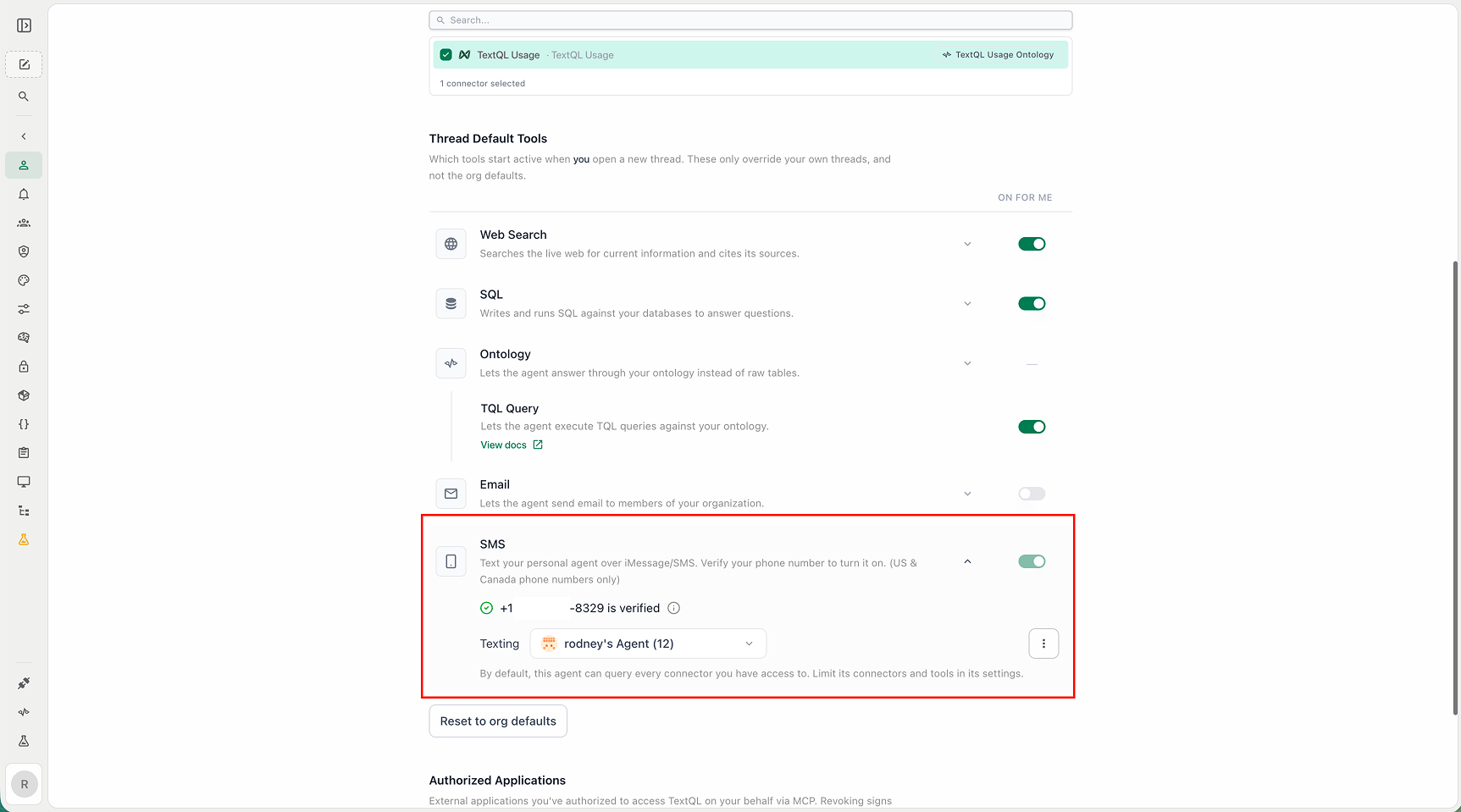 5. Once verified, your phone number appears in the SMS section. Select which agent your texts should route to. By default, this is your personal agent.
 Removing your phone number from Personal settings stops all texting and clears your existing text thread. You will need to verify again to turn it back on.
## Manage your texting agent
Open the **⋮** menu next to your selected agent to:
* **Configure** — Open the agent's settings page to set its context, connectors, model, and instructions.
* **Remove** — Remove your phone number and stop all texting.
Removing your phone number from Personal settings stops all texting and clears your existing text thread. You will need to verify again to turn it back on.
## Manage your texting agent
Open the **⋮** menu next to your selected agent to:
* **Configure** — Open the agent's settings page to set its context, connectors, model, and instructions.
* **Remove** — Remove your phone number and stop all texting.
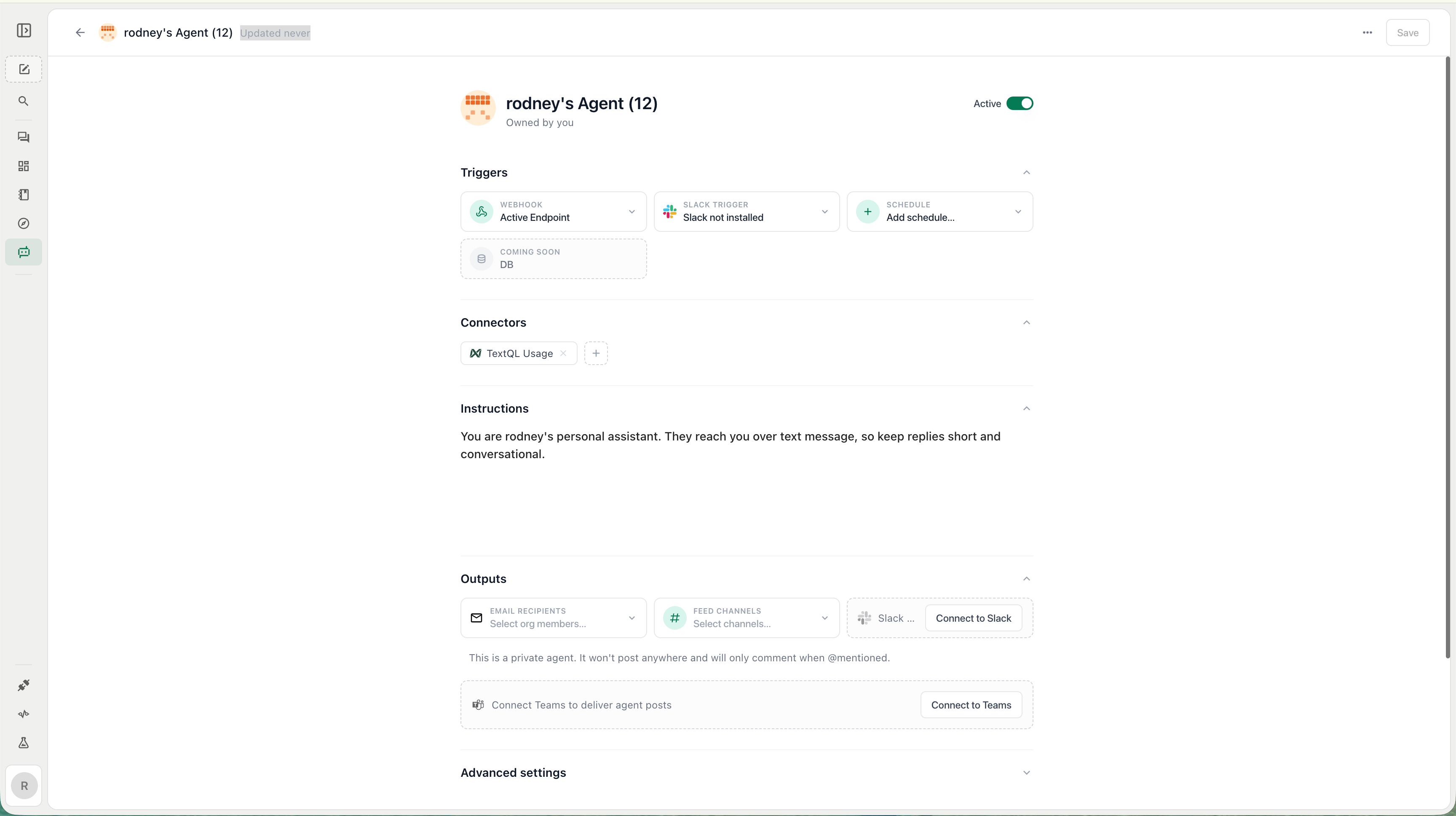 Changing your texting agent starts a fresh text thread with the newly selected agent. The change does not carry over to your existing in-app chat history.
You can also open the agent's settings page directly to customize its system prompt and capabilities.
Changing your texting agent starts a fresh text thread with the newly selected agent. The change does not carry over to your existing in-app chat history.
You can also open the agent's settings page directly to customize its system prompt and capabilities.
 ## Texting Ana
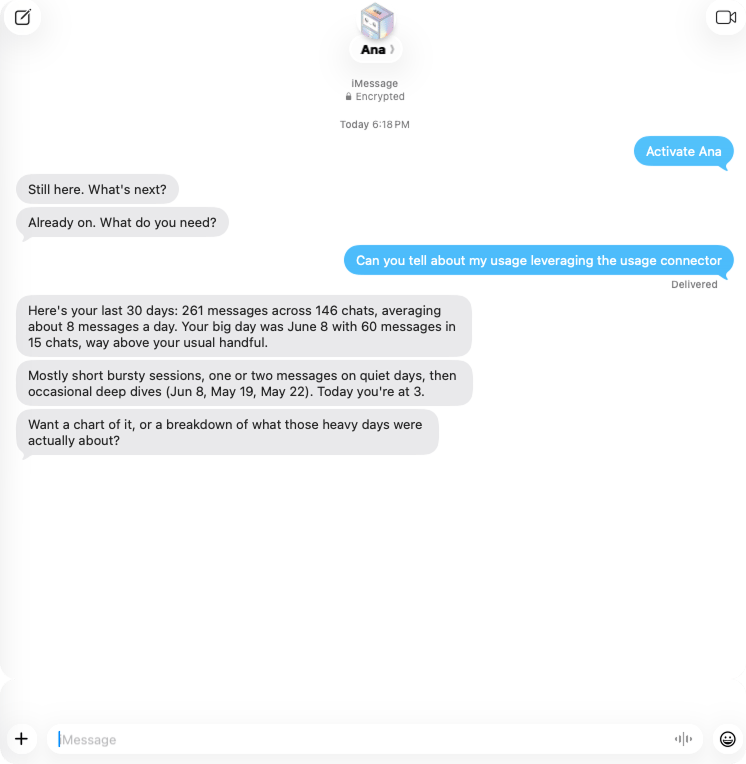
After setup, send a text or iMessage to the number shown in your Personal settings. Ana responds in the same thread, and replies maintain context so you can continue the conversation naturally.
* **Ask questions** about your organization's data and metrics.
* **Request figures and summaries** to receive answers directly in your messaging thread.
* **Reply in the same thread** to continue an ongoing conversation.
## In action
Below is an example of texting Ana once everything is set up.
## Texting Ana
After setup, send a text or iMessage to the number shown in your Personal settings. Ana responds in the same thread, and replies maintain context so you can continue the conversation naturally.
* **Ask questions** about your organization's data and metrics.
* **Request figures and summaries** to receive answers directly in your messaging thread.
* **Reply in the same thread** to continue an ongoing conversation.
## In action
Below is an example of texting Ana once everything is set up.
 ## Capabilities and limits
* SMS uses your selected texting agent and the connector/tool limits configured for that agent.
* By default, your texting agent can query every connector you have access to. Limit its connectors and tools in the agent's settings.
* Long responses may be truncated or split depending on carrier limits.
* File uploads and rich visualizations are not available over SMS.
* In group chats, Ana only responds to the author whose phone number is associated with her. Other participants in the group will not receive replies from Ana.
## Need Help?
For further assistance or to request SMS access for your organization, contact [support@textql.com](mailto:support@textql.com).
## Privacy Policy
For information about how we handle your data and protect your privacy when using TextQL's SMS integration, please review our [Privacy Policy](https://textql.com/privacy).
## Capabilities and limits
* SMS uses your selected texting agent and the connector/tool limits configured for that agent.
* By default, your texting agent can query every connector you have access to. Limit its connectors and tools in the agent's settings.
* Long responses may be truncated or split depending on carrier limits.
* File uploads and rich visualizations are not available over SMS.
* In group chats, Ana only responds to the author whose phone number is associated with her. Other participants in the group will not receive replies from Ana.
## Need Help?
For further assistance or to request SMS access for your organization, contact [support@textql.com](mailto:support@textql.com).
## Privacy Policy
For information about how we handle your data and protect your privacy when using TextQL's SMS integration, please review our [Privacy Policy](https://textql.com/privacy).