> ## Documentation Index
> Fetch the complete documentation index at: https://docs.textql.com/llms.txt
> Use this file to discover all available pages before exploring further.
# Build Your Ontology: Quickstart
> How to populate, configure, and manage your ontology — from GitHub sync to objects, metrics, and Thread-driven updates.
Ontology is TextQL's unified semantic layer — a shared source of truth for metric definitions, entity relationships, and business logic that eliminates conflicting definitions across teams. This guide covers the full setup: getting content in, defining objects and metrics, configuring how Ana loads it, and reviewing and auditing changes.
## Before You Start
The quality of your ontology at launch is a function of the institutional knowledge you bring to it. Before opening the editor, gather:
* **Metric definitions** — how your team actually calculates revenue, churn, conversion, activation. If different teams use different definitions, collect all of them. Ontology is where you canonicalize.
* **Existing SQL and notebooks** — recurring analyses your team runs are direct evidence of what Ana will need to produce. These are your ground truth.
* **Schema documentation** — any notes on non-obvious joins, unreliable columns, or connector-specific quirks that wouldn't be apparent from table names alone.
* **Tribal knowledge** — meeting notes, Slack threads, recorded data reviews, onboarding docs, ad-hoc write-ups where your team has captured how numbers behave, which fields have edge cases, or why a given metric is calculated the way it is.
You don't need to format any of this. Raw SQL, Notion links, Slack exports — drop it in. The goal is to start with signal, not structure.
### Build incrementally, not exhaustively
Ontology is a living semantic layer. Launch with what you have, then let usage drive what gets added next. Every Thread surfaces gaps — a definition someone corrects mid-analysis, a join Ana had to infer, a rule that keeps coming up across Threads. Non-admin users propose enrichments as they work, and those come through an approval flow for you to review and commit.
Don't try to complete Ontology before your first Thread. Start with your highest-stakes metric definitions, get Ana running against real questions, and let the gaps tell you where to go next.
***
## Step-by-Step Guide
There are three ways to populate Ontology — all give you access to the same full feature set:
For teams with existing documentation or metric definitions already in Git.
Build in the UI editor — no Git setup required.
Let Ana capture knowledge as you run analyses. No admin access required.
### Method 1: GitHub Integration
If your team already maintains business logic, metric definitions, or schema documentation in a Git repository, connect it directly. TextQL syncs the repository into Ontology — files appear as context Ana can read, and changes flow in both directions.
This is the right choice when you want version control on ontology changes, multiple teams contributing via PR workflow, or you already have a documentation repository.
**Why connect Git**
* **Edit outside TextQL** — your team can edit ontology files directly in GitHub, VS Code, or any editor, and changes sync back
* **Use existing repos** — if your organization already has a documentation repository, connect it and bring everything in without migrating manually
* **Pull requests** — optionally route Ana's proposed changes through GitHub PRs instead of the in-app Reviews flow
* **Works with any Git host** — GitHub, GitLab, AWS CodeCommit, Bitbucket, or any standard Git remote
**Connecting a repository**
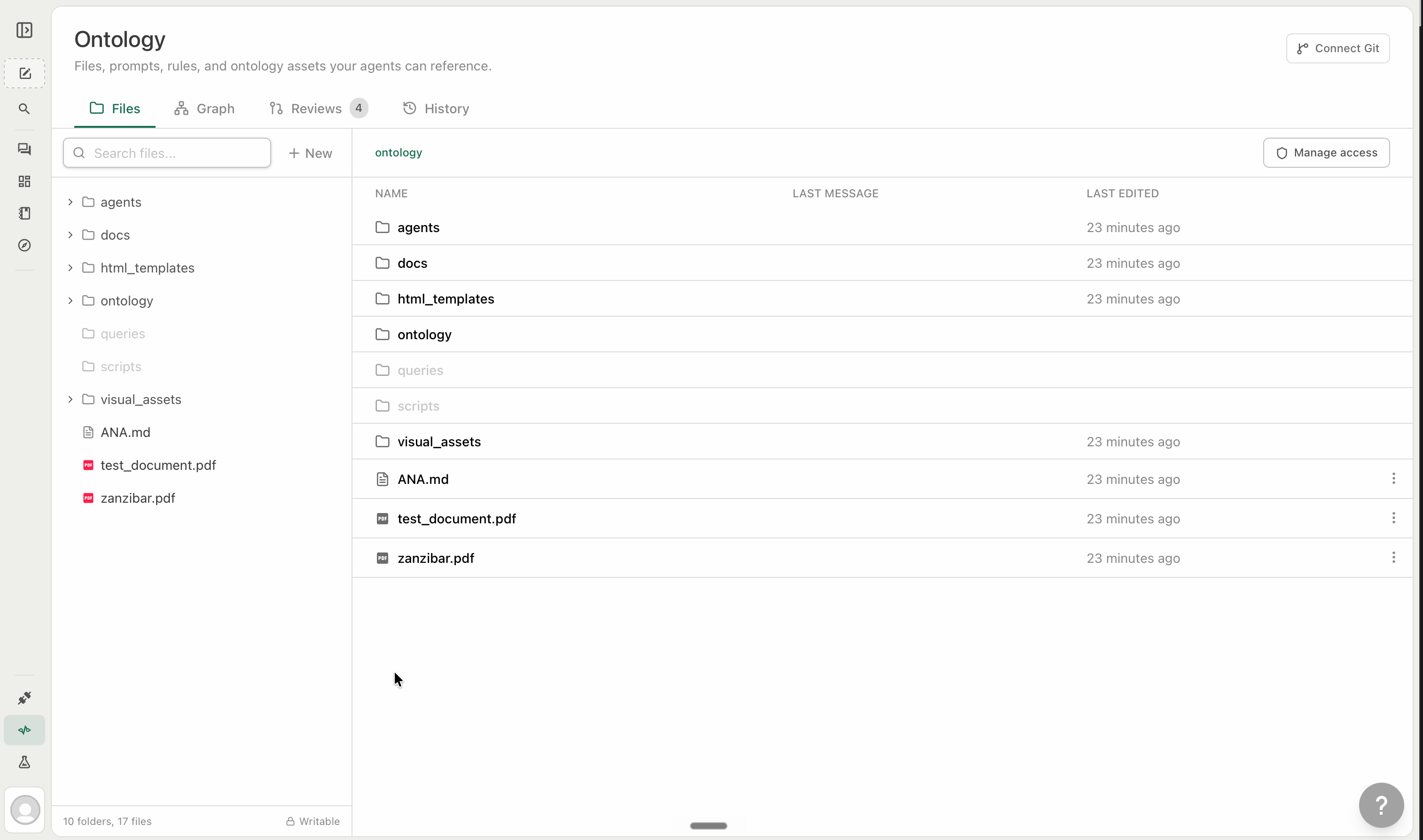
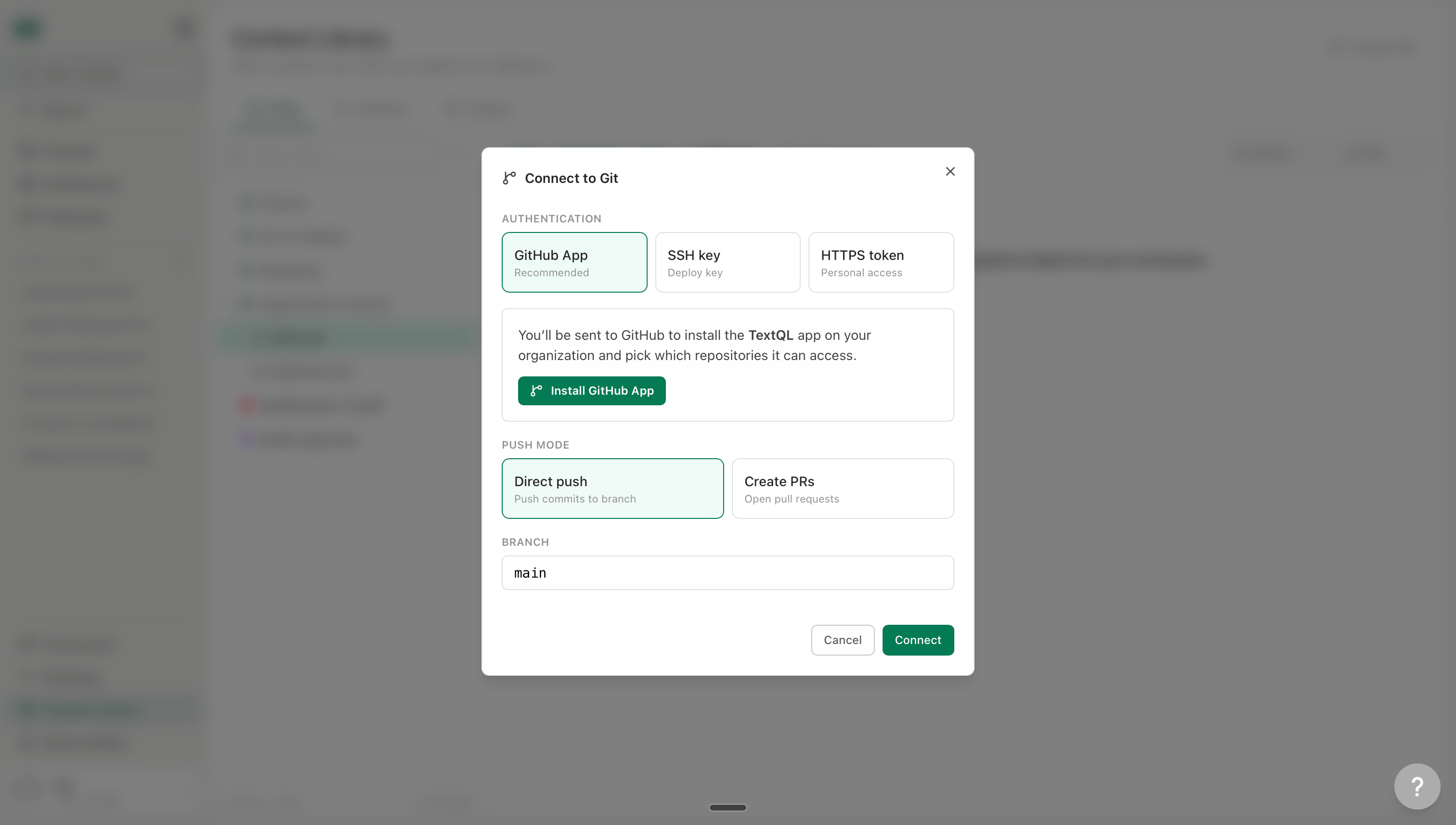
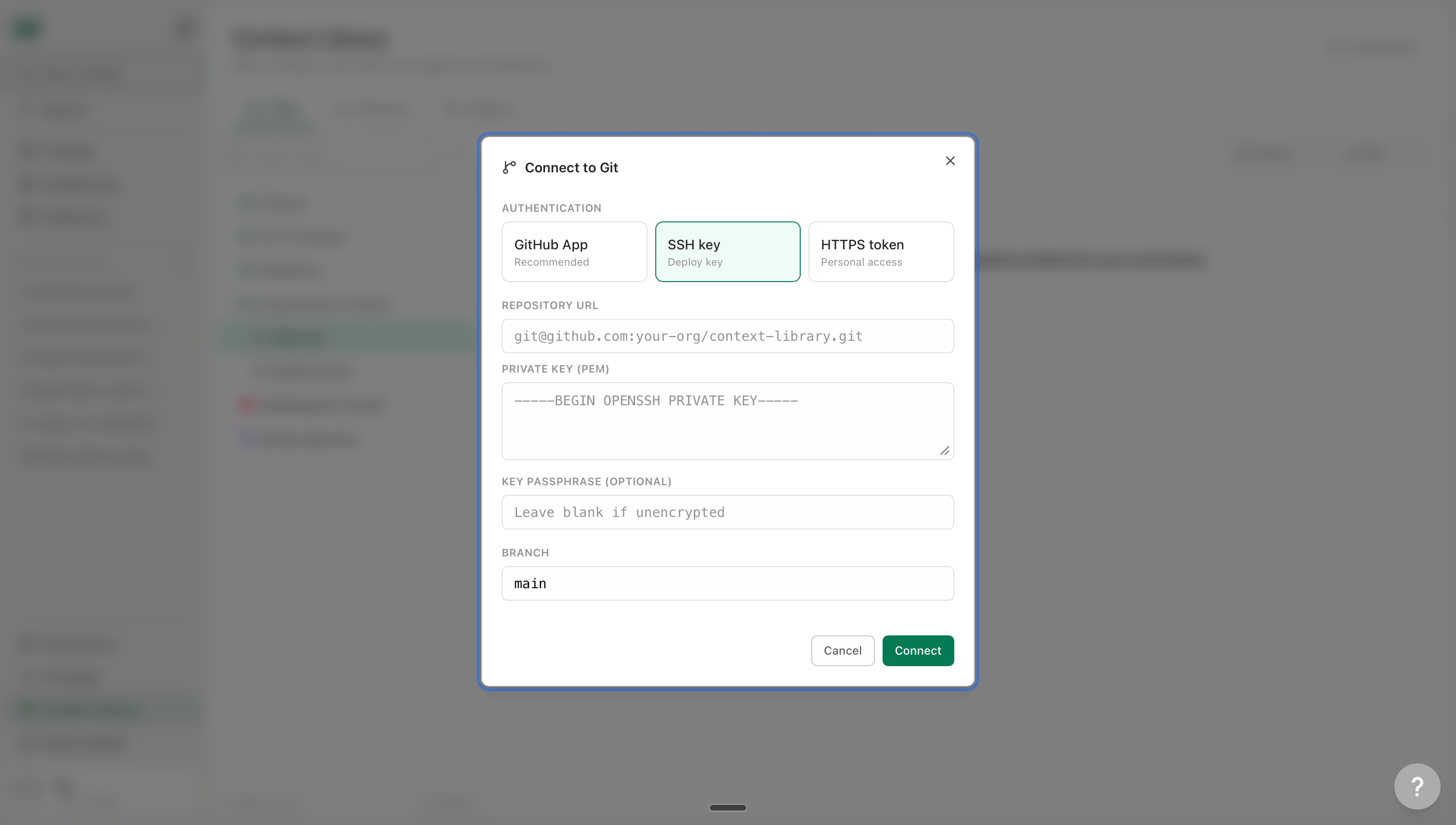
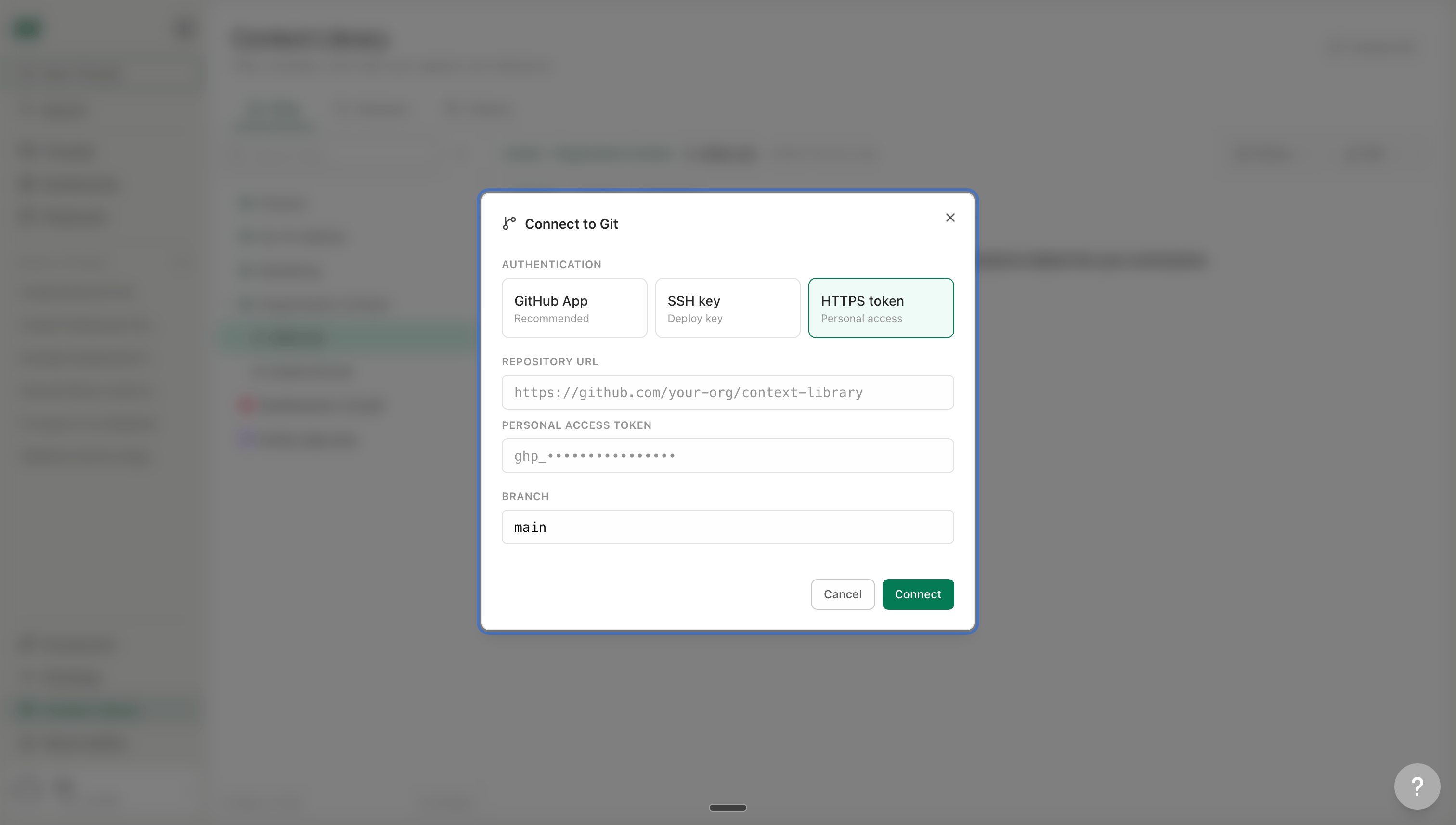
Click **Connect Git** in the top right of the Ontology editor. Choose your authentication method:
The easiest option for GitHub users. Click **Install GitHub App** and you'll be redirected to GitHub to install the TextQL Library Sync app on your organization. Once installed, select the repository and branch to connect.
Paste in your repository URL and private key. Works with any Git host, including self-hosted instances.
Use a personal access token for HTTPS-based authentication. Enter the repository URL and your token.
**Finding your repository URL:** On GitHub, click the green **Code** button, select the **HTTPS** tab, and copy the URL (e.g. `https://github.com/your-org/your-repo.git`).
**Getting a GitHub Personal Access Token:**
1. Go to GitHub → profile picture → **Settings**
2. In the left sidebar, scroll to **Developer settings**
3. Go to **Personal access tokens → Fine-grained tokens**
4. Click **Generate new token**, set a name and expiration, then under **Repository permissions** grant:
* **Contents** — Read and write
* **Pull requests** — Read and write
* **Metadata** — Read-only
5. **Copy the token immediately** — GitHub won't show it again
**Push mode**
When Ana or a team member makes a change, you choose how it gets written back to your repo:
| Mode | How it works |
| --------------- | -------------------------------------------------------------------------------------------------------------- |
| **Direct push** | Changes are committed directly to the connected branch. No review required in GitHub. |
| **Create PRs** | Each change opens a pull request in your repo. Your team reviews and merges via your existing GitHub workflow. |
**Bidirectional sync**
Once connected, the integration syncs in both directions:
* **TextQL → Git**: Approved changes in Ontology are pushed to the repo (as commits or PRs, depending on your push mode)
* **Git → TextQL**: Changes committed to the repo's connected branch are pulled into Ontology automatically, typically within a few minutes
When you first connect a repo, Ontology imports the repository's existing file structure. Folders, subfolders, and files are brought in as-is — you can then apply [role-based access](/core/ontology/ontology-rbac) and auto-attach settings on top.
***
### Method 2: Create Files Directly
You can skip Git entirely. The Ontology editor has a built-in file editor — create folders, write files, and manage everything directly inside TextQL without connecting a repository.
**Navigating the editor**
The Ontology editor has four tabs:
* **Files** — the main file browser. Create folders, add files, and edit content.
* **Graph** — a visual map of all files in your Files tab. Shows how your defined objects, metrics, and relationships connect to each other.
* **Reviews** — proposed changes from Ana waiting for approval.
* **History** — a full audit log of every change made to Ontology.
The Files tab is the primary surface. Click any folder to open it and see its files. The main panel shows the selected file with three sub-tabs: **Preview** (rendered content), **Source** (raw text), and **Properties** (auto-attach and access settings).
**Creating a file**
Click **+ New** at the top of the file browser. A dropdown gives you three options:
* **Create new file** — opens the editor to write a file directly
* **Upload files** — upload an existing file from your machine (PDFs, images, CSVs, etc.)
* **Create new folder** — add a new folder to organize your files
When creating a file, give it a name and write your content directly in the editor. Add an optional commit message to describe what the file is — this shows up in the History tab. Click **Create** to save. The file is immediately available to Ana.
**File types**
| Type | Extension | Best for |
| ------------------ | ------------- | -------------------------------------------------------------------------------------------------------------------------- |
| **Markdown** | `.md` | Business rules, instructions, metric definitions, formatting preferences |
| **Ontology graph** | `.tql` | Formally defined objects, metrics, and links — compiled directly into queries. Created through the Graph tab, not by hand. |
| **Python** | `.py` | Reusable scripts Ana can call — API clients, custom calculations, transformations |
| **CSV** | `.csv` | Reference tables, lookup data, territory mappings, static datasets |
| **Text** | `.txt` | Free-form notes or plain text reference |
| **PDF / Image** | `.pdf` `.png` | Brand guides, ERDs, onboarding decks, visual reference material |
**Markdown** is the most common. Use it for anything you'd explain to a new analyst in plain language: how revenue is calculated, which accounts to exclude, what the pipeline stages mean.
**`.tql` files** are the other major type. They store formal object, metric, and link definitions — the structured model Ana compiles directly into queries. You don't write these by hand; they're authored by Ana through Threads and stored automatically in the Files tab. See [.tql Files](#tql-files--storing-metric-queries) below for details.
**Python** files unlock something more powerful: Ana can call these scripts directly during analysis — for hitting internal APIs, applying company-specific business logic, or any calculation that would take too long to re-derive each time.
PDFs and images cannot be set to auto-attach for performance reasons. To have Ana always reference one, add a pointer in your `ANA.md`: *"At the start of every Thread, read data-dictionary.pdf."*
**Organizing with folders**
Organize by business domain, not file type. Each folder should represent a context Ana might need:
```
ANA.md ← org-wide entry point
Finance/
README.md ← what's in this folder and when Ana should use it
revenue-definitions.md
fiscal-calendar.md
exclusion-rules.md
Go-To-Market/
README.md
pipeline-definitions.md
crm-field-glossary.md
Product/
README.md
engagement-metrics.md
Connectors/
snowflake-notes.md
salesforce-notes.md
```
A few principles:
* **One topic per file.** A focused `revenue-definition.md` is more useful than a `finance-misc.md` that grows unbounded. Atomic files are easier to version, permission, and retrieve.
* **Index every folder.** A short `README.md` at the top of each folder — what's here, when to use it — lets Ana navigate a large ontology without loading every file inside it.
* **Treat it like code: stale definitions cause real errors.** Unlike human-facing docs that get skipped, Ana follows instructions precisely. An outdated revenue definition produces wrong numbers silently. Update Ontology when business logic changes.
**ANA.md — the org-wide entry point**
`ANA.md` is a special filename. Any file named `ANA.md` anywhere in your ontology is automatically loaded into every single chat, for every user, regardless of role or connector. No configuration needed.
Use `ANA.md` for rules that apply universally across your org:
```markdown theme={null}
# Org Instructions
- Always cite the date range and source tables in your analysis
- Exclude test accounts (account_type = 'test') from all revenue calculations
- Fiscal year runs July 1 – June 30: Q1=Jul-Sep, Q2=Oct-Dec, Q3=Jan-Mar, Q4=Apr-Jun
## Navigation
| When asked about | Go to |
|---|---|
| Revenue, ARR, MRR, bookings | `Finance/revenue-definitions.md` |
| Pipeline, deals, CRM data | `GTM/pipeline-definitions.md` |
| Active users, engagement | `Product/engagement-metrics.md` |
| Data source quirks (Snowflake) | `Connectors/snowflake-notes.md` |
```
Keep `ANA.md` short and universal. Role-specific or connector-specific instructions belong in their own files with targeted auto-attach settings.
***
### Method 3: Build Through Threads (Non-Admin Friendly)
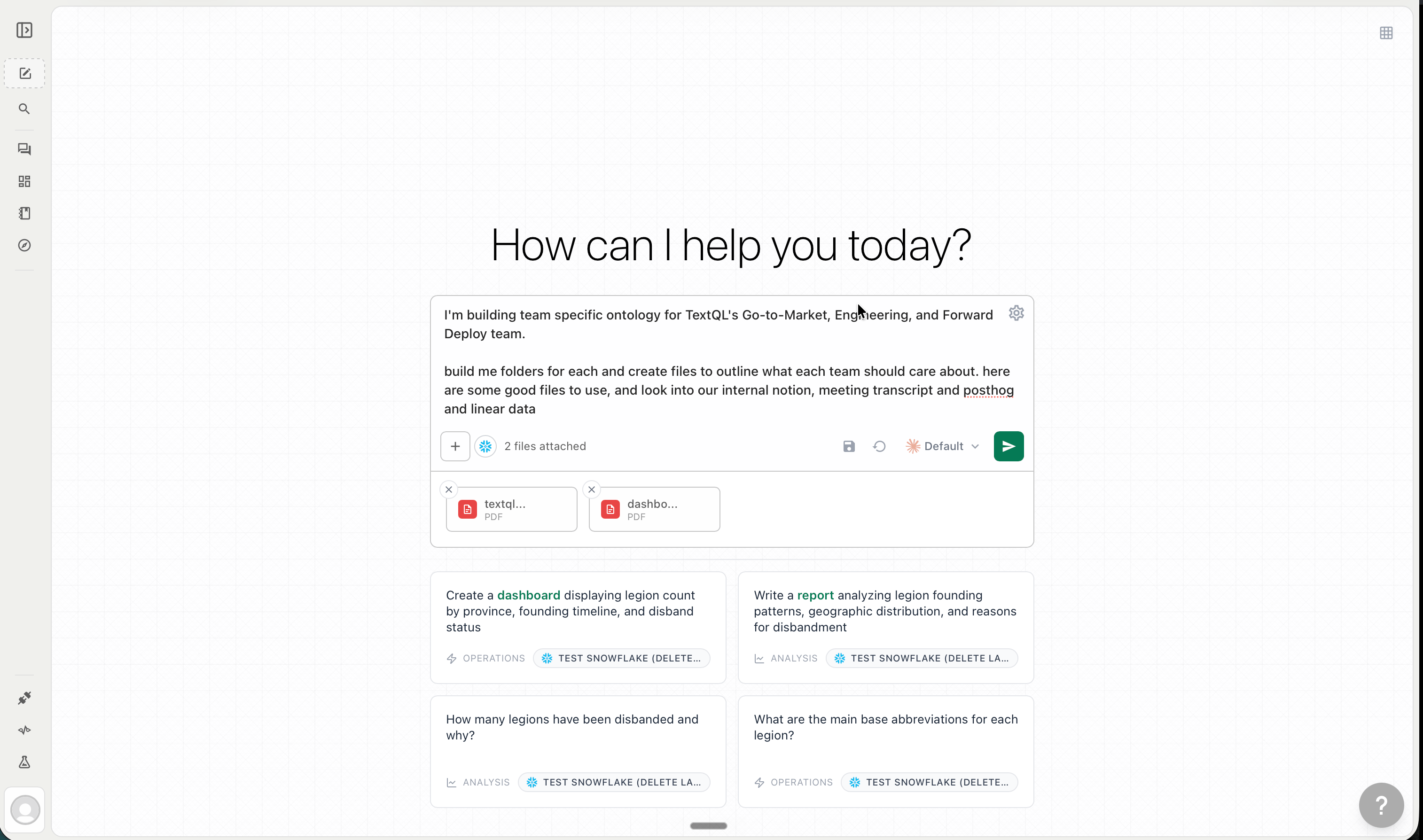
Every analysis has the potential to make Ontology better. As you work in Threads with Ana, you'll surface definitions worth saving, rules that should apply everywhere, or data quirks Ana figured out mid-analysis. You can ask Ana to propose any of those as additions to Ontology — nothing you submit affects anyone else until an admin approves it.
**What you can propose**
Any plain-language knowledge that would help Ana answer questions more accurately:
* A metric definition or calculation rule ("exclude refunded orders from revenue")
* A fiscal calendar or date convention ("Q1 starts February 1")
* A data quirk or known issue ("the `status` column in orders uses `1/0`, not `true/false`")
* A business rule or exclusion ("don't include test accounts in any analysis")
* A clarification about what a table or column represents
* A correction to an existing definition you know is wrong
**How to ask**
At any point in a Thread, just say it in plain language:
* *"Save what you learned about this connector to Ontology."*
* *"Add a rule that we always exclude refunds from net revenue."*
* *"The churn calculation we just worked out — can you save that?"*
* *"Update the Finance folder with the new fiscal year start date."*
* *"What did you learn today that would be useful to save?"*
Ana knows the structure of your ontology — which folders exist, what files are already in them — and places new content in the right location. She'll draft the change and show you exactly what she's proposing before anything is submitted.
**The approval flow**
Ana never writes directly to Ontology. Every change goes through a review step first. After Ana drafts a proposed change, you see it in the Thread with two options:
* **Approve** — applies the change immediately
* **Discard** — throws it away, nothing is saved
If you have **Editor** access to the target folder, you can approve directly in the Thread. If not, Ana routes it to the **Reviews tab** for an admin to approve. See [Role & Access](/core/ontology/ontology-rbac) for how folder access levels are configured. Once approved, the change is live for every user on your team.
Read the diff before approving. An incorrect rule will be applied to every future Thread for every user who loads that file.
**What Ana captures well**
* **Schema quirks** — non-obvious join keys, unexpected column encodings, table-specific behavior discovered during analysis
* **Business definitions** — if you correct Ana mid-Thread ("actually, 'active users' means last 30 days, not 7"), she can save that immediately
* **Query patterns** — complex logic that comes up repeatedly for a specific connector or metric
* **Org rules** — anything you find yourself repeating across Threads
After a few rounds of this, Ontology builds itself around the work your team is actually doing.
***
## Ontology Query - .tql Files
**Want the full specification?** The [.tql Manual](https://haym.me/tql_manual.html) is the complete deep-dive — every language feature, builtin, pattern, and worked example, written for admins, power users, developers, and anyone setting up or monitoring `.tql` files from the ground up. The section below is a working summary.
The core primitive for knowledge management in TextQL is the git-backed ontology repo — business definitions, SQL templates, notes, examples, and operating rules living in the same versioned file tree and cross-referencing one another naturally. `.tql` is the SQL-native semantic modeling language for that repository. It replaces application-stored ontology objects with reviewable files that define governed metrics, dimensions, filters, joins, and runtime-aware access logic, while still compiling to warehouse-native SQL.
A `.tql` file declares typed parameters, encodes business logic, and produces consistent SQL regardless of how it's invoked. No hidden query compiler; the SQL your team authors is the SQL that runs.
`.tql` is also where the explore → learn → solidify loop closes. Ana starts by writing ad-hoc SQL to answer questions — discovering how your tables connect, what your metrics actually mean, which edge cases apply. As that understanding matures, it gets promoted into `.tql` files: probabilistic inference replaced by deterministic logic. Every time Ana figures out how your team calculates a metric, that knowledge can be locked in as a governed definition Ana will apply consistently from that point forward.
`.tql` files are most commonly authored by Ana through Threads and stored automatically in the Files tab — though you can also write or edit them directly. To have Ana update one, ask her to revise it during a Thread — the result goes through the standard approval flow before going live.
TextQL has two SQL generation modes:
| Mode | How it works | Output |
| ------------------ | ------------------------------------------------------------------------------------ | ------------------------- |
| **Text-to-SQL** | LLM writes SQL from the natural language question | Flexible, probabilistic |
| **Ontology query** | Ana pulls the relevant `.tql` file and executes it directly — no LLM in the SQL path | Deterministic, consistent |
High-stakes metrics — ARR, churn, conversion, activation — should not be re-derived on every question. The LLM resolves intent and supplies parameters; your pre-authored SQL handles execution.
### Features
**Typed query interfaces**
A `.tql` file exposes a small typed API to callers. Required params, nullable params, defaults, set labels, expression-backed set signatures, and filter shapes can be inspected before execution.
**Semantic-view query surfaces**
The standard reusable pattern is a view with `metrics`, `dimensions`, and `filters`. Callers get a compact surface. Authors keep SQL structure, join logic, grouping behavior, and filter rules in code.
**Safe parameter interpolation**
Caller values do not become SQL structure directly. They render as bind values or inline-escaped values. Authored fragments are the only way to introduce SQL structure.
**Transparent SQL assembly**
`.tql` uses sanitized string interpolation and lambdas instead of hiding logic behind a query compiler. Authors can represent imperfect warehouse reality directly, including hand-tuned SQL, custom formulas, conditional joins, role-playing dimensions, warehouse-specific functions, and messy legacy conventions that are hard to encode in conventional semantic layers.
**Governed arbitrary filtering**
`filterWhere` allows flexible caller filters without raw SQL from the caller. The author controls filter keys, SQL expressions, and allowed operators.
**Modular reuse**
Imports allow table backing definitions, relation modules, dimensions, measures, filters, key lists, and query templates to live in separate files. This keeps definitions small without hiding behavior in application state. Because `Set` signatures can reference pure expressions such as `obj_order.metric_keys` or `obj_order.dimension_keys ++ obj_customer.dimension_keys`, multi-file modules can define the allowed query surface once and reuse it in entrypoints.
**Access-aware modeling**
`.tql` can branch on role names and client attributes through `_tql`. This lets teams model tenant scoping, regional scoping, role-based visibility, and personalization in versioned files.
**Versioned governance**
Because `.tql` lives in the ontology repo, semantic changes can be proposed, diffed, reviewed, approved, reverted, and audited like software changes.
**Ana-readable context**
Ana can read a `.tql` file and learn the business terms, valid dimensions, trusted joins, metric definitions, filter grammar, runtime access rules, and final SQL shape. This makes `.tql` both executable code and high-signal context.
**Current limitations**
* `Date` and `Timestamp` params are strings at validation time. Document format expectations in comments.
* Plain SQL bodies only support param-name interpolation. Use expression-style `.tql` for computed fragments.
* Structured source assembly with compiler-managed join aliases is a design direction, not the current authoring surface. Today, joins are authored as SQL fragments.
### Short Language Spec
**File forms**
`.tql` files have two common shapes.
**Plain SQL template** — use this when the file is basically SQL with direct parameters. In a plain body, interpolation is limited to parameter names.
```tql theme={null}
params {
-- Country code. Examples: "US", "CA", "BR"
country: String = "US"
-- Inclusive lower bound in ISO 8601 timestamp format.
created_after: Timestamp?
}
SELECT *
FROM visits
WHERE country = ${country}
AND created_at >= ${created_after}
```
**Expression body** — use this when you need branching, reusable fragments, imports, helper functions, semantic views, or conditional joins. The expression body must evaluate to a `SqlFragment`, usually with `sql"..."` or `sql'' ... ''`.
```tql theme={null}
params {
include_region: Bool = false
}
let
select_expr = if include_region then sql"region, COUNT(*)" else sql"COUNT(*)"
group_clause = if include_region then sql"GROUP BY region" else sql""
in sql''
SELECT ${select_expr}
FROM orders
${group_clause}
''
```
**Imports**
Project templates support imports between `.tql` files. Relative imports resolve from the importing file. Absolute imports resolve from the project root.
```tql theme={null}
import t from "../relations/transactions.tql"
import dims from "../dimensions/standard.tql"
import { eq } from "../filters/compare.tql"
```
Whole-record imports bind the exported record to a local name. Destructured imports bind named fields from the exported record.
**Params block**
Parameters are declared in a `params { ... }` block. Use one declaration per line and no commas.
```tql theme={null}
params {
-- Metrics to include.
metrics: Set<"revenue" | "order_count"> = []
-- Optional dimensions.
dimensions: Set<"customer" | "month"> = []
-- Filters to apply. Allowed keys: customer_name (equals, like), ordered_at (gte, lte, between).
filters: List = []
-- Optional region override.
region: String?
}
```
`?` marks a nullable parameter. Omitted nullable params resolve to `null`. Non-nullable params without defaults are required. Defaults are supported for scalar literals and empty lists or sets.
**Expressions**
* Literals: numbers, strings, booleans, `null`, lists, and records.
* Bindings: `let ... in ...`, evaluated in order. Duplicate binding names are rejected.
* Records: `{ expr = sql"b.name", join = sql"JOIN buyers b ON ..." }`.
* Record shorthand: `{ expr, join }`.
* Field access: `dims.buyer.expr`.
* Conditionals: `if condition then value else value`. Only the selected branch is evaluated.
* Lambdas: `\col val -> sql"${col} = ${val}"`. Function application is whitespace-separated.
* Set matching: `matchSet dimensions { "buyer" -> ... }`.
**SQL fragments and interpolation**
Use `sql"..."` for short fragments and `sql'' ... ''` for multiline SQL. Inside `sql`, `${expr}` evaluates an expression and lowers it into SQL. Scalar values become bind values or escaped inline values. `SqlFragment` values splice in directly.
**Never quote interpolations yourself.** `WHERE country = ${country}` is correct; `WHERE country = '${country}'` will be rejected.
Nullable params are not omitted automatically — use branching for optional predicates:
```tql theme={null}
let
where_clause =
if created_after == null
then sql""
else sql"WHERE created_at >= ${created_after}"
in sql"SELECT * FROM visits ${where_clause}"
```
List interpolation already adds parentheses. Write `WHERE id IN ${ids}`, not `WHERE id IN (${ids})`.
### Supported Parameter Types
| Type | JSON shape | Notes |
| ------------- | ---------------- | ------------------------------------------------- |
| `Int` | integer | Non-integer values are rejected |
| `Float` | number | Integers also accepted |
| `String` | string | Literal values, not SQL identifiers |
| `Bool` | boolean | Used with `if` or boolean operators |
| `Date` | string | Document expected format in `--` comments |
| `Timestamp` | string | Document timezone expectations |
| `Set<"...">` | array of strings | Deduplicated, validated against allowed labels |
| `List` | array | Elements validated recursively |
| `FilterInput` | object | Used as `List` for dynamic filtering |
Append `?` to make any type nullable — the param resolves to `null` when omitted. Params without `?` and without a default are required.
For the full language reference — imports, runtime context (`_tql`), row-level access scoping, builtins, and complete worked examples — see the [.tql Manual](https://haym.me/tql_manual.html).
### Walkthrough
***
## Dynamic Loading — How Ana Uses Your Ontology
Ana doesn't load your entire ontology into every Thread. She navigates it — reading files selectively based on what's relevant to the conversation, the user's role, and the connector they're using.
### Auto-attached files
Auto-attached files load automatically at the start of every applicable chat. Set this on a file's **Properties** tab.
When auto-attach is on, you can scope it so the file only loads when the right conditions are met:
| Condition | When the file is auto-loaded |
| -------------------- | ----------------------------------------------------------- |
| **Always attach** | Every Thread, for every user |
| **By role** | Only when the user has a specific role (e.g., Go-To-Market) |
| **By DB connector** | Only when a specific database connector is active |
| **By API connector** | Only when a specific API connector is active |
Conditions can be combined — for example, auto-attach the Finance fiscal calendar only for Finance-role users on the Snowflake connector.
Keep the always-on list short. Every auto-attached file adds to the context of every Thread. Files that are only sometimes relevant load faster and more accurately when left as on-demand.
### On-demand files
On-demand files have no auto-attach conditions set. Ana finds and loads them during the Thread based on what the user is asking. Most files in your ontology should be on-demand.
The primary way to guide on-demand loading is a **navigation table** — add one to `ANA.md` or a folder-level `README.md` and Ana will know exactly which file to load when a topic comes up:
| When asked about | Go to |
| --------------------------------------- | ------------------------------- |
| "DAU" / "Daily active users" | `metrics/daily_active_users.md` |
| "New user signups" / "Cumulative users" | `metrics/new_user_signups.md` |
| "How many tool calls?" | `metrics/tool_calls.md` |
When a user asks "how many daily active users did we have this week?", Ana matches the trigger and loads `metrics/daily_active_users.md` directly — without pulling in anything else.
### Practical example
| File | Auto-attach setting |
| -------------------------------------- | ---------------------------------------------------- |
| `ANA.md` | Always (org-wide instructions + navigation pointers) |
| `Organization Context/brand-kit.md` | On-demand |
| `Finance/fiscal-calendar.md` | Finance role |
| `Go-To-Market/pipeline-definitions.md` | Go-To-Market role |
| `Connectors/snowflake-schema-notes.md` | Snowflake connector |
| `Marketing/utm-conventions.md` | On-demand |
A Finance analyst chatting with Snowflake gets `ANA.md` + `fiscal-calendar.md` + `snowflake-schema-notes.md` auto-loaded. Ana finds `brand-kit.md` and `utm-conventions.md` on demand. The Go-To-Market files are invisible to this user entirely.
***
## History & Version Control
Every change to Ontology is tracked — who made it, when, and exactly what changed.
### The Reviews tab
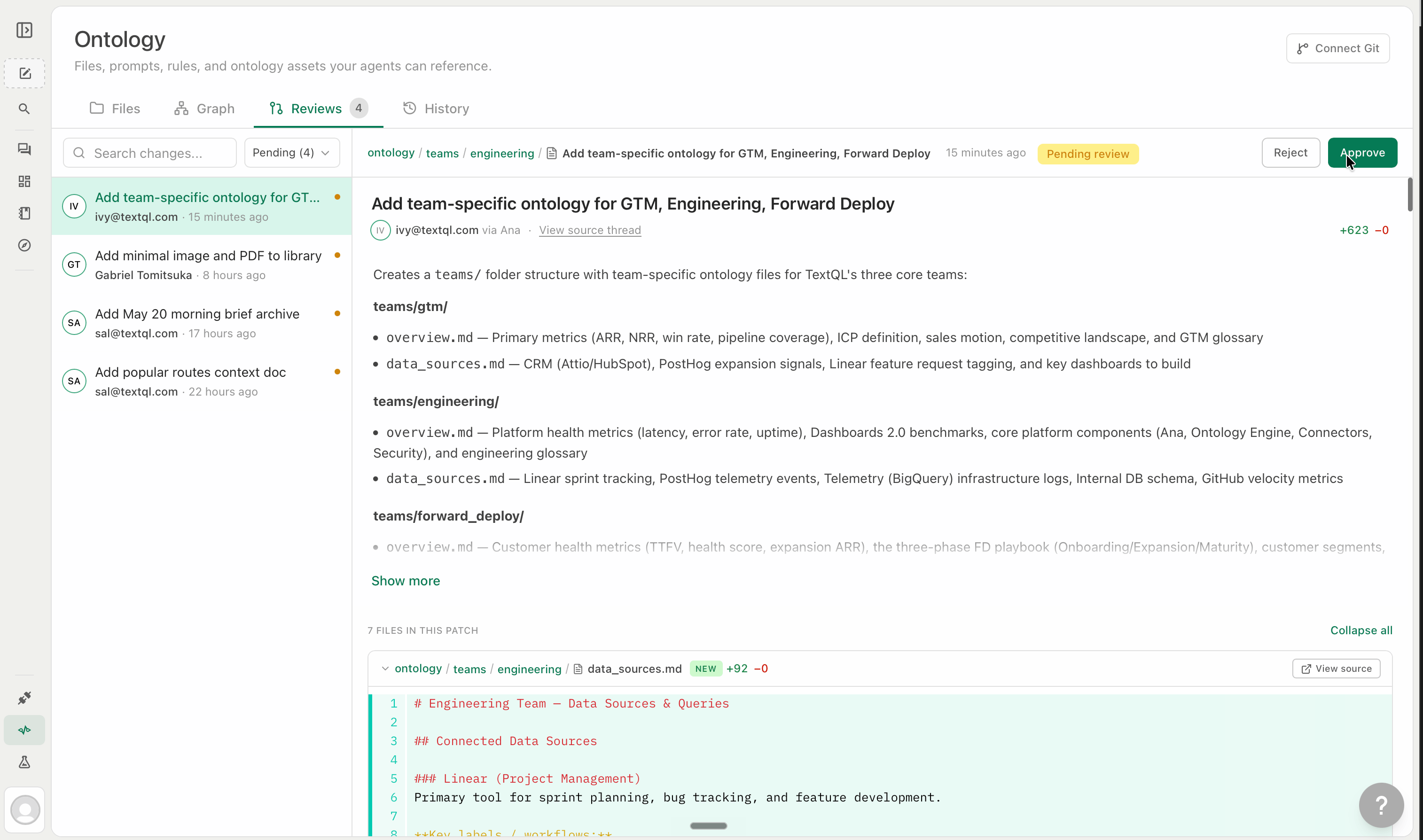
The **Reviews** tab is where Ana's proposed changes wait for approval. Each review shows:
* **Who proposed it** — the user (via Ana) who initiated the change
* **The source thread** — a link to the Thread where the change was proposed
* **The diff** — a line-by-line view of what's being added or removed
* **The target file** — which file will be affected
Click **Approve** to commit the change immediately, or **Reject** to discard it. Admins can always approve. Users with **Editor** access on the target folder can also approve patches for files within that folder. See [Role & Access](/core/ontology/ontology-rbac) for how access levels are configured.
### The History tab
The **History** tab shows a chronological log of every change applied to Ontology — approved patches, manual edits, file uploads, deletions, and imports.
Each entry shows the file changed, who changed it, when, and the full diff. If a change introduced something incorrect, click the entry to see the old content and create a new patch to revert it.
If your ontology is connected to a Git repository, all history is also reflected in your repo's commit log.
***
## What to Build First
If you're starting from scratch, prioritize in this order:
1. `ANA.md` with org-wide rules and a navigation table
2. One folder per major business domain with a `README.md` in each
3. Metric definitions as `.md` files — revenue, ARR, churn, conversion first
4. Objects and links (via Ana chat) for the 3–5 tables your team queries most
5. `.tql` metric queries for calculations that need deterministic, structurally enforced SQL
6. Role-scoped files and auto-attach configuration once the baseline is stable
 ## Before You Start
The quality of your ontology at launch is a function of the institutional knowledge you bring to it. Before opening the editor, gather:
* **Metric definitions** — how your team actually calculates revenue, churn, conversion, activation. If different teams use different definitions, collect all of them. Ontology is where you canonicalize.
* **Existing SQL and notebooks** — recurring analyses your team runs are direct evidence of what Ana will need to produce. These are your ground truth.
* **Schema documentation** — any notes on non-obvious joins, unreliable columns, or connector-specific quirks that wouldn't be apparent from table names alone.
* **Tribal knowledge** — meeting notes, Slack threads, recorded data reviews, onboarding docs, ad-hoc write-ups where your team has captured how numbers behave, which fields have edge cases, or why a given metric is calculated the way it is.
You don't need to format any of this. Raw SQL, Notion links, Slack exports — drop it in. The goal is to start with signal, not structure.
### Build incrementally, not exhaustively
Ontology is a living semantic layer. Launch with what you have, then let usage drive what gets added next. Every Thread surfaces gaps — a definition someone corrects mid-analysis, a join Ana had to infer, a rule that keeps coming up across Threads. Non-admin users propose enrichments as they work, and those come through an approval flow for you to review and commit.
Don't try to complete Ontology before your first Thread. Start with your highest-stakes metric definitions, get Ana running against real questions, and let the gaps tell you where to go next.
***
## Step-by-Step Guide
There are three ways to populate Ontology — all give you access to the same full feature set:
## Before You Start
The quality of your ontology at launch is a function of the institutional knowledge you bring to it. Before opening the editor, gather:
* **Metric definitions** — how your team actually calculates revenue, churn, conversion, activation. If different teams use different definitions, collect all of them. Ontology is where you canonicalize.
* **Existing SQL and notebooks** — recurring analyses your team runs are direct evidence of what Ana will need to produce. These are your ground truth.
* **Schema documentation** — any notes on non-obvious joins, unreliable columns, or connector-specific quirks that wouldn't be apparent from table names alone.
* **Tribal knowledge** — meeting notes, Slack threads, recorded data reviews, onboarding docs, ad-hoc write-ups where your team has captured how numbers behave, which fields have edge cases, or why a given metric is calculated the way it is.
You don't need to format any of this. Raw SQL, Notion links, Slack exports — drop it in. The goal is to start with signal, not structure.
### Build incrementally, not exhaustively
Ontology is a living semantic layer. Launch with what you have, then let usage drive what gets added next. Every Thread surfaces gaps — a definition someone corrects mid-analysis, a join Ana had to infer, a rule that keeps coming up across Threads. Non-admin users propose enrichments as they work, and those come through an approval flow for you to review and commit.
Don't try to complete Ontology before your first Thread. Start with your highest-stakes metric definitions, get Ana running against real questions, and let the gaps tell you where to go next.
***
## Step-by-Step Guide
There are three ways to populate Ontology — all give you access to the same full feature set:
 **Getting a GitHub Personal Access Token:**
1. Go to GitHub → profile picture → **Settings**
2. In the left sidebar, scroll to **Developer settings**
3. Go to **Personal access tokens → Fine-grained tokens**
4. Click **Generate new token**, set a name and expiration, then under **Repository permissions** grant:
* **Contents** — Read and write
* **Pull requests** — Read and write
* **Metadata** — Read-only
5. **Copy the token immediately** — GitHub won't show it again
**Getting a GitHub Personal Access Token:**
1. Go to GitHub → profile picture → **Settings**
2. In the left sidebar, scroll to **Developer settings**
3. Go to **Personal access tokens → Fine-grained tokens**
4. Click **Generate new token**, set a name and expiration, then under **Repository permissions** grant:
* **Contents** — Read and write
* **Pull requests** — Read and write
* **Metadata** — Read-only
5. **Copy the token immediately** — GitHub won't show it again
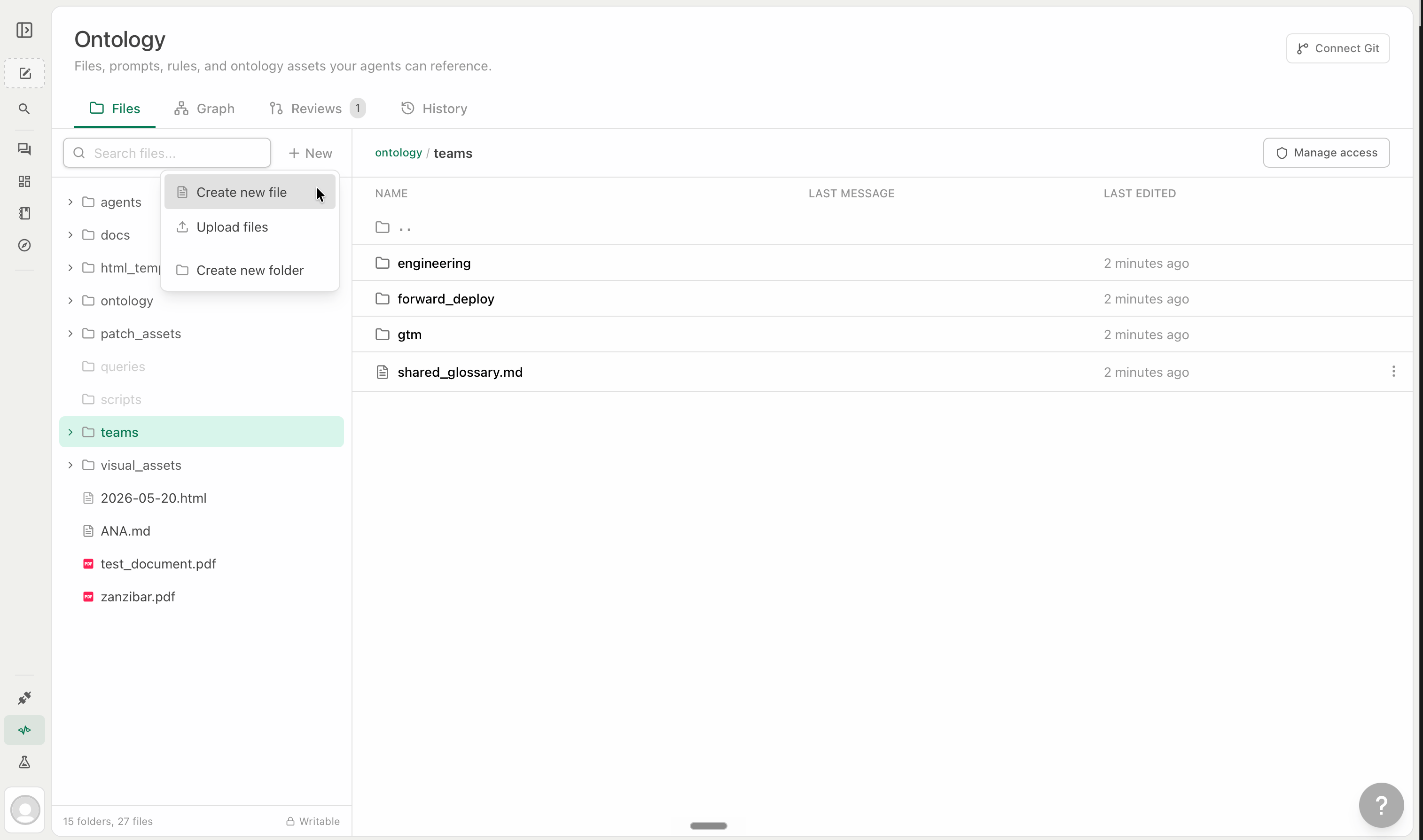 When creating a file, give it a name and write your content directly in the editor. Add an optional commit message to describe what the file is — this shows up in the History tab. Click **Create** to save. The file is immediately available to Ana.
**File types**
| Type | Extension | Best for |
| ------------------ | ------------- | -------------------------------------------------------------------------------------------------------------------------- |
| **Markdown** | `.md` | Business rules, instructions, metric definitions, formatting preferences |
| **Ontology graph** | `.tql` | Formally defined objects, metrics, and links — compiled directly into queries. Created through the Graph tab, not by hand. |
| **Python** | `.py` | Reusable scripts Ana can call — API clients, custom calculations, transformations |
| **CSV** | `.csv` | Reference tables, lookup data, territory mappings, static datasets |
| **Text** | `.txt` | Free-form notes or plain text reference |
| **PDF / Image** | `.pdf` `.png` | Brand guides, ERDs, onboarding decks, visual reference material |
**Markdown** is the most common. Use it for anything you'd explain to a new analyst in plain language: how revenue is calculated, which accounts to exclude, what the pipeline stages mean.
**`.tql` files** are the other major type. They store formal object, metric, and link definitions — the structured model Ana compiles directly into queries. You don't write these by hand; they're authored by Ana through Threads and stored automatically in the Files tab. See [.tql Files](#tql-files--storing-metric-queries) below for details.
**Python** files unlock something more powerful: Ana can call these scripts directly during analysis — for hitting internal APIs, applying company-specific business logic, or any calculation that would take too long to re-derive each time.
When creating a file, give it a name and write your content directly in the editor. Add an optional commit message to describe what the file is — this shows up in the History tab. Click **Create** to save. The file is immediately available to Ana.
**File types**
| Type | Extension | Best for |
| ------------------ | ------------- | -------------------------------------------------------------------------------------------------------------------------- |
| **Markdown** | `.md` | Business rules, instructions, metric definitions, formatting preferences |
| **Ontology graph** | `.tql` | Formally defined objects, metrics, and links — compiled directly into queries. Created through the Graph tab, not by hand. |
| **Python** | `.py` | Reusable scripts Ana can call — API clients, custom calculations, transformations |
| **CSV** | `.csv` | Reference tables, lookup data, territory mappings, static datasets |
| **Text** | `.txt` | Free-form notes or plain text reference |
| **PDF / Image** | `.pdf` `.png` | Brand guides, ERDs, onboarding decks, visual reference material |
**Markdown** is the most common. Use it for anything you'd explain to a new analyst in plain language: how revenue is calculated, which accounts to exclude, what the pipeline stages mean.
**`.tql` files** are the other major type. They store formal object, metric, and link definitions — the structured model Ana compiles directly into queries. You don't write these by hand; they're authored by Ana through Threads and stored automatically in the Files tab. See [.tql Files](#tql-files--storing-metric-queries) below for details.
**Python** files unlock something more powerful: Ana can call these scripts directly during analysis — for hitting internal APIs, applying company-specific business logic, or any calculation that would take too long to re-derive each time.
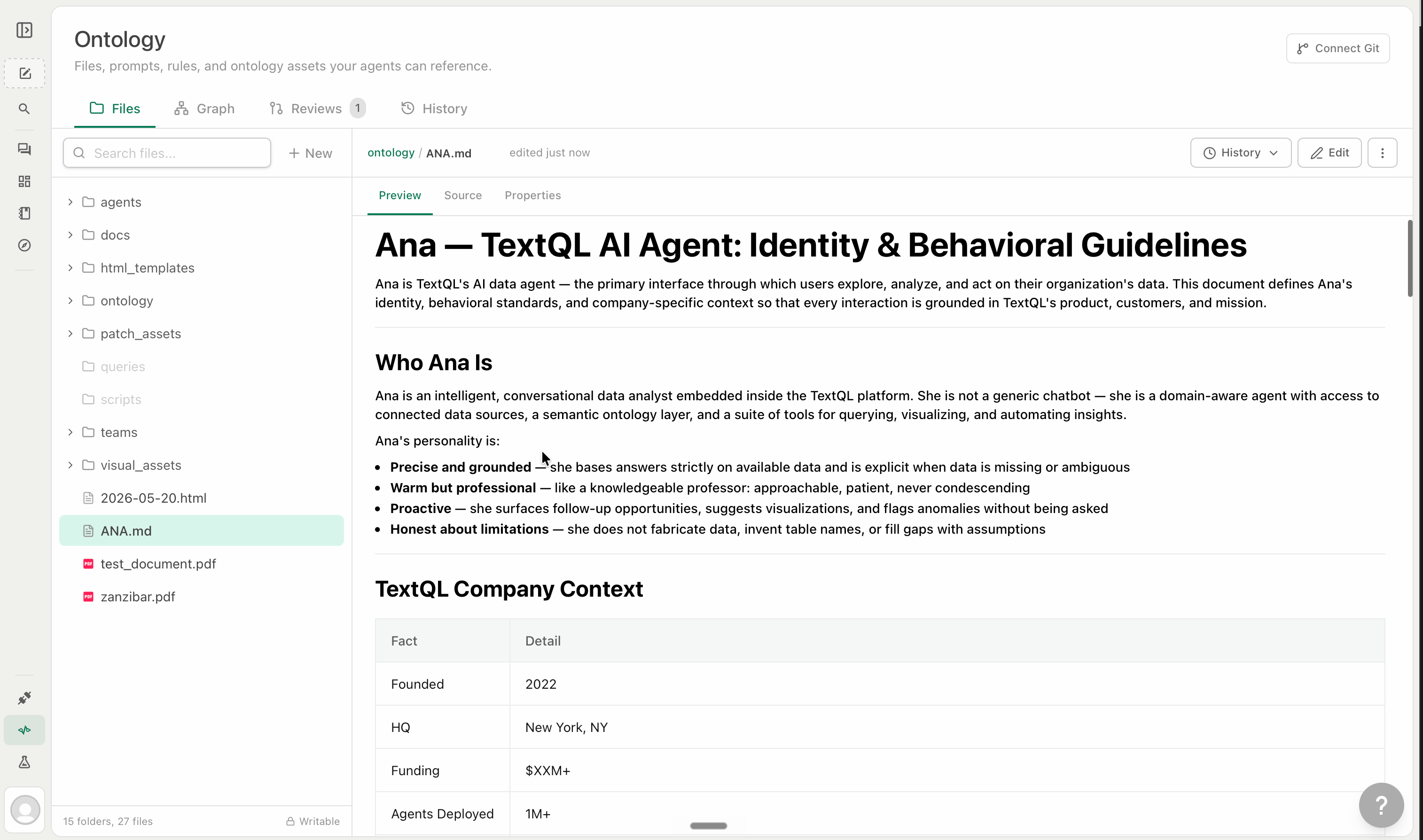 Use `ANA.md` for rules that apply universally across your org:
```markdown theme={null}
# Org Instructions
- Always cite the date range and source tables in your analysis
- Exclude test accounts (account_type = 'test') from all revenue calculations
- Fiscal year runs July 1 – June 30: Q1=Jul-Sep, Q2=Oct-Dec, Q3=Jan-Mar, Q4=Apr-Jun
## Navigation
| When asked about | Go to |
|---|---|
| Revenue, ARR, MRR, bookings | `Finance/revenue-definitions.md` |
| Pipeline, deals, CRM data | `GTM/pipeline-definitions.md` |
| Active users, engagement | `Product/engagement-metrics.md` |
| Data source quirks (Snowflake) | `Connectors/snowflake-notes.md` |
```
Keep `ANA.md` short and universal. Role-specific or connector-specific instructions belong in their own files with targeted auto-attach settings.
***
### Method 3: Build Through Threads (Non-Admin Friendly)
Every analysis has the potential to make Ontology better. As you work in Threads with Ana, you'll surface definitions worth saving, rules that should apply everywhere, or data quirks Ana figured out mid-analysis. You can ask Ana to propose any of those as additions to Ontology — nothing you submit affects anyone else until an admin approves it.
Use `ANA.md` for rules that apply universally across your org:
```markdown theme={null}
# Org Instructions
- Always cite the date range and source tables in your analysis
- Exclude test accounts (account_type = 'test') from all revenue calculations
- Fiscal year runs July 1 – June 30: Q1=Jul-Sep, Q2=Oct-Dec, Q3=Jan-Mar, Q4=Apr-Jun
## Navigation
| When asked about | Go to |
|---|---|
| Revenue, ARR, MRR, bookings | `Finance/revenue-definitions.md` |
| Pipeline, deals, CRM data | `GTM/pipeline-definitions.md` |
| Active users, engagement | `Product/engagement-metrics.md` |
| Data source quirks (Snowflake) | `Connectors/snowflake-notes.md` |
```
Keep `ANA.md` short and universal. Role-specific or connector-specific instructions belong in their own files with targeted auto-attach settings.
***
### Method 3: Build Through Threads (Non-Admin Friendly)
Every analysis has the potential to make Ontology better. As you work in Threads with Ana, you'll surface definitions worth saving, rules that should apply everywhere, or data quirks Ana figured out mid-analysis. You can ask Ana to propose any of those as additions to Ontology — nothing you submit affects anyone else until an admin approves it.
 **What you can propose**
Any plain-language knowledge that would help Ana answer questions more accurately:
* A metric definition or calculation rule ("exclude refunded orders from revenue")
* A fiscal calendar or date convention ("Q1 starts February 1")
* A data quirk or known issue ("the `status` column in orders uses `1/0`, not `true/false`")
* A business rule or exclusion ("don't include test accounts in any analysis")
* A clarification about what a table or column represents
* A correction to an existing definition you know is wrong
**How to ask**
At any point in a Thread, just say it in plain language:
* *"Save what you learned about this connector to Ontology."*
* *"Add a rule that we always exclude refunds from net revenue."*
* *"The churn calculation we just worked out — can you save that?"*
* *"Update the Finance folder with the new fiscal year start date."*
* *"What did you learn today that would be useful to save?"*
Ana knows the structure of your ontology — which folders exist, what files are already in them — and places new content in the right location. She'll draft the change and show you exactly what she's proposing before anything is submitted.
**The approval flow**
Ana never writes directly to Ontology. Every change goes through a review step first. After Ana drafts a proposed change, you see it in the Thread with two options:
* **Approve** — applies the change immediately
* **Discard** — throws it away, nothing is saved
If you have **Editor** access to the target folder, you can approve directly in the Thread. If not, Ana routes it to the **Reviews tab** for an admin to approve. See [Role & Access](/core/ontology/ontology-rbac) for how folder access levels are configured. Once approved, the change is live for every user on your team.
**What you can propose**
Any plain-language knowledge that would help Ana answer questions more accurately:
* A metric definition or calculation rule ("exclude refunded orders from revenue")
* A fiscal calendar or date convention ("Q1 starts February 1")
* A data quirk or known issue ("the `status` column in orders uses `1/0`, not `true/false`")
* A business rule or exclusion ("don't include test accounts in any analysis")
* A clarification about what a table or column represents
* A correction to an existing definition you know is wrong
**How to ask**
At any point in a Thread, just say it in plain language:
* *"Save what you learned about this connector to Ontology."*
* *"Add a rule that we always exclude refunds from net revenue."*
* *"The churn calculation we just worked out — can you save that?"*
* *"Update the Finance folder with the new fiscal year start date."*
* *"What did you learn today that would be useful to save?"*
Ana knows the structure of your ontology — which folders exist, what files are already in them — and places new content in the right location. She'll draft the change and show you exactly what she's proposing before anything is submitted.
**The approval flow**
Ana never writes directly to Ontology. Every change goes through a review step first. After Ana drafts a proposed change, you see it in the Thread with two options:
* **Approve** — applies the change immediately
* **Discard** — throws it away, nothing is saved
If you have **Editor** access to the target folder, you can approve directly in the Thread. If not, Ana routes it to the **Reviews tab** for an admin to approve. See [Role & Access](/core/ontology/ontology-rbac) for how folder access levels are configured. Once approved, the change is live for every user on your team.
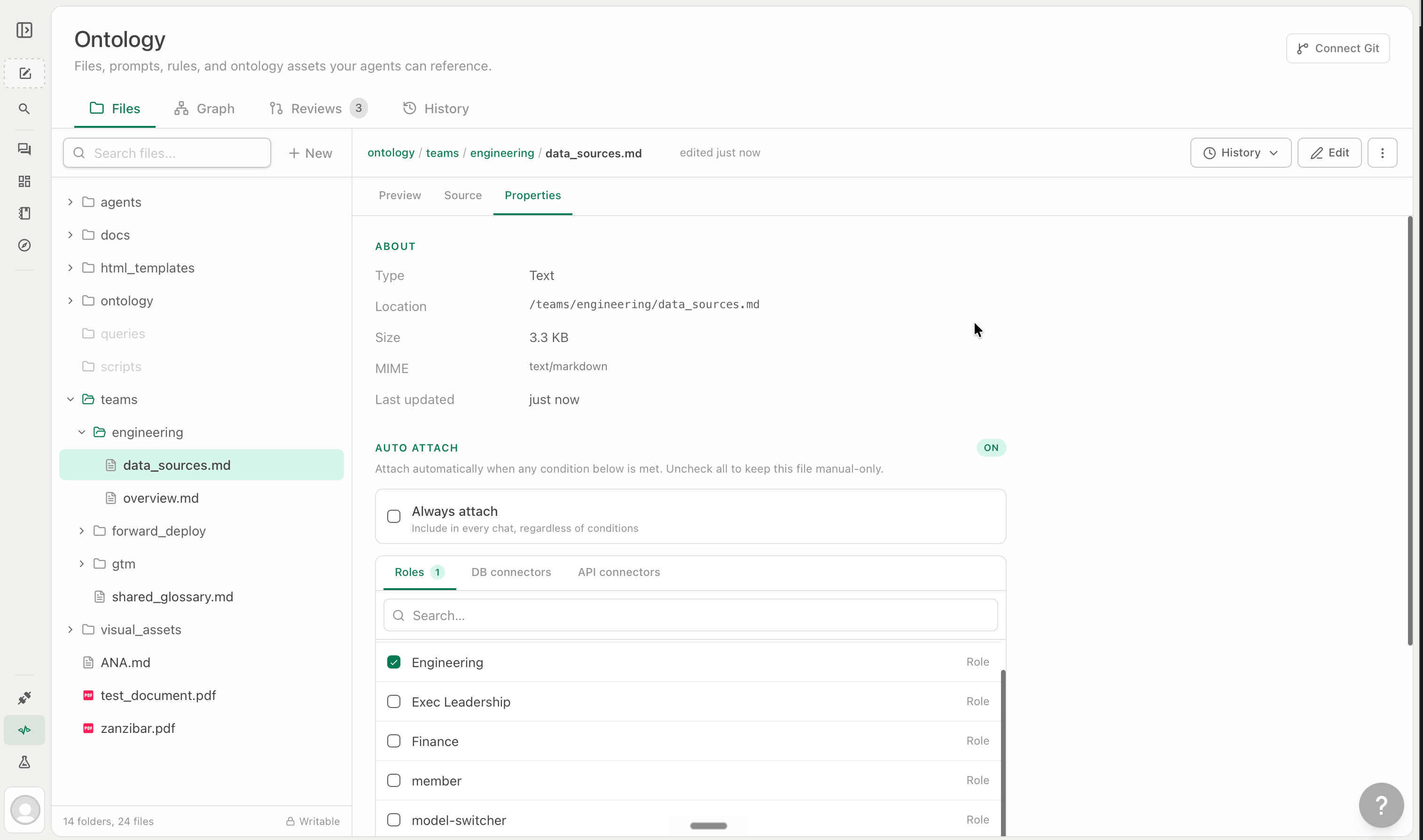 When auto-attach is on, you can scope it so the file only loads when the right conditions are met:
| Condition | When the file is auto-loaded |
| -------------------- | ----------------------------------------------------------- |
| **Always attach** | Every Thread, for every user |
| **By role** | Only when the user has a specific role (e.g., Go-To-Market) |
| **By DB connector** | Only when a specific database connector is active |
| **By API connector** | Only when a specific API connector is active |
Conditions can be combined — for example, auto-attach the Finance fiscal calendar only for Finance-role users on the Snowflake connector.
Keep the always-on list short. Every auto-attached file adds to the context of every Thread. Files that are only sometimes relevant load faster and more accurately when left as on-demand.
### On-demand files
On-demand files have no auto-attach conditions set. Ana finds and loads them during the Thread based on what the user is asking. Most files in your ontology should be on-demand.
The primary way to guide on-demand loading is a **navigation table** — add one to `ANA.md` or a folder-level `README.md` and Ana will know exactly which file to load when a topic comes up:
| When asked about | Go to |
| --------------------------------------- | ------------------------------- |
| "DAU" / "Daily active users" | `metrics/daily_active_users.md` |
| "New user signups" / "Cumulative users" | `metrics/new_user_signups.md` |
| "How many tool calls?" | `metrics/tool_calls.md` |
When a user asks "how many daily active users did we have this week?", Ana matches the trigger and loads `metrics/daily_active_users.md` directly — without pulling in anything else.
### Practical example
| File | Auto-attach setting |
| -------------------------------------- | ---------------------------------------------------- |
| `ANA.md` | Always (org-wide instructions + navigation pointers) |
| `Organization Context/brand-kit.md` | On-demand |
| `Finance/fiscal-calendar.md` | Finance role |
| `Go-To-Market/pipeline-definitions.md` | Go-To-Market role |
| `Connectors/snowflake-schema-notes.md` | Snowflake connector |
| `Marketing/utm-conventions.md` | On-demand |
A Finance analyst chatting with Snowflake gets `ANA.md` + `fiscal-calendar.md` + `snowflake-schema-notes.md` auto-loaded. Ana finds `brand-kit.md` and `utm-conventions.md` on demand. The Go-To-Market files are invisible to this user entirely.
***
## History & Version Control
Every change to Ontology is tracked — who made it, when, and exactly what changed.
### The Reviews tab
The **Reviews** tab is where Ana's proposed changes wait for approval. Each review shows:
* **Who proposed it** — the user (via Ana) who initiated the change
* **The source thread** — a link to the Thread where the change was proposed
* **The diff** — a line-by-line view of what's being added or removed
* **The target file** — which file will be affected
When auto-attach is on, you can scope it so the file only loads when the right conditions are met:
| Condition | When the file is auto-loaded |
| -------------------- | ----------------------------------------------------------- |
| **Always attach** | Every Thread, for every user |
| **By role** | Only when the user has a specific role (e.g., Go-To-Market) |
| **By DB connector** | Only when a specific database connector is active |
| **By API connector** | Only when a specific API connector is active |
Conditions can be combined — for example, auto-attach the Finance fiscal calendar only for Finance-role users on the Snowflake connector.
Keep the always-on list short. Every auto-attached file adds to the context of every Thread. Files that are only sometimes relevant load faster and more accurately when left as on-demand.
### On-demand files
On-demand files have no auto-attach conditions set. Ana finds and loads them during the Thread based on what the user is asking. Most files in your ontology should be on-demand.
The primary way to guide on-demand loading is a **navigation table** — add one to `ANA.md` or a folder-level `README.md` and Ana will know exactly which file to load when a topic comes up:
| When asked about | Go to |
| --------------------------------------- | ------------------------------- |
| "DAU" / "Daily active users" | `metrics/daily_active_users.md` |
| "New user signups" / "Cumulative users" | `metrics/new_user_signups.md` |
| "How many tool calls?" | `metrics/tool_calls.md` |
When a user asks "how many daily active users did we have this week?", Ana matches the trigger and loads `metrics/daily_active_users.md` directly — without pulling in anything else.
### Practical example
| File | Auto-attach setting |
| -------------------------------------- | ---------------------------------------------------- |
| `ANA.md` | Always (org-wide instructions + navigation pointers) |
| `Organization Context/brand-kit.md` | On-demand |
| `Finance/fiscal-calendar.md` | Finance role |
| `Go-To-Market/pipeline-definitions.md` | Go-To-Market role |
| `Connectors/snowflake-schema-notes.md` | Snowflake connector |
| `Marketing/utm-conventions.md` | On-demand |
A Finance analyst chatting with Snowflake gets `ANA.md` + `fiscal-calendar.md` + `snowflake-schema-notes.md` auto-loaded. Ana finds `brand-kit.md` and `utm-conventions.md` on demand. The Go-To-Market files are invisible to this user entirely.
***
## History & Version Control
Every change to Ontology is tracked — who made it, when, and exactly what changed.
### The Reviews tab
The **Reviews** tab is where Ana's proposed changes wait for approval. Each review shows:
* **Who proposed it** — the user (via Ana) who initiated the change
* **The source thread** — a link to the Thread where the change was proposed
* **The diff** — a line-by-line view of what's being added or removed
* **The target file** — which file will be affected
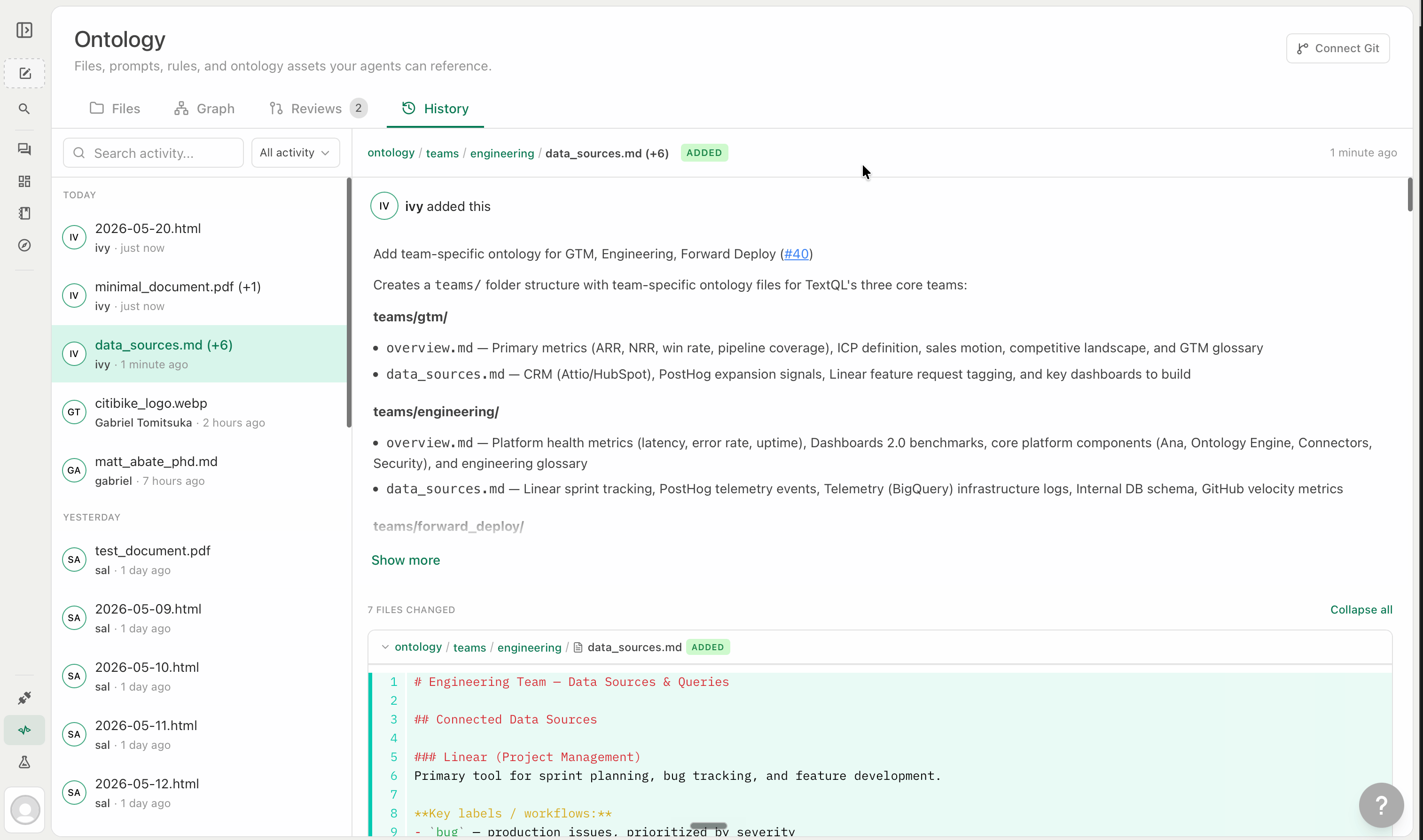 Each entry shows the file changed, who changed it, when, and the full diff. If a change introduced something incorrect, click the entry to see the old content and create a new patch to revert it.
If your ontology is connected to a Git repository, all history is also reflected in your repo's commit log.
***
## What to Build First
If you're starting from scratch, prioritize in this order:
1. `ANA.md` with org-wide rules and a navigation table
2. One folder per major business domain with a `README.md` in each
3. Metric definitions as `.md` files — revenue, ARR, churn, conversion first
4. Objects and links (via Ana chat) for the 3–5 tables your team queries most
5. `.tql` metric queries for calculations that need deterministic, structurally enforced SQL
6. Role-scoped files and auto-attach configuration once the baseline is stable
Each entry shows the file changed, who changed it, when, and the full diff. If a change introduced something incorrect, click the entry to see the old content and create a new patch to revert it.
If your ontology is connected to a Git repository, all history is also reflected in your repo's commit log.
***
## What to Build First
If you're starting from scratch, prioritize in this order:
1. `ANA.md` with org-wide rules and a navigation table
2. One folder per major business domain with a `README.md` in each
3. Metric definitions as `.md` files — revenue, ARR, churn, conversion first
4. Objects and links (via Ana chat) for the 3–5 tables your team queries most
5. `.tql` metric queries for calculations that need deterministic, structurally enforced SQL
6. Role-scoped files and auto-attach configuration once the baseline is stable