> ## Documentation Index
> Fetch the complete documentation index at: https://docs.textql.com/llms.txt
> Use this file to discover all available pages before exploring further.
# Role & Access
> Control which roles can read or edit each folder in your Ontology.
By default, every folder in your Ontology is open to everyone in your organization. As it grows — especially when it contains team-specific instructions, sensitive business logic, or department-level data — you'll want to restrict who can see and edit what.
Access control in Ontology is set at the **folder level**. Every file inside a folder inherits the folder's access.
## Setting Folder Access
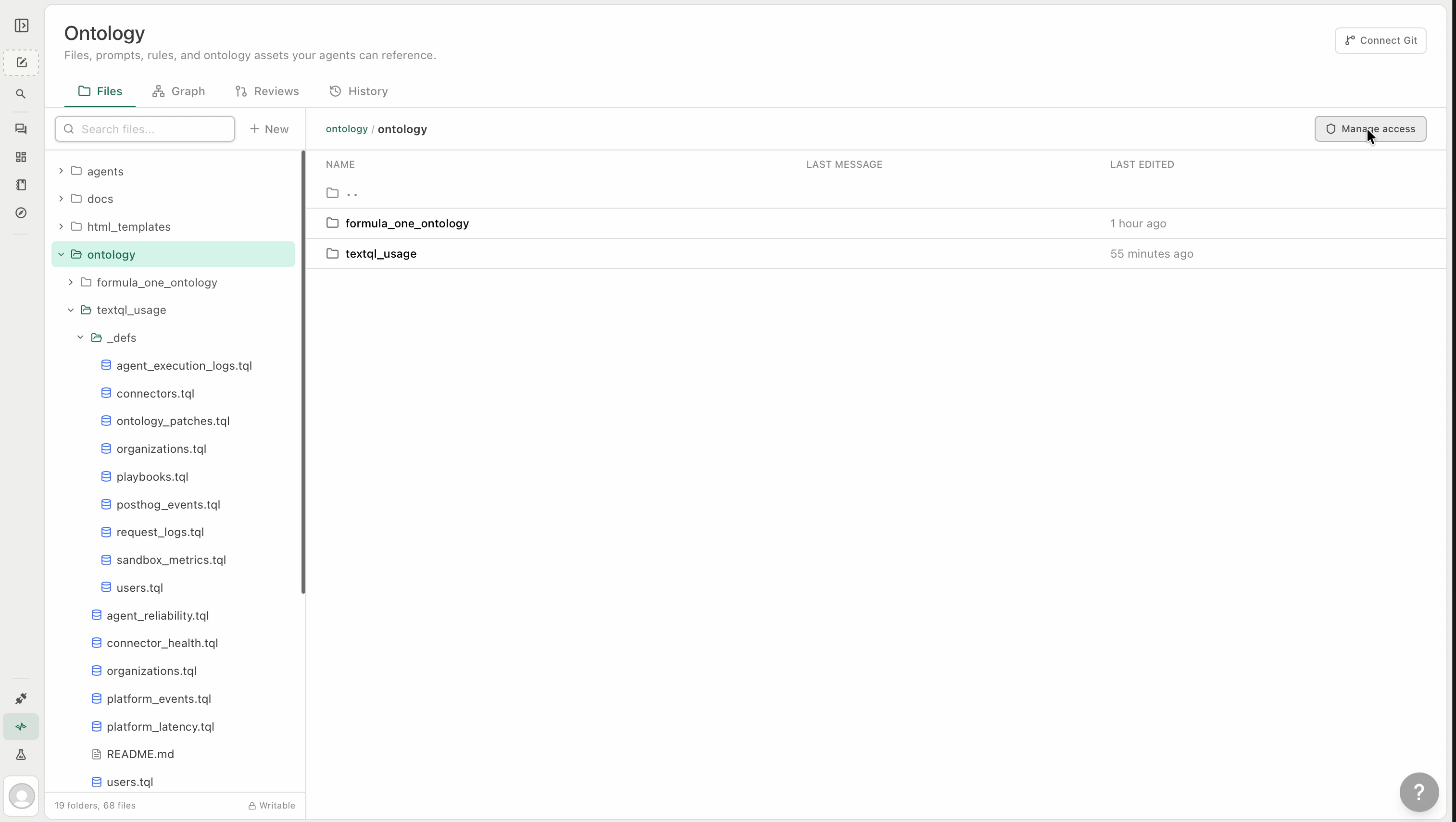
Folder access control who can **see** a folder at all — Ana will not reference, load, or reveal the existence of any folder a user doesn't have access to. Navigate to the folder you want to restrict and click the **Manage access** icon on the right-hand side.
Click the **Manage access** icon on the right side of the folder row to open the access panel.
 Set **General access** to either **Open** (visible to everyone in your org) or **Restricted** (visible only to roles you specify). When Restricted is selected, add roles and assign each one an access level — **Viewer** or **Editor**.
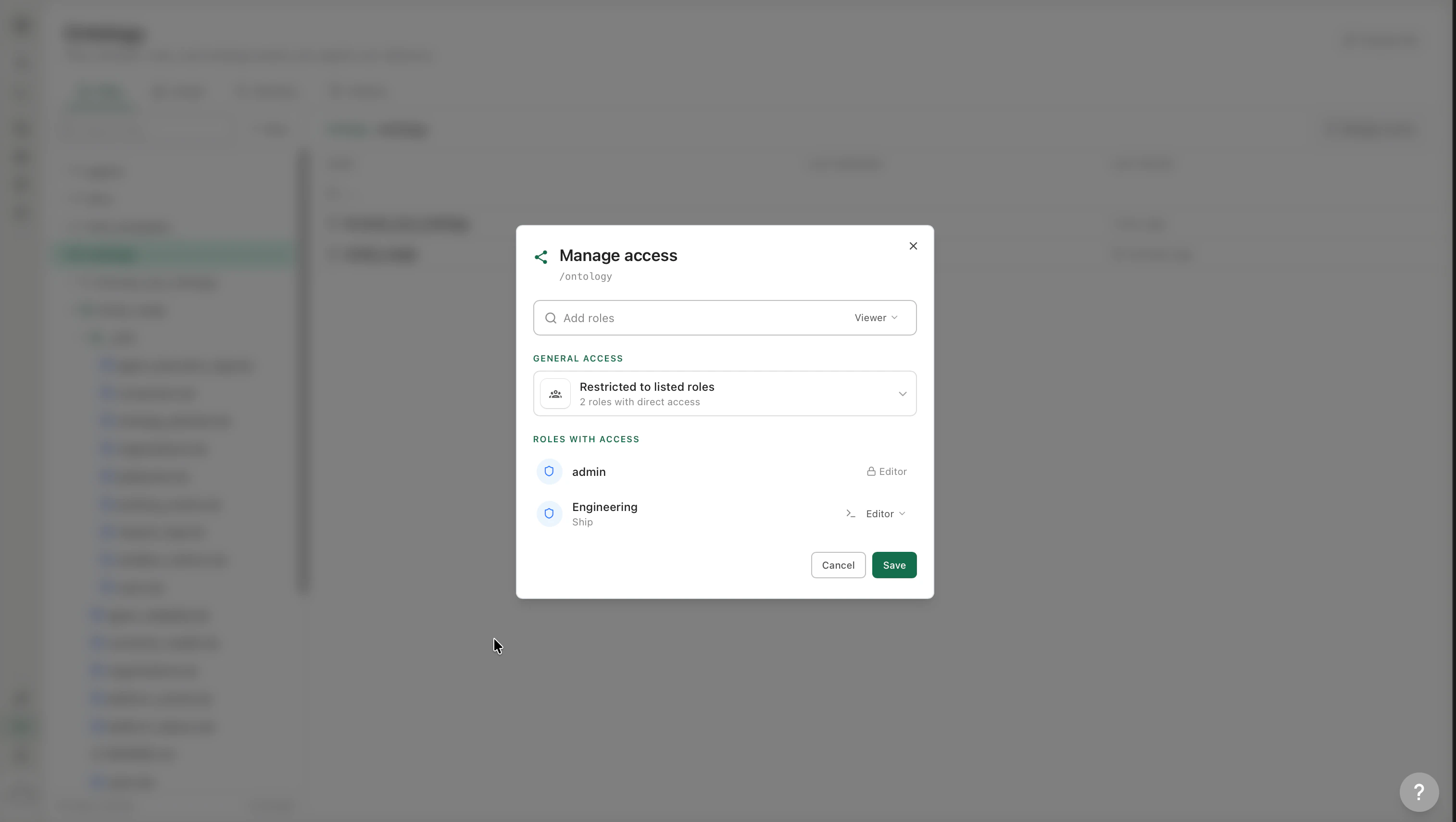 Admins always retain full access to all folders regardless of access settings.
## Access Levels
Each role can be granted one of two access levels:
| Level | What it means |
| ---------- | -------------------------------------------------------------------------------------------------------------------------------------------------- |
| **Viewer** | Ana loads files from this folder into Threads for users with this role. Users can read files in the UI but cannot edit them. |
| **Editor** | Same as Viewer, plus users can create and edit files in this folder. Ana can also propose changes to files here on behalf of users with this role. |
## How Access Affects Ana
Access levels aren't just UI controls — they propagate directly into Ana's Threads. When a user opens a Thread:
* Ana checks which folders the user has access to based on their role
* She only loads files from folders the user can read
* She can only propose edits to folders where the user has Editor access
If a user doesn't have access to a folder, **it's completely invisible to Ana** in their Thread. Ana won't reference it, won't load it, and won't reveal that it exists.
## File-Level Access
Files don't have their own access — they inherit from their parent folder. The **Properties** tab on any file shows the effective access and a shortcut to **Manage access on parent folder**.
## Auto-Attach and Roles
On each file's **Properties** tab, the **Auto Attach** section lets you configure when the file is loaded into a Thread. You can scope auto-attach to specific roles:
| Setting | When the file loads |
| -------------------- | ------------------------------------------------------------------------------------------- |
| **Always attach** | Every Thread, for every user — use sparingly, this adds to every Thread's context |
| **By role** | Only when the user has a specific role (e.g., Finance files auto-load for the Finance role) |
| **By DB connector** | Only when the user is working with a specific database connector |
| **By API connector** | Only when a specific API connector is active |
This gives you fine-grained control: a Finance team's fiscal calendar can auto-load for Finance users on the Snowflake connector, without adding noise to every other Thread.
For files that aren't auto-attached, Ana can still find and load them on demand based on what the user is asking. Keep the auto-attach list short and reserved for truly universal context.
## Folder Nesting and Inheritance
Access control applies at every layer of folder nesting. A subfolder cannot grant access to a role that doesn't already have access to the parent folder.
For example, if the `Finance/` folder is restricted to the Finance role, a `Finance/Sensitive/` subfolder can further restrict to Finance + Admin — but cannot open access to a role that can't already see `Finance/`.
## Example Setup
A typical enterprise org might organize access like this:
| Folder | Access |
| ----------------------- | ------------------------------------------ |
| `Organization Context/` | Open — all users |
| `Go-To-Market/` | Go-To-Market role (Viewer), Admin (Editor) |
| `Finance/` | Finance role (Viewer), Admin (Editor) |
| `Engineering/` | Engineering role (Editor), Admin (Editor) |
## What's Next
Add files, configure dynamic loading, and manage history
Understand the semantic layer and key capabilities
Admins always retain full access to all folders regardless of access settings.
## Access Levels
Each role can be granted one of two access levels:
| Level | What it means |
| ---------- | -------------------------------------------------------------------------------------------------------------------------------------------------- |
| **Viewer** | Ana loads files from this folder into Threads for users with this role. Users can read files in the UI but cannot edit them. |
| **Editor** | Same as Viewer, plus users can create and edit files in this folder. Ana can also propose changes to files here on behalf of users with this role. |
## How Access Affects Ana
Access levels aren't just UI controls — they propagate directly into Ana's Threads. When a user opens a Thread:
* Ana checks which folders the user has access to based on their role
* She only loads files from folders the user can read
* She can only propose edits to folders where the user has Editor access
If a user doesn't have access to a folder, **it's completely invisible to Ana** in their Thread. Ana won't reference it, won't load it, and won't reveal that it exists.
## File-Level Access
Files don't have their own access — they inherit from their parent folder. The **Properties** tab on any file shows the effective access and a shortcut to **Manage access on parent folder**.
## Auto-Attach and Roles
On each file's **Properties** tab, the **Auto Attach** section lets you configure when the file is loaded into a Thread. You can scope auto-attach to specific roles:
| Setting | When the file loads |
| -------------------- | ------------------------------------------------------------------------------------------- |
| **Always attach** | Every Thread, for every user — use sparingly, this adds to every Thread's context |
| **By role** | Only when the user has a specific role (e.g., Finance files auto-load for the Finance role) |
| **By DB connector** | Only when the user is working with a specific database connector |
| **By API connector** | Only when a specific API connector is active |
This gives you fine-grained control: a Finance team's fiscal calendar can auto-load for Finance users on the Snowflake connector, without adding noise to every other Thread.
For files that aren't auto-attached, Ana can still find and load them on demand based on what the user is asking. Keep the auto-attach list short and reserved for truly universal context.
## Folder Nesting and Inheritance
Access control applies at every layer of folder nesting. A subfolder cannot grant access to a role that doesn't already have access to the parent folder.
For example, if the `Finance/` folder is restricted to the Finance role, a `Finance/Sensitive/` subfolder can further restrict to Finance + Admin — but cannot open access to a role that can't already see `Finance/`.
## Example Setup
A typical enterprise org might organize access like this:
| Folder | Access |
| ----------------------- | ------------------------------------------ |
| `Organization Context/` | Open — all users |
| `Go-To-Market/` | Go-To-Market role (Viewer), Admin (Editor) |
| `Finance/` | Finance role (Viewer), Admin (Editor) |
| `Engineering/` | Engineering role (Editor), Admin (Editor) |
## What's Next
Add files, configure dynamic loading, and manage history
Understand the semantic layer and key capabilities