

Ana in Claude
The Endpoint and Tools
MCP endpoint:https://app.textql.com/mcp
By default Ana exposes a focused set of tools:
ana— ask any natural-language question. Ana connects to your warehouse through your configured connectors and Ontology, runs the analysis, and returns the answer plus a link to the full chat thread in TextQL. This call is synchronous and can take up to a minute.ana_ask/ana_poll— the streaming version, for clients with short request timeouts.ana_askstarts the analysis and returns immediately;ana_pollstreams progress, answer text, charts, and report links until the run completes.list_connectors— list the data connectors you can target, so you can scope a question to a specific source.
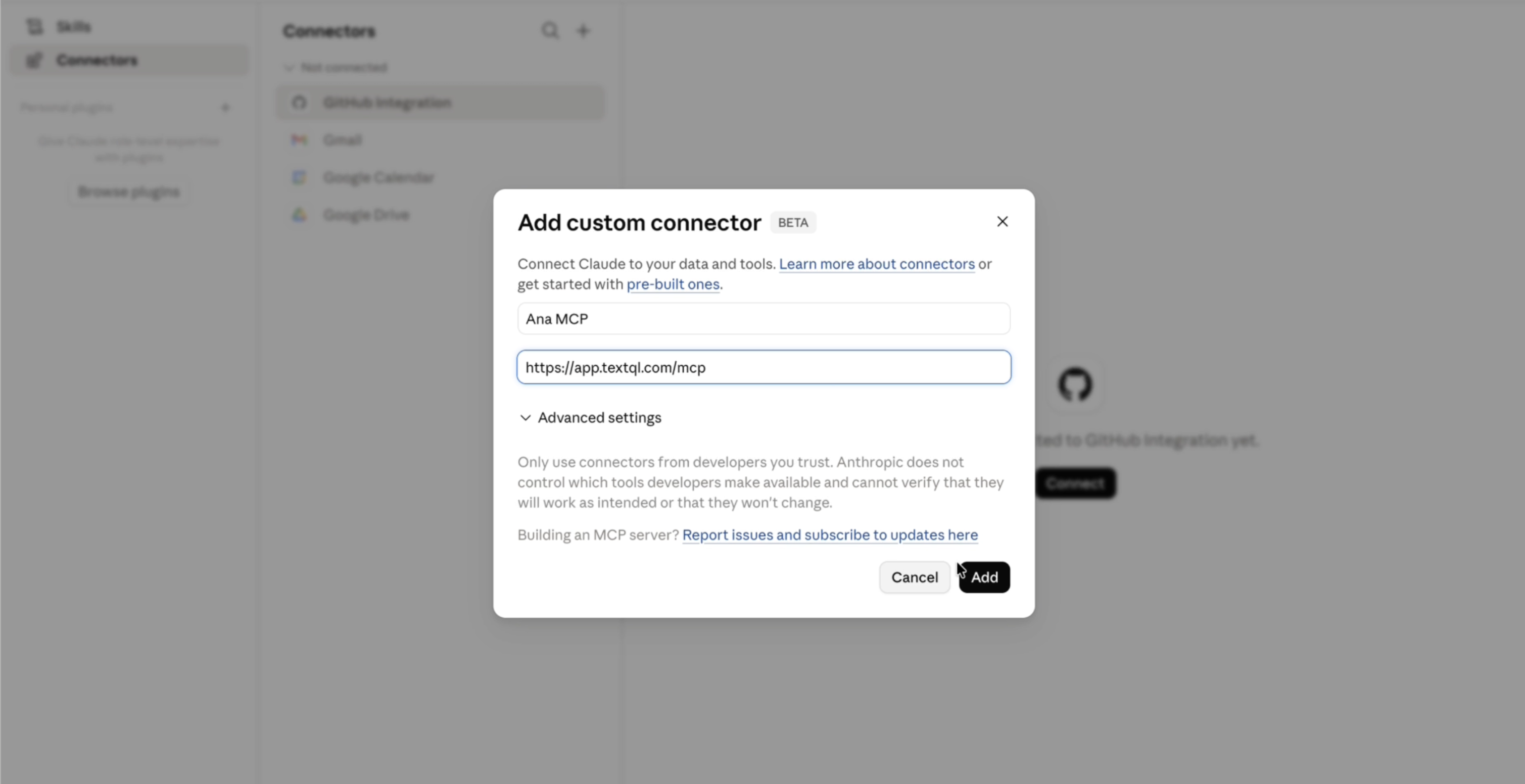
Ana MCP in Claude
What Ana Returns
When you ask Ana a question, it returns:- The answer — a plain-language response grounded in your actual warehouse data
- A thread link — a URL to the full chat thread in TextQL, where you can explore further, share results, or dig into the SQL
- Resource links — charts, dashboards, and reports are returned as links directly in your client
Next Steps
Connecting a client
Add Ana to Claude, Cursor, Windsurf, ChatGPT, Copilot, or Claude Code, and authorize once over OAuth.
Tool groups & modes
Scope which tools a connection exposes, and let your assistant load tools on demand.
Managing access
Review and revoke authorized clients as a user or an org admin.
External MCP servers
Bring tools like Notion, GitHub, or internal APIs into Ana’s context.