

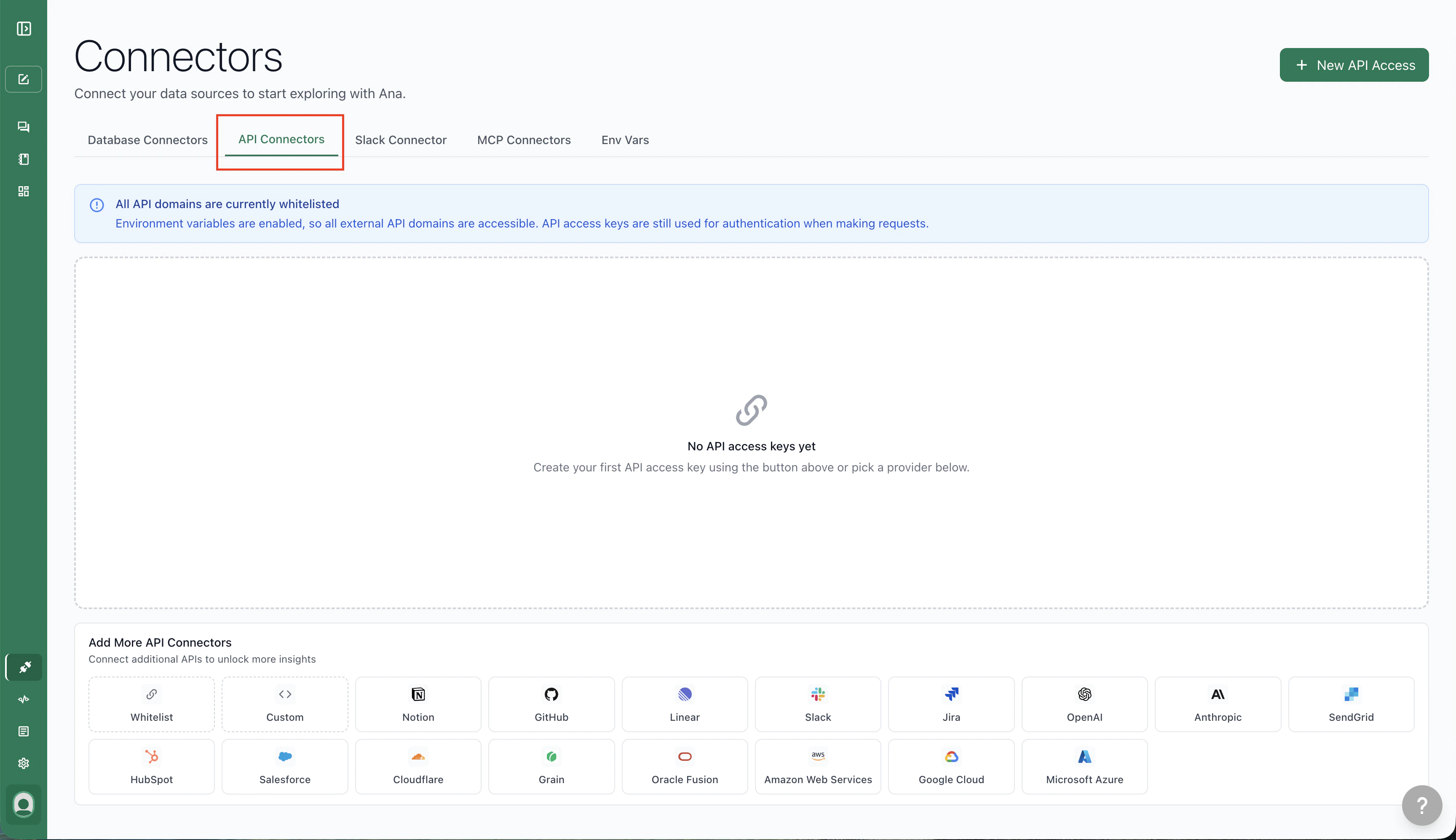
The API Connectors page showing configured connectors
If the API tab is not present, external API access has been disabled for your organization. Contact your admin to enable it.
Creating an API Connector from a Template
For the most frequently used APIs, TextQL offers pre-configured templates — you only need to enter your token and test the connection.- Navigate to the Connectors page and open the Add API menu.
- Select your API from the list of common providers.
- Enter your credentials and click Test Connection.
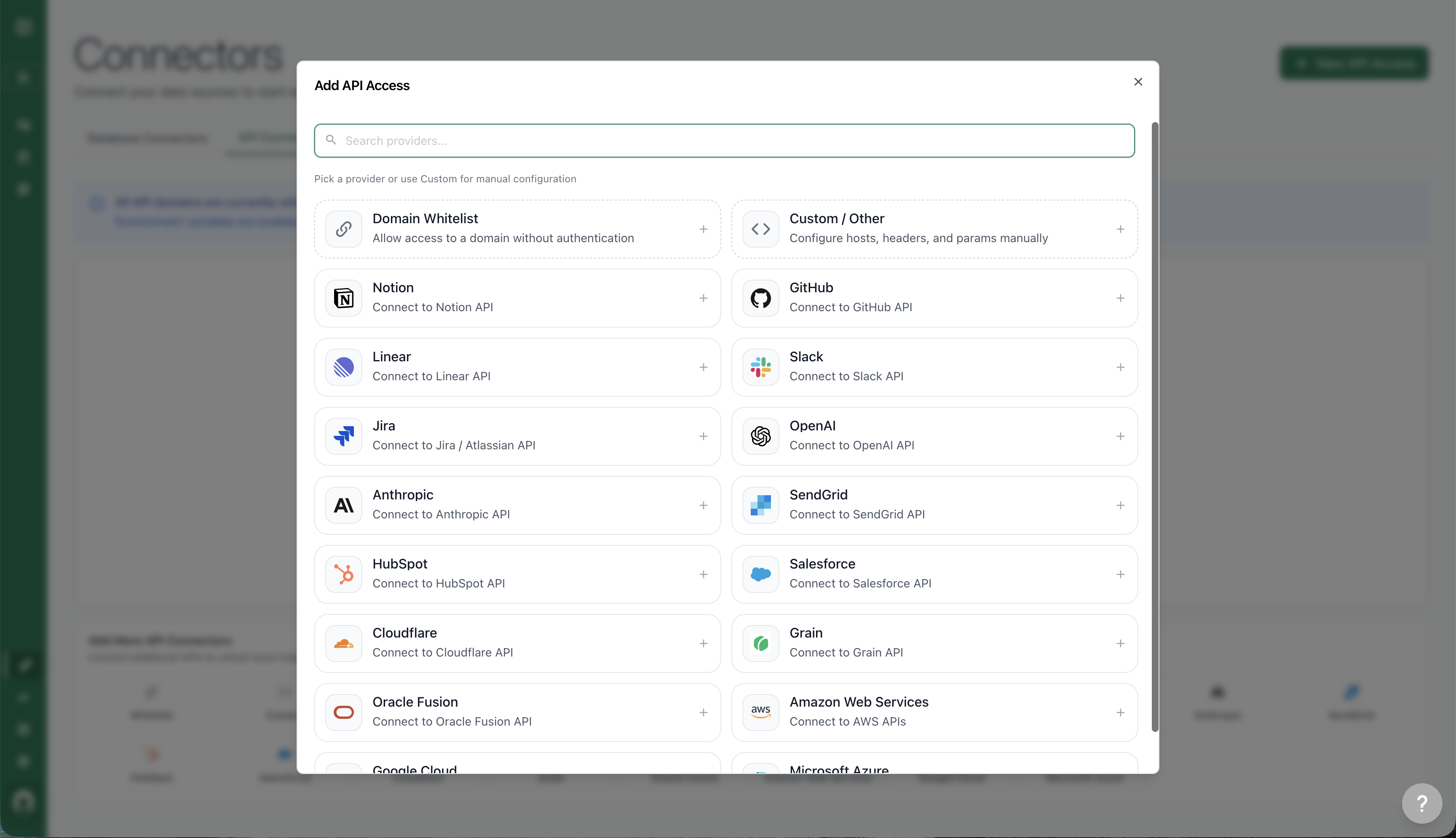
Pick from a template or use Custom for manual configuration
Provider-Specific Setup
Most API templates work by entering a token and clicking Test Connection. A few providers use a different authentication model where the proxy handles credential injection automatically — you supply the credentials once, and the proxy signs every outgoing request on your behalf.Google Cloud (GCP)
The GCP connector uses a service account key rather than a static bearer token. The proxy intercepts outgoing requests, performs the JWT-based token exchange with Google’s OAuth endpoint, and injects a short-lived access token — your raw credentials are never exposed to the sandbox. Setup steps:- In the Google Cloud Console, create or select a service account with the IAM roles your workflow needs.
- Under the service account’s Keys tab, click Add Key > Create new key and choose JSON. Download the key file.
- In TextQL, open the Connectors page, click + New API Access, and select Google Cloud from the template list.
- Paste the entire contents of the downloaded JSON key file into the Service Account JSON field.
- Optionally enter your Project ID.
- Click Test Connection to verify the credentials are valid.
The service account JSON is stored encrypted. The sandbox receives a placeholder environment variable (
GOOGLE_SERVICE_ACCOUNT_JSON) — the actual key is never passed through.*.googleapis.com. If your workflow calls a Google API on a different host, add it as an additional domain in the connector’s Advanced Options.
Amazon Web Services (AWS)
The AWS connector uses IAM access keys and signs requests with AWS Signature Version 4. Like GCP, the proxy handles signing — the sandbox receives placeholder environment variables (AWS_ACCESS_KEY_ID, AWS_SECRET_ACCESS_KEY, AWS_DEFAULT_REGION) and the proxy substitutes real credentials at request time.
Setup steps:
- In the AWS IAM console, create an IAM user or role with the permissions your workflow needs, and generate an access key.
- In TextQL, select Amazon Web Services from the template list.
- Enter your Access Key ID, Secret Access Key, and optionally a Default Region (defaults to
us-east-1). - Click Test Connection.
Manual Configuration
To add a custom API, select Custom / Other at the top of the Add API Access menu.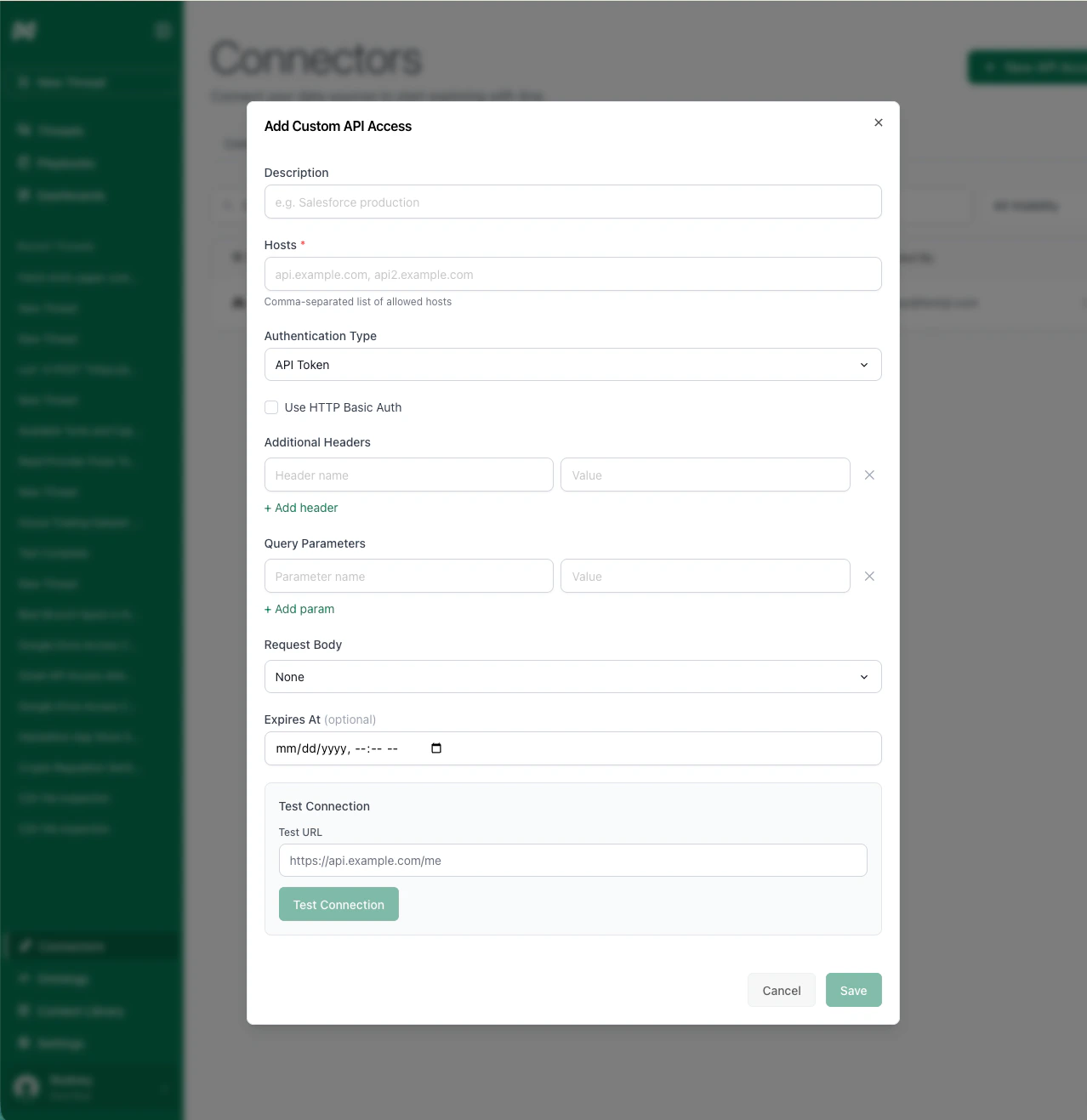
The custom API connector form with host, auth, and header configuration
*.domain.
Authentication
Check your API’s documentation for the required format. Add all necessary header fields or URL query parameters. Include any token prefixes (e.g., Bearer) directly in the value field, as you are setting raw header values.
Expiry Date (optional)
Set an expiry date to prevent Ana from attempting to use expired tokens.
Test your API connection before saving. You can add multiple connectors for the same domain — for example, if you have tokens with different permission levels. Use the sharing menu to control which users can access each connector.
Editing a Connector
To edit an existing API connector, click the Edit button from the connector list. When editing:- Credentials are preserved by default. If you leave an auth field blank (or it shows a redacted placeholder), the existing credential is kept. You only need to re-enter a value if you want to change it.
- Provider-managed auth headers are not shown in the manual headers list. For template-based connectors, the authentication header (e.g.
Authorization) is managed through the dedicated auth fields, not the custom headers table. This is expected behavior.
OAuth APIs
OAuth is supported for most pre-configured API providers. You can also make a custom connector with OAuth. To set up an OAuth connector:- Select a supported provider template (or custom) in the Add API menu.
- Create an OAuth app in your provider’s interface and paste the credentials into the form.
- Choose U2M OAuth or Per Member OAuth as the authentication method.
- Per Org OAuth means all people using this connector will connect to the same account at the provider.
- Per Member OAuth means each user can connect their individual account.
- You can specify a grant type, which controls how the OAuth token exchange is performed. For provider templates, you usually want to keep the default setting.
- Specify the required scopes. Depending on the provider, you might have to allow these scopes for your OAuth app in the provider interface first.
- Connect your account and test the connection.
Domain Whitelisting
Some workflows hit endpoints that don’t need authentication (public APIs, documentation sites, etc.). These domains still need to be explicitly whitelisted. To add one, click + New API Access and select Domain Whitelist.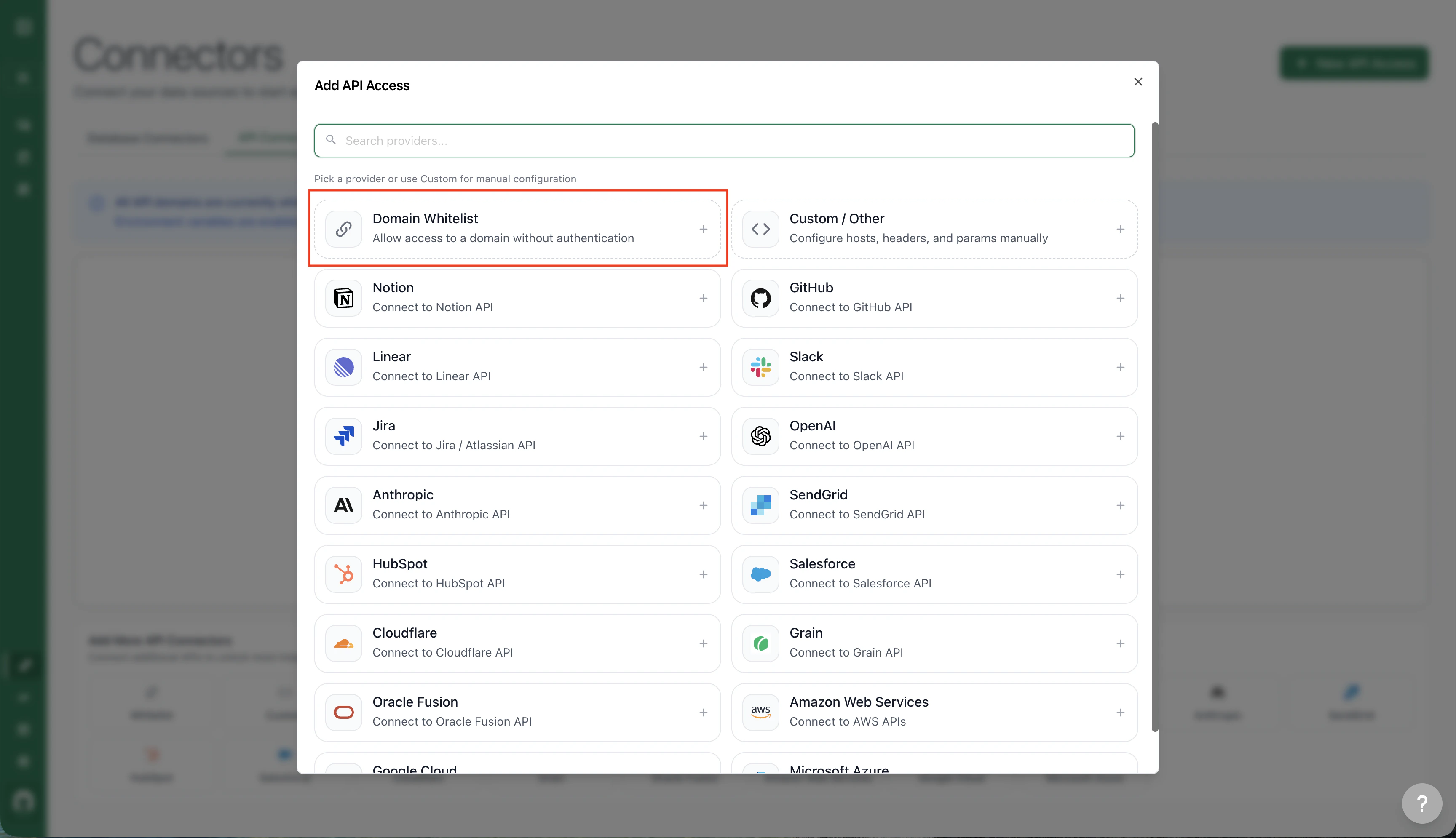
Select Domain Whitelist from the Add API Access modal
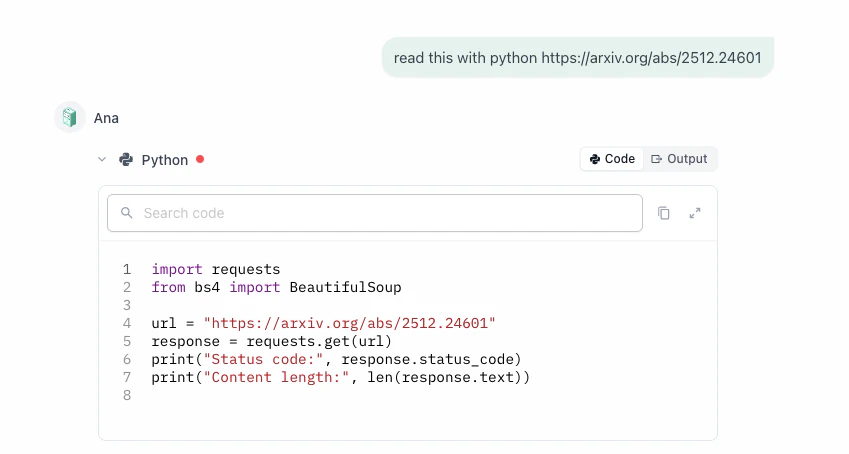
A request to arxiv.org fails because the domain wasn't whitelisted
Migrating to API Connectors
Read this section even if you have not previously used secrets, but have used APIs without secrets-based authentication.
TextQL is deprecating the Secrets feature (accessible from a separate tab on the Connectors page, if your organization has not yet migrated). We are replacing it with API Connectors to improve security. Migration steps:
- Identify which external APIs you use or plan to use in chats.
- Add one API Connector for each domain (use a template if available, or add it as a custom connector).
- Configure sharing permissions for each connector.
- For each existing secret, edit the corresponding API Connector and paste the token into the appropriate field. If it is a manually configured connector, include any required token prefix (e.g.,
Bearer).
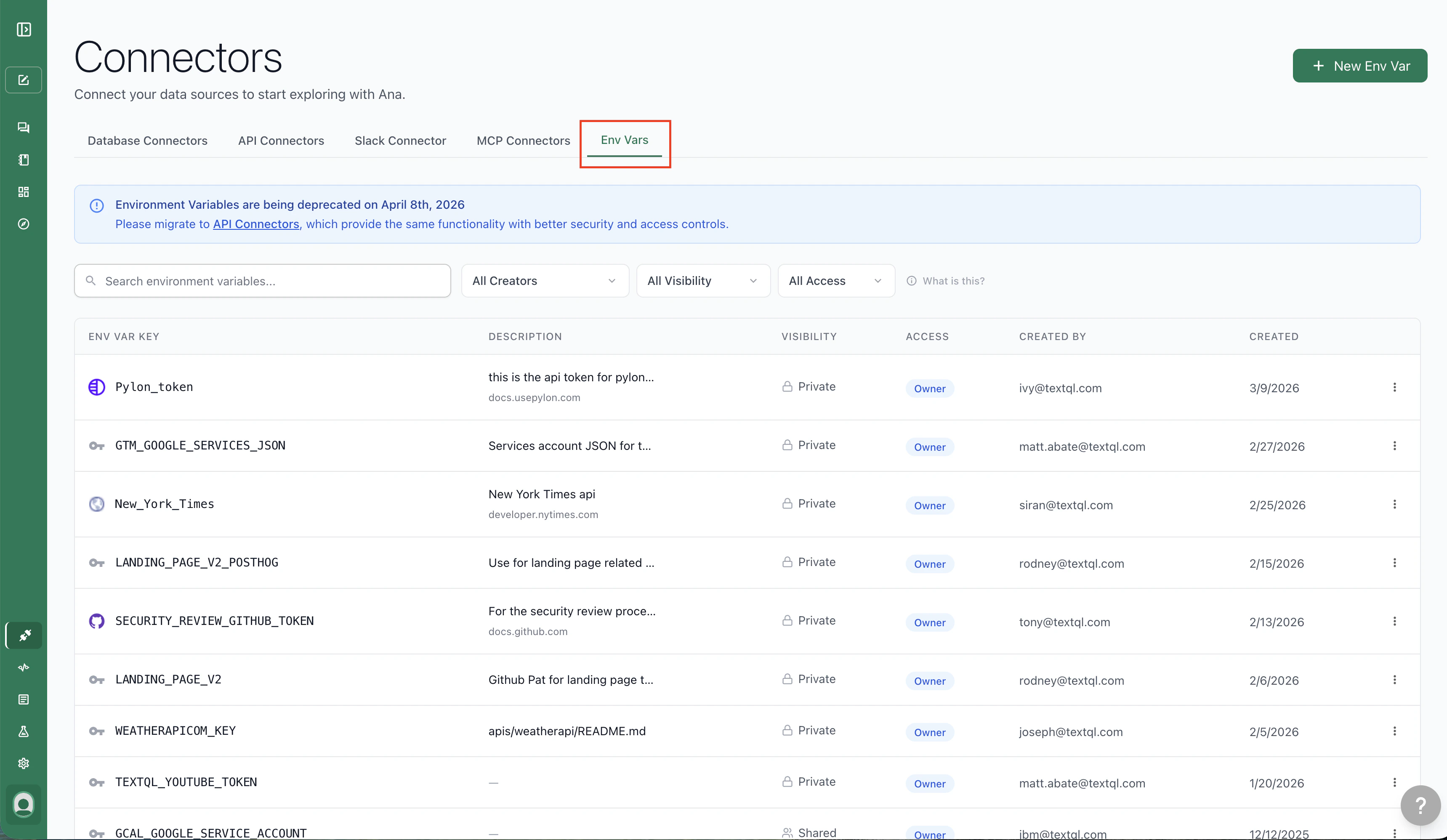
The Env Vars tab where legacy secrets are stored
SECRETS["XYZ_SOURCE"], that’s the old system. If you see a header with TQL_AUTH_TOKEN followed by a unique ID, that’s API Connectors.
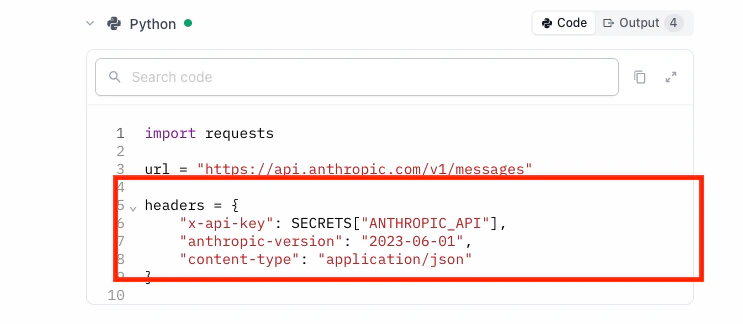
Old approach — SECRETS-based authentication
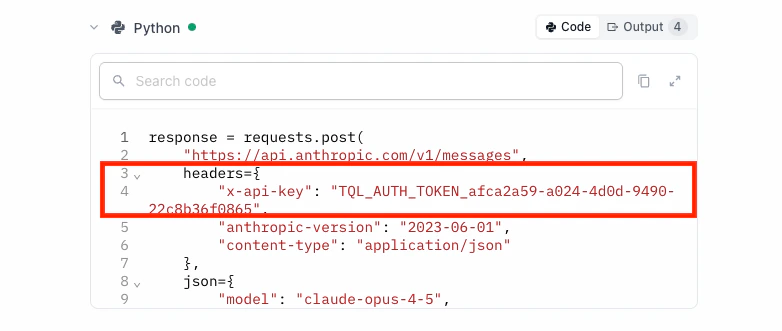
New approach — API Connector authentication via TQL_AUTH_TOKEN
Disabling Legacy Secrets
Once you’re confident everything works with API Connectors:- Go to Settings → Capabilities
- Toggle off Environment Variables
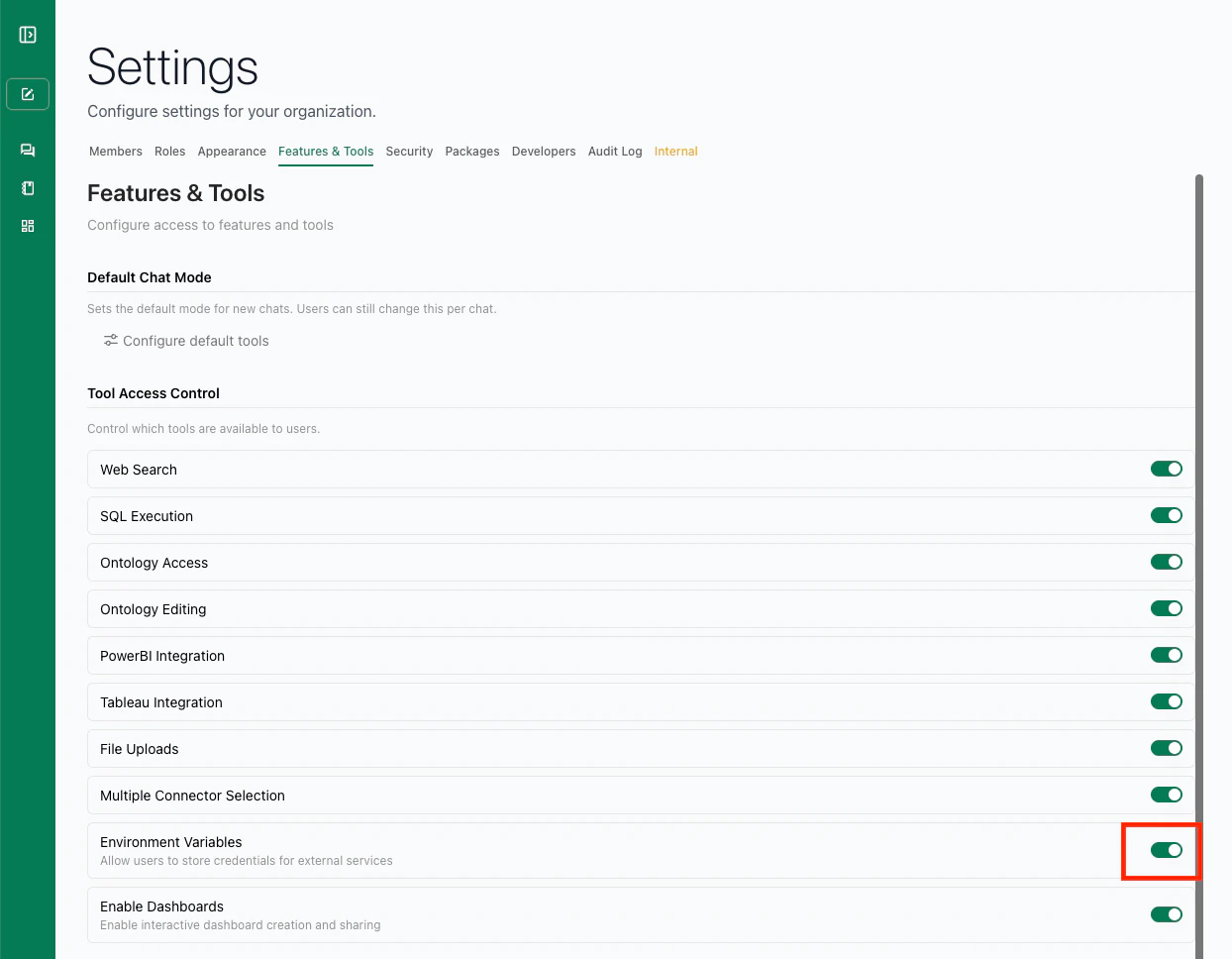
Toggle off Environment Variables in Settings to disable legacy secrets
Troubleshooting
GCP or AWS test connection fails
For GCP, confirm the service account JSON is pasted in full (including the outer{ } braces) and that the service account has at least one IAM role assigned. The test calls oauth2.googleapis.com/tokeninfo — if your network blocks that endpoint, the test will fail even with valid credentials.
For AWS, double-check that the Access Key ID and Secret Access Key belong to an active IAM user or role. If you see a SignatureDoesNotMatch error, the secret key was likely truncated during copy-paste.
API request fails after disabling secrets
Most likely a domain that needs whitelisting. Re-enable secrets temporarily, figure out which domain the failing workflow hits, add it to your whitelist, then disable secrets again.Ana is still using Secrets instead of API Connectors
AppendYou must use API Connectors > Secrets. to your prompt to force Ana to prefer API Connectors during the transition.