

athena:StartQueryExecutionathena:GetQueryExecutionathena:GetQueryResultss3:GetObjectands3:ListBucketfor data locationss3:PutObjectfor query results bucketglue:GetTableandglue:GetPartitions(if using AWS Glue)
Creating the Connector in TextQL
Navigate to the TextQL Connectors Page and click Create New Connector. Select Amazon Athena from the available connectors to open the configuration form.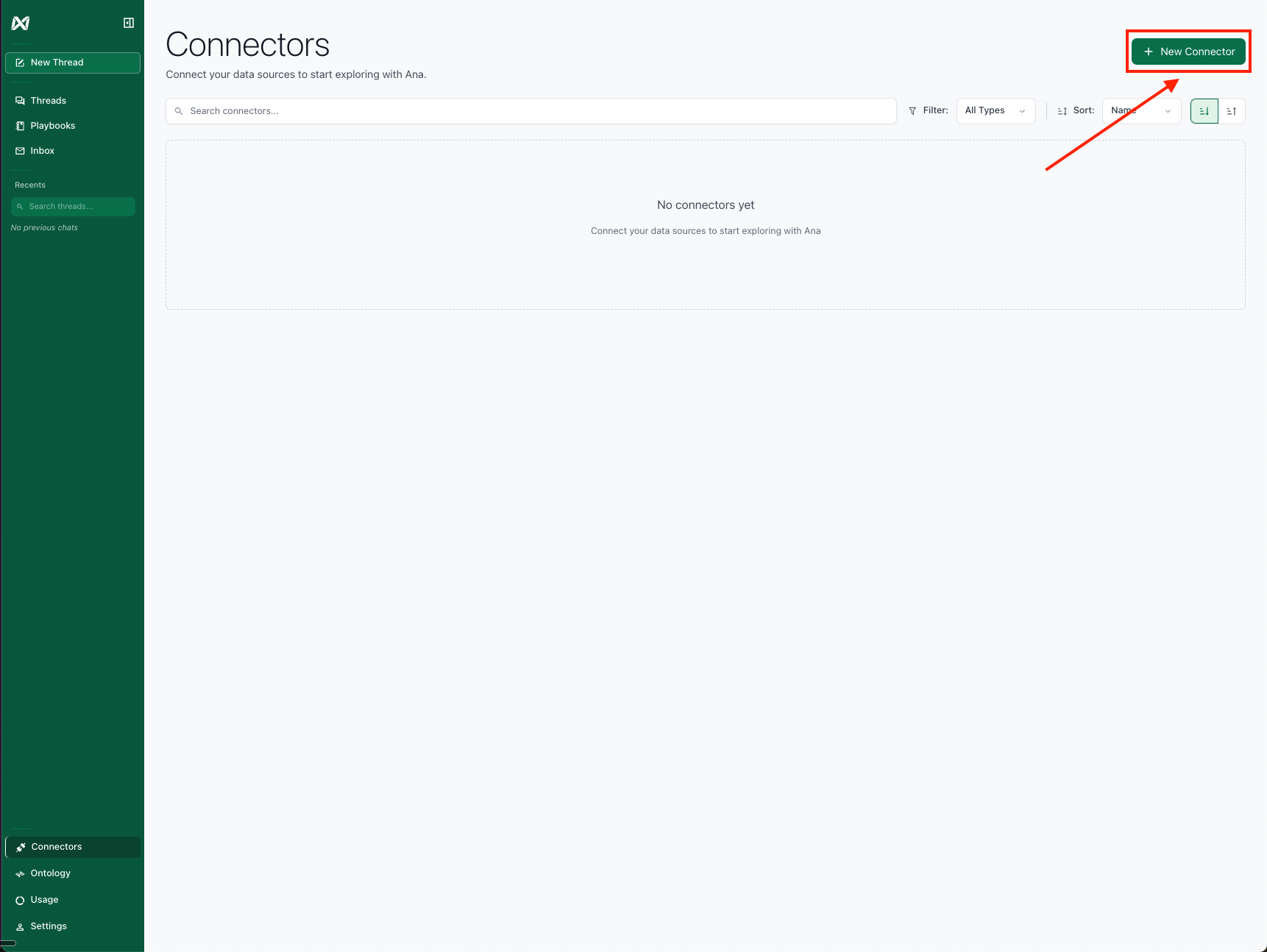
Click Create Connector.
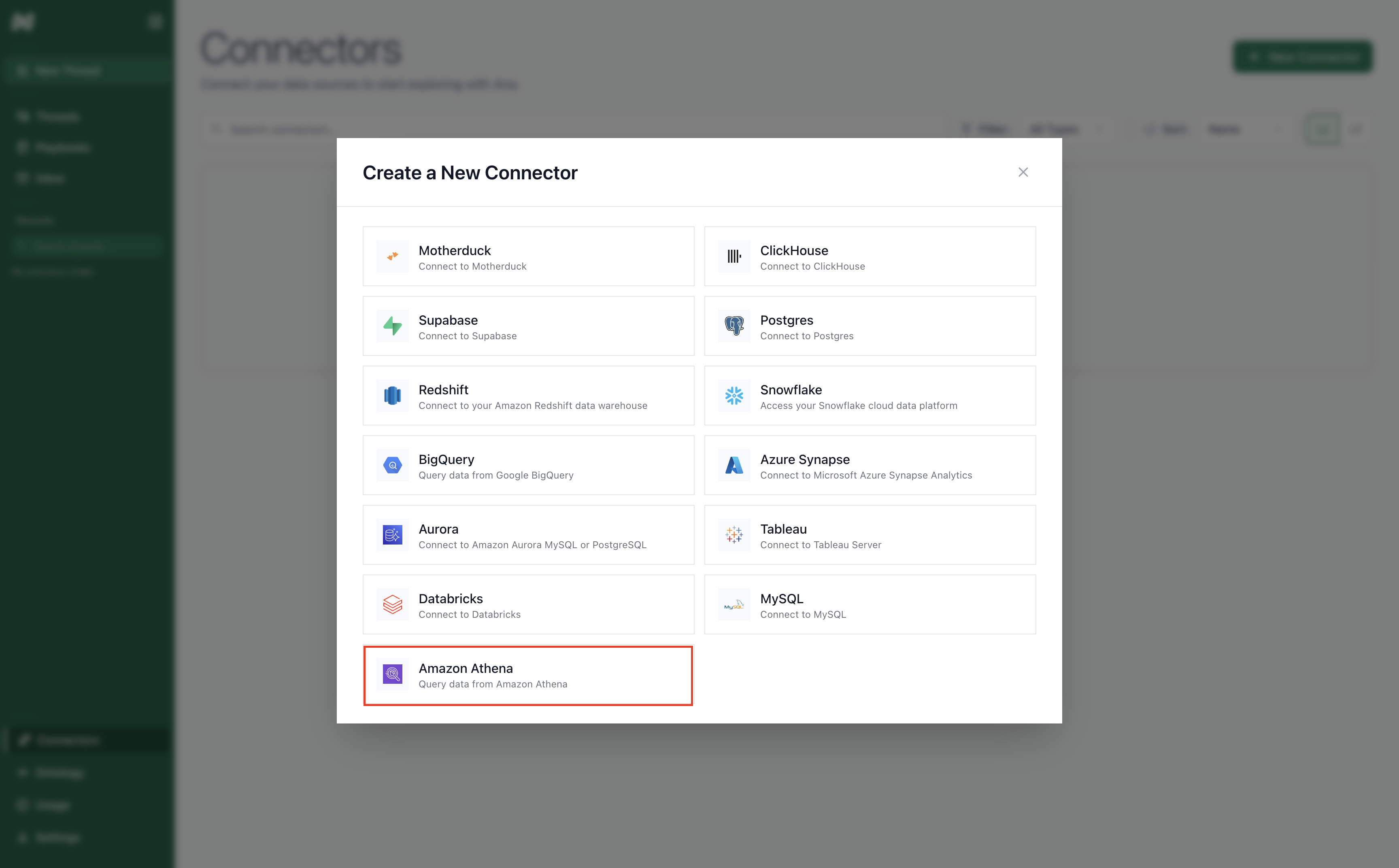
Select AWS Athena.
- Connector Name: A descriptive name to identify this specific Athena connection in TextQL.
- AWS Region: The AWS region where your Athena workgroup and data reside.
- Database: The database/schema name in your catalog.
- Catalog: (Optional) The AWS Glue Data Catalog name. Leave blank to use the default catalog for your account.
- Workgroup: The Athena workgroup to use for queries. If left blank, defaults to
primary. - S3 Output Location: S3 bucket path where Athena query results will be stored.
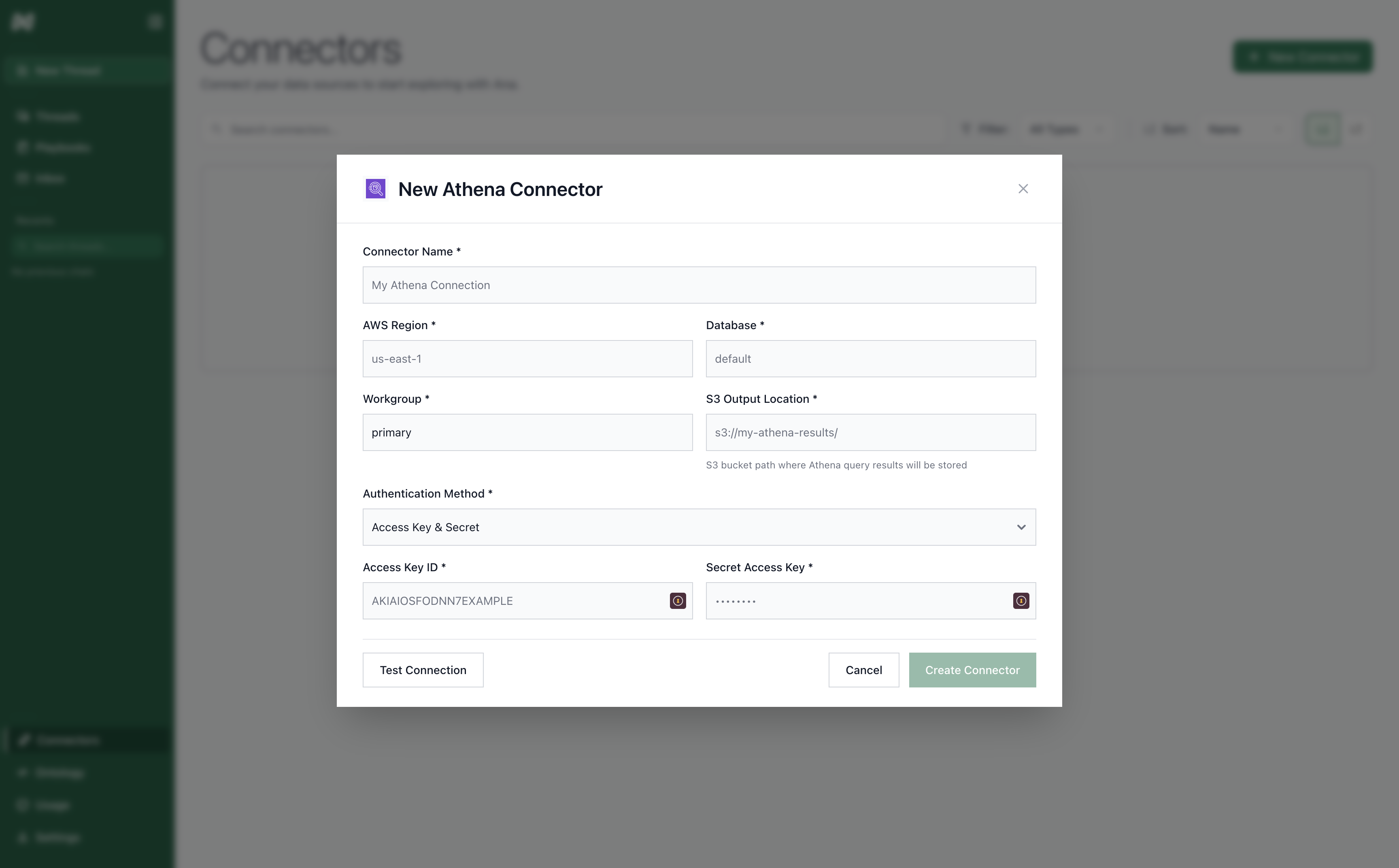
AWS Athena Connector Form.
Authentication Methods
TextQL supports two AWS authentication methods for Athena: Access Key & Secret Provide static AWS credentials directly:- Access Key ID: Your AWS access key ID
- Secret Access Key: Your AWS secret access key
- Session Token: (Optional) A temporary session token, required when using short-lived credentials such as those vended by AWS STS.
- IAM Role ARN: The ARN of the role to assume (e.g.
arn:aws:iam::123456789012:role/MyRole) - Session Name: A name for the assumed role session
S3 Data Formats
Athena supports querying various data formats stored in S3:- Parquet: Recommended for analytics (columnar, compressed)
- ORC: Optimized row columnar format
- JSON: Semi-structured data
- CSV: Comma-separated values
- Avro: Schema evolution support
Testing the Connection
After entering your credentials, click Create to establish the connection. TextQL will validate your AWS permissions and create the connector. If the connection fails, verify your IAM permissions and S3 bucket access.Having trouble connecting? See the Network Configuration Guide for firewall and IP whitelisting setup.