

Organization Defaults
Important for System Administrators: Ana in Teams uses your organization’s default settings for data connectors and available tools. Only system administrators can view and modify these defaults in the Configuration settings. All Teams users will have access to the same default connector and tool set configured by your organization administrators.
Add Ana to Your Teams
- Download the Teams app package: From TextQL, navigate to Connectors > Teams and click Download Teams app (.zip) to save the app package.
- Step 2: Download App
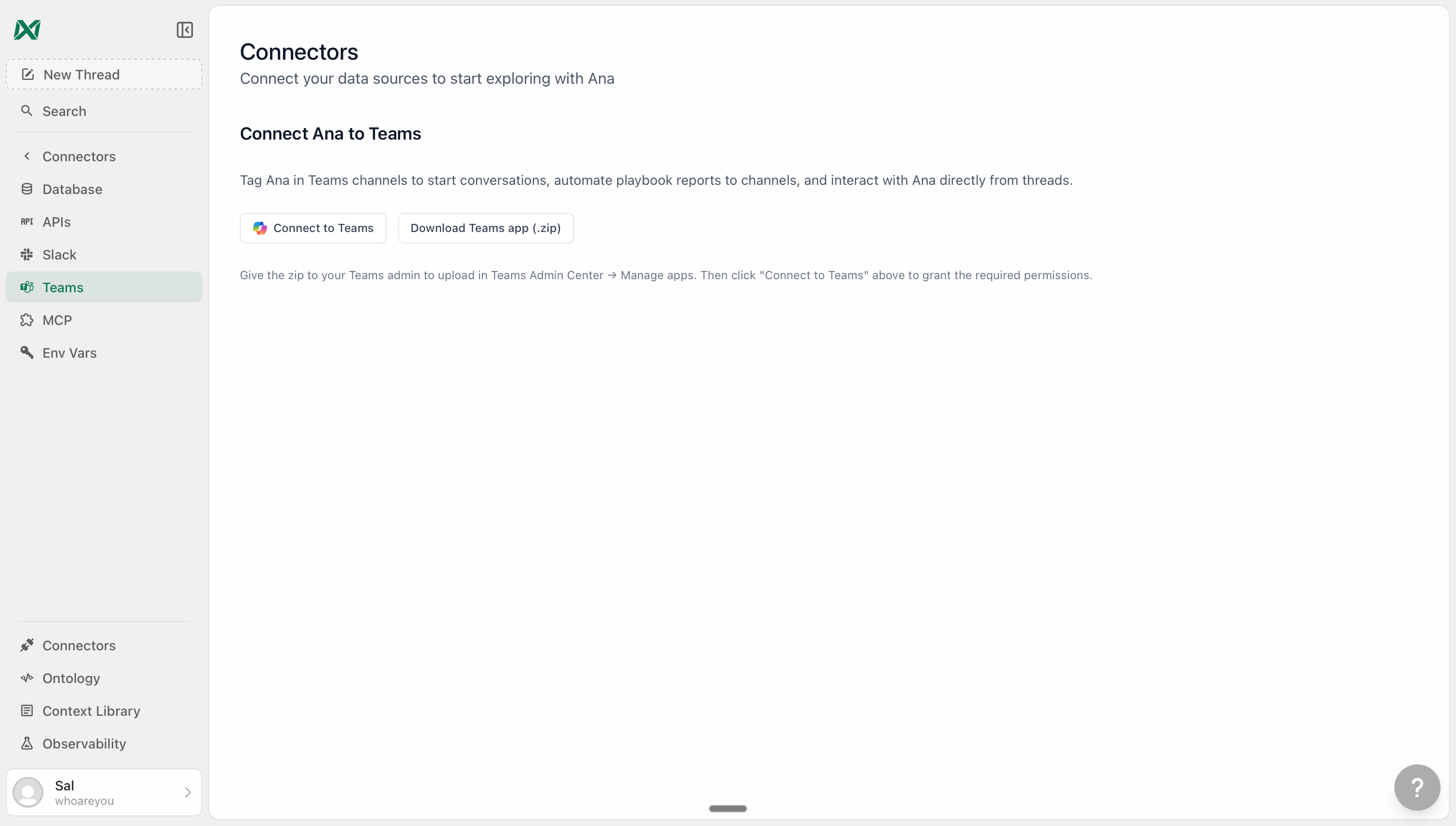
Navigate to Connectors > Teams in TextQL
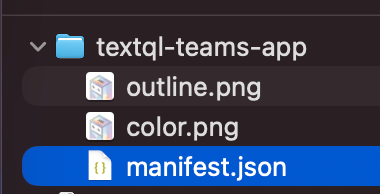
The download is only available on TextQL hosted deployments. For on-prem or VPC deployments, contact support@textql.com for a custom build.
- Upload to Teams Admin Center: Your Microsoft 365 tenant admin should sign in to the Microsoft Teams Admin Center, navigate to Teams apps > Manage apps, click Upload new app, and select the
textql-teams-app.zip. Make sure the app is Allowed for your organization.
- Step 1: Manage Apps
- Step 2: Upload New App
- Step 3: Allow the App
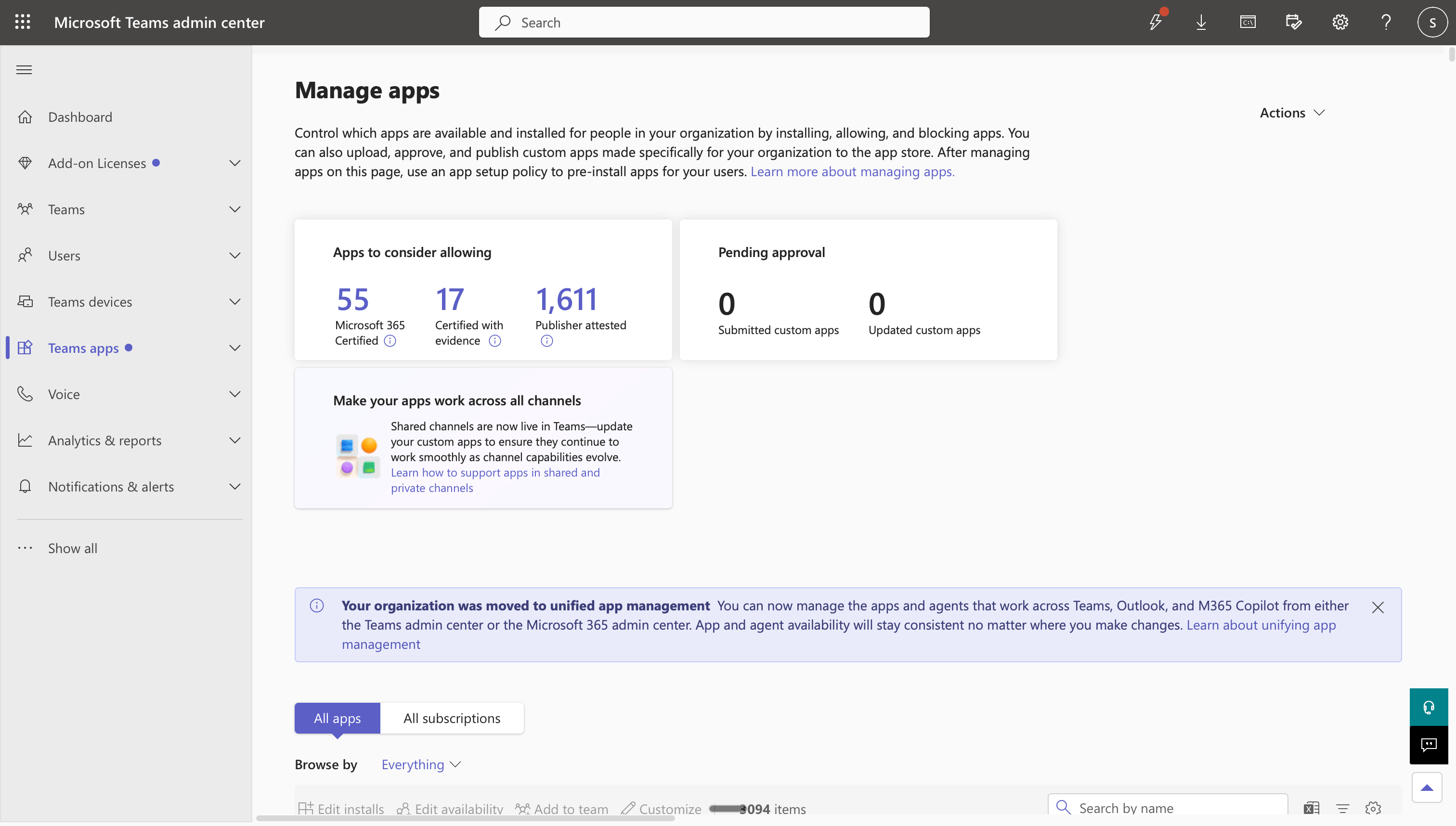
In Teams Admin Center, navigate to Teams apps > Manage apps
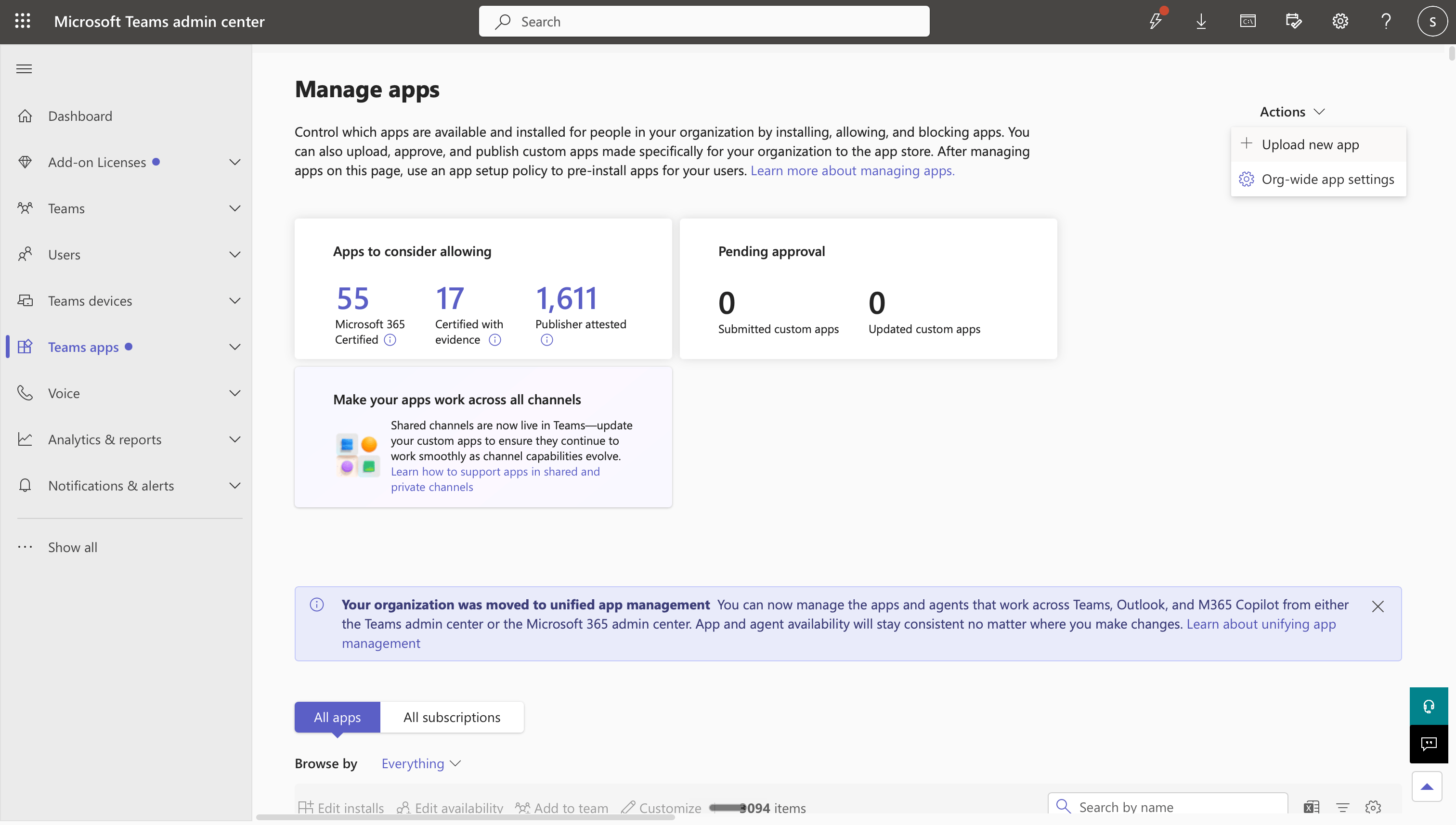
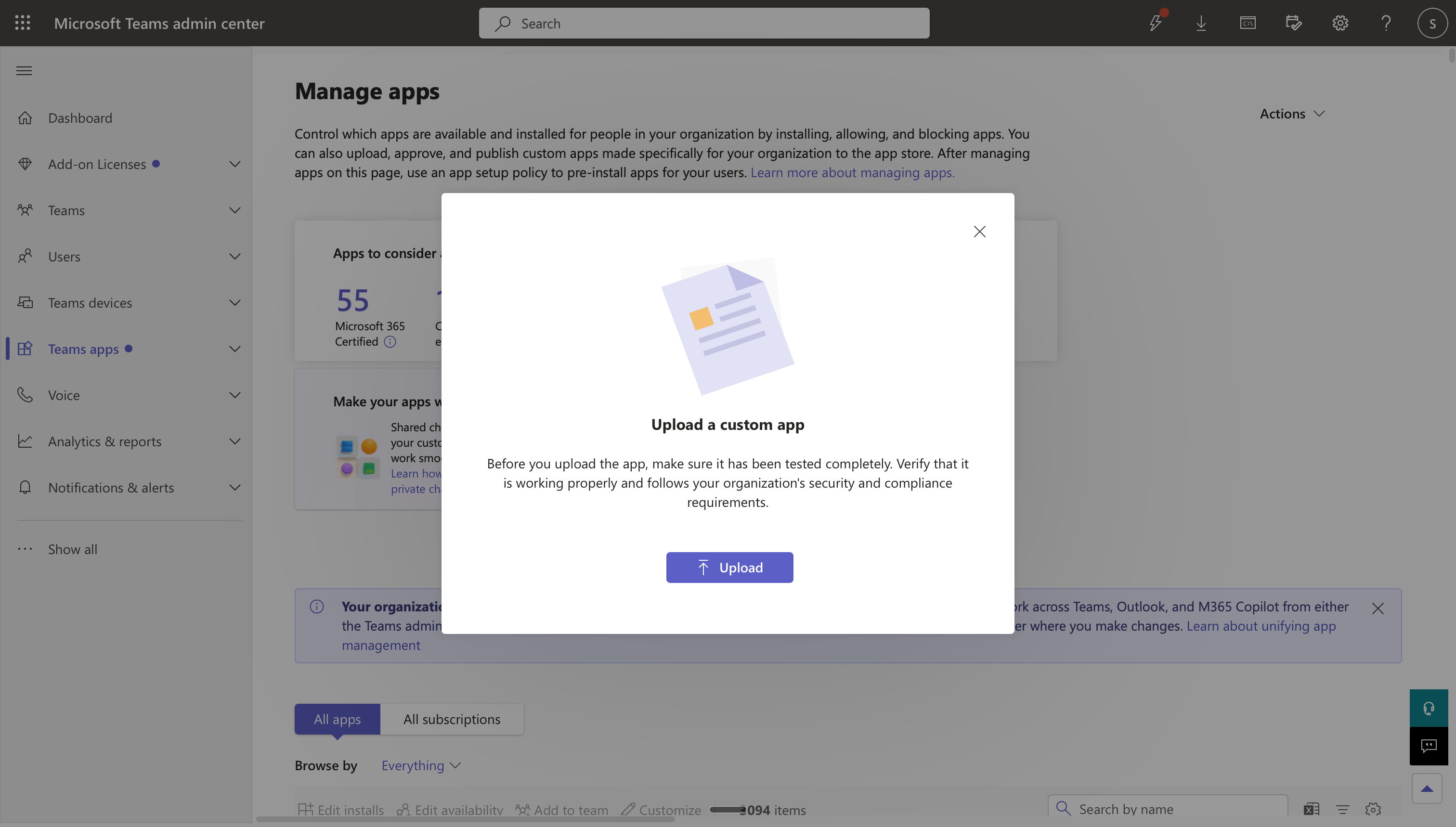
-
Grant admin consent: Open the Microsoft Entra Admin Center, find Ana by TextQL under Enterprise applications, open the Permissions tab, and click Grant admin consent for [your tenant].
The permissions Ana requests are:
Ana also declares two resource-specific consent (RSC) permissions in the app package. Entra admin consent does not cover these. Teams grants them when Ana is added to a team or group chat, or when the app is updated there, so an installed team or chat picks up a newly added RSC permission only after the app is updated in it.
- Connect Ana to TextQL: Back in TextQL on Connectors > Teams, click Connect to Teams to complete the OAuth flow that links the installed Teams bot to your TextQL organization.
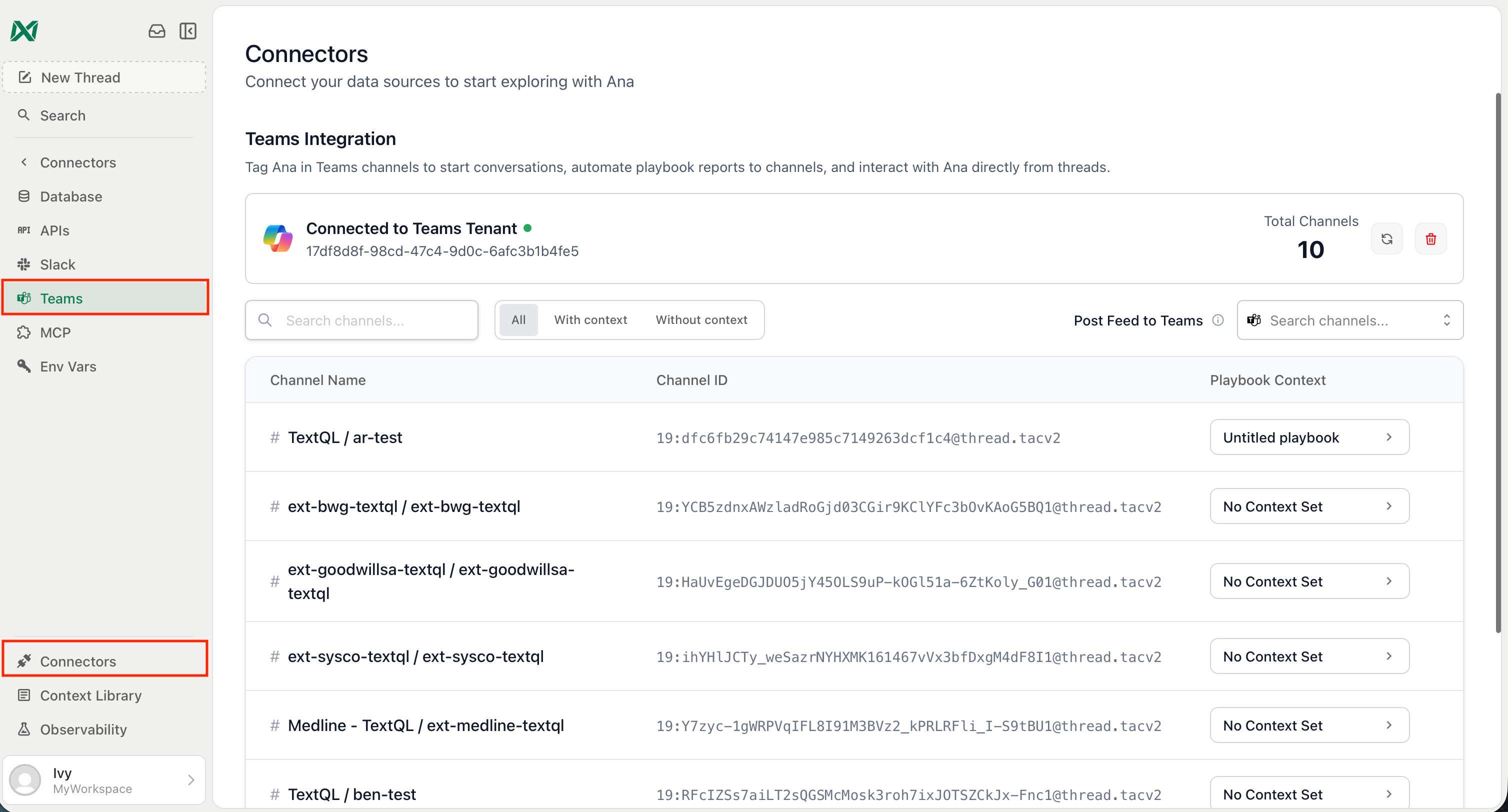
Complete the OAuth flow to link Ana to your TextQL organization
- Install Ana into teams: Users can install Ana from the Teams app catalog (search “Ana”), or your admin can deploy it org-wide or to specific groups from Teams Admin Center.
Features
Ana offers the following capabilities within Teams:- Answer Questions: Pose questions to Ana and receive detailed answers based on your organization’s data.
- Send Back Datasets and Figures: Receive datasets and visualizations directly in your Teams conversations.
- Read User-Uploaded Files: Attach files (CSV, Excel, PDF, images) via the paperclip in a 1:1 chat with Ana, in a group chat Ana has been added to, or in a channel where Ana is installed. Group chat files require app version 1.0.13 or later. If you installed an earlier version, upload the new package in Teams Admin Center so the added permission is granted.
Using Ana in Teams
Once Ana has been added to your Teams tenant, you can start chats with her in the following ways:- In a Channel: Use
@Anain your message to start a new chat with Ana. To send follow-up messages to Ana and continue her analysis, simply reply to her in the same thread.
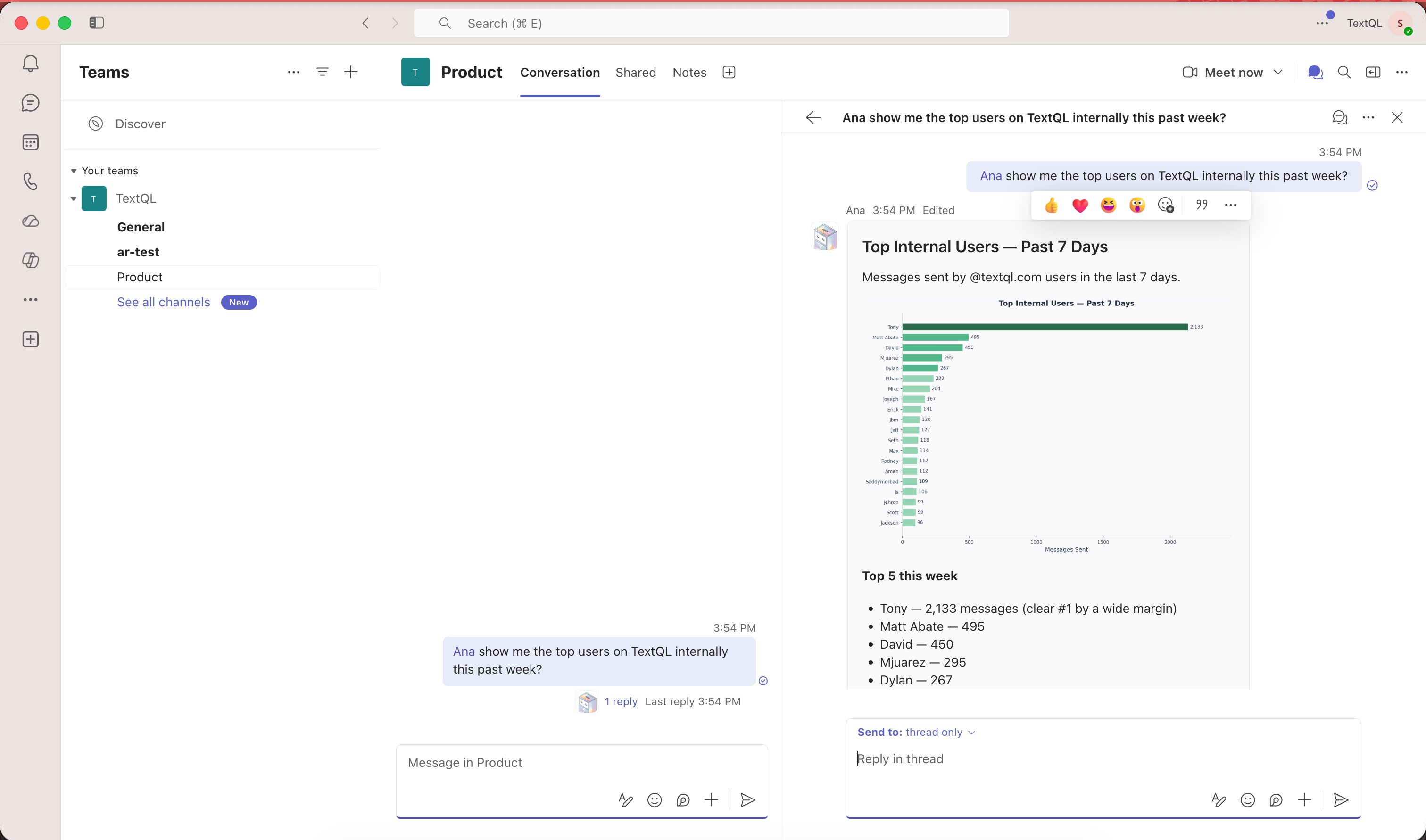
@mention Ana in a channel and reply in thread to continue the analysis
- With a Direct Message: Open the Ana app from the Teams sidebar (or search “Ana” in chat) and message her directly to start a new chat and receive responses privately. To send follow-up messages to Ana and continue her analysis, simply reply in the direct message.
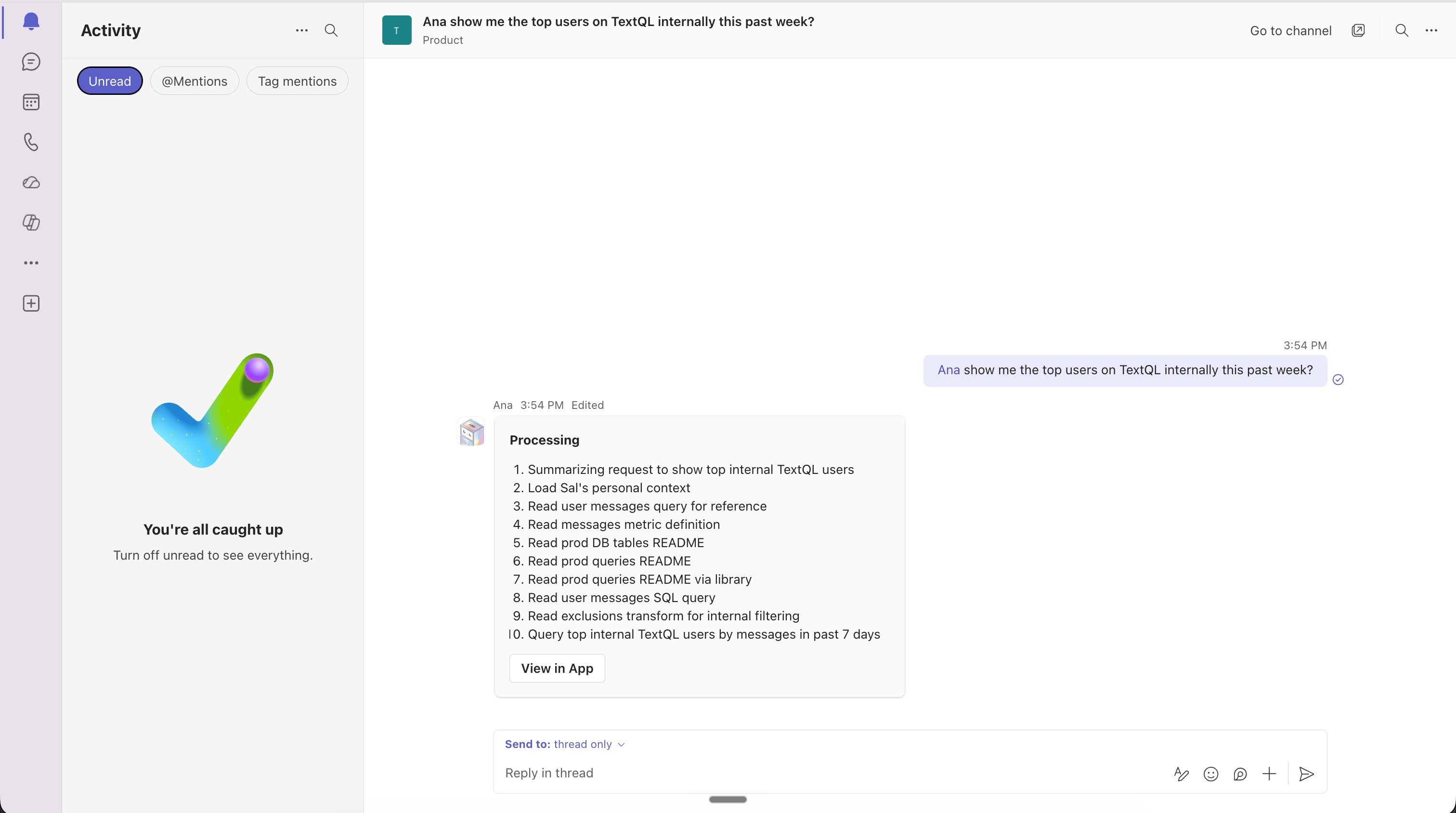
Message Ana directly in Teams via DM
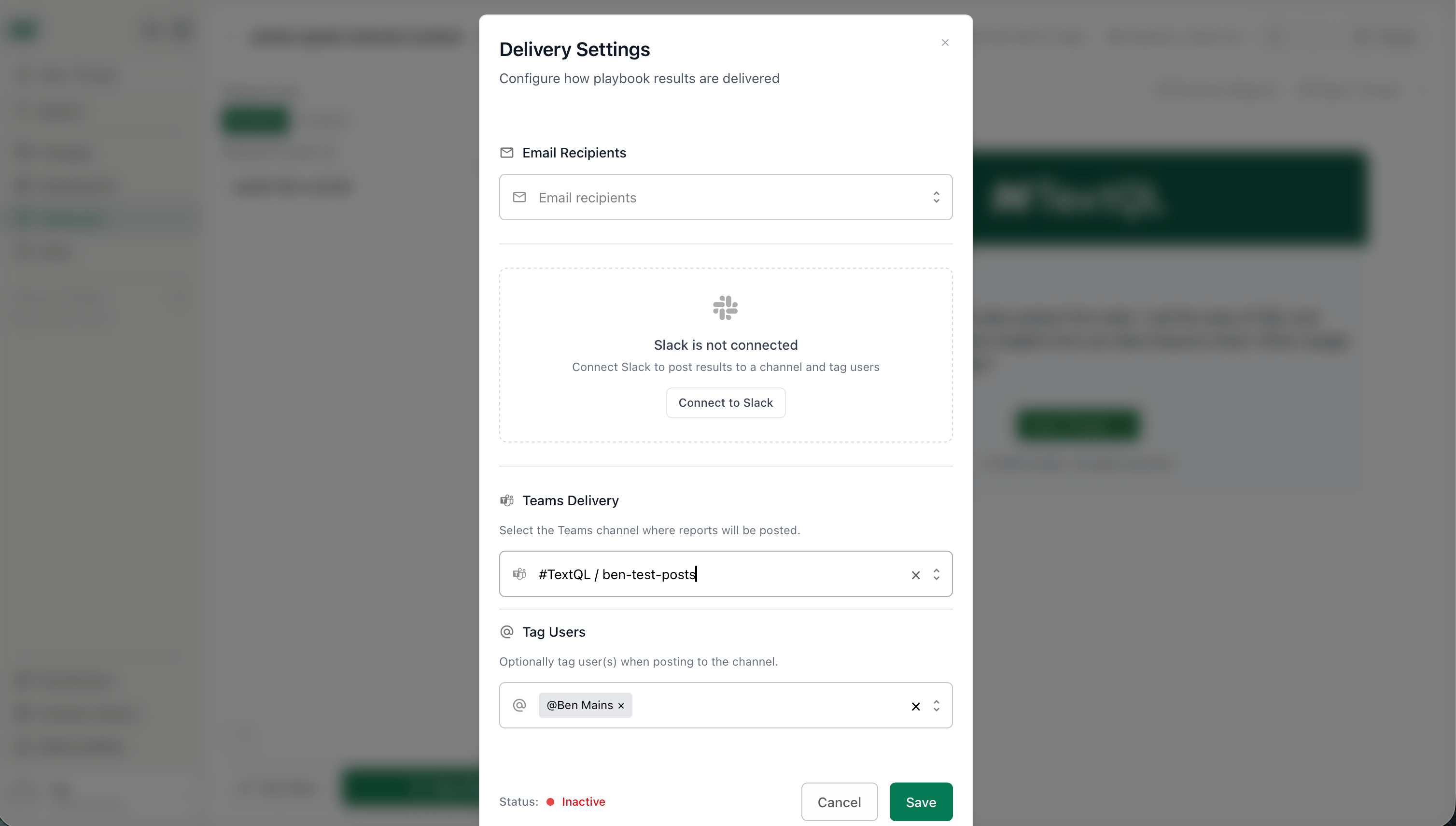
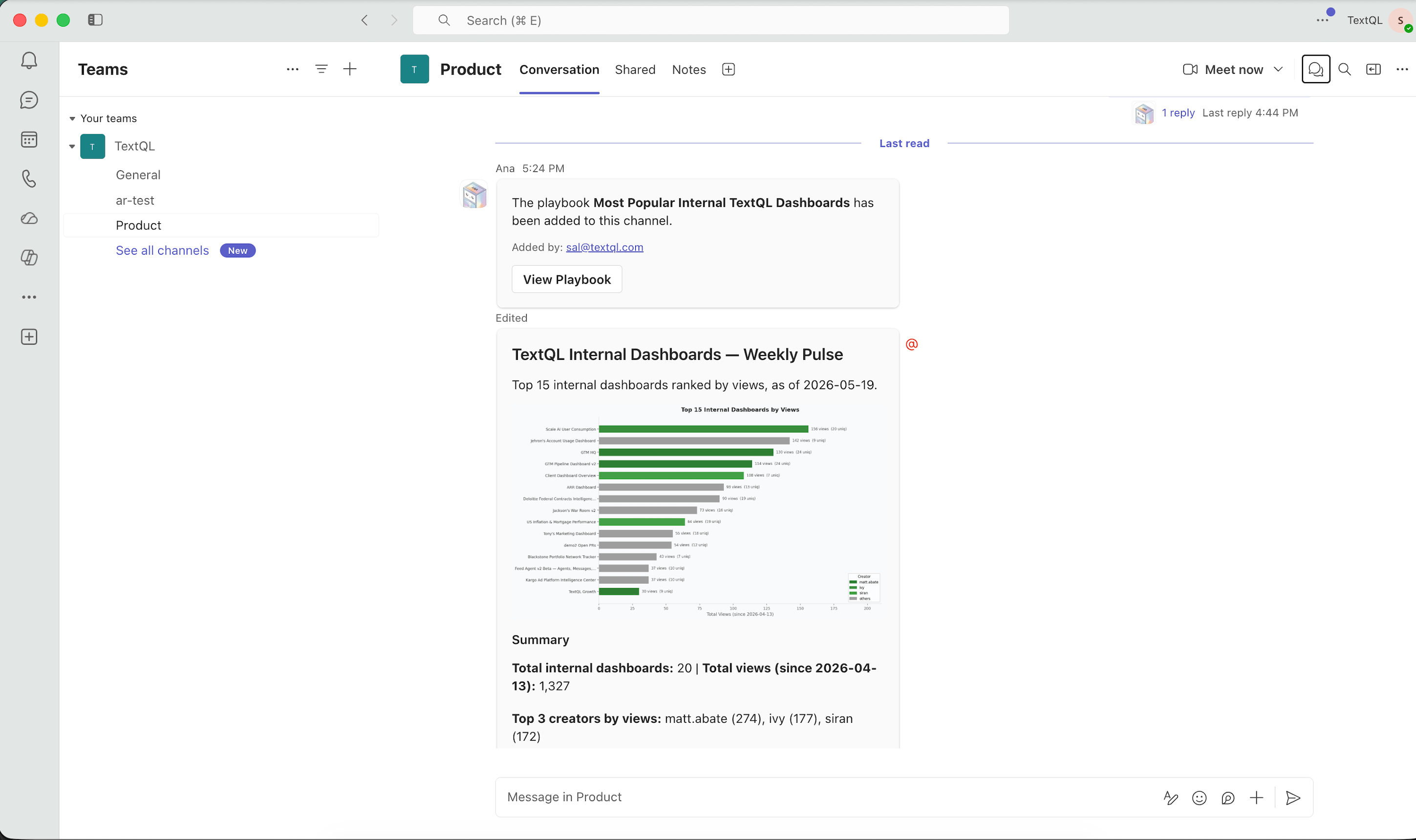
- Scheduled Playbook Reports: Playbooks can be configured to deliver reports directly to a Teams channel on a schedule. Ana posts the results as a message in the channel at the configured interval — no manual prompting required. From there, anyone in the channel can reply in the thread to ask follow-up questions and continue the analysis without starting a new conversation.
- Step 1: Configure Delivery
- Step 2: Deliver Report to Teams Channel
- Step 3: View Report in Channel
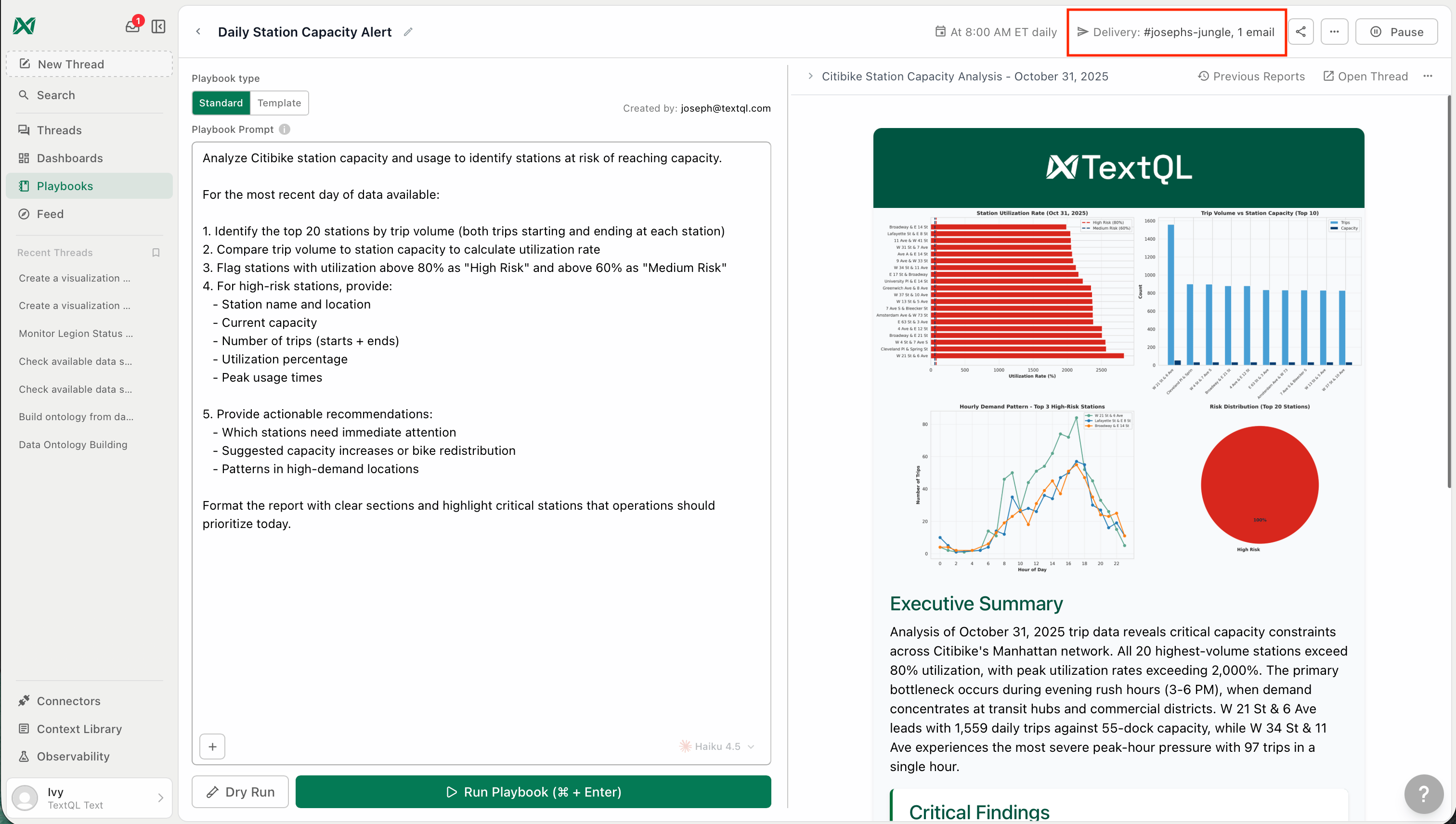
Set a Teams channel as the delivery destination in the playbook editor
Commands
Ana understands a few commands in any chat, channel, or group chat:Multiple Workspaces on One Microsoft Tenant
A single Microsoft 365 tenant can be connected to more than one TextQL workspace. If you are a member of several of them, Ana cannot tell which one you mean, so the first time you ask her something she replies with a list and asks you to pick one. She remembers the choice and answers from that workspace, using its connectors and settings, from then on. Typeswitch workspace at any time to pick a different one. If you belong to only one workspace on the tenant, Ana never asks.
Teams Channel Context
In addition to answering questions, Ana can also use channel-specific context. Channel context ensures that whenever Ana is mentioned in a specific Teams channel, she has the right background information to guide her responses. Channel context is managed through Playbooks:- Create a New Playbook: Navigate to the Playbooks section in the TextQL platform and click Create Playbook.
- Write the Channel Context: Use the provided prompt box to write instructions for Ana specific to this channel — the tone she should use, the audience she’s speaking to, background knowledge she should assume, and any definitions she needs (metrics, KPIs, business terms). This is how you tailor Ana’s behavior so her responses are relevant to the people in that channel.
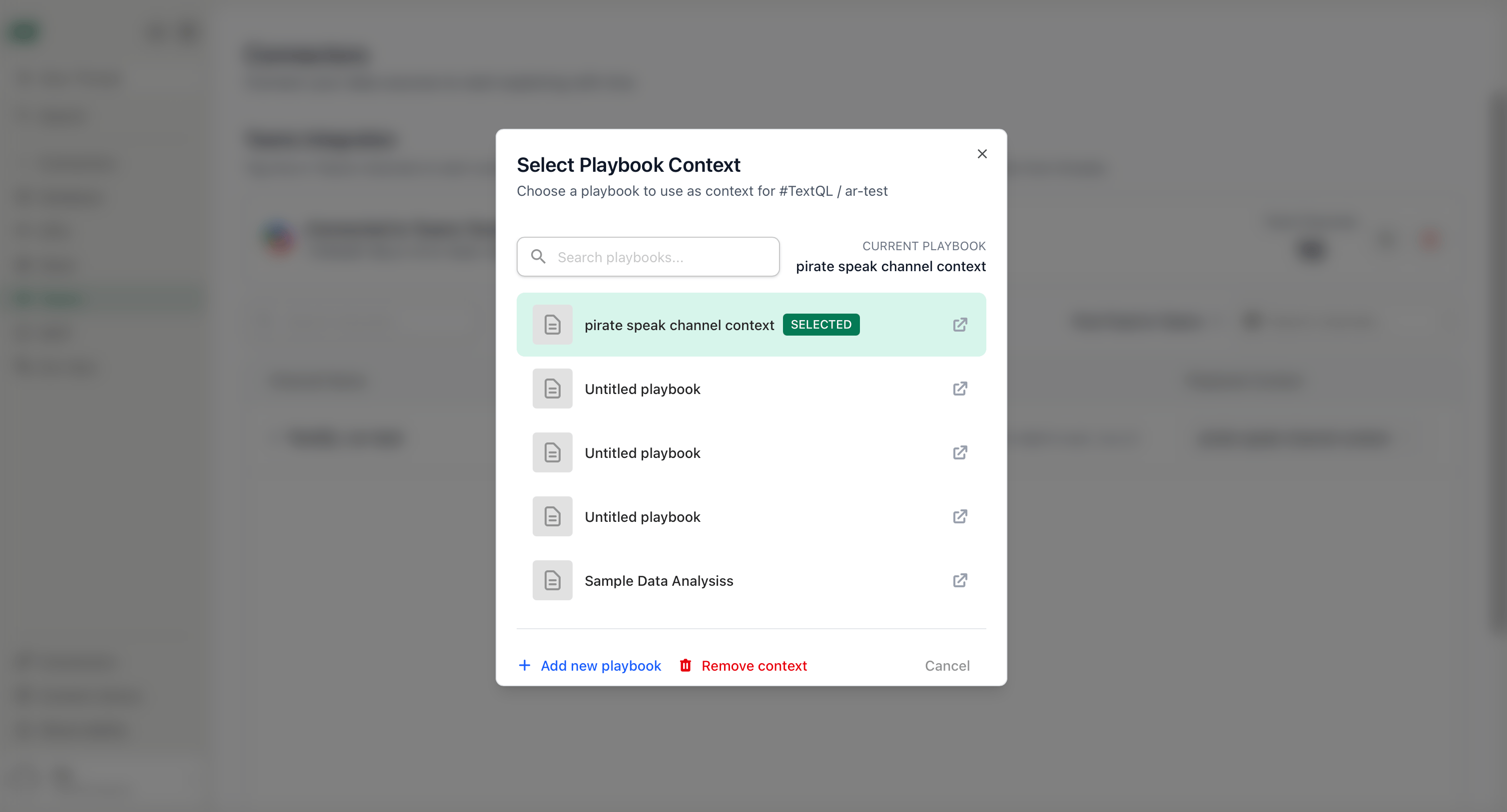
- Select a Teams Channel: Click the Delivery button in the top right corner of the playbook editor, then use the channel selector to choose the Teams channel you want to associate with this playbook. Click Set as Channel Context, and then hit Save.
- Step 1: Open Delivery
- Step 2: Set Channel Context
Click Delivery in the top right corner to open the channel selector
- Keep the Playbook deactivated: The playbook must remain deactivated to function as channel context.
Any datasets and dashboards attached to the playbook are automatically included in the Teams conversation when channel context is applied. If an attachment fails, Ana will post a warning in the thread so you know to investigate.
Need Help?
For further assistance or to request early access, please contact support@textql.com.AI-Generated Content
Ana uses generative AI to analyze your data and write her replies. Every reply is labeled as AI-generated in Teams and carries a disclaimer, because AI-generated content may be incorrect. Verify important details before acting on them.Reporting Objectionable Content
If Ana returns objectionable, harmful, or inappropriate content, report it in any of these ways:- Select Report content on the message. This opens an email to our team with the subject pre-filled.
- Type
reportin any chat with Ana to see the reporting instructions. - Email support@textql.com directly.