

Availability: Branches is in private preview and needs Config Files. Contact your TextQL team to turn it on for your organization.
Create a Branch
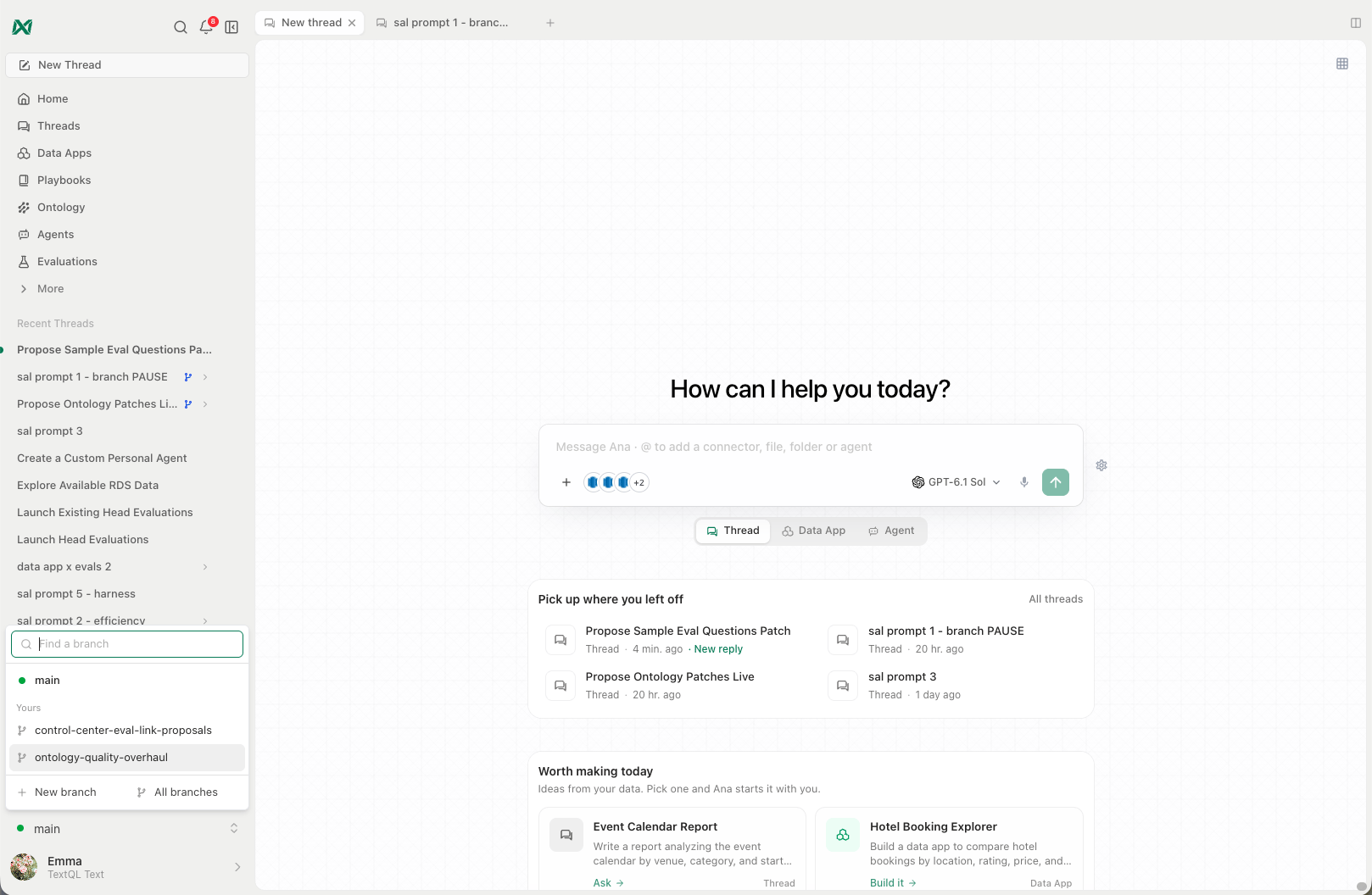
Open the branch switcher in the sidebar and choose New branch, or choose New branch on the Branches page, which All branches in the switcher opens. Give it a name and, optionally, a description. A branch always starts from main.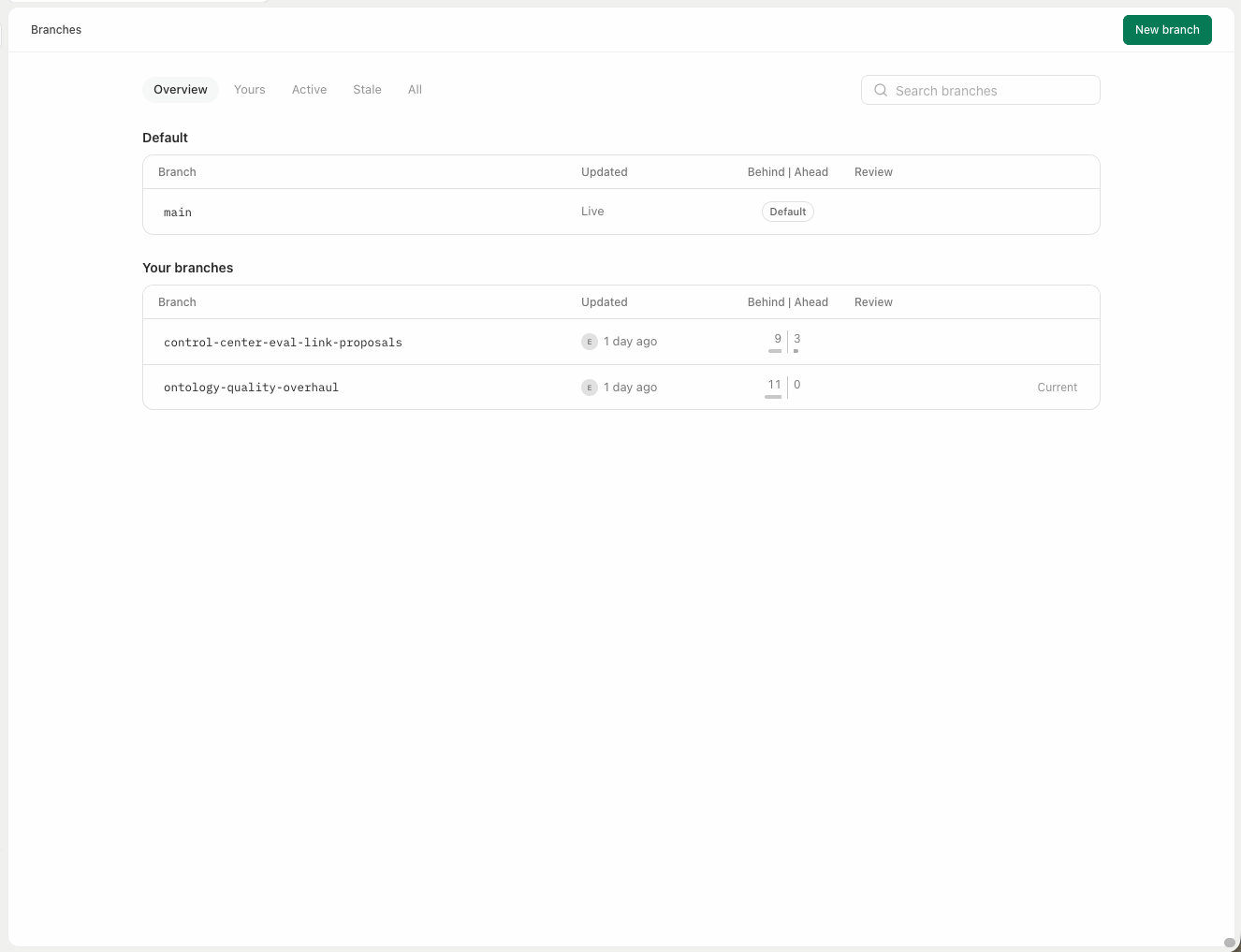
- Review at merge: changes land on the branch right away, and their Owners review everything once, when you merge. Without it, each change on the branch is reviewed by its Owners as it would be on main. Changes to folder access (OWNERS files) always need their Owners first. You choose this when you create the branch.
- Private: only you and the people you share it with can see the branch. Otherwise everyone who can read the Ontology can see it.
Work on a Branch
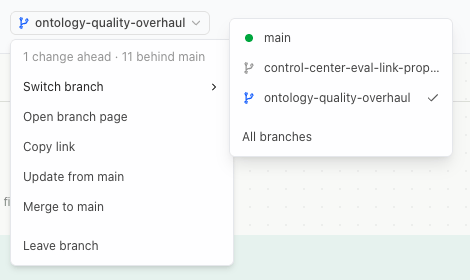
Pick a branch in the switcher to put the current browser tab on it. Branch mode belongs to the tab: other tabs stay where they are, and a tab you open from a branch tab starts on the same branch. While a tab is on a branch:- Each page shows a branch chip with how far the branch is ahead of and behind main, and a menu to switch branches, open the branch’s page, update from main, merge, or leave the branch.
- Lists of playbooks, agents, dashboards, data apps, pipelines and evaluation questions, and Home, mark what the branch adds, changes or deletes. Home has a Changed on branch filter.
- Opening an object the branch changes shows the branch’s version.
- The Ontology editor shows the branch’s files.
Edit on a Branch
Saving an object from a branch tab saves it onto the branch, never onto main. If you open an object the branch hasn’t changed, choose Edit this on the branch to start editing its branch version. To change main itself, leave the branch first. In the Ontology editor on a branch you can edit existing files. To create, rename, delete or upload files on a branch, ask Ana in a Thread on the branch.Nothing Runs From a Branch
A branch shows what its changes would do without letting them act. Playbooks, agents, dashboards and data apps on a branch don’t run on a schedule, can’t be triggered, and don’t send messages. From a branch tab, data apps and dashboards can read data but can’t write it or run actions. Everything runs as normal once the branch merges.Threads on a Branch
A Thread started from a branch tab answers from the branch’s Ontology, and changes Ana proposes land on the branch. Ontology Actions are shown rather than carried out. To start a Thread on main instead, use the branch chip in the message box.Share a Branch
Each branch has its own sharing, from the Share button on its page:
You become the Owner of a branch you create. Admins who can manage the whole Ontology can see and manage every branch. A branch never changes who can read a file: folder access always comes from main.
Stay Up to Date With Main
Choose Update from main to bring main’s latest changes into the branch. If main and the branch changed the same lines, TextQL names the conflicting files and offers Resolve with Ana, which opens a Thread on the branch to work through them. The resolution is reviewed like any other change.Merge or Close
Choose Merge to main to file the whole branch as one change against main. It lands right away if the branch’s changes were already approved by their Owners; otherwise it waits in the Reviews tab until they approve it, as described in How a Change Goes Live. Closing a branch discards it. Merging or closing a branch denies any changes still open on it and stops Threads on it from taking more changes. Its page and history stay available under All on the Branches page.Evaluate a Branch
If your organization uses Evaluations, you can run evaluation questions against a branch before it merges, and compare the branch with where it left main. Choose Compare evals with main from the branch page’s menu.Related
- Config Files: how a change goes live, reviews and runners
- Role & Access: folder access and Owners