

Two Layers, Both Required
For non-admin roles, Ontology access is the intersection of two independent settings. A user needs both before they can read or edit anything:
Folder access can only restrict within what the org-level permission already allows. It can never grant more. Marking a role as Editor on a folder does nothing on its own if that role lacks the org-level Ontology write permission; users in it will still see the folder as read-only.
Admins are the exception: the system admin role bypasses both layers and always has full read/write across the Ontology.
Setting Folder Access
Folder access control who can see a folder at all — Ana will not reference, load, or reveal the existence of any folder a user doesn’t have access to. Navigate to the folder you want to restrict and click the Manage access icon on the right-hand side.- 1. Open Manage Access
- 2. Configure Access
Click the Manage access icon on the right side of the folder row to open the access panel.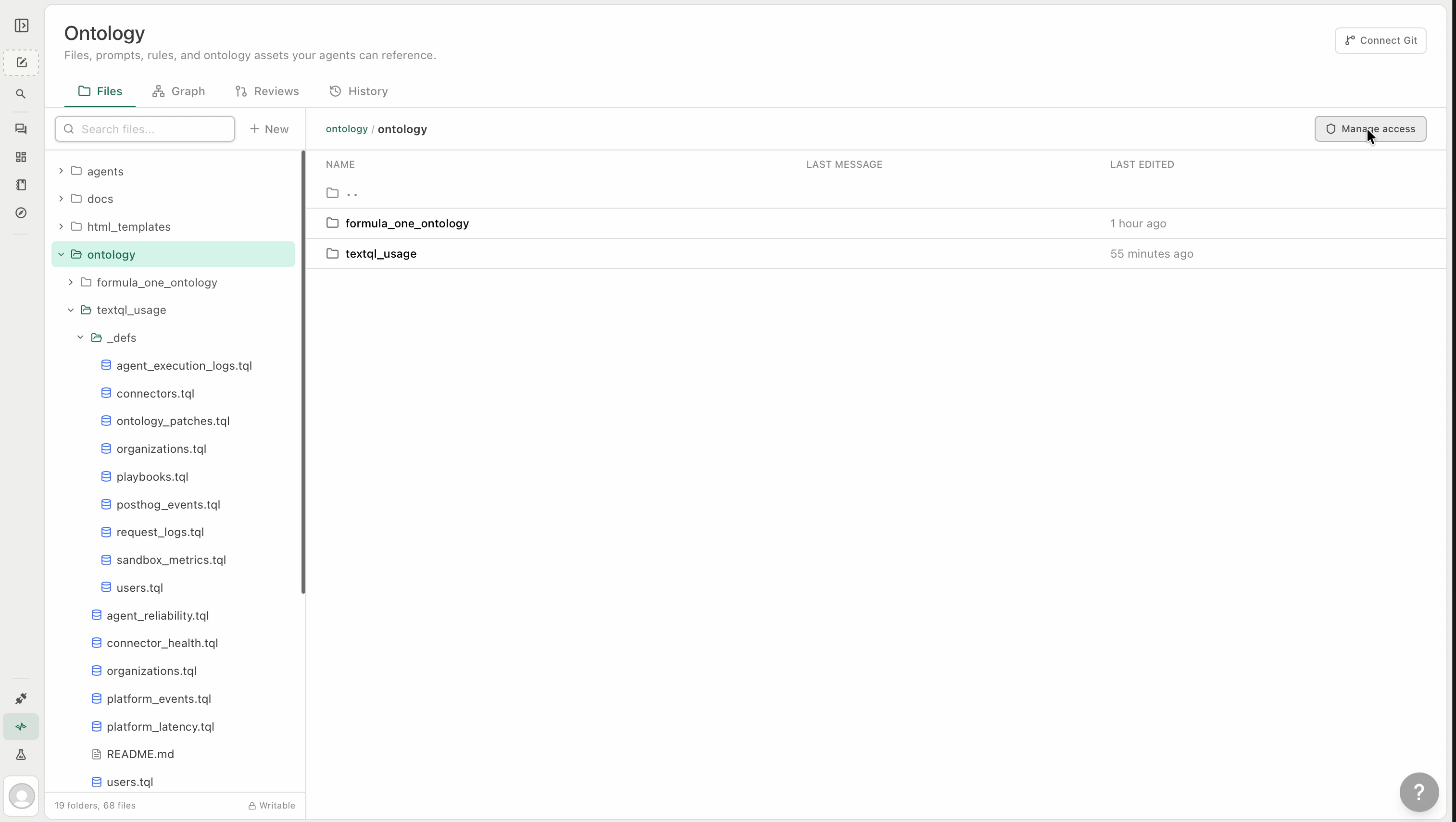
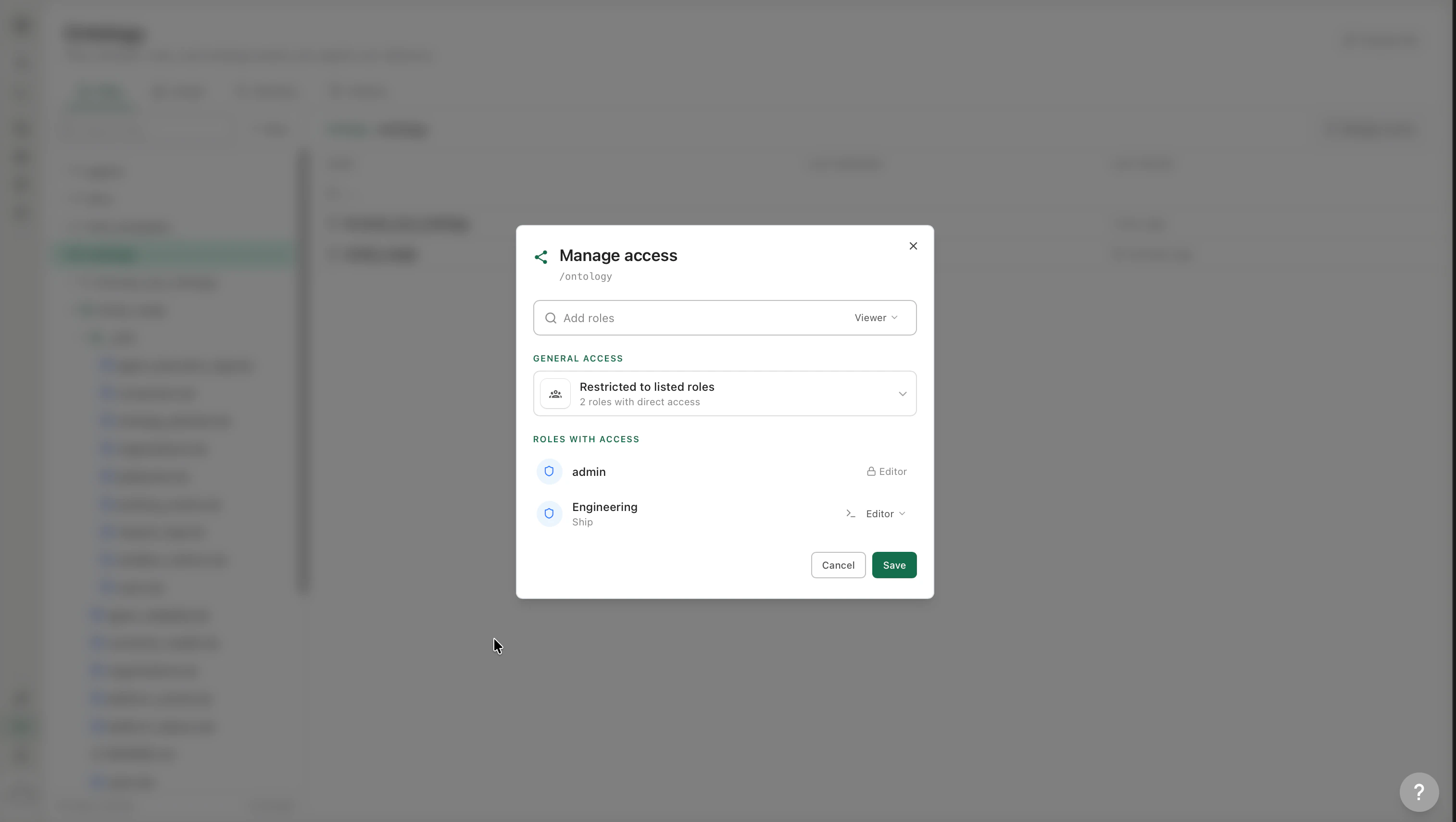
Admins always retain full access to all folders regardless of access settings.
Reopening a Restricted Folder
Switching a folder back from Restricted to Open clears its access list entirely, and everyone in your organization can read and write it again — subject to the org-level Ontology permissions in the table below, and to any parent folder that is still restricted. Through the API, the same thing is expressed by setting the folder’s owners to an empty set, which removes its access list rather than rejecting the call.GetEffectiveOntologyOwners then reports full access for unlisted principals, which is how you confirm a folder is genuinely open rather than merely inheriting.
On deployments before this fix, clearing the last role left the folder restricted instead of opening it. If you have a folder you believed was open, re-check it — the reliable test is that a member outside every listed role can read a file inside it.
Access Levels
Each role can be granted one of two access levels:
If the org-level permission in the right-hand column is missing, the folder level silently downgrades: an Editor without org-level write behaves as a Viewer, and a Viewer without org-level read cannot see the folder at all.
Code Owners Are Not Access
Ontology → Rules and owners lets you assign code owners to a path. This is a separate system from folder access, and it is worth being precise about what it does:- Code owners are assigned to people, whereas folder access is assigned to roles.
- Being a code owner means your approval is requested on changes to the paths you own. It is a review-routing rule.
- Being a code owner grants no read access and no edit access whatsoever.
How Access Affects Ana
Access levels aren’t just UI controls — they propagate directly into Ana’s Threads. When a user opens a Thread:- Ana checks which folders the user has access to based on their role
- She only loads files from folders the user can read
- She can only propose edits to folders where the user has Editor access
File-Level Access
Files don’t have their own access — they inherit from their parent folder. The Properties tab on any file shows the effective access and a shortcut to Manage access on parent folder.Auto-Attach and Roles
On each file’s Properties tab, the Auto Attach section lets you configure when the file is loaded into a Thread. You can scope auto-attach to specific roles:
This gives you fine-grained control: a Finance team’s fiscal calendar can auto-load for Finance users on the Snowflake connector, without adding noise to every other Thread.
Folder Nesting and Inheritance
Access control applies at every layer of folder nesting. A subfolder cannot grant access to a role that doesn’t already have access to the parent folder. For example, if theFinance/ folder is restricted to the Finance role, a Finance/Sensitive/ subfolder can further restrict to Finance + Admin — but cannot open access to a role that can’t already see Finance/.
Example Setup
A typical enterprise org might organize access like this:What’s Next
Setting Up Your Ontology
Add files, configure dynamic loading, and manage history
What is Ontology?
Understand the semantic layer and key capabilities