

Overview
Manage Workspaces brings the workspaces you belong to into one place. You can see activity across them, give people roles in several workspaces at once, keep settings consistent, and create API keys that work in more than one workspace. Open it from the workspace switcher: click your workspace name, then select Manage workspaces. It opens on Overview, which lists your workspaces and, where you can see stats, how each one is doing.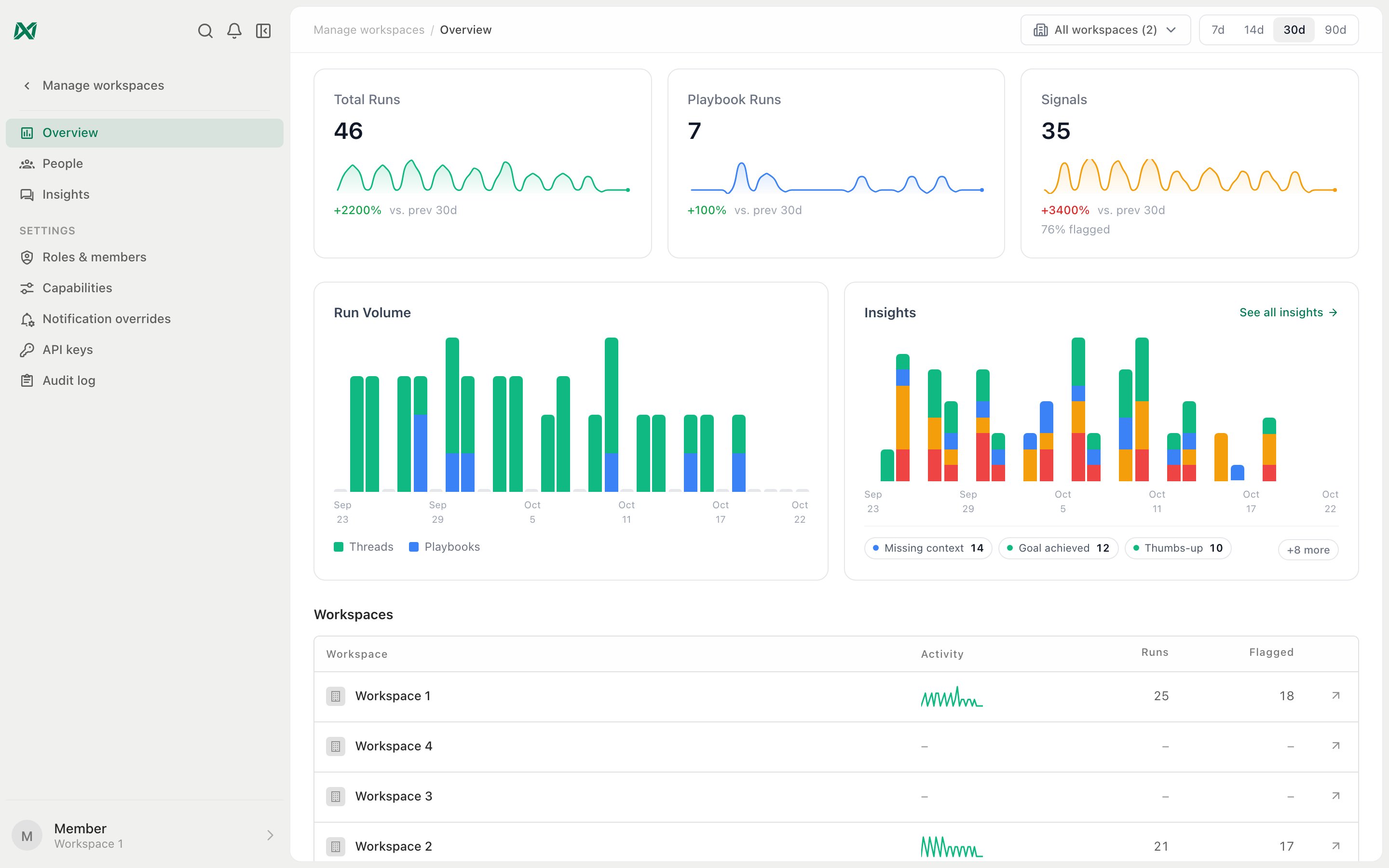
Overview, with stats across workspaces and the workspaces table
Who Can Use It
- A signed-in browser session: API keys and OAuth tokens can’t use Manage Workspaces, because each is scoped to a single workspace
- Two or more workspaces in your switcher: With SSO, only some of your workspaces may count. See Single Sign-On (SSO)
- Permissions in each workspace: Manage Workspaces never grants access you don’t already have. Each page counts only the workspaces where you hold its permission, and appears once that count reaches two
Single Sign-On (SSO)
Manage Workspaces covers the same workspaces as your workspace switcher. Which ones those are depends on how you signed in.
For example, if two of your workspaces sign in through the same Okta, you can switch between them and manage both together. A workspace on a different identity provider, or on email sign-in, doesn’t appear. Sign in to it separately to work there.
This keeps a session from one identity provider from reaching a workspace that trusts another. Manage Workspaces API keys follow the same rule: a key can only reach workspaces you could switch to from the session you created it in.
Pages and Permissions
Permission names match Settings → Roles. See the Permission Reference for what each one allows.
The extra permissions change what a workspace’s row shows, never which workspaces you see. Where you lack one, that cell stays blank and the totals still cover every workspace.
The Observability pages summarize the same data as each workspace’s own Observability page and link to it. Capabilities and Notification Overrides use the same settings as Settings in each workspace.
Making Changes
Changes to roles, members, capabilities, and notification overrides follow the same steps:- Choose: Pick what to change, or pick a workspace to copy from. A copy is exact
- Pick workspaces: Only workspaces where you can make that change are offered
- Review: See what changes in each workspace, shown as before and after. Nothing changes until you push
- Push: Each workspace shows whether its change succeeded
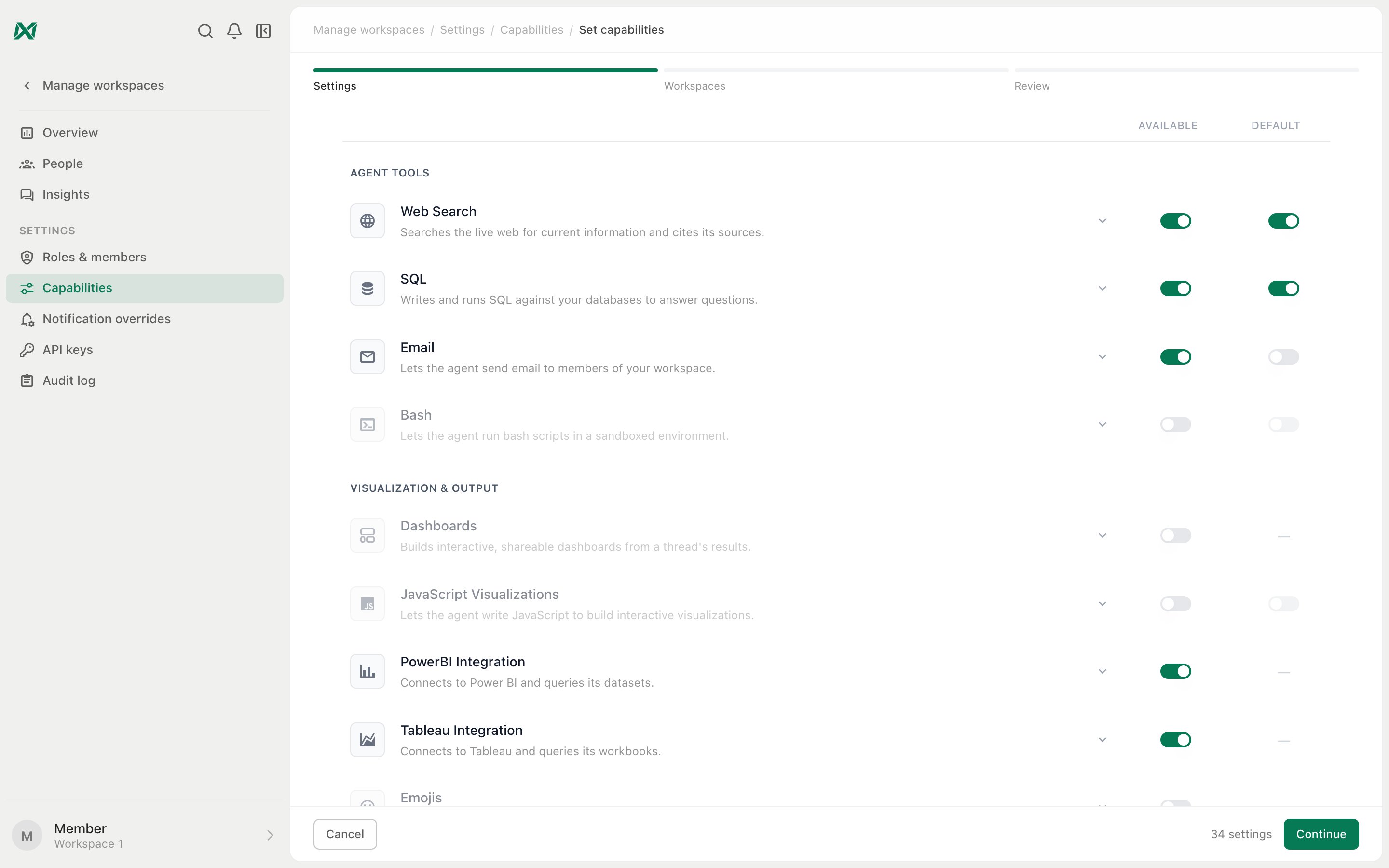
Setting capabilities for several workspaces at once
Role Names
Pushing a role never changes an existing one:- Same name: If a workspace already has a role or group with that name, the push stops and says which workspace. Rename the role, or leave that workspace out
- Same permissions: If a workspace already has a role with exactly the same permissions, that role is used instead of creating a duplicate
Audit Trail
Every change is recorded in that workspace’s own Audit Log, tagged as made from Manage Workspaces. The Audit log page in Manage Workspaces lists those entries across your workspaces, and you can search and filter them by workspace.Manage Workspaces API Keys
A regular API key works in one workspace. A key created from Manage workspaces → API keys works in every workspace you add to it. The API calls these master keys.Creating a Key
- Workspaces: Pick the workspaces it can reach, up to 200. You can only add workspaces you could switch to yourself
- Expiry: Keys expire after 90 days by default. You can choose an expiry of up to a year
Using a Key
The key itself doesn’t call the API. Exchange it for a short-lived token for one workspace, then call the API with that token:accessToken that lasts 15 minutes, or until the key expires if that’s sooner. Send it as Authorization: Bearer <accessToken>. In that workspace, the token acts as you, with your roles there, like a personal API key. Mint a new token when it expires.
Each mint checks that you can still switch to that workspace. Leaving a workspace, or losing access to it, stops the key working there.
Revoking a Key
- Your own key: Revoke it to stop it working everywhere at once
- Someone else’s key: Admins with View settings in 2+ workspaces can see other people’s keys that reach those workspaces. With Manage settings in a workspace, they can cut a key off from it, and the key keeps working in its other workspaces