

Let’s build a simple ontology together. We’ll create an object for Customers. What You Need:Documentation Index
Fetch the complete documentation index at: https://docs.textql.com/llms.txt
Use this file to discover all available pages before exploring further.
- A database connection in TextQL
- Basic understanding of what data you have
- The table you want to build an object for
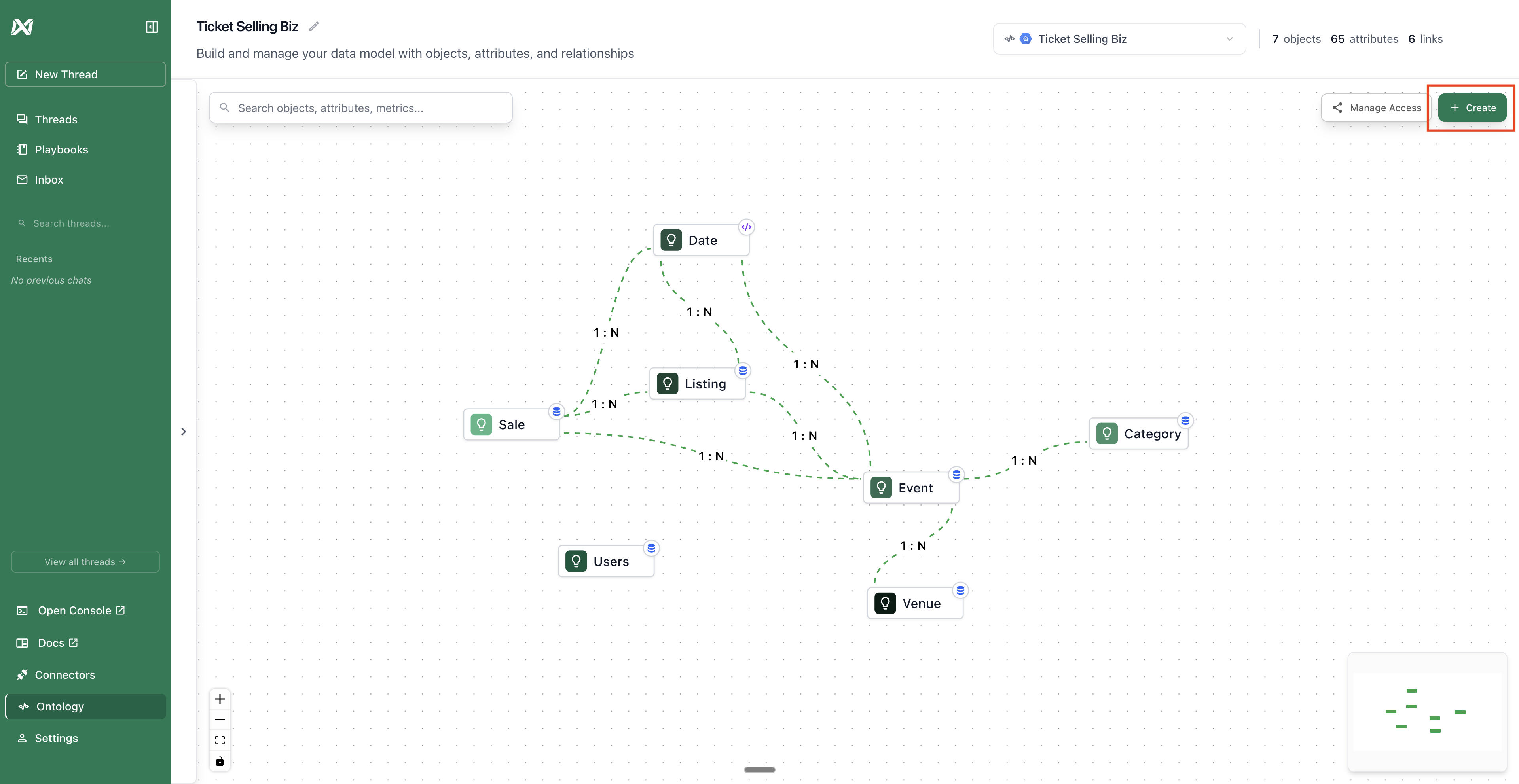
Step 1: Create Your First Object (Customer)
Where to Start:- Go to your Ontology Page
- Click “Create Object”
public.customers (or your customers table)
- This is the database table that stores customer data
- Choose from the dropdown
- Make it business-friendly
- Help others understand what this represents
- Be specific and clear
What You Just Did:
You told Ana “there’s a thing called Customer, it lives in the customers table, and each customer is uniquely identified by customer_id.”
Step 2: Attributes
Attributes will auto populate once you select your table. We need to tag each attribute as a primary key, dimension, or measure. Let’s use our customer object example and how each of the columns should be identified:customer_id→ primary key (unique identifier)customer_name→ dimension (use to group/filter)customer_email→ dimension (descriptive text)customer_signup_date→ dimension (use to filter by date)customer_type→ dimension (category: individual/business)first_order_date→ dimension (use to group/filter)last_order_date→ dimension (use to group/filter)lifetime_value→ measure (dollar amount to sum, average etc.)avg_order_value→ measure (dollar amount to sum, average etc.)total_orders→ measure (count to aggregate, average etc.)
Step 3: Define Your First Metric
Let’s create a “Total Lifetime Value” (revenue) metric. Create the metric:- Click “Create Metric” in the ontology interface
- Fill in:
- Metric name: Total Lifetime Value
- Description: Sum of lifetime_value amounts
- Aggregation: Sum
- Click “Create Metric”
What You Just Did:
You defined exactly how to calculate total lifetime value. Now whenever anyone asks about total lifetime value, Ana uses this exact calculation.
Create some more metrics that you want defined!
Step 4: Create Links Between Objects
Now connect your objects so Ana understands relationships and how your data connects. Without links, Ana can only analyze one object at a time, but with links, it can combine data from multiple tables. Once you have multiple objects created, you can create links between the two tables. Link 1: Orders belong to Customers- Select an object that you want to create a link for. Hit “Create” and select “Link”.
- Fill in:
- Title: Customer orders
- Link source: customers
- Link destination: orders
- Source key: customer_id (in customers table)
- Destination key: customer_id (in orders table)
- Click “Create Link”
What This Means:
Many orders can belong to one customer. When you ask “show me orders by customer,” Ana knows how to connect them.