

Your analysis, in its own window
Keep chats, dashboards, and playbooks side by side, move between them with real tabs, and reach TextQL from your dock instead of hunting through browser tabs. Available for Mac, Windows, and Linux.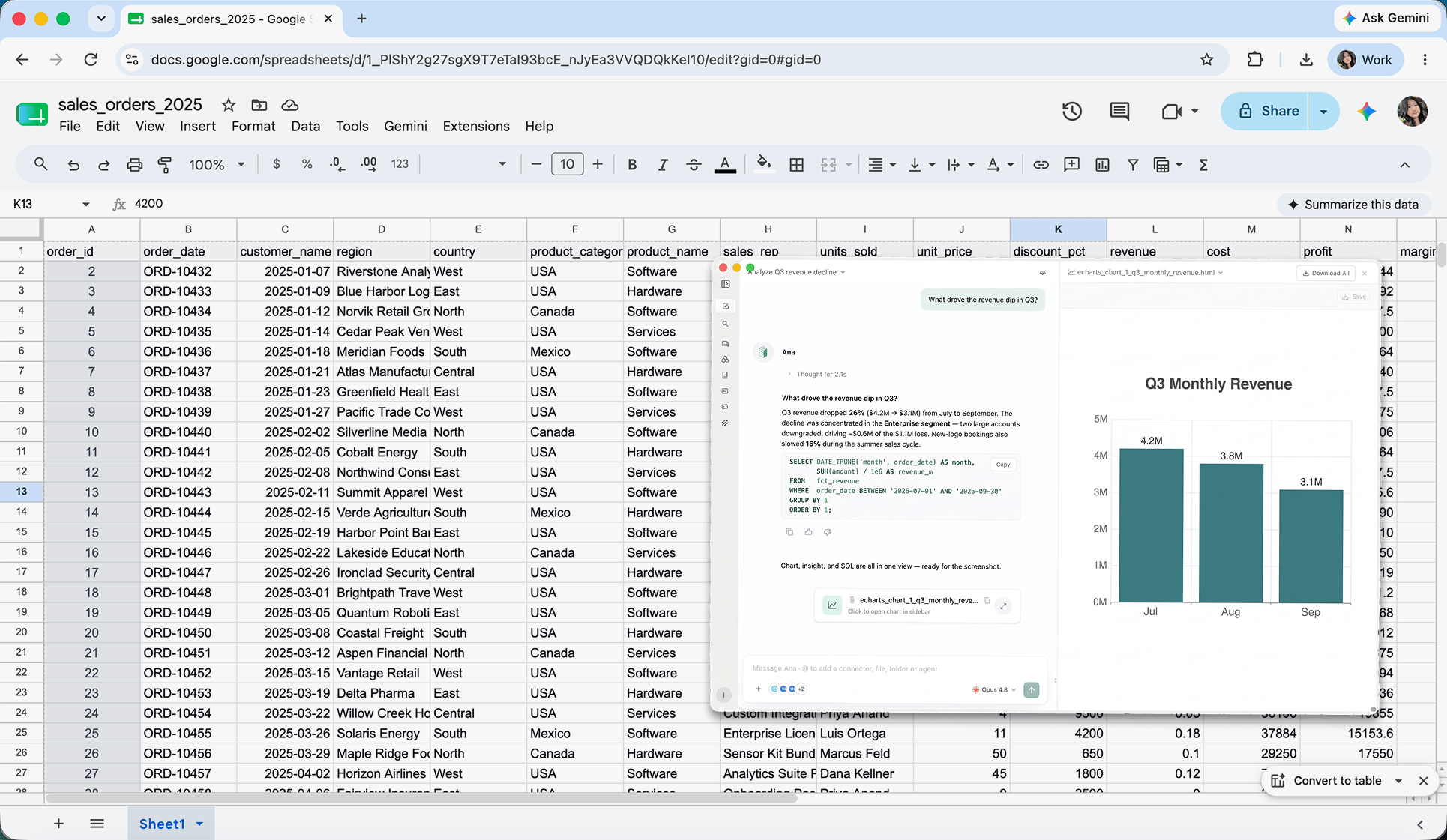
Download the app
Get the right build for your computer from Settings → Desktop App.
App quickstart
Install, sign in, and send your first message in four steps.
Why use it
01 — Keep every chat in view
The app has its own tabs, separate from your browser’s. Keep a dashboard in one tab and a chat in another without losing either among thirty browser tabs.
02 — Spread work across screens
Open a second window and put a dashboard on one monitor while you work in a chat on the other.
03 — Always one click away
TextQL sits in your dock or taskbar like any other app. On Mac and Windows it also adds a menu bar or system tray icon with Show TextQL and New Chat.
Get started with the desktop app
1
Install the TextQL desktop app
Open TextQL in your browser, go to Settings → Desktop App, and click Recommended for you. The page works out which computer you’re on and offers the right download. If it guesses wrong, pick yours from the All Platforms list underneath.See Installing for what to do with the file once it downloads.
2
Open TextQL and sign in
Sign in with the same details you use on the website. If your company uses single sign-on, a browser window opens so you can sign in there, then sends you back to the app automatically.
3
Choose where to work
Your chats, dashboards, playbooks, connectors, and ontology are down the left side, exactly as they are on the web. Pick up an existing chat or start a new one with
⌘N (Ctrl+N on Windows and Linux).4
Send your first message
Ask Ana a question in the composer. Answers, SQL, charts, and dashboards all open in the same window — see Your First Chat if you’re new to TextQL.
Use the desktop app when…
- You keep TextQL open all day and want it out of your browser
- You watch a dashboard on one screen while you work in a chat on another
- You want a new chat one keystroke away from anywhere on your computer
- Your company runs TextQL at its own web address and you’d rather not retype it
Installing
- Mac
- Windows
- Linux
Open the file you downloaded. Drag the TextQL icon into your Applications folder, then open it from there.There’s no published minimum macOS version — if you’re on a computer several years old, see Desktop App Rollout or check with whoever manages TextQL where you work.
Don’t see a Download option? Two reasons this happens:
- You’re already in the desktop app. The page only appears in a web browser. Open TextQL in your browser instead.
- Your company turned the page off and hands the app out itself. Ask whoever manages TextQL where you work — see Desktop App Rollout.
Connecting to your own server
If your company runs TextQL at its own web address, point the app at it in any of these ways, then choose Custom Server… and enter that address. The same picker switches you back to TextQL Cloud.
Whoever manages TextQL where you work may also send you a setup link that does this for you.
Links that open in the app
Once the app is installed,textql:// links open in it instead of your browser. You can put these in a message or a bookmark:
Chat and dashboard links open in whichever server the app is currently pointed at, so they only work if you’re signed in to the deployment the item lives on.
Finding your way around
It looks like the website. The difference is the menu bar at the top, with the usual File, Edit, View, and Window menus — new tabs and windows, reload, zoom, and full screen all live there.Updates
The app checks for updates when you open it, and again every four hours. It asks before doing anything — it won’t download or restart behind your back. What you see depends on how the update was found:- The app found it on its own. You get an Update Available notification from your computer, saying the new version is available and to click to download. Clicking the notification starts the download; ignoring it does nothing.
- You checked yourself. You get a box in the app with Download and Later. Nothing downloads until you choose Download. If you’re already up to date, it tells you that instead.
- On a Mac — TextQL → Check for Updates…
- On Windows and Linux — Help → Check for Updates…
Troubleshooting
The app won't open on a Mac
The app won't open on a Mac
Your Mac may block it the first time. Go to System Settings, then Privacy & Security, scroll down, and click Open Anyway.
It keeps sending you back to the sign-in screen
It keeps sending you back to the sign-in screen
Check that your computer’s clock is showing the right time. Then sign out, close the app completely, open it again, and sign in.
A dashboard or chart is blank
A dashboard or chart is blank
Go to the View menu and click Reload. If it’s still blank, open the same thing in your web browser. If it’s blank there too, the problem is with the dashboard, not the app.
Nothing loads at all
Nothing loads at all
Check you’re pointed at the right place, using one of the routes under Connecting to your own server. You may also need to be connected to your work VPN — check with whoever manages TextQL where you work.
Other ways to use TextQL
Slack
Ask Ana and get scheduled reports in the channels you already work in.
Microsoft Teams
Run playbooks and share answers from a Teams channel or chat.
Embedded Ana
Put Ana inside your own product or internal tool.
MCP server
Reach your TextQL data from Claude, Cursor, and other MCP clients.
Need Help?
Contact whoever manages TextQL where you work, or support@textql.com. Tell them what you were doing when it went wrong, and which computer you’re using — Mac, Windows, or Linux.Mac users: you can also find the exact app version under TextQL → About TextQL. This isn’t available on Windows or Linux yet, so don’t worry if you can’t find it.