

Availability
SMS is currently available for US and Canada phone numbers only. Both iMessage and standard SMS are supported.Enable SMS for your organization
TextQL hosted only. For on-prem or VPC deployments, contact support@textql.com.
Set up your phone number
- Navigate to Settings → Personal. The SMS section appears under Thread Default Tools when your organization has the feature enabled.
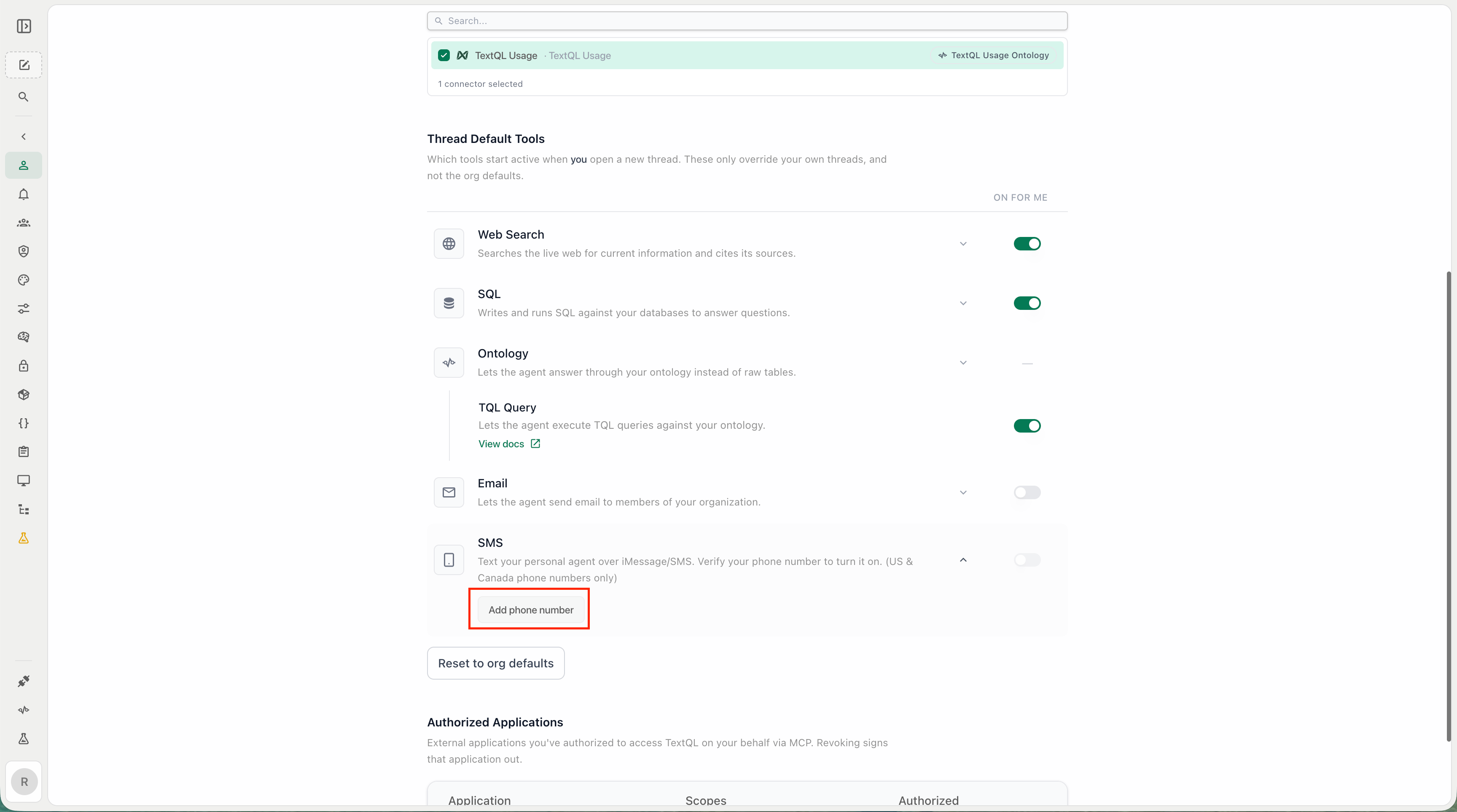
SMS section in Settings → Personal
- In the SMS section, click Add phone number.
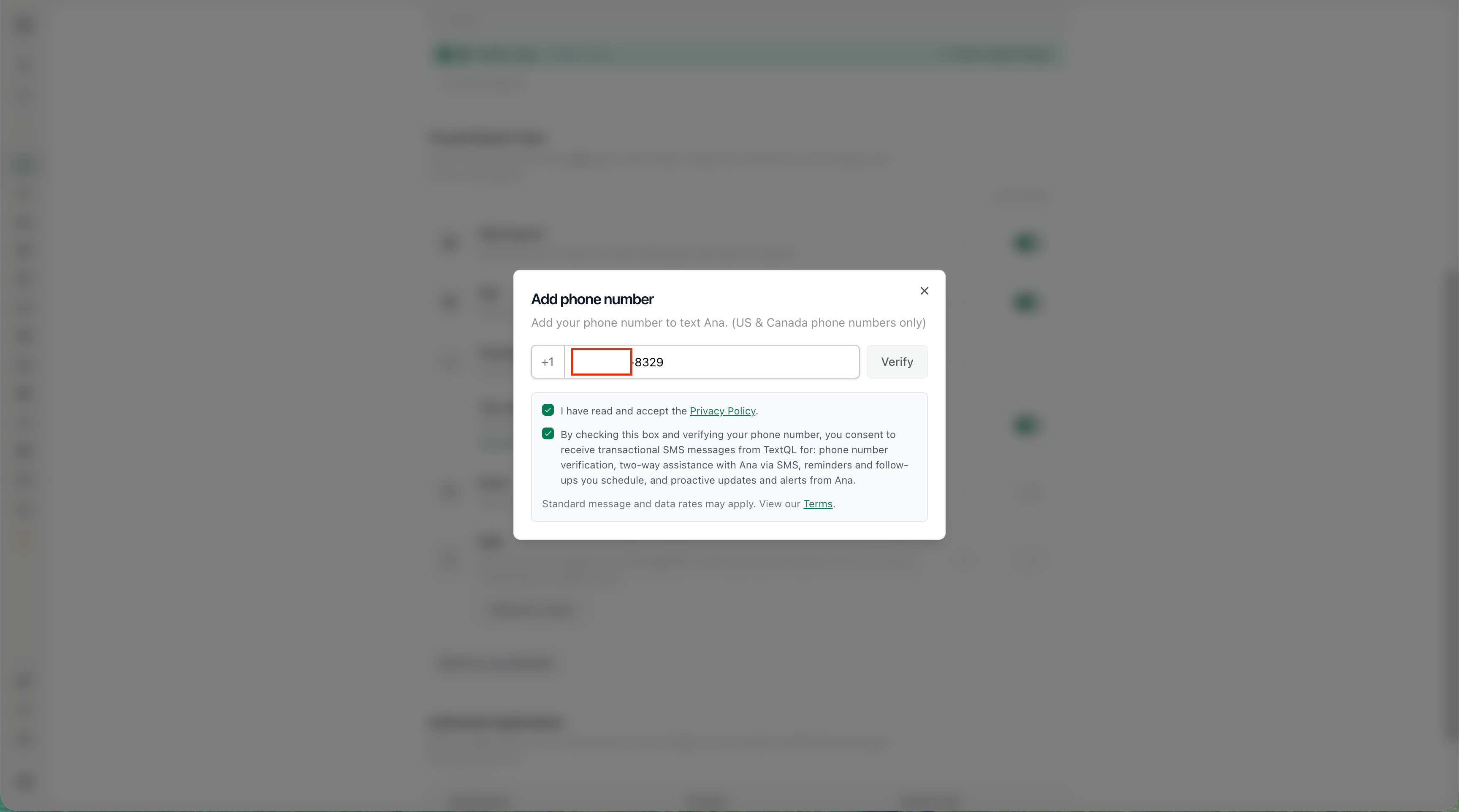
Click Add phone number to start verification
- Enter your phone number in the modal and click Verify.
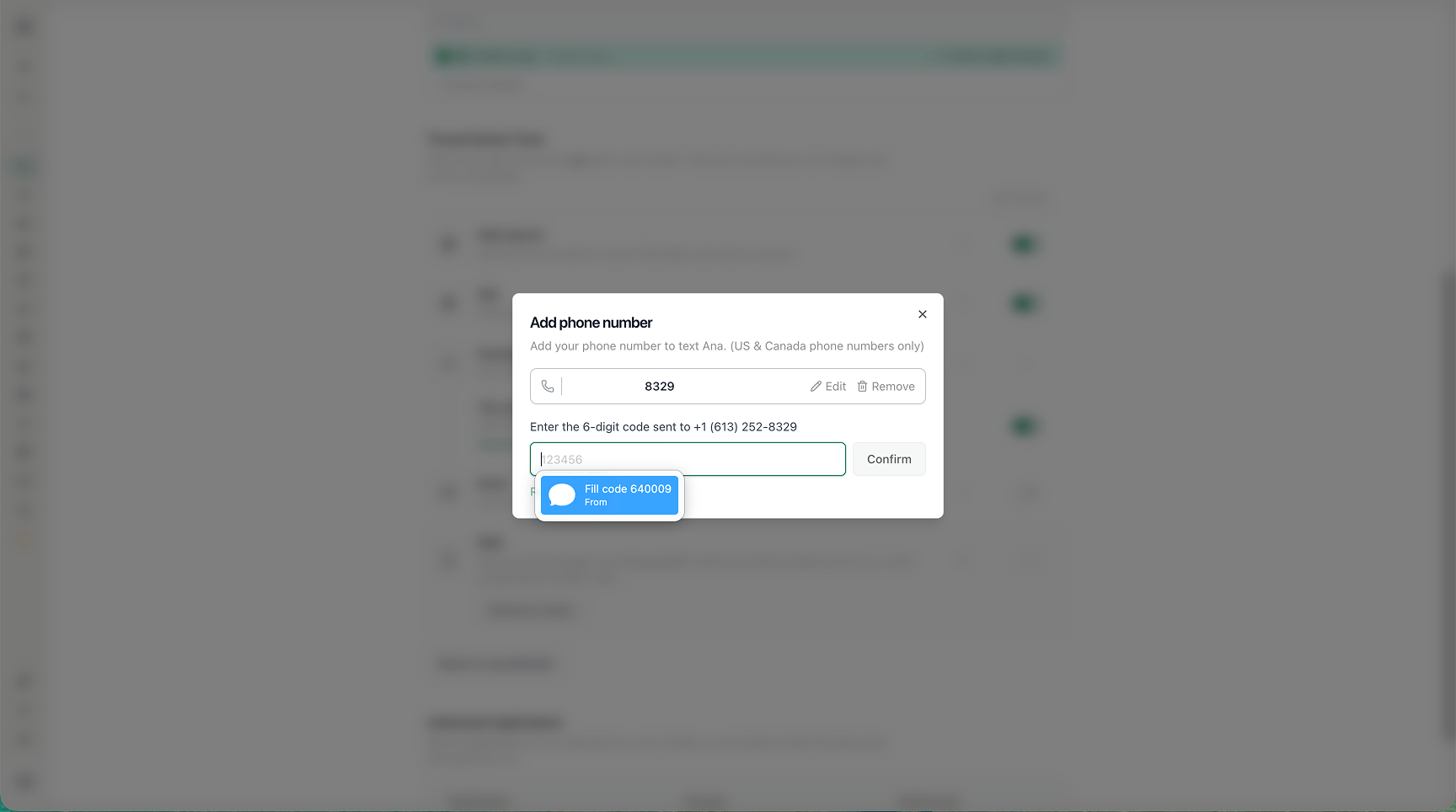
Enter your US or Canada phone number
- Enter the six-digit code sent to your phone and click Confirm.
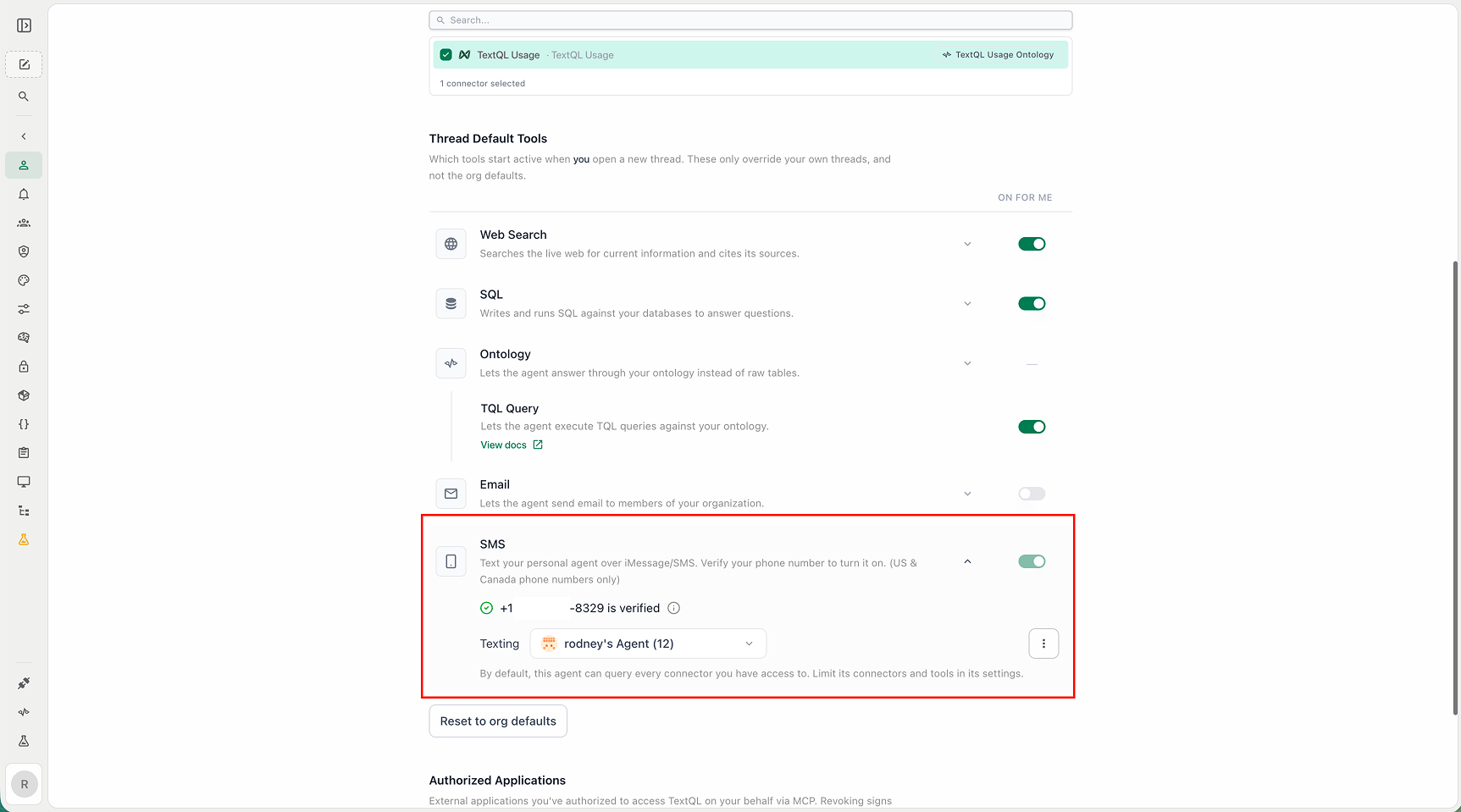
Enter the verification code from the text message
- Once verified, your phone number appears in the SMS section. Select which agent your texts should route to. By default, this is your personal agent.
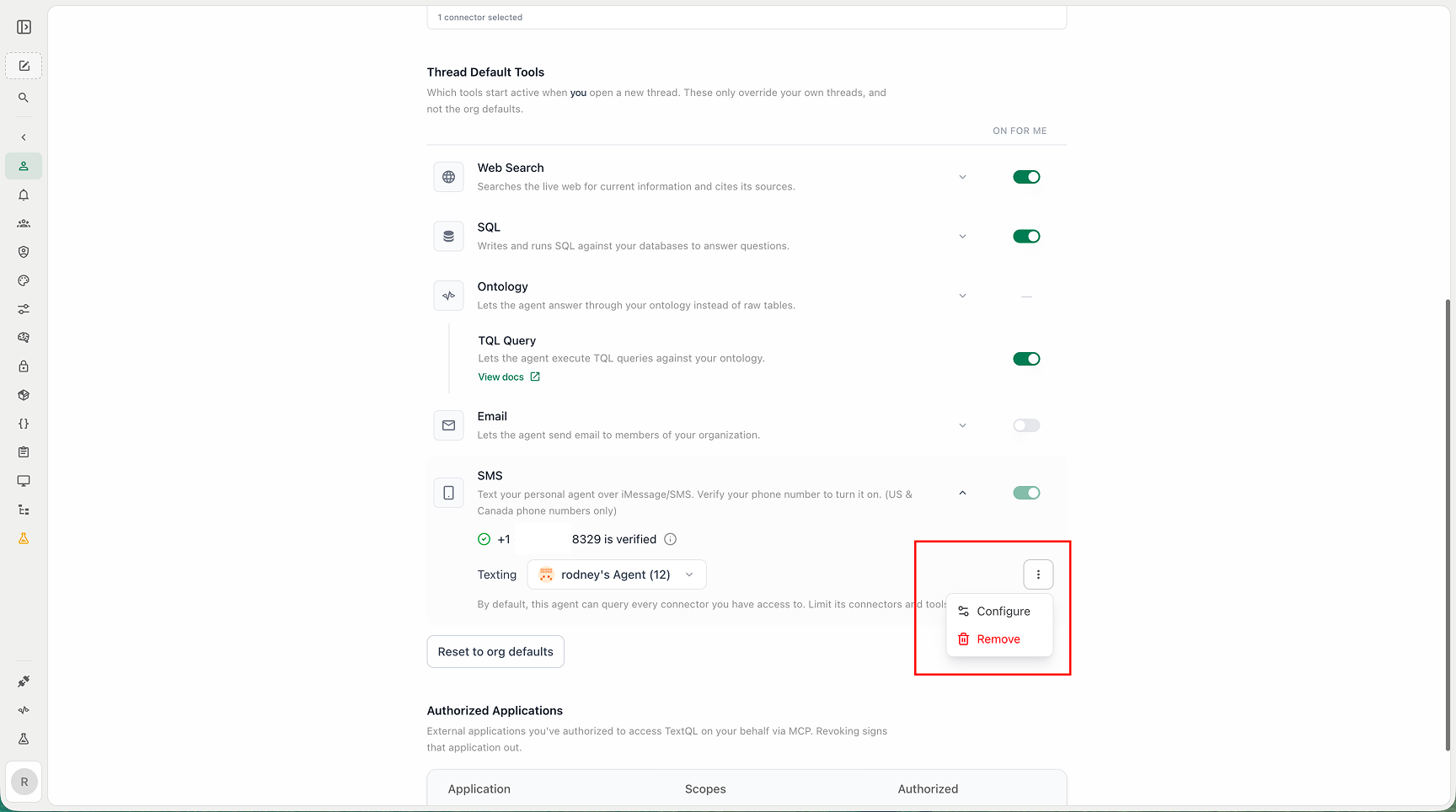
Select the agent that receives your text messages
Removing your phone number from Personal settings stops all texting and clears your existing text thread. You will need to verify again to turn it back on.
Manage your texting agent
Open the ⋮ menu next to your selected agent to:- Configure — Open the agent’s settings page to set its context, connectors, model, and instructions.
- Remove — Remove your phone number and stop all texting.
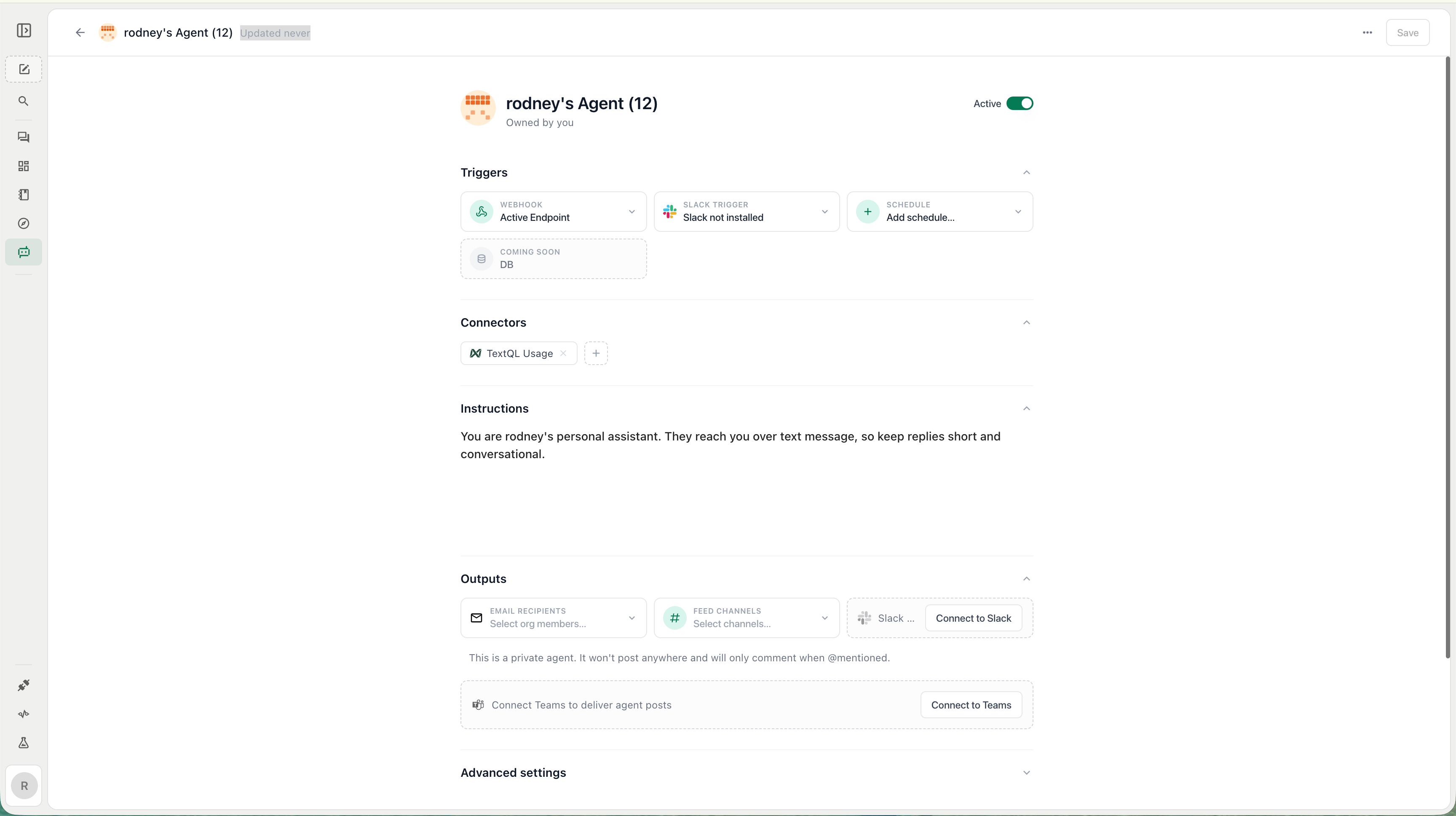
Configure or remove the texting agent from the settings menu
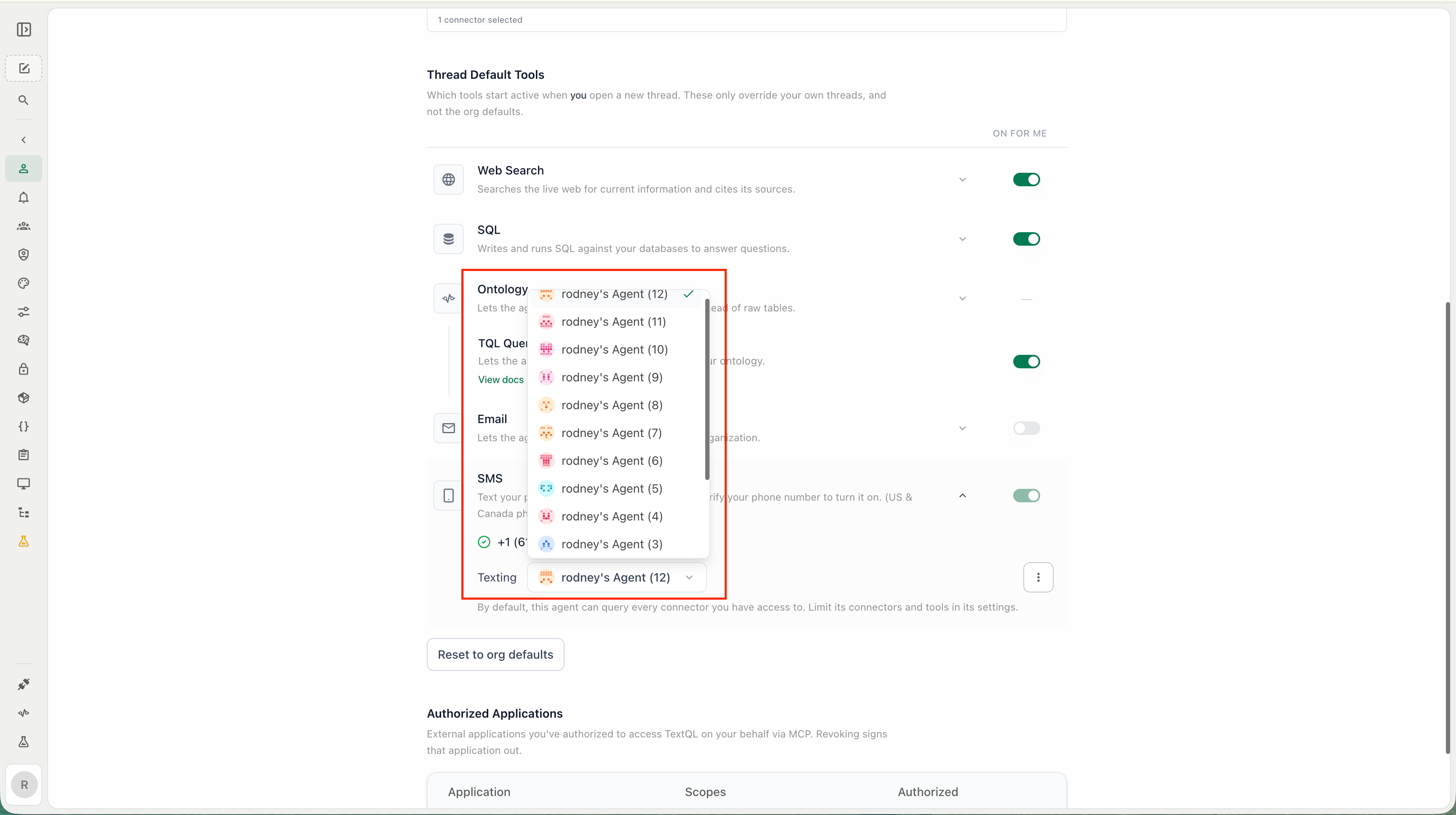
Agent settings for your texting agent
Texting Ana
After setup, send a text or iMessage to the number shown in your Personal settings. Ana responds in the same thread, and replies maintain context so you can continue the conversation naturally.- Ask questions about your organization’s data and metrics.
- Request figures and summaries to receive answers directly in your messaging thread.
- Reply in the same thread to continue an ongoing conversation.
In action
Below is an example of texting Ana once everything is set up.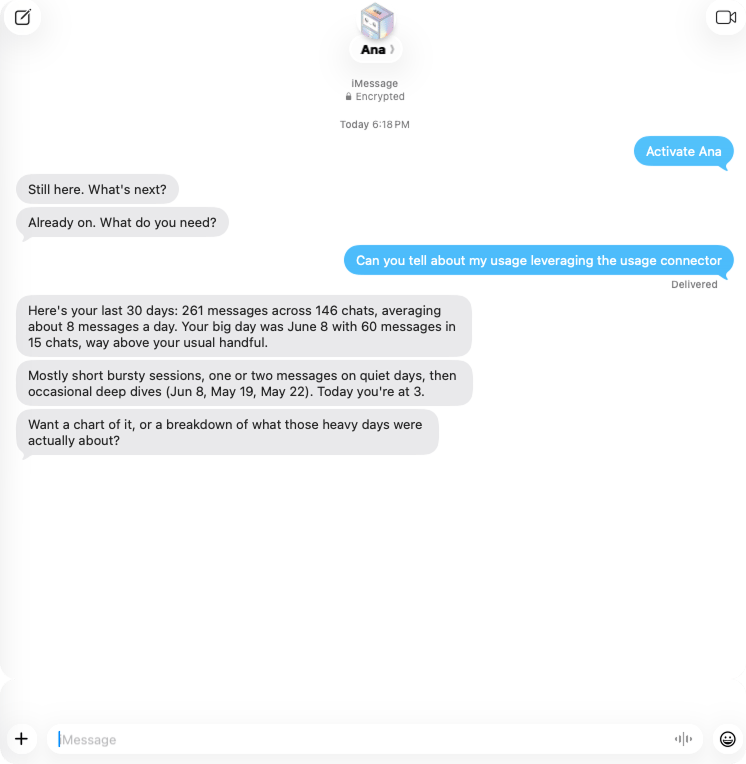
An example text conversation with Ana
Capabilities and limits
- SMS uses your selected texting agent and the connector/tool limits configured for that agent.
- By default, your texting agent can query every connector you have access to. Limit its connectors and tools in the agent’s settings.
- Long responses may be truncated or split depending on carrier limits.
- File uploads and rich visualizations are not available over SMS.
- In group chats, Ana only responds to the author whose phone number is associated with her. Other participants in the group will not receive replies from Ana.