

Supported Deployment Models
TextQL ships a native SAP HANA connector supporting both deployment models out of the box:- SAP HANA on-premise — direct connection over your network path (VPN, VPC peering, private endpoint, or self-hosted deployment inside the customer’s VPC)
- SAP HANA Cloud — single-toggle configuration that handles port 443 and the TLS server-name requirement automatically
Prerequisites
To connect TextQL to your SAP HANA instance, you will need:- Host — your HANA server hostname or IP address
- Port — typically
39015for on-premise,443for HANA Cloud - Username and password — a database user with read access to the target schema
- Database name — defaults to
SYSTEMDB - Schema (optional) — the default schema Ana will use for queries
Creating the Connector
Navigate to the TextQL Connectors Page and click New Connector. Select SAP HANA from the available connectors.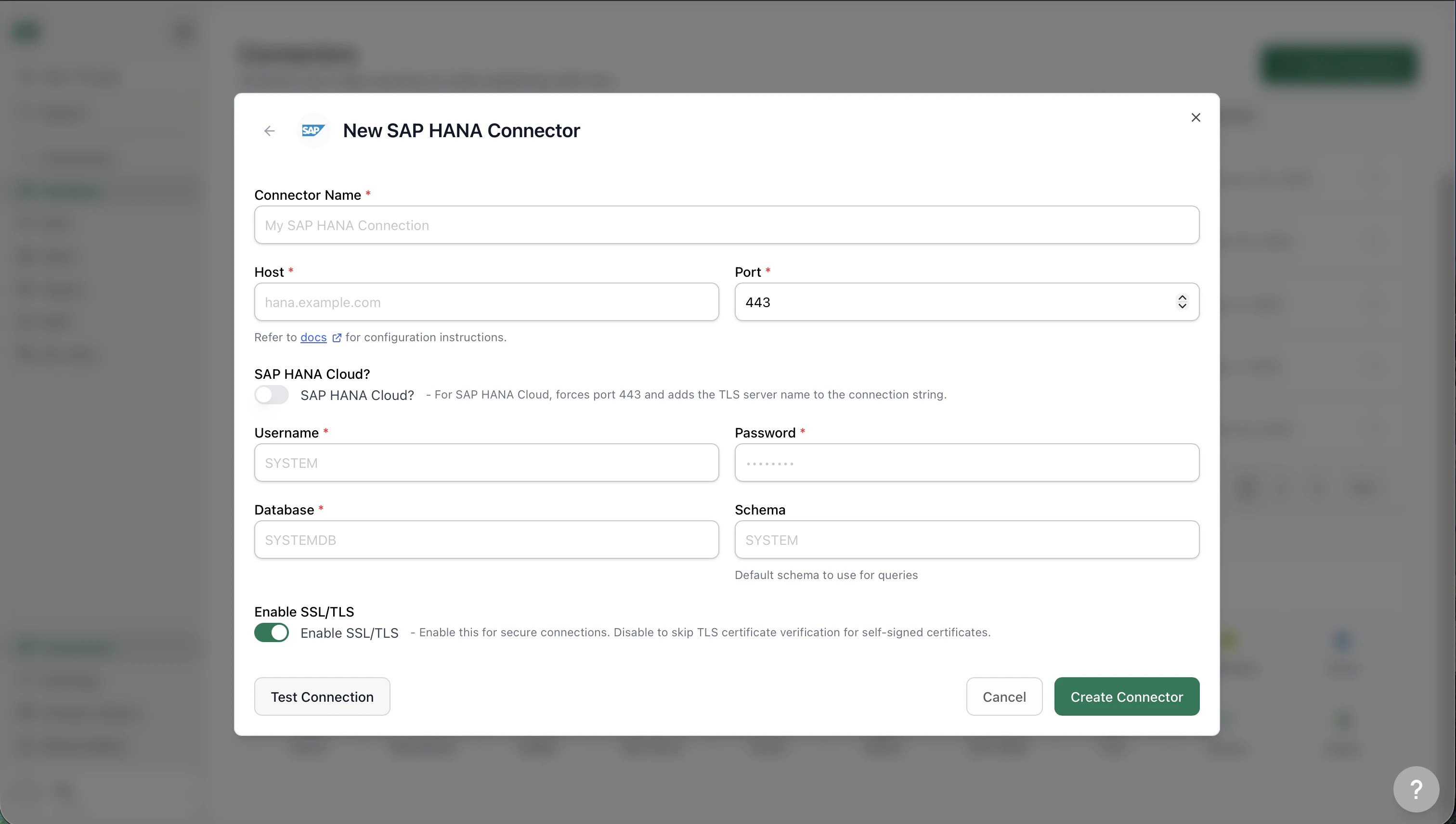
SAP HANA connector configuration form.
Connection Fields
SAP HANA Cloud
Toggle SAP HANA Cloud? when connecting to a HANA Cloud instance. This automatically:- Forces the port to
443 - Appends the TLS server name to the connection string
SSL/TLS
SSL/TLS is enabled by default. For on-premise deployments using self-signed certificates, you can disable the toggle to skip certificate verification — only do this in environments where you control the certificate chain.SSO (Per-Member OAuth)
Instead of a shared database username and password, each TextQL member can sign in with your identity provider (Okta, Entra ID, Keycloak, or any OIDC-compliant IdP). When a member queries HANA, TextQL passes their IdP-issued JWT to HANA — HANA resolves the database identity from the token, so per-user permissions and auditing apply in HANA itself.Prerequisites
- An OIDC application in your IdP — create an app registration (e.g. an Okta application integration) and note the issuer URL, client ID, and client secret. Register
https://<your-textql-host>/auth/hana/callbackas a redirect URI. Enable theoffline_accessscope so TextQL can refresh expired tokens. - A JWT provider configured in HANA — HANA must trust the IdP’s signatures for the target database (the
JWTprovider in the HANA cockpit /CREATE JWT PROVIDER), with the claim that maps to the HANA user (typicallysuboremail) configured as the external identity.
Connector Fields
Select SSO (per-member OAuth) under How should users authenticate? and fill in:
Host, port, database, schema, and TLS settings work exactly as with password auth.
Member Sign-In
Once the connector is saved, each member clicks Connect on the connector (or is prompted the first time they run a query) and signs in with the IdP. Tokens are encrypted at rest and refreshed automatically; members can re-authenticate at any time from the Connectors page.Silent SSO (No Popup)
If members log in to TextQL via SSO (OIDC) with the same identity provider HANA trusts, they can skip the popup entirely — TextQL authenticates them to HANA using their existing login session. Select an SSO Mode (shown when SSO (per-member OAuth) is selected):
With either mode enabled, members never see a HANA sign-in: the first query silently authenticates them, and expired tokens are re-exchanged automatically. If silent SSO fails for a member (for example, they logged in without SSO), the popup flow remains as the fallback.
The token exchange endpoint is resolved from the OAuth Issuer URL via OIDC discovery — there is no separate endpoint to configure. Set Audience only if your IdP requires a specific audience for HANA to accept the exchanged token; leave it blank otherwise.
Testing the Connection
Click Test Connection before saving to verify your credentials and network access. Fix any errors before clicking Create Connector.Having trouble connecting from a self-hosted or VPC deployment? See the Network Configuration Guide for firewall and IP allowlisting setup.
Troubleshooting
Connection timeout
- Verify the host and port are reachable from TextQL’s network (or your VPC, if using a private deployment)
- Confirm no firewall rules are blocking the connection
- For on-premise instances, ensure VPN or VPC peering is active
Authentication error
- Double-check the username and password
- Confirm the user has
SELECTprivileges on the target database and schema - For HANA Cloud, ensure the user is not subject to an IP allowlist that excludes TextQL
Certificate error
- If using a self-signed certificate on-premise, disable Enable SSL/TLS to skip verification
- For HANA Cloud, leave SSL/TLS enabled — HANA Cloud requires TLS
Wrong schema or missing tables
- Specify the Schema field explicitly rather than relying on the default
- Confirm the database user has visibility into the schema you expect Ana to query
What’s Next
Once your SAP HANA connector is set up:- Ask Ana natural language questions about your HANA data
- Join HANA tables against other connected sources in a single query
- Build playbooks that run recurring analysis against HANA and deliver results to Slack or Teams
- Use the Ontology layer to define business metrics on top of your HANA schema