

1. Overview
The AWS integration authenticates Ana to your AWS account using an IAM access key, a general-purpose credential that can reach services like S3, EC2, Redshift, Athena, and Lambda. What Ana can actually touch depends on the IAM permissions attached to that key, so scope it narrowly to just the services and data you want queried and Ana can run analyses to surface insights on cloud spend, resource health, and usage. Be careful with broadly-permissioned keys like AdministratorAccess, which can do far more than query data (spin up or destroy resources, create IAM users, or change billing settings), and grant only the least-privilege permissions the integration needs.Connect Ana to your AWS account using an IAM access key so you can query your AWS data and services directly in TextQL.
2. Prerequisites
You’ll need:- An AWS account with access to the services and data you want Ana to query (e.g. S3, Athena, Redshift, EC2).
- A TextQL account with permission to add or configure connectors.
3. Capabilities
Once configured, Ana can:- Query your AWS data sources like Athena, Redshift, and S3 directly in TextQL without moving data out of your account.
- Analyze billing and cost data to surface insights on cloud spend and consumption trends.
- Pull infrastructure and resource metrics to help you monitor resource health and usage.
- Combine your AWS data with sources outside AWS to answer questions that span your whole stack.
4. Setup Instructions
Step 1: Generate your AWS credentials
We recommend creating a dedicated IAM user with least-privilege, read-only permissions rather than using your root account credentials.- Go to the AWS Console and sign in, then open the IAM service.
- In the left sidebar, click Users, then Create user.
- Give the user a name (e.g.
textql-connector) and click Next. - On the permissions step, attach a read-only policy scoped to only the services you want Ana to query (e.g.
AmazonAthenaReadOnlyAccess,AmazonS3ReadOnlyAccess, or a broaderReadOnlyAccess). Then finish creating the user. - Open the new user, go to the Security credentials tab, and under Access keys click Create access key.
- Select the Command Line Interface (CLI) use case and confirm the warning checkbox.
- Click Create access key.
- Copy and store the Access Key ID and Secret Access Key securely — the secret is shown only once.
Step 2: Add AWS as an API connector in TextQL
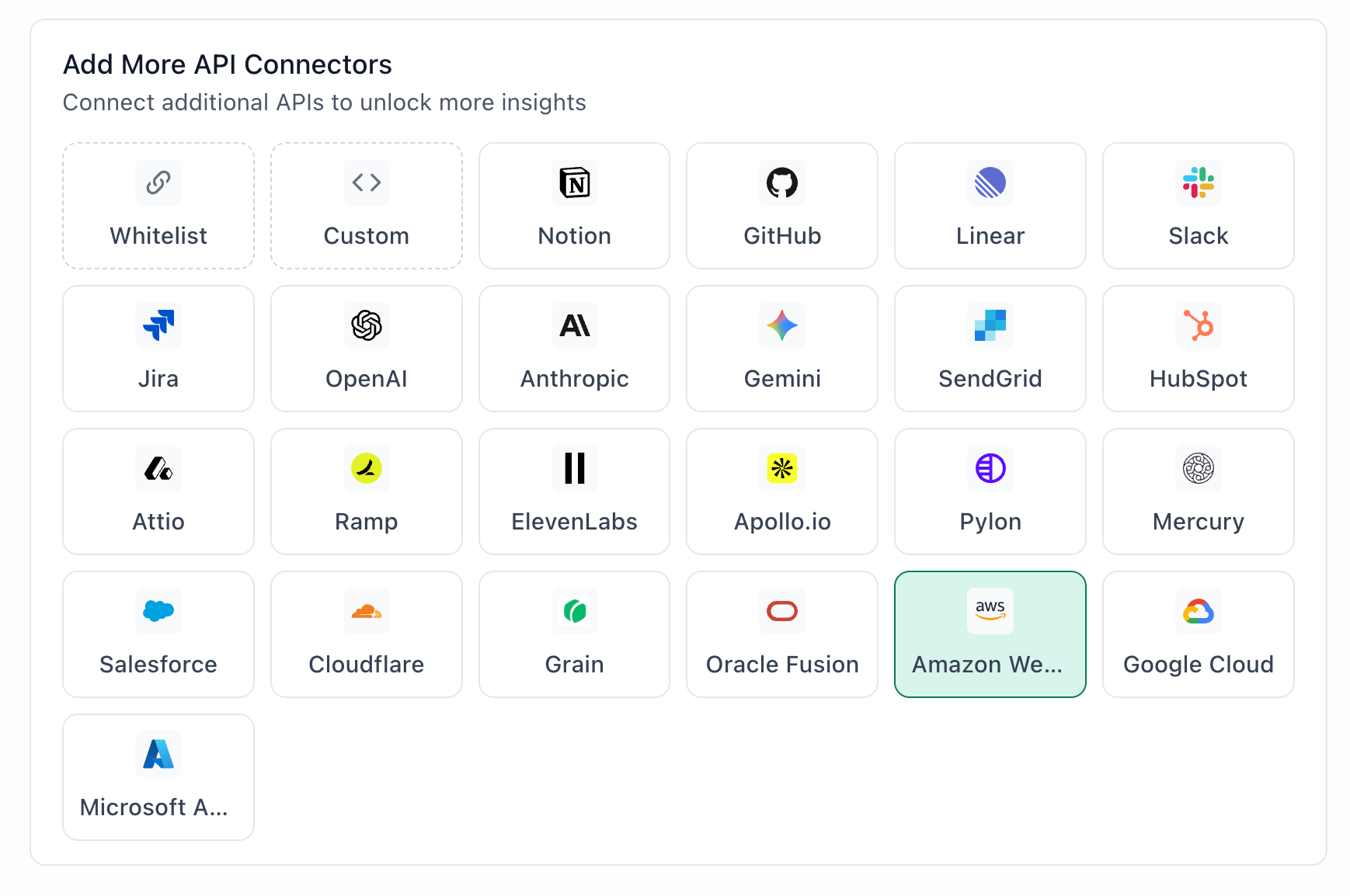
AWS highlighted in the TextQL API Connectors setup panel — select it to open the connector configuration form
- Go to app.textql.com and sign in.
- In the bottom left sidebar, click Connectors > APIs and select AWS.
- In the configuration panel that opens, fill in the following fields:
- Name: a label for this connection (e.g.
AWS ConnectororAWS - [Your Name]) - Access Key ID: paste the Access Key ID you copied in Step 1.
- Secret Access Key: paste the Secret Access Key you copied in Step 1.
- Name: a label for this connection (e.g.
- Click Save.
Step 3: Verify the connection
Once saved, confirm the connector is active:- Click on the AWS connector and select Test Connection at the bottom of the panel.
- A successful setup will return Connection successful (200).
- If the test fails, refer to the Troubleshooting section for next steps.
5. Usage Examples
Once configured, you can ask Ana:- “What were my top 5 AWS services by cost last month, and how does that compare to the month before?”
- “Query our Athena sales table and show me revenue by region for Q2.”
- “Which EC2 instances have been running with low utilization over the past two weeks?”
- “Join our Redshift customer data with the Salesforce connector and show me accounts with no activity in the last 90 days.”
- “Break down our Bedrock usage by model and flag any unusual spikes in spend this week.”
6. Troubleshooting
7. Security Notes
- IAM access keys do not expire automatically. They remain valid until you rotate or delete them in the AWS IAM console, so rotate them periodically as a best practice.
- Access level is determined by the IAM permissions attached to your key, not by the integration. For querying and analysis, attach read-only policies (e.g. ReadOnlyAccess or service-specific read policies) so Ana cannot modify your AWS data.
- The integration authenticates via an IAM access key, so the least-privilege permissions you grant define exactly what Ana can reach. Scope it to read-only on the specific services you want queried to keep the integration analysis-only.
- How to revoke access: go to the AWS IAM console, find the user tied to the key, and deactivate or delete the access key (or detach its permissions).