

1. Overview
The Ana x Linear integration connects your Linear workspace to Ana, giving you natural language access to your team’s roadmap, issues, projects, and cycles data. Once configured, Ana can query issue statuses, track cycle progress, surface blockers, and analyze engineering throughput — all without leaving your workflow.Connect Linear to Ana to query and analyze your team’s project and issue data using natural language.
2. Prerequisites
You’ll need:- A Linear account you want Ana to query
- Owner or admin access to your Linear workspace if you are setting up an org-level integration
- A TextQL account with permission to add API connectors
Which type of connection should I use?
3. Capabilities
Once configured, Ana can:- Query about open, in-progress, or blocked issues across any team or project in plain language.
- Track how much work is completed, in flight, or unstarted within any active cycle.
- Analyze how many issues a team is closing over time and identify velocity trends.
- Get a snapshot of project milestones, priorities, and any at-risk items across your workspace.
4. Setup Instructions
Step 1: Generate your Linear credentials
Before you begin, choose your connection type:- API Token: best for individuals or shared team access tied to one person’s permissions.
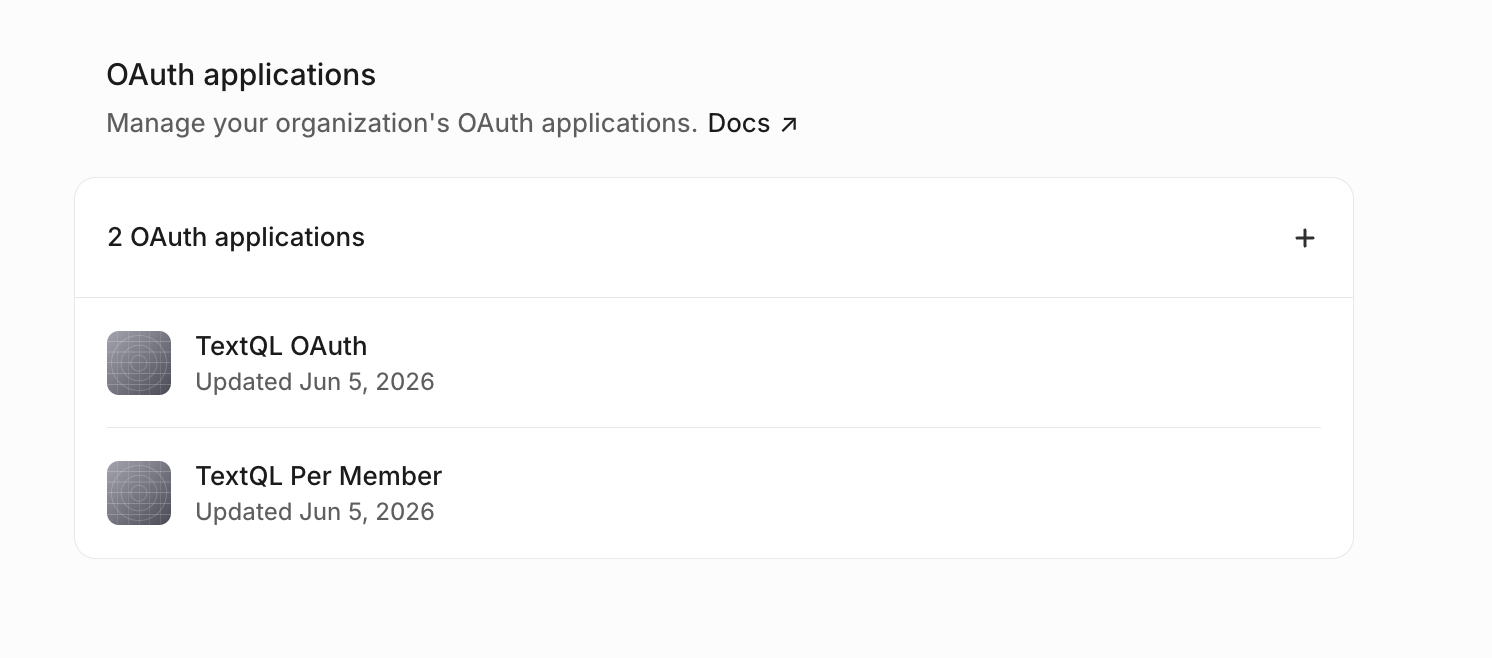
- OAuth (Org-level): an admin authorizes once; all Ana users share that workspace-level access.
- OAuth (Per-member): each user authorizes individually and sees only what they have access to in Linear.
- API Token
- OAuth (Org-level or Per-member)
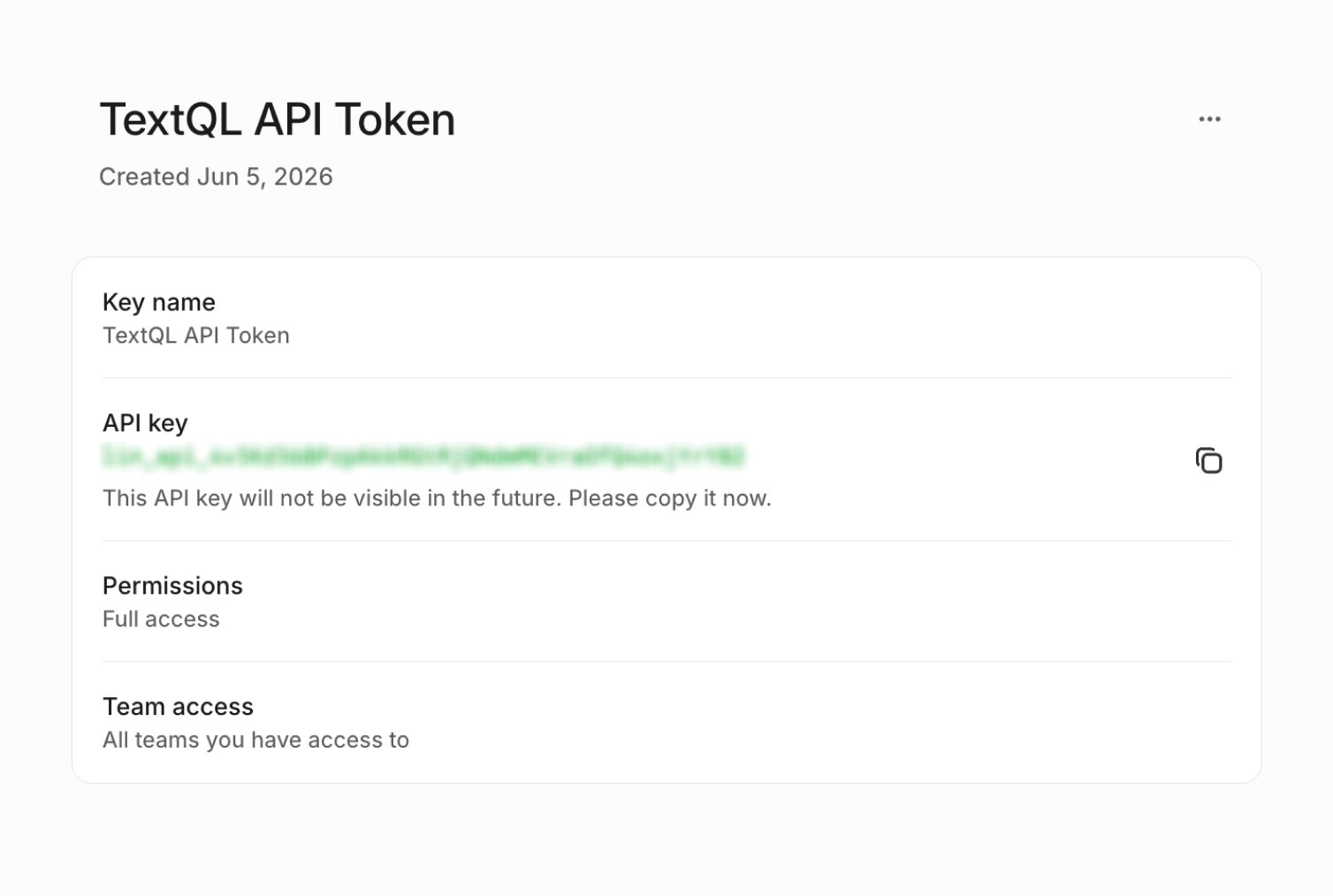
Linear API key — copy the key immediately, as it will not be shown again
- Go to linear.app and sign in.
- Click your workspace name in the top-left corner.
- Go to Settings.
- In the left sidebar, navigate to Security & Access.
- Click API Keys (or Personal API Keys, depending on your workspace settings).
- Click Create new API key.
- Enter a name (e.g.
TextQLorAna Integration). - Select the workspace/team access you want this key to have.
- Configure the API key permissions:
- Permissions: Select Full access or Only selected permissions depending on your organization’s security requirements. If using selected permissions, grant the minimum access required for the data you want Ana to query.
- Team Access: Select All teams you have access to or Only selected teams. Limiting access to specific teams will restrict the data Ana can query to those teams.
- Click Create.
- Copy the API key immediately and store it securely.
Step 2: Add Linear as an API connector in TextQL
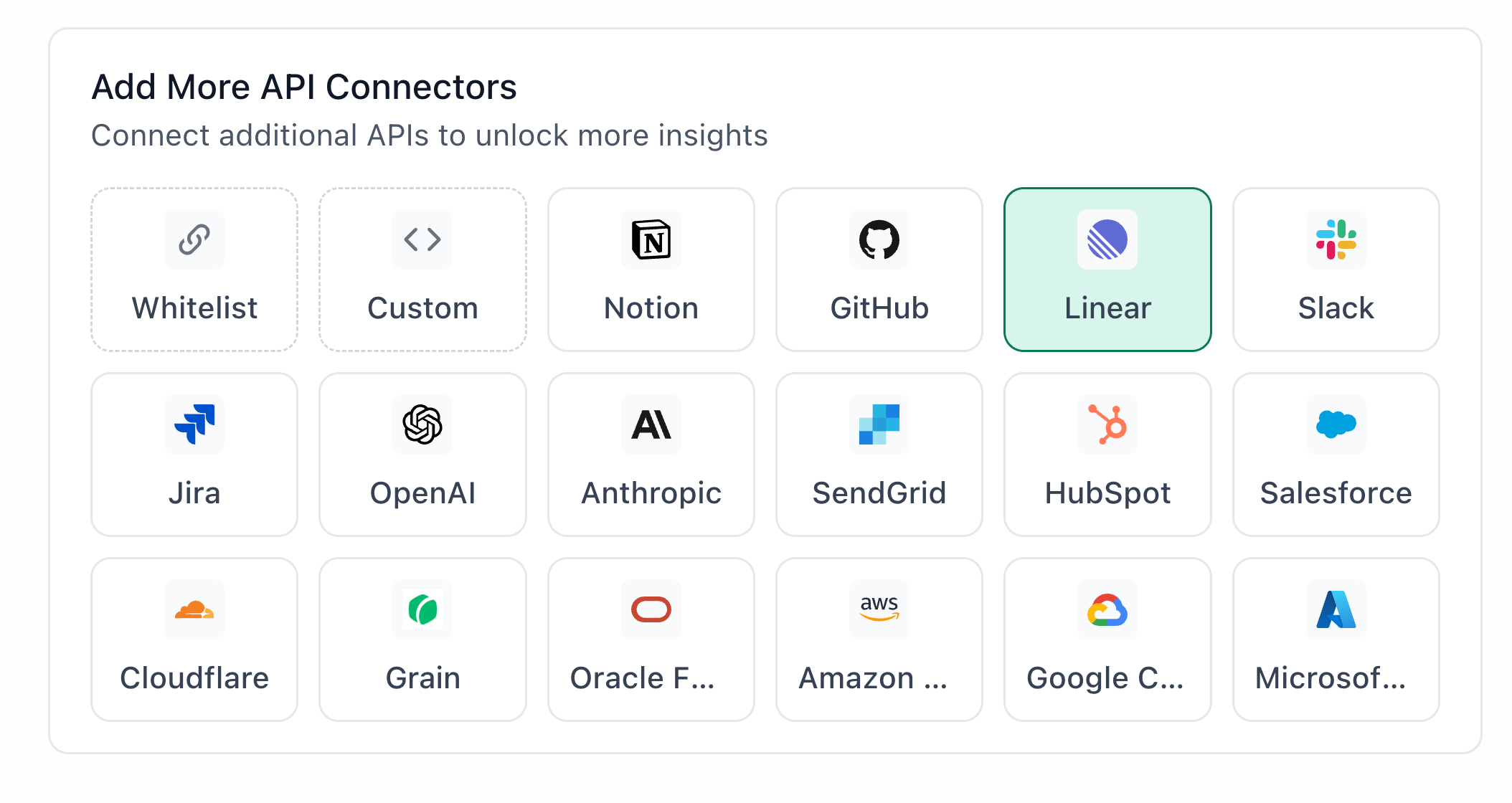
Linear highlighted in the TextQL API Connectors setup panel — select it to open the connector configuration form
- Go to app.textql.com and sign in.
- In the bottom left sidebar, click Connectors > APIs and select Linear.
- In the configuration panel, fill in the fields depending on your connection type:
- API Token
- Name (e.g. Linear
API Token) - Authentication type: select API Token
- Token: paste the API Token copied from Step 1
- Name (e.g. Linear
- OAuth (Org-level or Per-member)
- Name (e.g. Linear
OAuth) - Authentication type: select OAuth (org-level) or OAuth (per-member)
- Client ID and Client Secret: paste the values copied from Step 1
- OAuth Authentication: click Authenticate — a popup will appear asking for permissions to access your Linear account. Click Allow.
- Name (e.g. Linear
- API Token
- Click Save.
Step 3: Verify the connection
Once saved, confirm the connector is active:- Click on the Linear connector and select Test Connection at the bottom of the panel.
- A successful setup will return Connection successful (200).
- If the test fails, refer to the Troubleshooting section for next steps.
5. Usage Examples
Once configured, you can ask Ana:- “What issues are currently blocked on the mobile team, and who owns them?”
- “How many issues did we close last cycle compared to the one before?”
- “Show me all high-priority bugs that haven’t been updated in more than 7 days.”
- “Which projects are behind schedule this quarter?”
- “Give me a breakdown of open issues by assignee for the backend team.”
- “What percentage of this cycle’s scope is completed so far?“
6. Troubleshooting
7. Security Notes
- Follow the principle of least privilege when creating API keys or OAuth applications. Grant only the permissions and team access required for Ana to query the data you need.
- API Tokens remain valid until they are manually revoked. Store them securely and rotate them if you suspect they have been exposed.
- OAuth access may require re-authentication if authorization is revoked, credentials are changed, or access expires.
- Do not share API keys, client secrets, or OAuth credentials in email, chat, tickets, or other unsecured locations.
- If you no longer need the integration, revoke the API key or OAuth application’s access in Linear and remove the connector from TextQL.
- For more details on how Linear handles API authentication and permissions, refer to Linear’s official API documentation.