

1. Overview
The Jira integration connects your Atlassian Jira workspace to TextQL, giving Ana visibility into your projects, issues, statuses, assignees, and due dates. Once configured, Ana can explore your board, surface overdue tasks, track progress across sprints, and help you build automated reports or alerts around your team’s work.Connect your Jira workspace to TextQL by providing your Atlassian subdomain and API token, then let Ana query and analyze your issues, projects, and team activity.
2. Prerequisites
You’ll need:- A Jira Cloud account with admin or project-level access to the workspace you want to connect
- A Jira API token (generated from your Atlassian account settings) and your organization’s Atlassian subdomain (e.g.,
yourcompany.atlassian.net) - Admin access in TextQL to add and configure a new connector
Which type of connection should I use?
3. Capabilities
Once configured, Ana can:- Explore your Jira projects, tasks, subtasks, and their current statuses in natural language
- Track overdue issues, upcoming due dates, and in-progress work across your board
- Analyze issue counts by assignee, priority, or issue type to understand how work is distributed
- Set up playbooks or feed agents that monitor your Jira board on a schedule and deliver updates to Slack or email
4. Setup Instructions
Step 1. Generate your Jira credentials
Before you begin, choose your connection type:- API Token — best for individuals or small teams; access is tied to one person’s Jira account and token. If that token expires or is revoked, the connection will break for everyone.
- OAuth (Org-level) — an admin authorizes once and all Ana users share that workspace-level connection.
- OAuth (Per-member) — each user authorizes individually and sees only what their own Jira account has access to.
- API Token
- OAuth Org-level and Per-member
- Go to Jira and click your profile picture in the top right corner
- Navigate to Security at the top bar.
- Scroll down to API Tokens and click Create and manage API tokens
- Click Create API token, give it a name, set an expiry date, and copy the token. 90 days is a reasonable expiry date.
- In TextQL, add a new Jira connector and enter:
- API Token: the token you just copied
- Host: your Jira URL (Open Jira in your browser and look at the address bar — your host is the base URL, which will look like
https://yourname.atlassian.net. Everything before the first/after.netis your host. For example, if your browser showshttps://acme.atlassian.net/jira/software/projects/..., your host ishttps://acme.atlassian.net.)
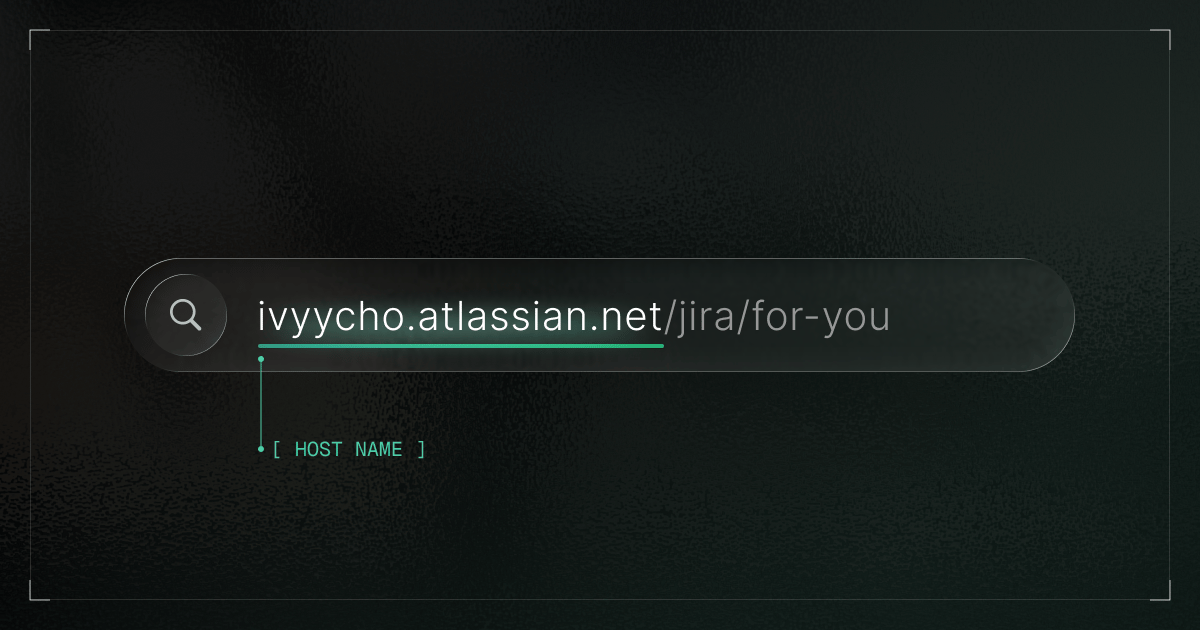
The host name is the first part of your Jira URL, highlighted in green — everything before the first /.
- Click Save.
- Copy the token value immediately once generated.
Step 2: Add Jira as an API connector in TextQL
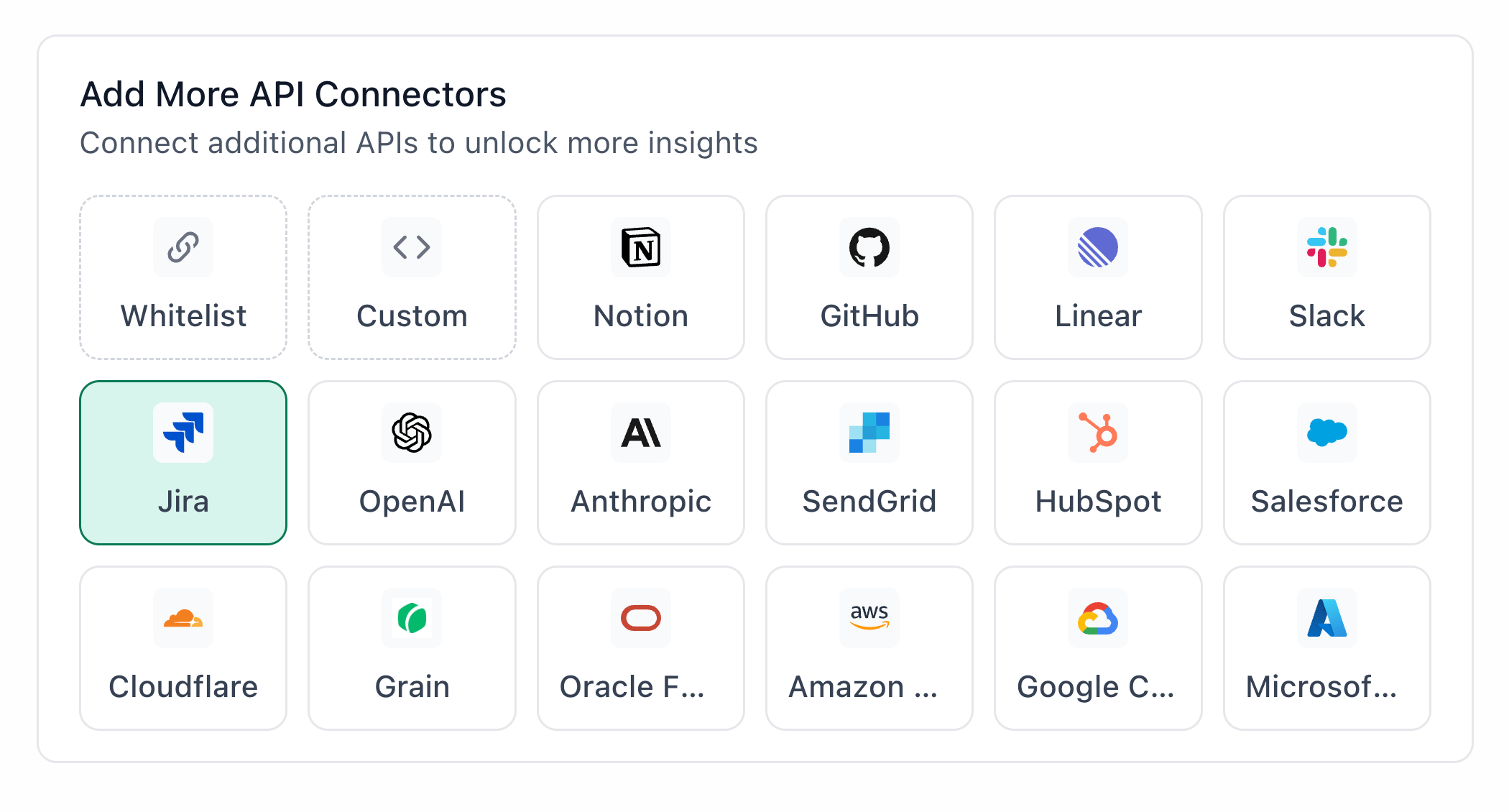
Jira highlighted in the TextQL API Connectors setup panel — select it to open the connector configuration form
- Go to app.textql.com and sign in.
- In the bottom left sidebar, click Connectors > APIs and select Jira.
- In the configuration panel, fill in the fields depending on your connection type:
- API Token
- Name (e.g.
Jira API Token) - Authentication type: select API Token
- Token: paste the token copied from Step 1
- Name (e.g.
- OAuth (Org-level or Per-member)
- Name (e.g.
Jira OAuth) - Authentication type: select OAuth (org-level) or OAuth (per-member)
- Client ID and Client Secret: paste the values copied from Step 1
- OAuth Authentication: click Authenticate — a popup will appear asking for permissions to access your Jira account. Click Allow.
- Name (e.g.
- API Token
- Click Save.
Step 3: Verify the connection
Once saved, confirm the connector is active:- Click on the Jira connector and select Test Connection at the bottom of the panel.
- A successful setup will return Connection successful (200).
- If the test fails, refer to the Troubleshooting section for next steps.
5. Usage Examples
Once configured, you can ask Ana:- “Show me all open issues in my marketing project sorted by due date”
- “Which tasks are overdue or due this week?”
- “How many issues are assigned to each team member right now?”
- “Give me a summary of everything that moved to Done in the last 7 days”
- “Create a weekly Slack report tracking in-progress issues and blockers”
6. Troubleshooting
7. Security Notes
- API tokens expire based on the expiry date you set at creation — you will need to generate a new token and update the connector in TextQL when it expires
- The recommended scopes grant read and write access to Jira work items; if you want Ana to be strictly read-only, limit scopes to
read:jira-workandread:jira-user - The integration uses API token or OAuth 2.0 authentication — Ana can only do what the scopes you granted allow, so limiting scopes is the safest way to control access
- Do not share API keys, client secrets, or OAuth credentials in email, chat, tickets, or other unsecured locations.
- To revoke access, go to Jira → Profile → Security → API Tokens and delete the relevant token, or for OAuth apps, remove the integration from your Atlassian Developer Console
- For more details on how Jira handles API authentication and permissions, refer to Atlassian’s official support docs.