

The Slack API Connector covered in this guide is separate from the Slack integration used in Playbooks. For Playbooks setup, see the Slack Integration.
1. Overview
The Slack connector links your workspace to Ana, enabling her to search messages, post to channels, DM users, and surface engagement patterns across your team’s conversations. Ana can answer questions about communication trends, track topic activity over time, and identify patterns across public channels and direct messages based on the permissions granted. Note that Ana’s access is limited to the channels and message history your Slack plan and permission settings allow.Quick Summary: Create a Slack app in your workspace, configure the required OAuth scopes, and store the bot token as an API Connector in TextQL.
2. Prerequisites
You’ll need:- Slack account with access to the channels and data you want Ana to query
- Admin access in your Slack workspace to create and install a Slack app
- Enterprise Grid admin access if you are setting up an Org-level OAuth integration
- A TextQL account with permission to add API connectors
Which type of connection should I use?
TextQL supports three ways to connect to Slack depending on how much access Ana needs: API Token, OAuth Org-Level, and OAuth Per-Member.3. Capabilities
Once configured, Ana can:- Find information across channels, threads, and conversations
- Post messages and send DMs on your behalf
- React to and comment on messages within channels and threads
- Analyze engagement patterns, message volume trends, and topic activity over time
- Identify how team members interact across channels and track participation patterns
- Access channel lists, membership, and workspace metadata to provide organizational context
4. Setup Instructions
Step 1. Create your Slack App
- Go to api.slack.com/apps and click Create New App
- A pop-up will appear — click From Scratch
- Choose an app name (e.g. “Ana” or “TextQL Integration”)
- Pick the workspace you want Ana installed in
- Click Create App
Step 2. Configure OAuth & Permissions
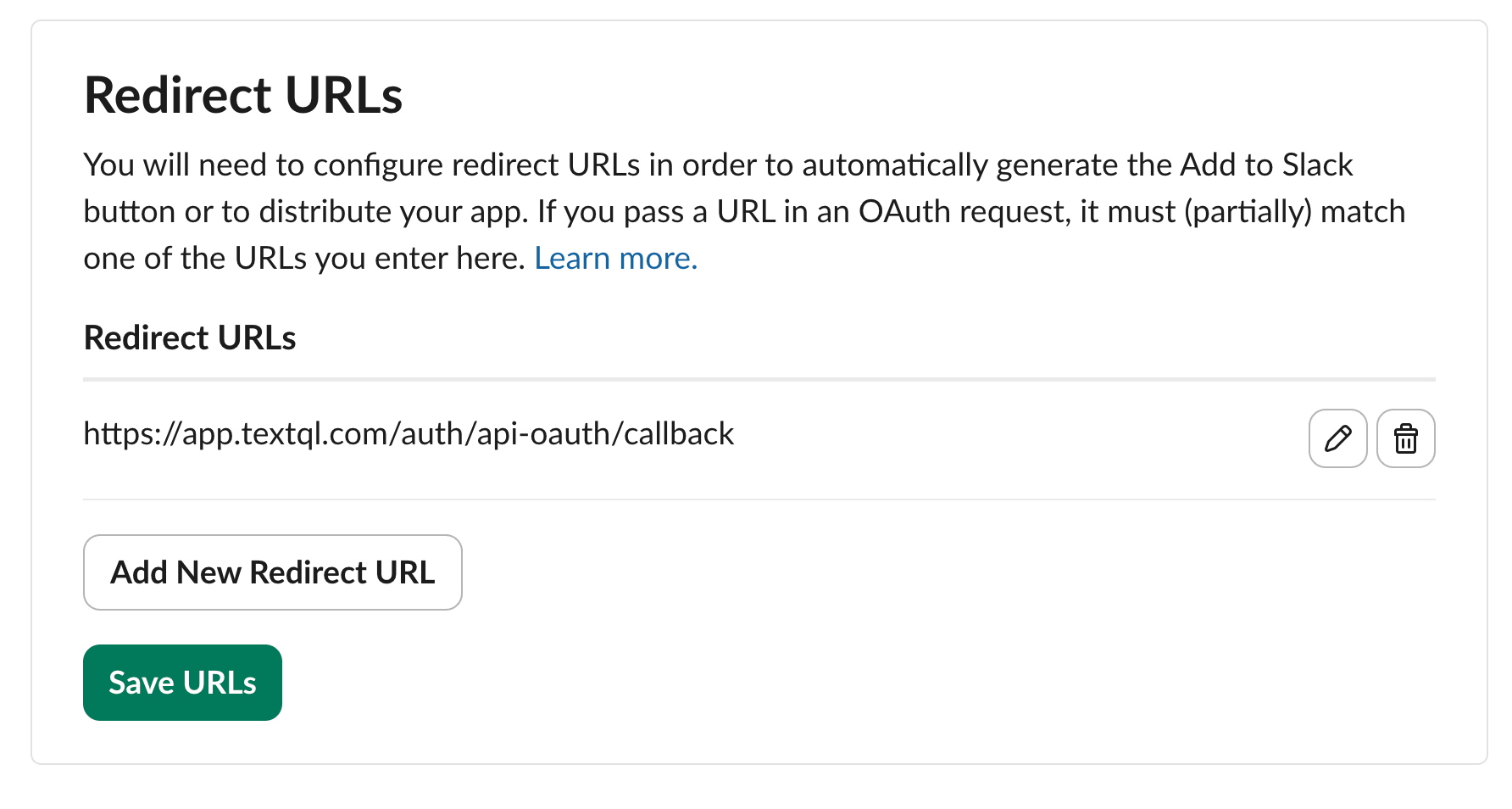
The redirect URLs section in Slack — input TextQL's callback link and save
- In the left sidebar, go to OAuth & Permissions
-
If you are creating an OAuth Org-Level or Per-Member connection, scroll down to Redirect URLs and add
https://app.textql.com/auth/api-oauth/callback. Click Save. -
Scroll down to Scopes and add your desired permissions (see recommended scopes table below — if you are unsure, add all Core scopes)
- For API Token or OAuth Org-Level, add permissions under Bot Token Scopes
- For OAuth Per-Member, add permissions under both Bot Token Scopes and User Token Scopes
Recommended Scopes
Step 3. Get your Credentials
API Token: On the same OAuth & Permissions page, scroll up to OAuth Tokens and click Install to Workspace. Authorize the app and copy thexoxb- token that is generated.
OAuth Org-Level & Per-Member: In the left sidebar, go to Basic Information and copy your Client ID and Client Secret.
Step 4. Connect in TextQL
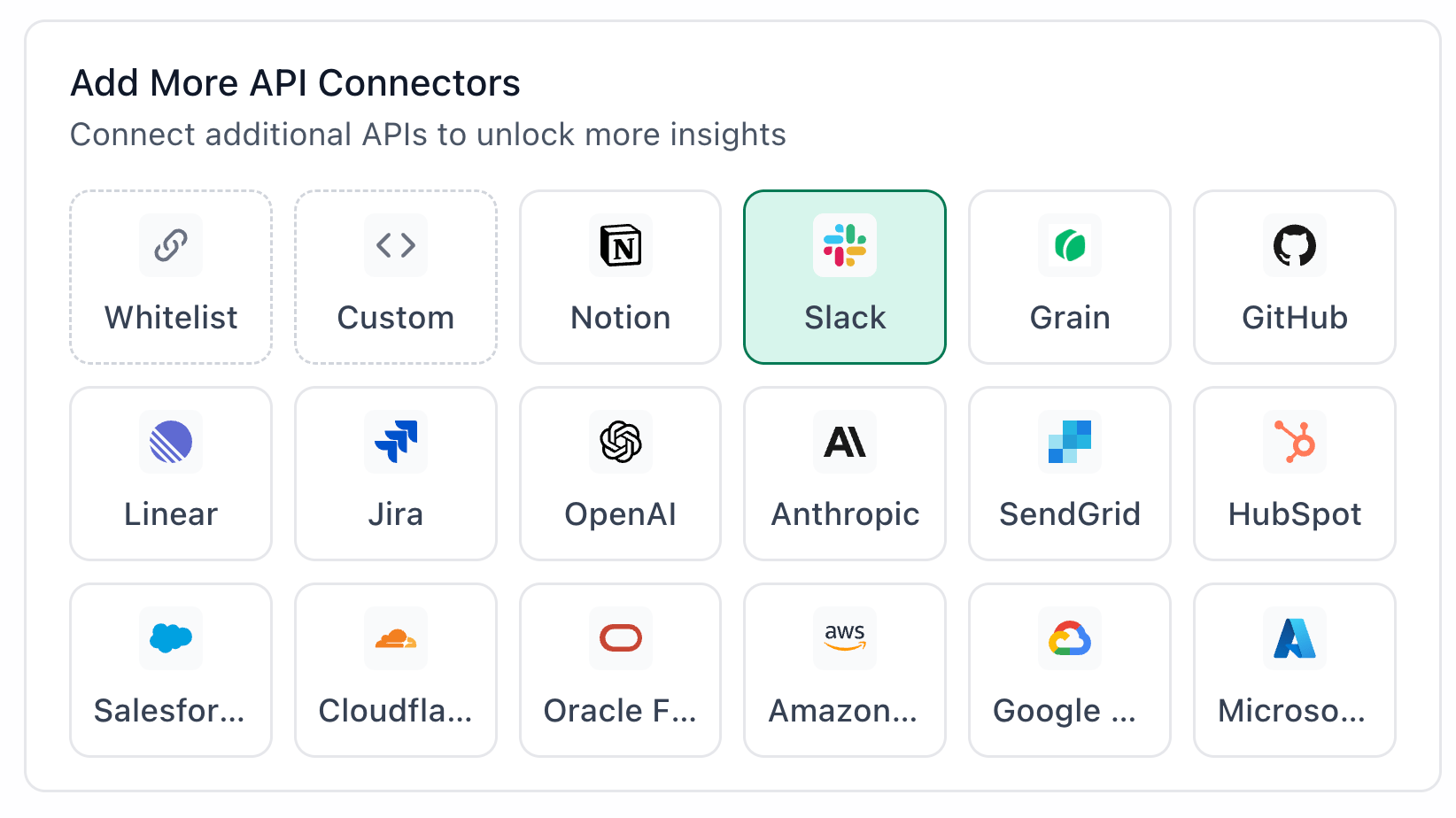
Slack highlighted in the TextQL API Connectors setup panel — select it to open the connector configuration form
- Go to app.textql.com and sign in.
- Click Connectors in the bottom left corner
- In the left sidebar, click APIs then select Slack
- Fill in a name for your connection
- Select your authentication type — API Token, OAuth Org-Level, or OAuth Per-Member
- Paste your bot token, or your Client ID and Client Secret for OAuth methods
- For OAuth methods, scroll down and click Authenticate
- A popup will appear asking for permissions to access your workspace — click Allow
- Click Save
Step 5. Add the App to your Slack Channels
- In the workspace you installed the app to, open your desired channel and click the channel name at the top → Integrations → Add an App
- A popup with different app connections should appear — your app should be near the top under In Your Workspace
After adding the app, Slack will say “Invites have been sent!” — this is just a generic message, your app is already connected.
Step 6. Verify the Connection
Once saved, confirm that the connector is active:- Click on the Slack connector and select Test Connection at the bottom of the panel.
- A successful setup will return Connection successful (200).
- If the test fails, refer to the Troubleshooting section for next steps.
5. Usage Examples
Once configured, you can ask Ana:- “How many messages were sent in #general this week compared to last week?”
- “Which channels have been the most active in the last 30 days?”
- “Who are the most engaged members in #product and what topics are they discussing?”
- “Summarize the key decisions made in #engineering over the past month”
- “Which team members haven’t been active in any channels in the last two weeks?”
- “Send a message to Sam saying what are your blockers?“
6. Troubleshooting
7. Security Notes
- Bot tokens don’t expire by default. User tokens are tied to the authorizing user and will lose access if that user is deactivated or removes the app. If you opted into token rotation on Slack, tokens will automatically refresh in your app code
- Avoid using legacy bot tokens or legacy custom integration tokens — these are deprecated and use an umbrella permission model that grants broader access than necessary. Always use the newer granular bot token scopes
- Your token, Client ID, and Client Secret are stored encrypted in TextQL and are never exposed in Ana’s responses
- Do not share API keys, client secrets, or OAuth credentials in email, chat, tickets, or other unsecured locations.
- To disconnect the bot, go to your Slack workspace → Settings & Administration → Manage Apps → find your app → click Remove. For Per-Member, individual users can revoke their own access at slack.com/account/connected-apps. Then delete the connector in TextQL under Connectors → APIs
- For more information on token types, scopes, and security best practices, visit Slack Developer Docs