

1. Overview
The TextQL OpenAI connector gives Ana direct access to the OpenAI API from within its Python sandbox. This means Ana can run chat completions, embeddings, and moderation calls as part of any analysis — and combine those AI outputs with your warehouse data in a single workflow. The connector is secured via API key, which is stored in the TextQL credential vault and injected at the network boundary, so your key is never exposed directly.Add your OpenAI API key in the TextQL admin console and Ana can immediately start using OpenAI’s capabilities alongside your data.
2. Prerequisites
You’ll need:- An active OpenAI account
- A TextQL account with permission to add API connectors
2.5. What is the OpenAI API used for?
TextQL already uses large language models (like Claude and GPT) to power the chat interface. The OpenAI API connector is separate — it gives your agents and playbooks direct programmatic access to OpenAI’s API from within their own workflows.3. Capabilities
Once configured, Ana can:- Generate AI-powered text responses and summaries from your data.
- Transform text into vectors for semantic search and similarity matching.
- Flag or filter content using OpenAI’s moderation models.
- Combine AI outputs with your warehouse data in one workflow.
4. Setup Instructions
Step 1: Create an API key
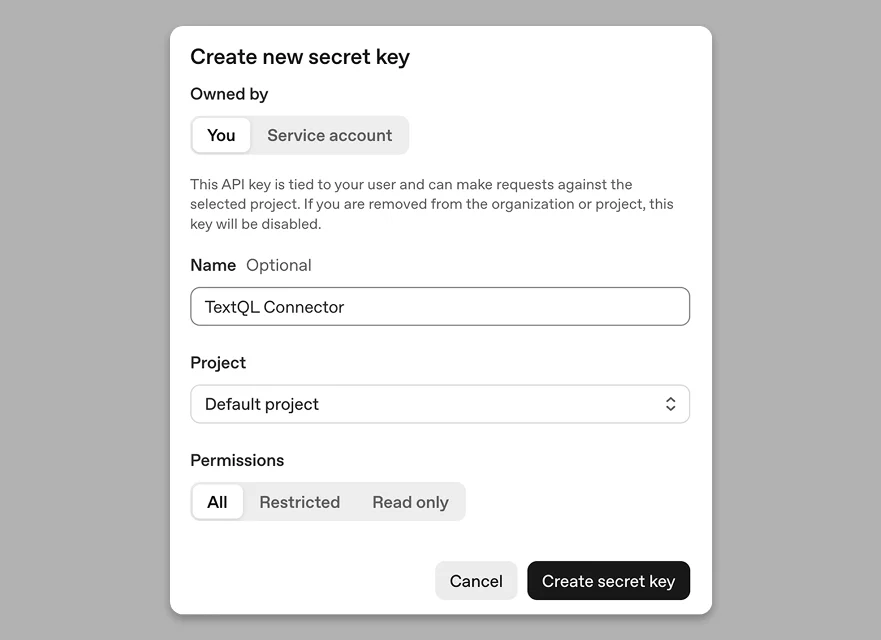
Pop-up screen for new API key setup
- Sign in to OpenAI Platform
- On the left sidebar, click API keys
- In the top right corner, click Create new secret key
- Fill in the following:
- Name: enter a name to help identify the key (e.g. “TextQL connector”)
- Project: Select the OpenAI project that this integration will use. The project determines which credentials, permissions, usage tracking, and billing settings apply to API requests made through the connector.
- Permissions: Select the access level for the API key within the chosen OpenAI project. Choose All for full access, Restricted to limit the key to specific capabilities, or Read only for viewing resources without making changes. Most application integrations require either All or appropriately configured Restricted permissions.
- Copy the token.
Step 2: Add OpenAI as an API connector in TextQL
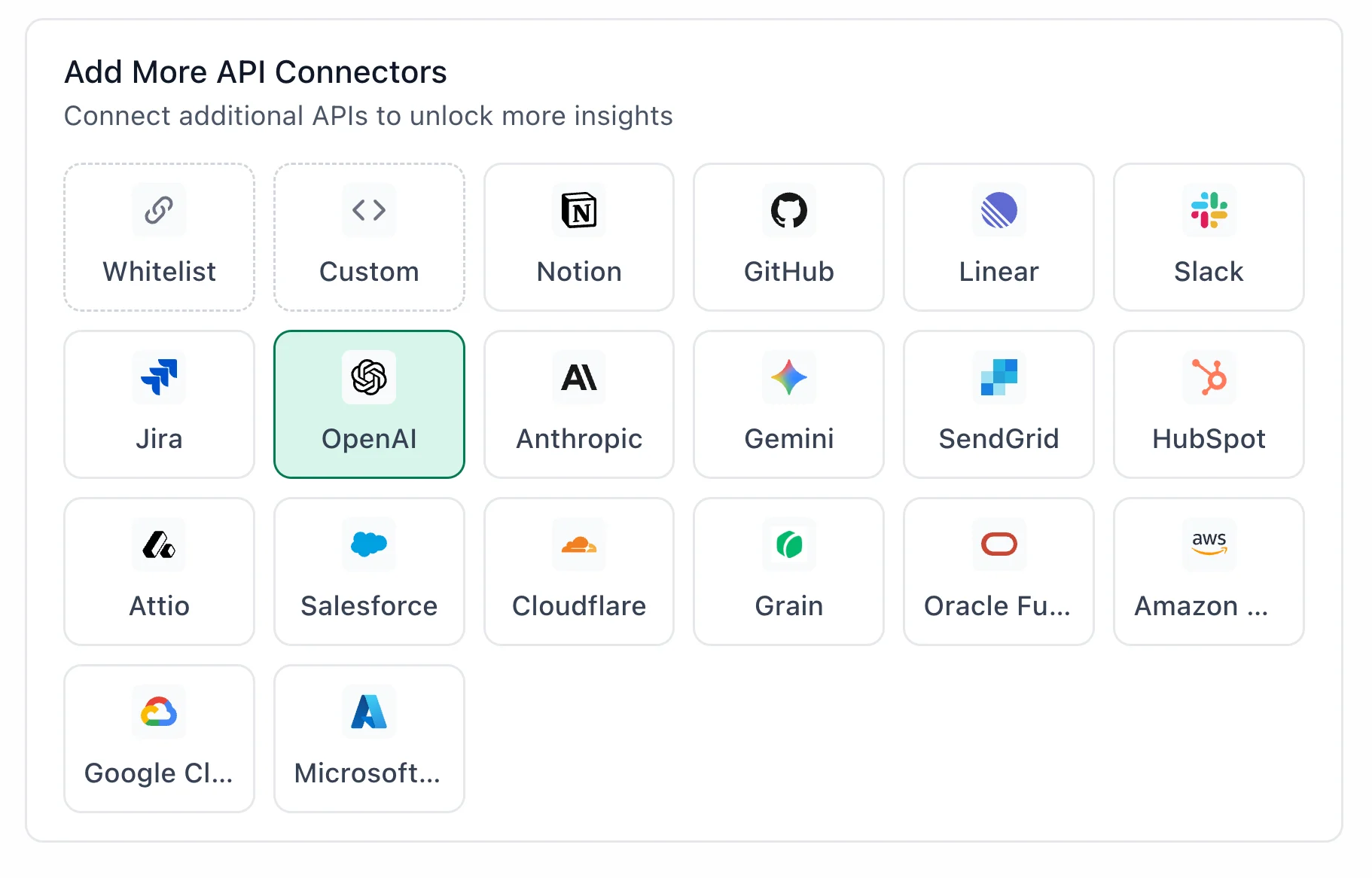
OpenAI highlighted in the TextQL API Connectors setup panel — select it to open the connector configuration form
- Go to app.textql.com and sign in.
- In the bottom left sidebar, click Connectors > APIs and select OpenAI.
- Paste your API token from Step 1.
- Click Save.
Step 3: Verify the connection
Once saved, confirm that the connector is active:- Click on the OpenAI connector and select Test Connection at the bottom of the panel.
- A successful setup will return Connection successful (200).
- If the test fails, refer to the Troubleshooting section for next steps.
5. Usage Examples
Once configured, you can ask Ana:- Generate embeddings for our product catalog and find the 5 most similar items to this description.
- Run our user-generated content through OpenAI’s moderation API and flag any policy violations.
- Fetch product review data from Snowflake, generate embeddings for each review, and cluster them by topic.
- Draft a personalized follow-up email for each deal in our pipeline based on the latest notes in the CRM.
- Summarize the 200 most recent support tickets from our database into a one-paragraph executive briefing.
6. Troubleshooting
7. Security Notes
- OpenAI API keys do not expire automatically. Rotate keys periodically and replace any key that may have been exposed.
- API keys can be configured with All, Restricted, or Read only permissions. For production deployments, use the minimum permissions required by your Ana workflows.
- The integration authenticates using an OpenAI API key. Ana uses this key to submit requests to OpenAI services on your behalf; it cannot access your OpenAI organization settings, billing configuration, fine-tuned models, or usage logs.
- Store API keys securely and never expose them in source code, client-side applications, or public repositories.
- To revoke access, delete or disable the API key in the OpenAI Platform. Any integrations using that key will immediately lose access to the OpenAI API.
- For more details on how OpenAI handles API tokens and permissions, refer to OpenAI’s official support docs.