

1. Overview
The Ana x HubSpot integration connects your HubSpot CRM to Ana, giving you natural language access to your team’s deals, contacts, pipelines, and ticket data. Once configured, Ana can query deal statuses, track pipeline progress, surface at-risk opportunities, and analyze sales performance directly in Ana.Connect HubSpot to Ana to query and analyze your team’s CRM and sales data using natural language.
2. Prerequisites
You’ll need:- A HubSpot account you want Ana to query
- Owner or admin access to your HubSpot workspace if you are setting up an org-level integration
- A TextQL account with permission to add API connectors
Which type of connection should I use?
3. Capabilities
Once configured, Ana can:- Query open, active, or stalled deals across any pipeline or sales team in plain language.
- Track how many deals are in each stage and identify which ones haven’t had recent activity.
- Analyze lead sources, conversion rates, and sales performance over time.
- Get a snapshot of contact and company data, including follow-up status and engagement history.
- Surface at-risk opportunities and highlight tickets that need attention across your team.
4. Setup Instructions
Step 1: Generate your HubSpot credentials
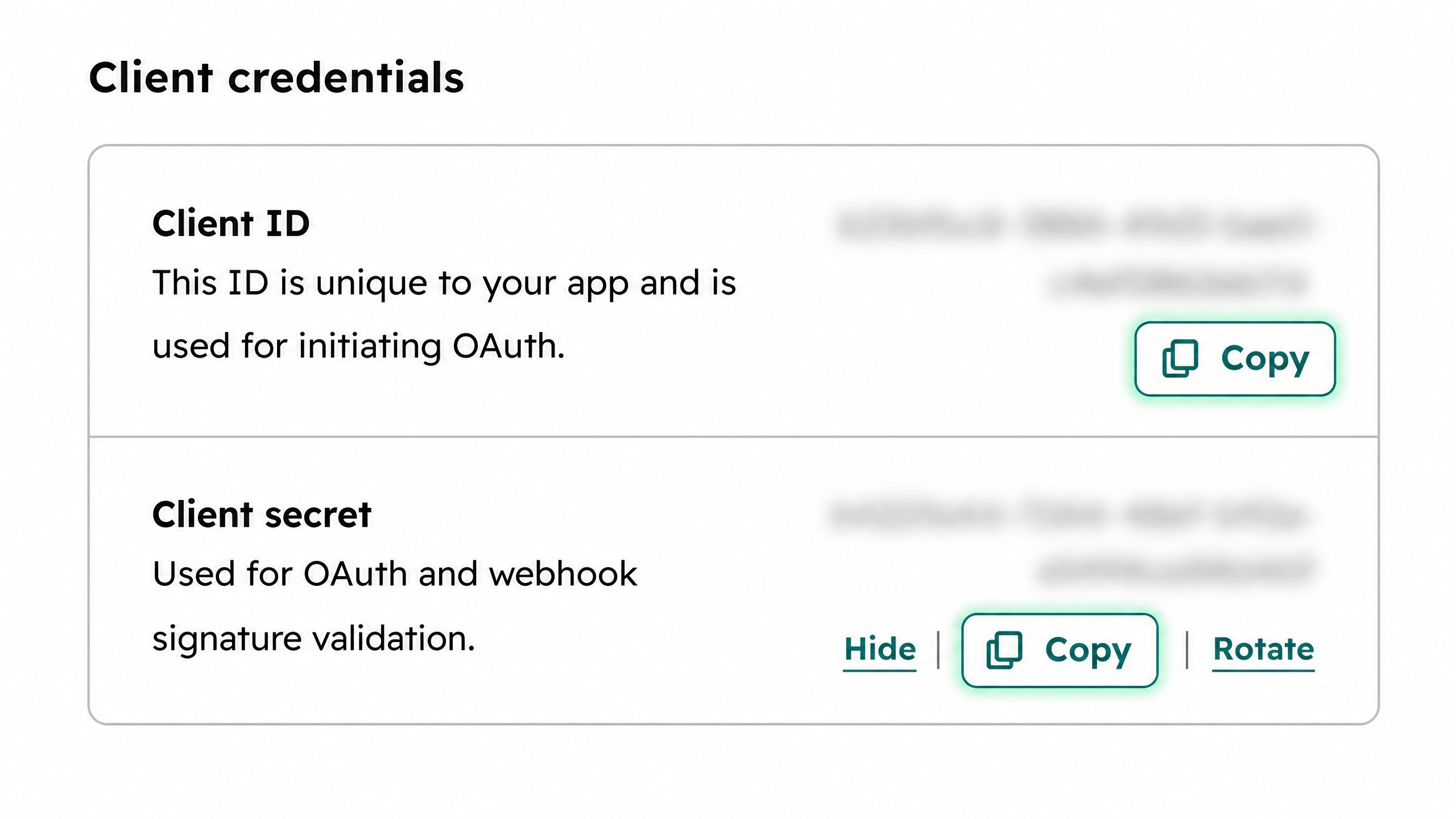
Before you begin, choose your connection type. If you’re unsure, refer to Which type of connection should I use? Then follow the instructions below for your chosen type.- API Token
- OAuth (Org-level or Per-member)
- Login to HubSpot
- Click on Settings (gear icon at the top right)
- In the left sidebar, scroll down to Integrations and click Private Apps or Personal Access Key
- Scroll down and click Generate token
- Click Show to reveal the token, then click Copy
Step 2: Add HubSpot as an API connector in TextQL
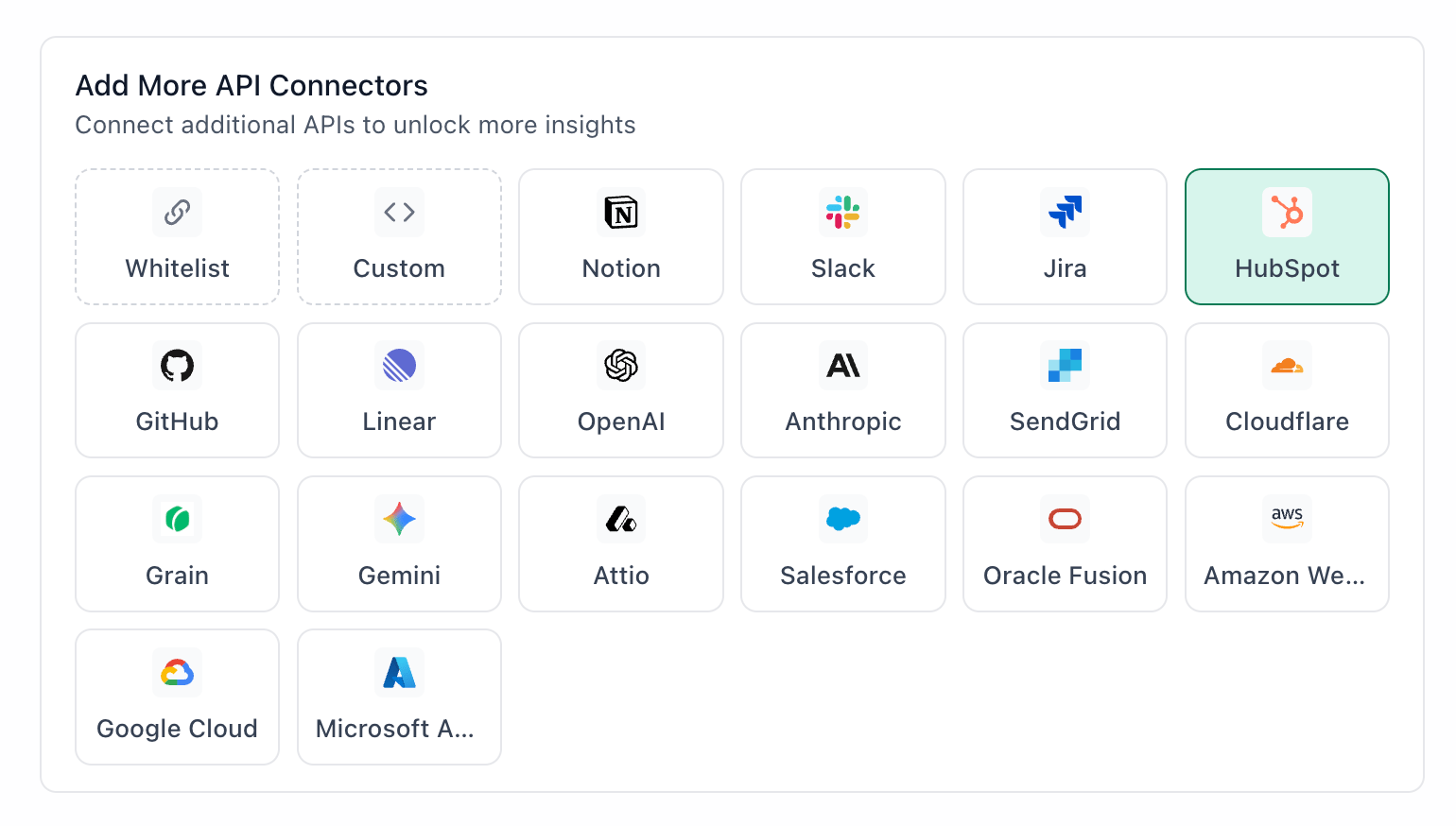
HubSpot highlighted in the TextQL API Connectors setup panel — select it to open the connector configuration form
- Go to app.textql.com and sign in.
- In the bottom left sidebar, click Connectors > APIs and select HubSpot.
- In the configuration panel, fill in the fields depending on your connection type:
- API Token
- Name (e.g. HubSpot
API Token) - Authentication type: select API Token
- Token: paste the token copied from Step 1
- Name (e.g. HubSpot
- OAuth (Org-level or Per-member)
- Name (e.g. HubSpot
OAuth) - Authentication type: select OAuth (org-level) or OAuth (per-member)
- Client ID and Client Secret: paste the values copied from Step 1
- Scopes: enter
oauth crm.objects.contacts.read crm.objects.contacts.write - Grant Type: select Authorization Code
- Token Auth Method: select POST params
- Authorization URL:
https://app.hubspot.com/oauth/authorize - Token URL:
https://api.hubspot.com/oauth/v3/token - Hosts:
https://api.hubapi.com:443 - OAuth Authentication: click Authenticate — a popup will appear asking for permissions to access your HubSpot account. Click Allow.
- Name (e.g. HubSpot
- API Token
- Click Save.
Step 3: Verify the connection
Once saved, confirm the connector is active:- Click on the HubSpot connector and select Test Connection at the bottom of the panel.
- A successful setup will return Connection successful (200).
- If the test fails, refer to the Troubleshooting section for next steps.
5. Usage Examples
Once configured, you can ask Ana:- “Show me all deals over $50k that haven’t been updated in more than 10 days.”
- “Which deals are expected to close this quarter but have no recent activity?”
- “Find all contacts who attended a webinar but haven’t been followed up with.”
- “How many leads came from paid search vs. organic last quarter?”
- “What’s the average ticket resolution time by team this month?”
6. Troubleshooting
7. Security Notes
- Follow the principle of least privilege when creating Private Apps or OAuth applications in HubSpot. Grant only the scopes required for Ana to query the data you need — for example, if you only need deal and contact data, do not enable scopes for billing or account settings.
- Private App tokens remain valid until they are manually revoked. Store them securely and rotate them if you suspect they have been exposed.
- OAuth access may require re-authentication if the connected user’s HubSpot account is deactivated, their role is changed, or the OAuth app’s authorization is revoked from within HubSpot.
- Do not share Private App tokens, client secrets, or OAuth credentials in email, chat, tickets, or other unsecured locations.
- If you no longer need the integration, revoke the Private App’s token or remove the OAuth app’s access under HubSpot Settings > Integrations > Private Apps, and remove the connector from TextQL.
- For more details on how HubSpot handles API authentication and token security, refer to the HubSpot Developer Documentation.