

1. Overview
The Ana x Salesforce integration connects your Salesforce org to Ana, giving you natural language access to your CRM data — accounts, opportunities, contacts, leads, and pipeline. Once configured, Ana can query deal stages, track pipeline progress, surface at-risk opportunities, and analyze sales performance directly in Ana.Connect Salesforce to Ana to query and analyze your team’s CRM and sales data using natural language.
2. Prerequisites
You’ll need:- A Salesforce Enterprise or Developer Edition org you want Ana to query
- Admin access to create and manage a Connected App
- Python 3 installed locally (used once to generate a refresh token)
- A TextQL account with permission to add API connectors
3. Capabilities
Once configured, Ana can:- Query open, active, or stalled opportunities across any pipeline or sales team in plain language.
- Track how many deals are in each stage and identify which ones haven’t had recent activity.
- Analyze lead sources, conversion rates, and sales performance over time.
- Get a snapshot of account and contact data, including follow-up status and engagement history.
- Surface at-risk opportunities and highlight records that need attention across your team.
4. Setup Instructions
Step 1: Create a Salesforce Connected App
- From your Salesforce welcome page, open the Setup Menu (gear icon, top right) and click Setup for current app.
- Search for App Manager in the Quick Find menu on the top left.
- Click New External Connected App.
- Name your app and enter a valid contact email in the required field.
- Enable OAuth and grant access to scopes. We recommend starting in a sandbox org and granting All scopes. Set the callback URL to
http://localhost:8080/callbackand check Introspect all Tokens toTrue.
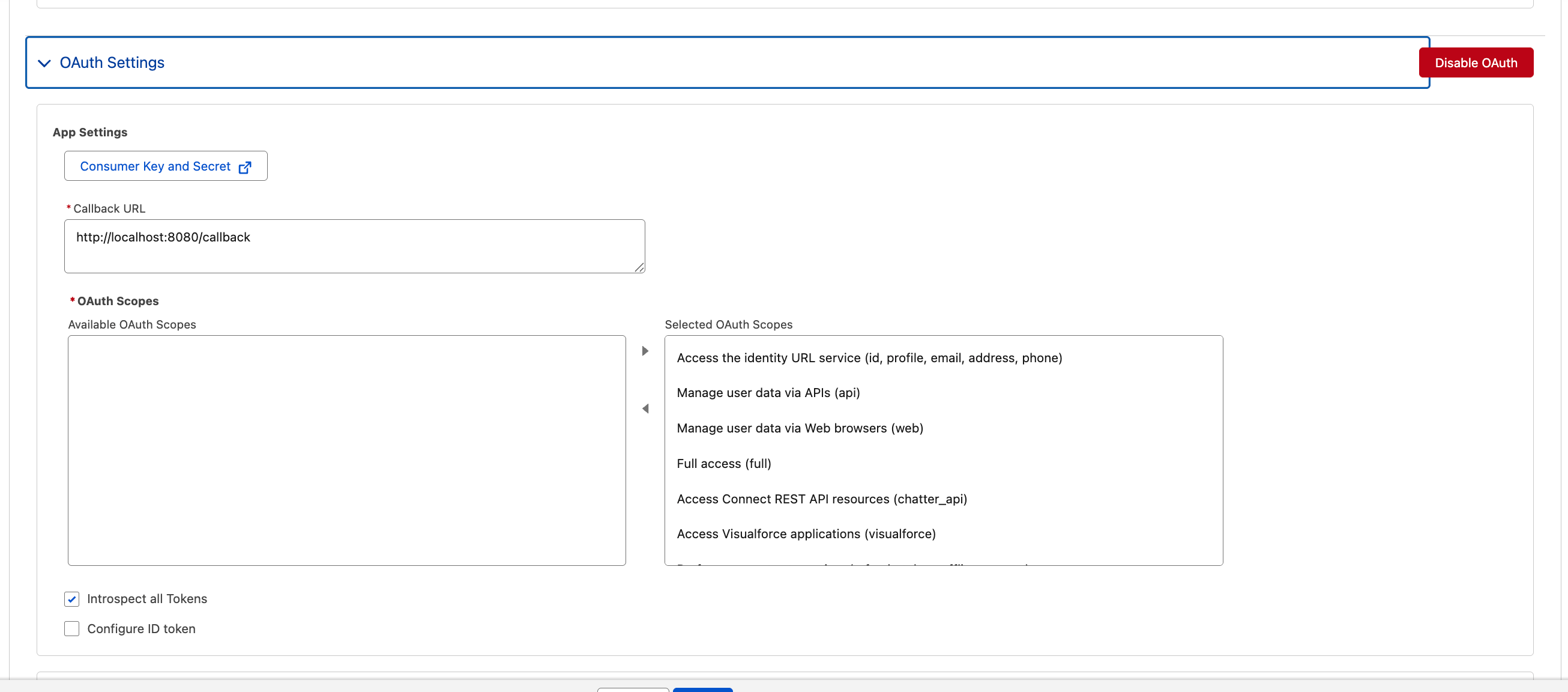
Enable OAuth, add the localhost:8080 callback, and grant scopes. The callback is used to fetch a refresh token in Step 2.
- Configure the Flow Enablement and Security settings, then click Save to create the app.
- Navigate to the External Client App Manager page, find your app, and open its OAuth settings.
- Click Consumer Key and Secret, authenticate as prompted, then copy the Consumer Key and Consumer Secret — you’ll need them next.
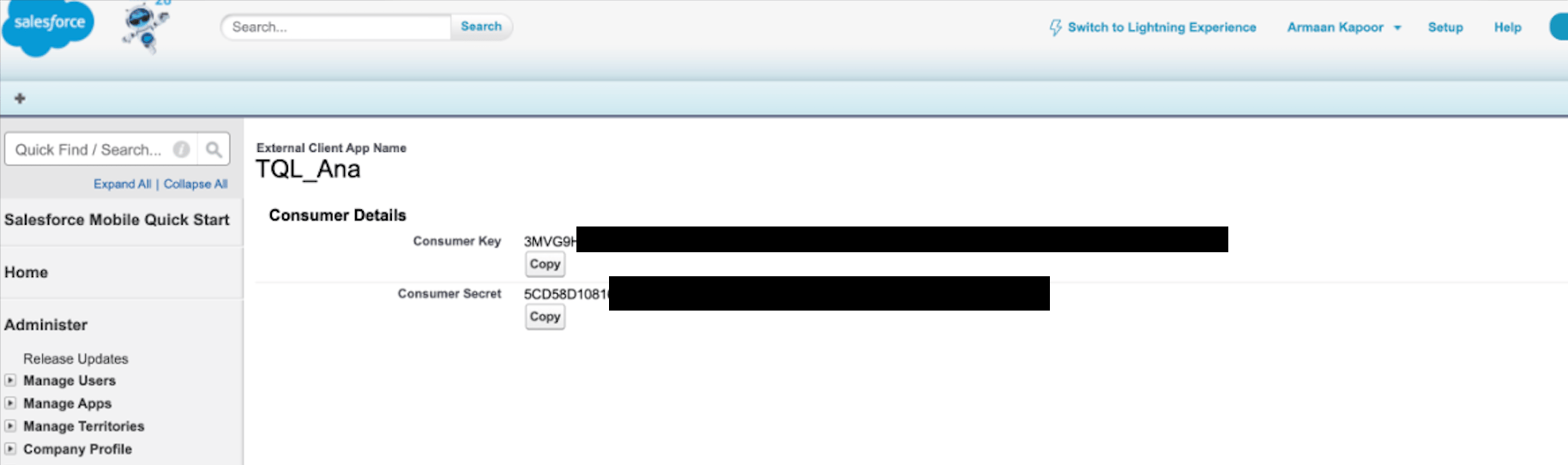
Copy the Consumer Key and Consumer Secret. Treat the secret like a password.
Step 2: Generate a refresh token
Salesforce access tokens are short-lived, so Ana authenticates with a refresh token. Its validity period is determined by the settings you configured on the Connected App. Run the following Python script, replacingYOUR_CONSUMER_KEY and YOUR_CONSUMER_SECRET with the values from Step 1:
- Open your browser to the Salesforce login page.
- Start a local server on
localhost:8080to receive the OAuth callback. - Exchange the authorization code for a refresh token.
- Display the refresh token and instance URL in your terminal.
If you’re using a sandbox org, update
LOGIN_URL to your sandbox URL (e.g. https://test.salesforce.com or your custom domain).Step 3: Add Salesforce as an API connector in TextQL
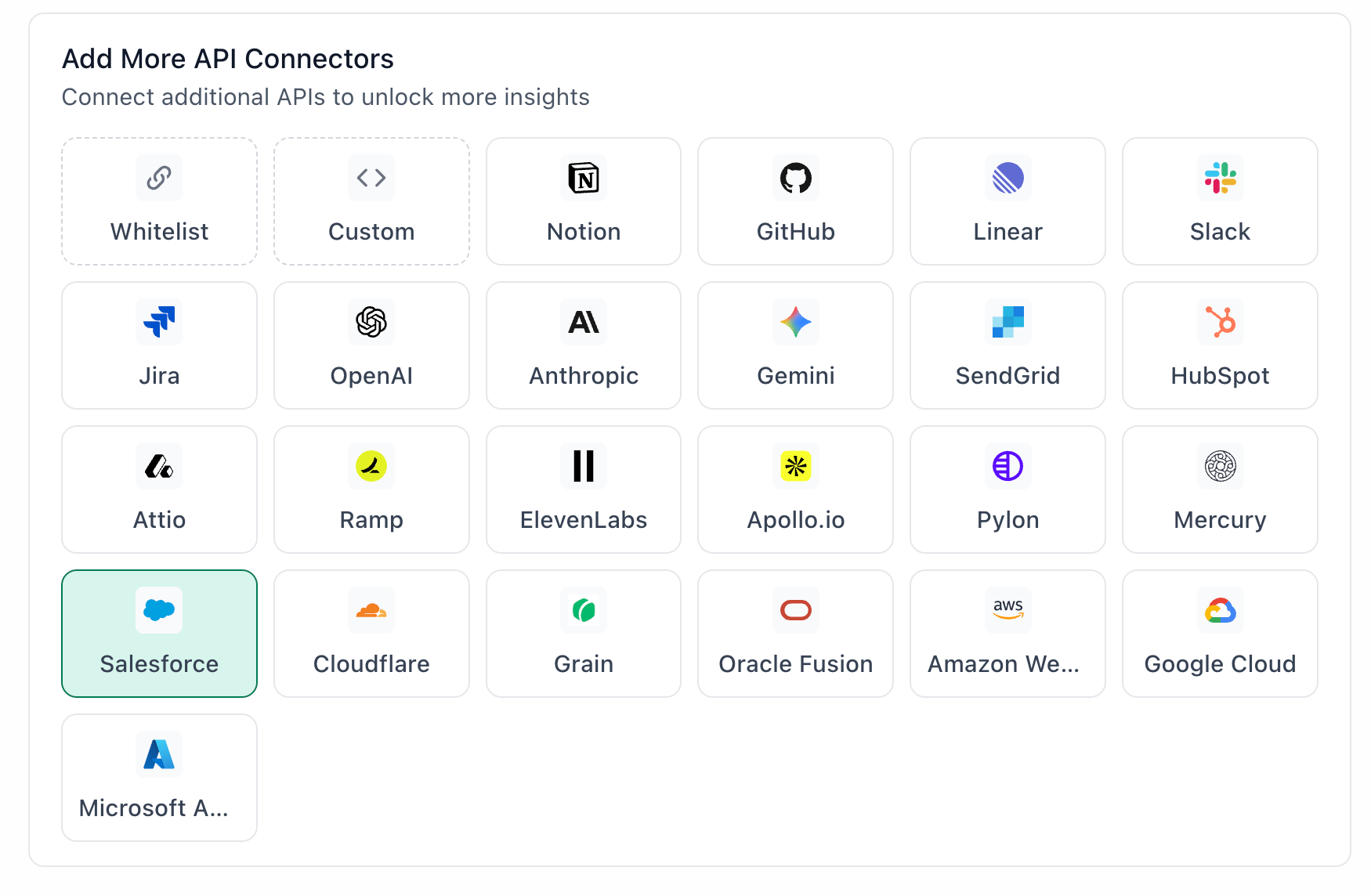
Salesforce highlighted in the TextQL API Connectors setup panel — select it to open the connector configuration form
- Go to app.textql.com and sign in.
- In the bottom left sidebar, click Connectors > APIs and create a new connector:
- Name:
salesforce_refresh_token - Value: Paste the refresh token from Step 2
- Name:
- Click Save.
- Paste the following prompt into Ana, replacing
YOUR_CONSUMER_KEY,YOUR_CONSUMER_SECRET, andYOUR_INSTANCE_URLwith your values. The{{salesforce_refresh_token}}reference is automatically replaced with your stored secret.
If you’re using a sandbox org, update
LOGIN_URL to https://test.salesforce.com or your custom sandbox domain.Step 4: Verify the connection
Confirm everything is working by running the following script locally. Fill in the values from the previous steps:CLIENT_ID: Your Consumer KeyCLIENT_SECRET: Your Consumer SecretREFRESH_TOKEN: The refresh token from Step 2INSTANCE_URL: The instance URL from the script outputLOGIN_URL: Your Salesforce login URL
5. Usage Examples
Once configured, you can ask Ana:- “Show me all open opportunities over $50k that haven’t been updated in more than 10 days.”
- “Which deals are expected to close this quarter but have no recent activity?”
- “Find all contacts tied to accounts with no opportunity in the last 90 days.”
- “How many leads came from paid search vs. organic last quarter?”
- “What’s the average time an opportunity spends in each stage this year?“
6. Troubleshooting
7. Security Notes
- Follow the principle of least privilege — grant only the scopes Ana needs to query the data you care about. Read scopes are sufficient for analytics.
- Treat the Consumer Secret and refresh token like passwords. Store them only in the secure connector field and never share them in email, chat, or tickets.
- Refresh tokens remain valid based on your Connected App’s session settings. Rotate them if you suspect exposure, and re-run the Step 2 script to issue a new one.
- If you no longer need the integration, revoke the Connected App in Salesforce and remove the connector from TextQL.
- For more details, refer to the Salesforce OAuth documentation.
Need Help?
For further assistance, please contactsupport@textql.com.