

1. Overview
Connect your Grain workspace to Ana to analyze meeting activity, surface insights from transcripts, and track engagement across your team’s calls. Ana can fetch recording details, search meeting notes, and summarize highlights from past conversations.Store your Grain API key as an API Connector in TextQL, and Ana will be able to query your meeting recordings, transcripts, and highlights.
2. Prerequisites
You’ll need:- A TextQL account with permissions to add API connectors
- A Grain account to generate a Personal Access Token (PAT)
- Or a Grain admin account if you are generating a Workspace Access Token (WAT)
Which token should I use?
If you are setting this up on behalf of your team, use a WAT. A PAT will limit Ana to your personal data only, which may cause incomplete results for shared workflows.
3. Capabilities
Once configured, Ana can:- Fetch recording details (title, date, duration, participants)
- Search and filter meetings by topic, date, or speaker
- Analyze engagement across your team’s calls
- Surface highlights and key moments from transcripts
- Generate reports on meeting activity and conversation trends
TextQL targets the Grain v2 API (
https://api.grain.com/_/public-api/v2/...). Grain has deprecated their v1 API (the same paths without the /v2 segment) — v1 requests will stop working when Grain sunsets it. Every v2 request must include a Public-Api-Version header (currently 2025-10-31), and the v2 list endpoints (recordings, users) are POST requests. TextQL’s built-in connection test handles this automatically; include the header yourself when asking Ana to call other Grain endpoints.4. Setup Instructions
Step 1: Generate Your Grain API Key
Before configuring TextQL, you’ll need an API key from Grain.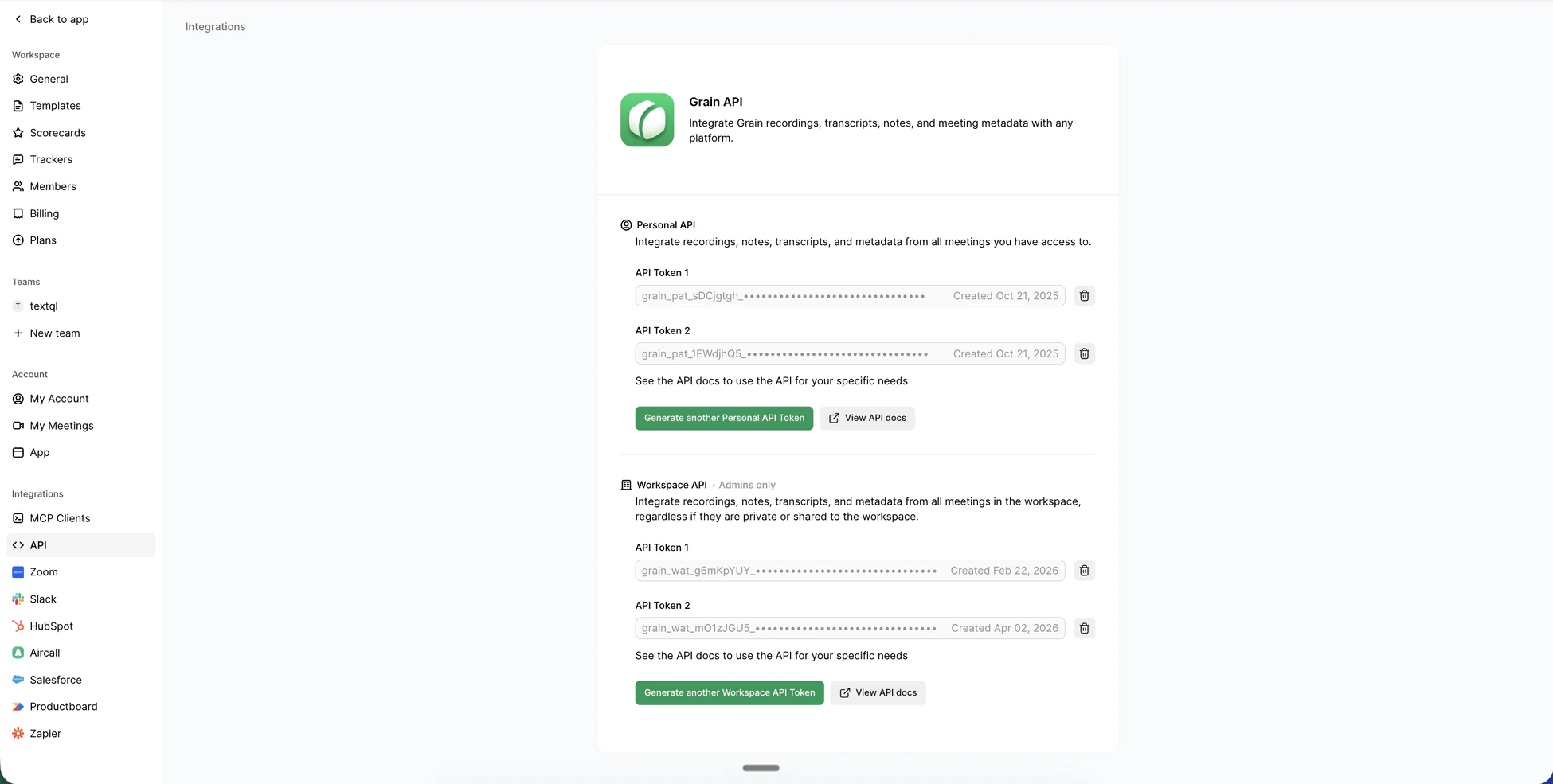
Grain's API & Integrations page showing both Personal and Workspace Access Token sections — generate a WAT here if you need workspace-wide access
- Log in to Grain.
- Click your name at the top-left corner, below your organization name.
- Go to My Account.
- Scroll down to Integrations and click API.
- Under the relevant section, click Generate token:
- Personal access token — for querying your own meetings
- Workspace access token — for querying all workspace meetings (admins only)
- Copy the token value immediately after it is generated.
Step 2: Add Grain as an API Connector in TextQL
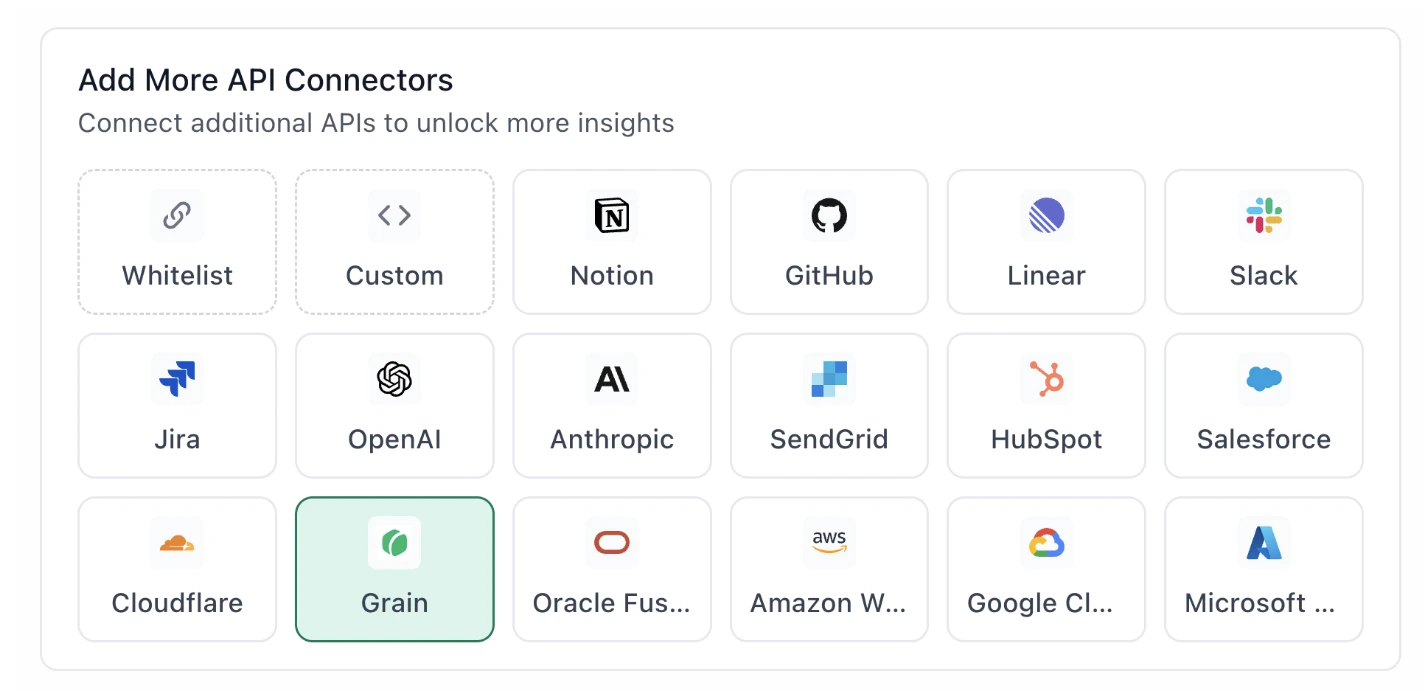
Grain highlighted in the TextQL API Connectors setup panel — select it to open the connector configuration form
- Go to app.textql.com and sign in.
- In the bottom-left sidebar, click Connectors.
- Select the APIs tab.
- Navigate to Add more API connectors and click Grain.
- In the configuration panel, fill in the following fields:
- Name — a label for this connection (e.g.
Grain WorkspaceorGrain - [Your Name]) - Access token — paste the key you copied in Step 1
- Name — a label for this connection (e.g.
- Click Save.
Step 3: Verify the Connection
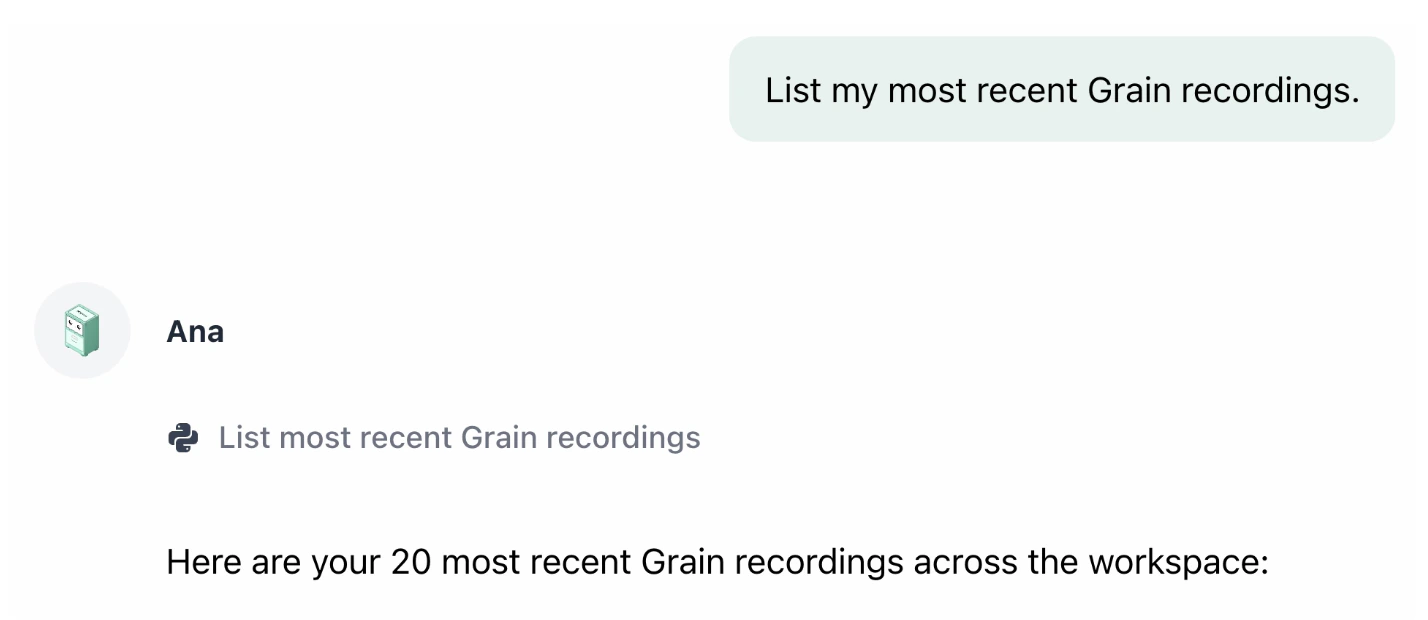
Ana returning a list of recent workspace recordings after a successful Grain connection — a good first query to confirm everything is working
- Click on the Grain connector and select Test Connection at the bottom of the panel.
- A successful setup will return Connection successful (200).
- If the test fails, refer to the Troubleshooting section for next steps.
5. Usage Examples
Once your Grain connector is live, try asking Ana:- “What were the key takeaways from my last 5 sales calls?”
- “Summarize the highlights from today’s morning meeting.”
- “Which team members have had the most customer calls this month?” (WAT required)
- “Pull the transcript from my sales call with TextQL on June 2.”
6. Troubleshooting
7. Security Notes
- Grain API tokens do not expire automatically. You are responsible for rotating them periodically or immediately if compromised.
- A PAT grants access to your personal recordings only. A WAT grants access to all workspace recordings — treat it accordingly and limit who has visibility to it in TextQL.
- Your API token is stored securely in TextQL as an API Connector and is not exposed in Ana’s responses or logs.
- To revoke Ana’s access, go to Grain → My Account → Integrations → API and delete the token. Then remove or update the connector in TextQL under Connectors → APIs.
- For more information on how Grain handles PAT and WAT, refer to Grain’s official documentation.